Solved the problem myself but unfortunately I am not quite sure how I did it!!! Solution lay with the Nvidia display controls.
Windows 7 Professional 64 bit
Nvidia Quadro
Samsung 2693HM (Main VDU) & HPLP2065 (left hand secondary VDU connected via VGA/Converter/HDMI cable)
Wacom Intuos 3 tablet
Previous setup as above except secondary VDU was a Hanns G. - worked perfectly.
Now I have cursor problem.
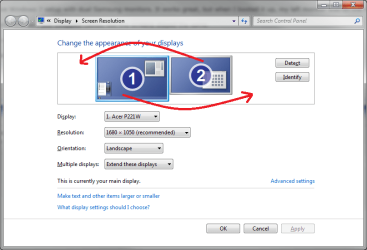
Previously as I moved pen from right to left, the cursor moved from the right to the left of the main monitor and at the mid point or thereabouts of the tablet the cursor moved from the main monitor across to the left hand monitor and continued from right to left. Now if I do the same, the cursor starts on the right of the secondary monitor, moves across to the left and at the mid point of the tablet position, it appears on the right of the main monitor ad continues moving left. One solution is to move the secondary monitor to the right hand side of the main one, but I don't want it there!
I have tried switching the display configuration on the Nvidia display setup area and also switching the primary monitor but neither solves the problem.
I'm not sure if this requires an adjustment on the display controls or the tablet ones. Also, why does it not work now when it was fine with the other monitor. All that has changed is the monitor and the need for a VGA to DMI convertor.
Windows 7 Professional 64 bit
Nvidia Quadro
Samsung 2693HM (Main VDU) & HPLP2065 (left hand secondary VDU connected via VGA/Converter/HDMI cable)
Wacom Intuos 3 tablet
Previous setup as above except secondary VDU was a Hanns G. - worked perfectly.
Now I have cursor problem.
Previously as I moved pen from right to left, the cursor moved from the right to the left of the main monitor and at the mid point or thereabouts of the tablet the cursor moved from the main monitor across to the left hand monitor and continued from right to left. Now if I do the same, the cursor starts on the right of the secondary monitor, moves across to the left and at the mid point of the tablet position, it appears on the right of the main monitor ad continues moving left. One solution is to move the secondary monitor to the right hand side of the main one, but I don't want it there!
I have tried switching the display configuration on the Nvidia display setup area and also switching the primary monitor but neither solves the problem.
I'm not sure if this requires an adjustment on the display controls or the tablet ones. Also, why does it not work now when it was fine with the other monitor. All that has changed is the monitor and the need for a VGA to DMI convertor.
Last edited:
My Computer
At a glance
Windows 7Intel i7 4-Core 2.8Ghz4 GBytesGV-NX66T128D
- Computer Manufacturer/Model Number
- Home build
- OS
- Windows 7
- CPU
- Intel i7 4-Core 2.8Ghz
- Motherboard
- Gigabyte GA-P55-UD5
- Memory
- 4 GBytes
- Graphics Card(s)
- GV-NX66T128D
- Sound Card
- On motherboard
- Monitor(s) Displays
- Samsung Syncmaster 2693HM
- Screen Resolution
- 1920x1200
- Internet Speed
- 1.8