Dual installation XP and 7

StayOkay

New member
Local time
8:13 PM
Messages
6
Hi all,

I have the following problem.
After installing Windows 7 on my XP machine I tried to start "Earlier version of Windows" I only get a blinking cursor in the upper left corner of my screen.
Starting Windows 7 goes fine.
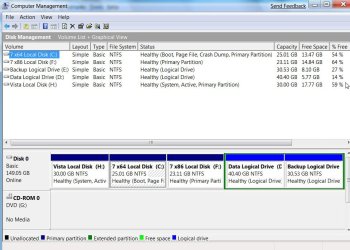
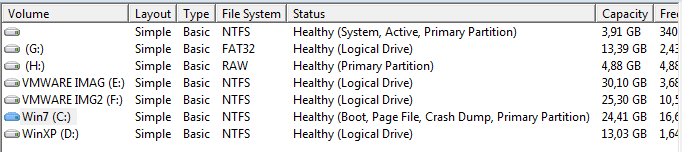
Here's how my hard disk looks like: (see attachement)
On the volume with no drive letter are all the boot files, XP and 7, alongside.
On D: is XP and on C: is Win7.
Strange thing is that I don't remember to have that volume with no drive letter before I installed windows 7.
There is content on that volume which belonged to D: if I remember correctly.
Further more Win7 has the status of Boot but not Active, the nameless volume is System and Active and both are primary partitions. D: is not.
So why can it boot Windows 7 and not XP?
I think that first the nameless volume is being accessed and it starts whatever has been chosen in the boot menu but it can only start Windows 7 maybe because Volume c is marked as Boot and on a primary partition and XP is none of that.
The installation of Windows 7 created this.:cry:

I have installed Easybcd.
Will this help me to solve the problem?
If I can'tmake the dual boot to work how can I safely remove Windows 7 and boot XP to have it another go?
 

Attachments
  • My Volumes.PNG
    My Volumes.PNG
    6.2 KB · Views: 36

My Computer My Computer

OS
xp, windows 7
right click computer/manage/disk management and click the blank drive and assign it a letter then see how you progress :geek:

In easybcd after you have got a drive letter assigned and reebooted you can Create a Dual Boot Menu to include XP , instructions here :D
 

My Computer My Computer

Computer Manufacturer/Model Number
built my own
OS
win7 ultimate / virtual box
CPU
Intel Core i7 3770K,1155, Ivy Bridge
Motherboard
MSI Z77A-G43
Memory
GSkill Ripjaws Z Series 1600 CL 9.0 16GB
Graphics Card(s)
KFA2 GeForce GTX 670 EX OC 2048MB GDDR5 PCI-E gfx card
Sound Card
onboard Nvidia HDMI audio
Monitor(s) Displays
ASUS VK222H 22" widescreen LCD monitor
Screen Resolution
1680x1050
Hard Drives
Kingston 128gb SSD
OCZ Vertex 90gb SSD
500GB WDCaviar 16mb 5000KS
320GB WDCaviar 16mb 3200AAKS sata 2
1TB Samsung 16mb HD103SJ sata 2
PSU
Corsair HX 750W ATX2.2 Modular
Cooling
Antec 25 Kuhler H2O 620
Keyboard
logitech
Mouse
logitech MX518
Internet Speed
7mb adsl
Ickymay, thanks for your reply, but I already tried it with a drive letter, still no go.
Using easybcd to create a dual boot menu is not neccessary because I installed Windows 7 on a machine with XP already installed.
One of my questions is: is it possible to boot XP when you look at my volumes?
The volume with XP on it is not a primary but a logical one.
 

My Computer My Computer

OS
xp, windows 7
Ickymay, thanks for your reply, but I already tried it with a drive letter, still no go.
Using easybcd to create a dual boot menu is not neccessary because I installed Windows 7 on a machine with XP already installed.
One of my questions is: is it possible to boot XP when you look at my volumes?
The volume with XP on it is not a primary but a logical one.
yes all a boot menu does is point to the file that boots any OS on any drive but I reckon installing win 7 has changed some of the references in the boot file and need adjusting so they point to the right places :geek:

I would check those post's for reference and use easybcd to reset everything to give you a dual boot choice ;)
 

My Computer My Computer

Computer Manufacturer/Model Number
built my own
OS
win7 ultimate / virtual box
CPU
Intel Core i7 3770K,1155, Ivy Bridge
Motherboard
MSI Z77A-G43
Memory
GSkill Ripjaws Z Series 1600 CL 9.0 16GB
Graphics Card(s)
KFA2 GeForce GTX 670 EX OC 2048MB GDDR5 PCI-E gfx card
Sound Card
onboard Nvidia HDMI audio
Monitor(s) Displays
ASUS VK222H 22" widescreen LCD monitor
Screen Resolution
1680x1050
Hard Drives
Kingston 128gb SSD
OCZ Vertex 90gb SSD
500GB WDCaviar 16mb 5000KS
320GB WDCaviar 16mb 3200AAKS sata 2
1TB Samsung 16mb HD103SJ sata 2
PSU
Corsair HX 750W ATX2.2 Modular
Cooling
Antec 25 Kuhler H2O 620
Keyboard
logitech
Mouse
logitech MX518
Internet Speed
7mb adsl
Hi,

A Logical drive can be a boot partition. It will only show as boot in Disk Management if you are currently booted into it.

It seems there is something wrong either with the bcd entry, or with boot.ini.

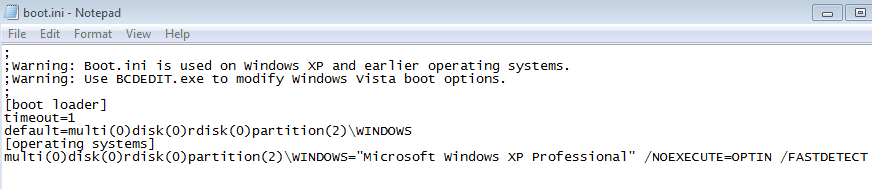
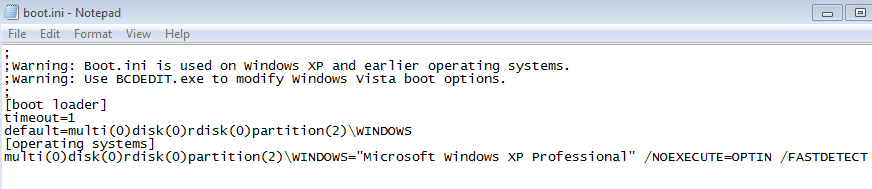
First have a look at boot. ini. Right click and select Edit - it is a text file - it needs to point to the hard drive and partition XP is on.

Give the System partition a drive letter, open an elevated command prompt, type:

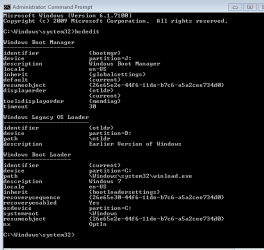
bcdedit {enter}

then post the results - a screenshot will be fine.

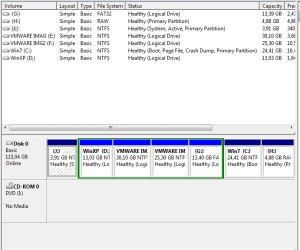
A full screenshot of Disk Management window would be nice, also, like this:

DISKMANAGEMENT2009-02-04_031947.jpg
 

My Computers My Computers

System One System Two

  • Computer type
    PC/Desktop
    OS
    7 X64
    CPU
    i5 8400
    Motherboard
    gigabyte b365m ds3h
    Memory
    2x8gb 3200mhz
    Hard Drives
    various
    PSU
    pure power 11 400w cm
    Case
    Coolermaster
    Cooling
    cryorig m9i
  • Computer type
    PC/Desktop
    OS
    7x64
    CPU
    g5400
    Motherboard
    ga b365m ds3h
    Memory
    8gb ddr4 2400
    PSU
    xfx pro 450w
Thanks SIW2,

Here is the info you were asking for: see attachements.
 

Attachments

  • bcdedit.PNG
    bcdedit.PNG
    9.3 KB · Views: 23
  • Disk.PNG
    Disk.PNG
    12.3 KB · Views: 19
  • bootini.PNG
    bootini.PNG
    6.5 KB · Views: 10

My Computer My Computer

OS
xp, windows 7
If you look at your 1st pic. read carefully you have DEFAULT marked on two different partitions. You can only have 1 current and only 1 default. even if both are current,default at the same time.
i suggest you use MSCONFIG --> boot then it is really EASY TO ADD-delete-modify your setting.
 
Hi Stayokay,

You should have bootmgr and bootloader showing as {current}, even if they are on different partitions - so that bit looks ok.

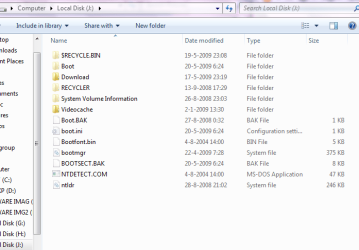
Can you go to Folder Options, show hidden files and protected operating system files, then have a look at J and check the boot.ini configuration.

See if it says something like this:

multi(0)disk(0)rdisk(0)partition(2)

Easier to post a screesnshot of J , so we can see all the bootfiles, and also post the contents of boot.ini.

If the XP bootfiles are on J, then the ntldr entry in bcd should also be for J, not D.
 

My Computers My Computers

System One System Two

  • Computer type
    PC/Desktop
    OS
    7 X64
    CPU
    i5 8400
    Motherboard
    gigabyte b365m ds3h
    Memory
    2x8gb 3200mhz
    Hard Drives
    various
    PSU
    pure power 11 400w cm
    Case
    Coolermaster
    Cooling
    cryorig m9i
  • Computer type
    PC/Desktop
    OS
    7x64
    CPU
    g5400
    Motherboard
    ga b365m ds3h
    Memory
    8gb ddr4 2400
    PSU
    xfx pro 450w
Oke SIW2,

this is wat my boot.ini and J: looks like:

I have also placed the ntldr on D:.

Hope this will help you further.

Thanks again for your help.
 

Attachments

  • boot J.PNG
    boot J.PNG
    20.4 KB · Views: 13
  • bootini.PNG
    bootini.PNG
    6.5 KB · Views: 9

My Computer My Computer

OS
xp, windows 7
That looks ok.

You need to keep ntldr where it is - on J. If you have copied it to D, that doesn't matter as it is still on J as well.

If you have moved it to D, then you need to move it back to J.

If you are using Easybcd , first remove the existing entry for Earlier version of Windows.

Then use Easybcd to create a new Earlier version of windows entry - this time point it at partition J.

You can change the name to something else if you like , XP if you prefer - you can do that with Easybcd too.
 

My Computers My Computers

System One System Two

  • Computer type
    PC/Desktop
    OS
    7 X64
    CPU
    i5 8400
    Motherboard
    gigabyte b365m ds3h
    Memory
    2x8gb 3200mhz
    Hard Drives
    various
    PSU
    pure power 11 400w cm
    Case
    Coolermaster
    Cooling
    cryorig m9i
  • Computer type
    PC/Desktop
    OS
    7x64
    CPU
    g5400
    Motherboard
    ga b365m ds3h
    Memory
    8gb ddr4 2400
    PSU
    xfx pro 450w
Thanks again SIW2,

but the problem stays the same. I end up with a blinking cursor in the upper left corner.
It looks like the boot process finds the ntldr but it doesn't know where to find the rest of the boot files or Windows XP for that matter.
With the installation of Win 7 something has been broken.
How can I fix this? Do you have any more ideas?
Is there a way back? How to deinstall Win7 and go back to XP and then try it again with Win7?
Does Win 7 make use of a ntldr anyway?
Why are all the boot files on another partition then the system files?
I know a lot of questions, I hope you have some answers?

Thnx Frits
 

My Computer My Computer

OS
xp, windows 7
Hi,

If Bcd is pointing to Ntldr, and boot.ini is pointing to the location of Xp, then I don't know what is causing the problem.

The bootfiles will always be installed on the partition that is marked Active at the time of installation.

The o/s files will be installed on whichever partition you pointed them at during the installation - not necesssarily the Active partition. That is how it should be.

NT6 o/s (Vista and Win7) use bootmgr and Bcd.

XP uses ntldr and boot.ini.

Hope it helps
 

My Computers My Computers

System One System Two

  • Computer type
    PC/Desktop
    OS
    7 X64
    CPU
    i5 8400
    Motherboard
    gigabyte b365m ds3h
    Memory
    2x8gb 3200mhz
    Hard Drives
    various
    PSU
    pure power 11 400w cm
    Case
    Coolermaster
    Cooling
    cryorig m9i
  • Computer type
    PC/Desktop
    OS
    7x64
    CPU
    g5400
    Motherboard
    ga b365m ds3h
    Memory
    8gb ddr4 2400
    PSU
    xfx pro 450w
SIW2,

I can't get it to work. I'am afraid that some actions in the past on this drive, dual boot Linux-XP and re-partioning, did something to the partitions.
It's not that a problem. The pc is being used by my kids (games) and for testing os's. It seems like I will be using Win7 earlier than expected.
Thanks again for your help.
 

My Computer My Computer

OS
xp, windows 7
Back
Top