
Firstly, I'm just going to say that I learned pretty much everything I know about computers from google so please be nice to me.
A couple of days ago windows update cause my CPU load to be constantly at 100%. So I googled. Someone advised to deleting the software distribution folder will fix it so I did. It didn't it just made me lose my updates history and hidden updates list. FAIL on that one.
Then I downloaded the windows update repair tool. FAIL again.

Tried to look for a newer version of windows update client. None.
Then tried windows fix it. Didn't help.
Next I used the SURT. I left that running for more or less 6 hrs. It asked me if I want to install hotfix. I clicked yes. Never got pass the initializing stage. For 6 hrs! So I gave up on that one.
Then windows gave me a notification that it will install updates blah blah. For some reason those updates are not showing up on the client. I still says never checked for updates or something like that. When I shut down the computer it installed. That happened 3 more times. So I checked my installed updates list. I think it was just reinstalling updates that I have already installed before. Gah.
Then I tried sfc /scannow. Didn't help.
Tried the windows update repair tool again. I got a different error this time.
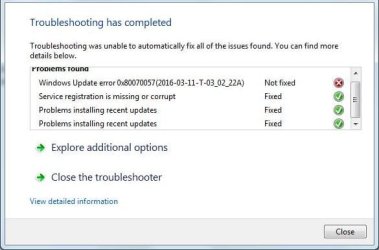
And now I'm desperate. The only way for me to keep my cpu load from being constantly at 100% is to set windows update to never install updates. I don't really mind turning it off but if there's a way to fix it.. So please, if any of you guys can help me, I'd really really appreciate it.
Ps: I'm sorry for the very long post....
A couple of days ago windows update cause my CPU load to be constantly at 100%. So I googled. Someone advised to deleting the software distribution folder will fix it so I did. It didn't it just made me lose my updates history and hidden updates list. FAIL on that one.
Then I downloaded the windows update repair tool. FAIL again.
Tried to look for a newer version of windows update client. None.
Then tried windows fix it. Didn't help.
Next I used the SURT. I left that running for more or less 6 hrs. It asked me if I want to install hotfix. I clicked yes. Never got pass the initializing stage. For 6 hrs! So I gave up on that one.
Then windows gave me a notification that it will install updates blah blah. For some reason those updates are not showing up on the client. I still says never checked for updates or something like that. When I shut down the computer it installed. That happened 3 more times. So I checked my installed updates list. I think it was just reinstalling updates that I have already installed before. Gah.
Then I tried sfc /scannow. Didn't help.
Tried the windows update repair tool again. I got a different error this time.
And now I'm desperate. The only way for me to keep my cpu load from being constantly at 100% is to set windows update to never install updates. I don't really mind turning it off but if there's a way to fix it.. So please, if any of you guys can help me, I'd really really appreciate it.
Ps: I'm sorry for the very long post....
My Computer
- Computer type
- Laptop
- Computer Manufacturer/Model Number
- Acer
- OS
- Windows 7 32 Bit