Hi !! Welcome to SF !!
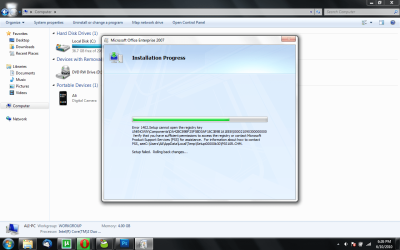
I have seen simialar issue with another software but the fix is kind of same. This happens when you don't have enough permission to those Registry Key you have mentioned in the error message. It quiet lengthy fix
First we have to
Enable Build-in Administrator
Then Login under
Build in administrator
Although, the GUIDS that appear in the actual error message which are beneath the parent key, are random. Please use the following steps to work around this issue:
1. Click Start under search type
regedit.
2. Click Edit and select Find. The Find dialog box appears.
3. In the Find What field, type the
GUID that was referenced in the error message and click Find Next.
Once located from the search, give the registry key adequate permissions:
1. Right-click on the key and select Properties. Click on the Security tab.
2. Click the Advanced button, then select the Owner tab.
3. Under the Owner tab, highlight the account your are currently signed into Windows as,
check the "
Replace owner on subcontainers and objects" box, click Apply, then click OK.

4. Close the Properties screen, then reopen it (see Step a).
5. Click the Security tab, highlight User account you selected to be the Owner in Step d and click the Advanced button and then Edit on the Permissions tab.

6. Check all boxes under the Allow column. Click Apply, then click OK.

7. Close out of the registry and attempt the installation again.
Note: If you recieve the same error, but referencing another GUID after giving permission to the initial GUID that prompted the error, repeat the above section to search the registry and give the appropriate permission.
Hope this helps,
Captain