Ethernet and Network Controller issue

  • Thread starter Thread starter lofin
  • Start date Start date
L

lofin

Guest
Good afternoon, everyone
(In Brazil, it's half past noon right now.)

I'm running Windows 7 on my laptop for some time now, and I am really satisfied with it.

I have just one thing bugging me, since I can´t get it to work as it should.
Windows has recognized the "Ethernet Controller" and "Network Controller" as USB devices (therefore I can "Safely remove them").

I was wondering if any of you guys is going through something like that or have any clue on solving this issue.

(In case of any grammar or language mistakes, sorry. I don't have the chance to pratice the language every day here in Brazil :geek:)

LAN 10/100BASE-T Ethernet LAN integraded Wireless Intel PRO/Wireless 4965AGN
 
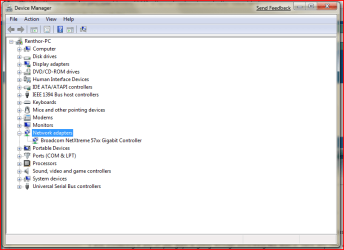
Hit your start menu and type in the search box "devmgmt.msc" (without the quotes), and run the program that is listed. You should get a screen similar to the one that is attached. What do you have listed under "Network Adapters"?
 

Attachments

  • devmgmt.msc.png
    devmgmt.msc.png
    23.5 KB · Views: 9,813

My Computer

Computer Manufacturer/Model Number
Dell 8400
OS
Windows 7 Beta 1 b7000
CPU
Intel Pentium 4
Memory
4GB
Graphics Card(s)
ATI Radeon HD3450
Sound Card
Creative SoundBlaster Audigy 2
Monitor(s) Displays
Acer AL2016W
Screen Resolution
1680x1050
Hard Drives
1x500GB
1x100GB
Case
Dell 8400
Cooling
Standard
Keyboard
Dell Multimedia Keyboard
Mouse
Logitech MediaPlay
Internet Speed
Comcastic!
Thanks for the reply, renthor.

I'm working right now.
I'll get back to you in a couple of hours, ok?
 
Here you go:


devicemanagerfy2.jpg
 
And they definitely show up in Safely Remove Hardware? Everything is integrated on your laptop? You're not using any sort of USB adapter?

And I'm guessing by the fact that Aero is enabled, this is not a VM install?

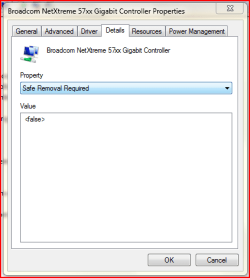
EDIT: Also, please try this for me. Go back to the device manager like you did before, right-click on your controller "Marvell Yukon..." and click on "Properties". On the window that pops up, click on the Details tab and then in the Properties drop down box, find the "Safe Removal Required" option and select that. Then please tell us what the resulting value is. I'm thinking it will say <true>, unlike my example capture below.
 

Attachments

  • devmgmt2.msc.png
    devmgmt2.msc.png
    10.4 KB · Views: 158

My Computer

Computer Manufacturer/Model Number
Dell 8400
OS
Windows 7 Beta 1 b7000
CPU
Intel Pentium 4
Memory
4GB
Graphics Card(s)
ATI Radeon HD3450
Sound Card
Creative SoundBlaster Audigy 2
Monitor(s) Displays
Acer AL2016W
Screen Resolution
1680x1050
Hard Drives
1x500GB
1x100GB
Case
Dell 8400
Cooling
Standard
Keyboard
Dell Multimedia Keyboard
Mouse
Logitech MediaPlay
Internet Speed
Comcastic!
traywk5.jpg


Nope. Everything intregaded on my laptop.

That´s right.
The OS is installed on my physical machine.


Any ideas why this is happening?
 
I have an idea, see my edit above. If I'm right, I can walk you through some semi-complicated registry edits to fix it.. but someone else might have an easier method.

Or you could just ignore it..everything is working correctly? Though I'm assuming it would be annoying to accidentally remove it.
 

My Computer

Computer Manufacturer/Model Number
Dell 8400
OS
Windows 7 Beta 1 b7000
CPU
Intel Pentium 4
Memory
4GB
Graphics Card(s)
ATI Radeon HD3450
Sound Card
Creative SoundBlaster Audigy 2
Monitor(s) Displays
Acer AL2016W
Screen Resolution
1680x1050
Hard Drives
1x500GB
1x100GB
Case
Dell 8400
Cooling
Standard
Keyboard
Dell Multimedia Keyboard
Mouse
Logitech MediaPlay
Internet Speed
Comcastic!
Yeap. I got <true> as a result.

Look.. If you don't mind walking me through this semi-complicated process, I'm in!
I wanna try solving this.

I'm not such a newbie :) Let's do that!


* (Now i'm "lofin2", ok? There seems to be a problem with my previous login)
 

My Computer

OS
Windows 7
Ok, let's start then. I need first to find out the hardware ID of your controller. You can find that the same way you found the <true> result. Instead of looking for "Safe Removal Required", look for "Hardware Ids" and list what you get for a result(s).
 

My Computer

Computer Manufacturer/Model Number
Dell 8400
OS
Windows 7 Beta 1 b7000
CPU
Intel Pentium 4
Memory
4GB
Graphics Card(s)
ATI Radeon HD3450
Sound Card
Creative SoundBlaster Audigy 2
Monitor(s) Displays
Acer AL2016W
Screen Resolution
1680x1050
Hard Drives
1x500GB
1x100GB
Case
Dell 8400
Cooling
Standard
Keyboard
Dell Multimedia Keyboard
Mouse
Logitech MediaPlay
Internet Speed
Comcastic!
Ok, we found the issue and I have a band-aid fix for it, should anyone else encounter it and need/want to resolve it for themselves. Though if someone finds a better way to do this, by all means post it.

Since I won't know what hardware ID / registry keys / etc (see my above post) you'll have, I'll use dummy ones, and you'll have to do your best to substitute with your relevant information.

Disclaimer: I assume no responsibility for anything that you do with regards to these instructions. You do so at your OWN RISK.
Before doing anything, please create a restore point

First, if you haven't already, determine the hardware ID of the device(s) you want to remove from the "Safely Remove Hardware" area. To do this, search for "devmgmt.msc" in the search box of the Start Menu. Find your device, right-click and choose "Properties". In the next window, choose the "Details" tab and then choose "Hardware Ids" from the drop down box. Make note of all of the values that appear. In my example, we'll use "PCI\dummyValue" You can safely close out of everything.

device1si1.png


Next, search for "regedit" in the search box of the Start Menu. Right-click and choose "Run as Administrator". (This part of the step may be unnecessary but I am not sure). When the registry editor appears please make a back up of your registry by selecting "File...Export". Make sure that the export all tick box is selected, and save the file anywhere of your choosing.

Once your back up is made, stay in the registry editor and go to the following key, substituting the dummy value with the hardware id of your particular device.

HKEY_LOCAL_MACHINE\SYSTEM\CurrentControlSet\Enum\"your value"**
**Note, in my example I would choose the PCI sub key, but your device may be located somewhere else, like USB

There may be several listings that look similar for your device's id. Look for the one with an option to expand and do so. See my example below:

device2wc1.png


Next, click on that key, and in the pane on the right you will find a list of different keys and values. We're looking at the "Capabilities" DWORD value.

device2adm6.png


The last digit of the hex value is what sets whether or not Windows sees the device as a device that should be removed safely or not. If it should be removed safely, then it will likely be a 4. Or 14, or 24 etc (the last digit is 4). To remove that flag, simply set the last digit to 0.

To do this, will require a little bit of fancy footwork. We need to take ownership of the key first. To do so, back in the left pane, right-click on the currently selected key (should be 4&something) and choose "Permissions". Then click Advanced.

device3qj1.png


Select the Owner tab and select your user name. Tick the box to take ownership of everything in the key and below, then click ok. At this point it may give you an error message or warning, but you should still be the owner. Back at the main permissions screen, check the box for full control, hit apply, and then ok.

device4mg2.png

device5lz2.png


Now, finally, double-click on the Capabilities value and in the value box that opens, input your new value. If it is just a 4, then change it to a 0. If it is any other number with the last digit of 4, then change it to the same number but with the last digit of 0. (e.g. 24 becomes 20).

Everything is fixed for now, but if you reboot/logout/shutdown, it will revert. How do we fix this? Here comes that band-aid. Before you close out of regedit, right-click again on the 4&something key in the left pane and choose export. Save the file (just the key, not all) somewhere where you can easily find it. Now you can close regedit. In my example, I called it branch1.reg.

Note: If you have more than one device you want to remove, you will need to do the above for each device. Then follow the multiple device instructions below.

Open Notepad and type the following

Code:
@echo off
regedit.exe /s "full path to .reg file"

You'll replace "full path to .reg file" with the path to that file. I saved branch1.reg to my C:\ drive, so my file would read

Code:
@echo off
regedit.exe /s C:\branch1.reg

*If your path does not have any spaces in it at all, you can drop the quotes, otherwise you'll need to leave them there.

Next save your file as "whatever_name_you_would_like.bat", making sure that All types is selected from the drop down box. Save this in your startup folder: C:\ProgramData\Microsoft\Windows\Start Menu\Programs\Startup

device6bk0.png


You're all set! The @echo off line will make this silent (you will not see a command prompt) and the /s switch for regedit.exe will bypass the prompt for it to add the information to the registry.

Multiple device instructions:
You will need to merge each .reg file into one .reg file using Notepad. Simply open them in Notepad, copying each file's contents into one master .reg file. Then follow the instructions from where you left off above.

 

My Computer

Computer Manufacturer/Model Number
Dell 8400
OS
Windows 7 Beta 1 b7000
CPU
Intel Pentium 4
Memory
4GB
Graphics Card(s)
ATI Radeon HD3450
Sound Card
Creative SoundBlaster Audigy 2
Monitor(s) Displays
Acer AL2016W
Screen Resolution
1680x1050
Hard Drives
1x500GB
1x100GB
Case
Dell 8400
Cooling
Standard
Keyboard
Dell Multimedia Keyboard
Mouse
Logitech MediaPlay
Internet Speed
Comcastic!
Back
Top