Solved Expand disk space on D:

villanuevayael

New member
Member
Local time
2:35 PM
Messages
40
Okay I have a C: drive with a disk space of 421 GB and D: drive with a disk space of 29.8 GB.

Can anyone help me on making the disk space on D: (29.8 GB) bigger than it is now? Or expand it to more than 29.8 GB ?:D
 

My Computer

OS
Windows 7 Home Premium
CPU
Discovery
Motherboard
Asrock
Memory
2.00 GB
Graphics Card(s)
NVIDIA 1.00 GB
Screen Resolution
1366 x 768
Hard Drives
C:74 GB
D:74.9 GB
Case
Discovery
Keyboard
A4Tech
Mouse
A4Tech Run on Shine
Internet Speed
80 mbps
That is normally done through Disk Management.

Post a screen capture of your Disk Management screen so we can be sure of what is going on.
 

My Computer

Computer type
PC/Desktop
Computer Manufacturer/Model Number
Ignatz Special; 4 speed manual gearbox; factory air conditioning; one of one
OS
Windows 7 Home Premium SP1, 64-bit
CPU
Intel Skylake i5-6600K, not overclocked
Motherboard
AsRock Z170M Extreme 4, micro ATX
Memory
8 GB HyperX DDR4-2666 (2 x 4 GB)
Graphics Card(s)
none; graphics are integrated on CPU
Sound Card
onboard: Realtek ALC1150; external: USB Behringer UF0-202
Monitor(s) Displays
Dell S2340M 23 inch IPS
Screen Resolution
1600 x 900
Hard Drives
System: Crucial MX100 series SSD, 128 GB;
Data: Samsung Spinpoint 103SJ, 1 TB;
Backup: WD Caviar Green WD30EZRX-00D8PB0, 3 TB
PSU
Rosewill SilentNight 500 watt fanless, semi-modular
Case
Antec Solo II
Cooling
Noctua NH-U12S; Noctua F12 intake, Noctua S12A exhaust
Keyboard
Microsoft 200 6JH-00001 USB
Mouse
Dell or Microsoft optical wired; USB
Antivirus
Microsoft Security Essentials and Malwarebytes Premium
Browser
Pale Moon
Other Info
All fans PWM; speeds at idle: CPU circa 500 rpm; intake circa 600 rpm; exhaust circa 600 rpm; CPU temps 27 idle and 47 C load in a warm room (27 C/81 F) when running Intel Extreme Tuning Utility stress test.
Okay I have a C: drive with a disk space of 421 GB and D: drive with a disk space of 29.8 GB.

Can anyone help me on making the disk space on D: (29.8 GB) bigger than it is now? Or expand it to more than 29.8 GB ?:D
Download the [free] version of Partition Wizard Home Edition v5.2.

You will be able to do anything you want with your partitions. You'll be able to shrink your C-drive, and then re-size your D partition to utilize the free-space generated by shrinking C.

Etc., etc.

Also download the ISO for the standalone boot CD, for those situations where you need to run Partition Wizard outside of windows.
 

My Computer

Computer type
PC/Desktop
Computer Manufacturer/Model Number
Home-built, two systems (1) and (2)
OS
Windows 7 Pro x64 (1), Win7 Pro X64 (2)
CPU
i5-3350p 3.1Ghz/6MB-cache (1); E8400 3.0Ghz/6MB-cache (2)
Motherboard
ASUS P8Z77-V Pro (1); ASUS P5Q3 (2)
Memory
8GB PC3-12800 DDR3 (1); 4GB PC3-10600 DDR3 (2)
Graphics Card(s)
ATI HD7750 (1), (see TV cards); ATI R7 250 (2)
Sound Card
Realtek ALC892 HD Audio (1); Realtek ALC1200 HD Audio (2)
Monitor(s) Displays
Eizo HD2441W LCD, Eizo S2433W (1); Eizo 24" S2433W (2)
Screen Resolution
1920x1200, 1920x1200 (1); 1920x1200 (2)
Hard Drives
(1) 1TB SATA-II (7200RPM), 2x2TB SATA-III (7200RPM), 250GB SATA-III (10000RPM) for OS; 2x2TB external USB 3.0

(2) 320GB SATA-II (7200RPM), 750GB SATA-II (7200RPM), 150GB SATA-II (10000RPM) for OS; 2TB external USB 3.0
PSU
Nesteq ECS-6001 600W (1); Nesteq ECS-5001 500W (2)
Case
Acousti-Case 360 (1) and (2)
Cooling
Noctua NH-U12P SE2 for CPU, 2x120mm case fans (1) and (2)
Keyboard
IBM PS/2 (1) and (2)
Mouse
Logitech MX Revolution wireless (1); Microsoft wired (2)
Internet Speed
100mbps down / 10mbps up
Antivirus
Microsoft Security Essentials; Malwarebyte Anti-Malware Pro
Browser
Firefox
Other Info
Ceton InfiniTV 4-tuner cablecard-enabled TV card as well as Hauppauge HVR-2250 OTA/ATSC 2-tuner TV card in (1), running under Win7 WMC
That is normally done through Disk Management.

Post a screen capture of your Disk Management screen so we can be sure of what is going on.


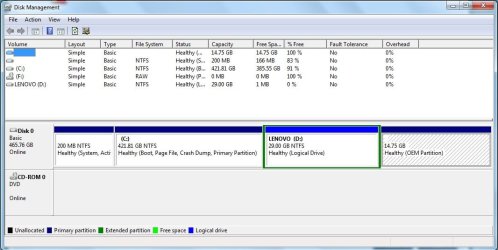
-- Here you go, the screenshot :D thanks for the concern bro ! ;)
 

Attachments

  • snipper.jpg
    snipper.jpg
    66.4 KB · Views: 88

My Computer

OS
Windows 7 Home Premium
CPU
Discovery
Motherboard
Asrock
Memory
2.00 GB
Graphics Card(s)
NVIDIA 1.00 GB
Screen Resolution
1366 x 768
Hard Drives
C:74 GB
D:74.9 GB
Case
Discovery
Keyboard
A4Tech
Mouse
A4Tech Run on Shine
Internet Speed
80 mbps
Okay I have a C: drive with a disk space of 421 GB and D: drive with a disk space of 29.8 GB.

Can anyone help me on making the disk space on D: (29.8 GB) bigger than it is now? Or expand it to more than 29.8 GB ?:D
Download the [free] version of Partition Wizard Home Edition v5.2.

You will be able to do anything you want with your partitions. You'll be able to shrink your C-drive, and then re-size your D partition to utilize the free-space generated by shrinking C.

Etc., etc.

Also download the ISO for the standalone boot CD, for those situations where you need to run Partition Wizard outside of windows.


--- I am quite aware about those "partition-things" but honestly I'm afraid that I may got wrong in changing partitions of the disk. Wouldn't it tamper with my computer's performance, space, and files?

Futhermore is that software you recommended me trusted ? ;)


I'm glad for your concern and help, more powers to you bro ! ^^
 

My Computer

OS
Windows 7 Home Premium
CPU
Discovery
Motherboard
Asrock
Memory
2.00 GB
Graphics Card(s)
NVIDIA 1.00 GB
Screen Resolution
1366 x 768
Hard Drives
C:74 GB
D:74.9 GB
Case
Discovery
Keyboard
A4Tech
Mouse
A4Tech Run on Shine
Internet Speed
80 mbps
Your situation is complicated by the fact that D is a logical partition (bordered in green).

I don't think Disk Management can help in such a situation.

Partition Wizard would likely be the tool to use. It's highly reliable, but you should certainly back up your data before using it or any other tool.

I'm not qualified to comment further on logical partitions, but others on this forum are.

It can be done, don't get discouraged. Wait for help from others more qualified.
 

My Computer

Computer type
PC/Desktop
Computer Manufacturer/Model Number
Ignatz Special; 4 speed manual gearbox; factory air conditioning; one of one
OS
Windows 7 Home Premium SP1, 64-bit
CPU
Intel Skylake i5-6600K, not overclocked
Motherboard
AsRock Z170M Extreme 4, micro ATX
Memory
8 GB HyperX DDR4-2666 (2 x 4 GB)
Graphics Card(s)
none; graphics are integrated on CPU
Sound Card
onboard: Realtek ALC1150; external: USB Behringer UF0-202
Monitor(s) Displays
Dell S2340M 23 inch IPS
Screen Resolution
1600 x 900
Hard Drives
System: Crucial MX100 series SSD, 128 GB;
Data: Samsung Spinpoint 103SJ, 1 TB;
Backup: WD Caviar Green WD30EZRX-00D8PB0, 3 TB
PSU
Rosewill SilentNight 500 watt fanless, semi-modular
Case
Antec Solo II
Cooling
Noctua NH-U12S; Noctua F12 intake, Noctua S12A exhaust
Keyboard
Microsoft 200 6JH-00001 USB
Mouse
Dell or Microsoft optical wired; USB
Antivirus
Microsoft Security Essentials and Malwarebytes Premium
Browser
Pale Moon
Other Info
All fans PWM; speeds at idle: CPU circa 500 rpm; intake circa 600 rpm; exhaust circa 600 rpm; CPU temps 27 idle and 47 C load in a warm room (27 C/81 F) when running Intel Extreme Tuning Utility stress test.
That is exactly what programs such as the highly regarded Partition Wizard CAN do, that are very complex functions that do not seem to be supported by standard built-in Microsoft services. Or, it just seems very straightforward and logical and intuitive with PW, which gives one a feeling of comfort as you "tamper" with your physical hard drives.

PW can certainly shrink the current primary partition (C), then resize the "extended partition" partition (to its right in the picture, containing the logical D partition inside of it, to the left of the 14GB un-lettered OEM partition which is no doubt a "primary" partition as well) extending it to the left to pick up the free space made available by the shrinking of the primary C partition to its left. It will all end up exactly as you want... whatever the sizes and drive letters you want to end up with.

That "logical" D partition is at this moment the one and only logical partition inside of the "extended partition" (its own primary partition, between the C-primary and OEM-primary). But in theory, any number of logical partitions COULD further be defined within that single primary "extended partition".

So, in that picture, there are a total of FOUR primary partitions on the drive (which is the physical maximum number of primary partitions allowed on a basic drive structure), described by the "boundary box" (in one of the early sectors on the physical drive). The 200MB "system reserved" (also un-lettered) primary partition is the first, and is used by Win7 for the boot manager files. C-primary is second, "extended partition" primary is third, and OEM-primary is fourth. That's it.

PW will have no problem shrinking that second (C) primary partition, extending the third primary "extended partition" to use all of the newly available space from shrinking C, and then allowing you to either re-size D-logical inside of the "extended partition" or move/resize, create new additional logical partitions inside that "extended partition", etc.

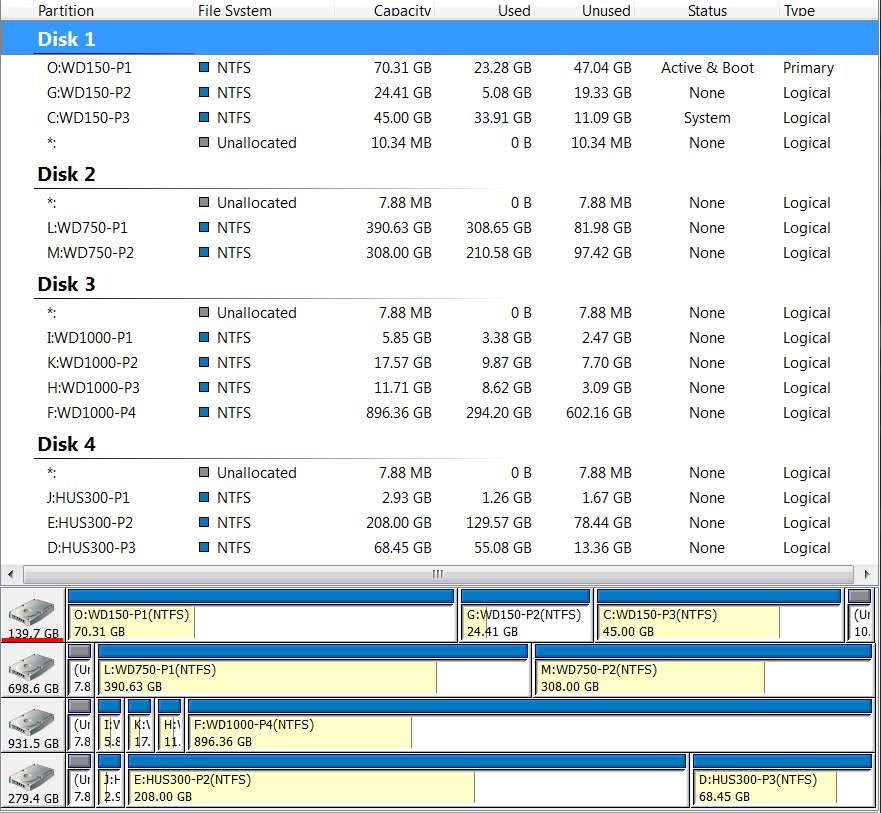
Just for comparision, PW's presentation of my own 4-drive situation is as follows. Note that with the exception of the "boot drive", you do NOT need to use ANY primary partitions on a drive. In this case the ENTIRE drive is allocated to the one single "extended partition" (which of course is actually a primary partition) inside of which any number of logical partitions can be defined, and lettered any way you want. This is all done by PW.
partitionsq.jpg


Just in passing, the reason my situation does not also reflect a 100MB "system reserved" partition is because I already had WinXP running, to which I added Win7 as a second bootable OS. The already existing "boot partition" (where WinXP still lives) thus contained the WinXP version of the boot manager files. The Win7 installation (onto a second partition, which really can be to a primary or logical partition... either on the same physical drive or even to another physical drive) then modified the existing boot manager files on the "bootable" WinXP partition and set up its own INI files to define the bootable OS locations. So the boot manager seen when I now boot is not the original WinXP boot manager, but rather the Win7 boot manager (actually, it's not even that... as I use EasyBCD, which is a very user-friendly free 3rd-party replacement product for the official Win7 boot manager).

Thus no new "system reserved" (bootable) partition was required, as it would be for a brand new 1-OS single Win7 situation. The existing WinXP bootable partition was perfectly acceptable for purposes of launching Win7's boot manager.

 
Last edited:

My Computer

Computer type
PC/Desktop
Computer Manufacturer/Model Number
Home-built, two systems (1) and (2)
OS
Windows 7 Pro x64 (1), Win7 Pro X64 (2)
CPU
i5-3350p 3.1Ghz/6MB-cache (1); E8400 3.0Ghz/6MB-cache (2)
Motherboard
ASUS P8Z77-V Pro (1); ASUS P5Q3 (2)
Memory
8GB PC3-12800 DDR3 (1); 4GB PC3-10600 DDR3 (2)
Graphics Card(s)
ATI HD7750 (1), (see TV cards); ATI R7 250 (2)
Sound Card
Realtek ALC892 HD Audio (1); Realtek ALC1200 HD Audio (2)
Monitor(s) Displays
Eizo HD2441W LCD, Eizo S2433W (1); Eizo 24" S2433W (2)
Screen Resolution
1920x1200, 1920x1200 (1); 1920x1200 (2)
Hard Drives
(1) 1TB SATA-II (7200RPM), 2x2TB SATA-III (7200RPM), 250GB SATA-III (10000RPM) for OS; 2x2TB external USB 3.0

(2) 320GB SATA-II (7200RPM), 750GB SATA-II (7200RPM), 150GB SATA-II (10000RPM) for OS; 2TB external USB 3.0
PSU
Nesteq ECS-6001 600W (1); Nesteq ECS-5001 500W (2)
Case
Acousti-Case 360 (1) and (2)
Cooling
Noctua NH-U12P SE2 for CPU, 2x120mm case fans (1) and (2)
Keyboard
IBM PS/2 (1) and (2)
Mouse
Logitech MX Revolution wireless (1); Microsoft wired (2)
Internet Speed
100mbps down / 10mbps up
Antivirus
Microsoft Security Essentials; Malwarebyte Anti-Malware Pro
Browser
Firefox
Other Info
Ceton InfiniTV 4-tuner cablecard-enabled TV card as well as Hauppauge HVR-2250 OTA/ATSC 2-tuner TV card in (1), running under Win7 WMC
Your situation is complicated by the fact that D is a logical partition (bordered in green).

I don't think Disk Management can help in such a situation.

Partition Wizard would likely be the tool to use. It's highly reliable, but you should certainly back up your data before using it or any other tool.

I'm not qualified to comment further on logical partitions, but others on this forum are.

It can be done, don't get discouraged. Wait for help from others more qualified.

--- Okay2, thanks for the help though. ;)
 

My Computer

OS
Windows 7 Home Premium
CPU
Discovery
Motherboard
Asrock
Memory
2.00 GB
Graphics Card(s)
NVIDIA 1.00 GB
Screen Resolution
1366 x 768
Hard Drives
C:74 GB
D:74.9 GB
Case
Discovery
Keyboard
A4Tech
Mouse
A4Tech Run on Shine
Internet Speed
80 mbps
Download Partition Wizard as suggested by dsperber.
It is used by many members on this and other forums, this software is free and very reliable.
I use it all the time.

Make an image backup of your data on the C and D drives, just in case.

Open Partition Wizard.
Select, click on, the C partition.
Select 'Move/Resize Partition' in the left side box.

In the window that opens, use the slider in the Partition Wizard (PW) window, first the C partition, take the right side and slide it to the left making the partition smaller by the amount that you want to add to the D partition.
Click 'OK'.

Select, click on, the D partition.
Select 'Move/Resize Partition' in the left side box.
In the window that opens, you will see 'Unallocated Space Before' click the down arrow until it says 0 or select the number and enter '0'.
In the partition box, just below 'Size And Location', select and hold the right slider and move it all the way to the right.
Now both the 'Unallocated Space Before' and 'Unallocated Space After' boxes should have '0.00' in them.
Click 'OK'.

In the upper left corner there is a large blue check mark, under it it says 'Apply', click it and follow all instructions, the computer will shutdown and perform these actions before it re-starts.
This may take some time, just let it finish.

It's really easy, after the first time.
 

My Computer

Computer type
PC/Desktop
Computer Manufacturer/Model Number
76~2.0
OS
Windows 7 Ult x64 - SP1/ Windows 8 Pro x64
CPU
Intel Core i5-3570K 4.6GHz
Motherboard
Gigabyte GA-Z77X UD3H, f18
Memory
8GB (2X4GB) DDR3 1600 Corsair Vengeance CL8 1.5v
Graphics Card(s)
Sapphire HD 7770 Vapor-X OC 1GB DDR5
Sound Card
Onboard VIA VT2021
Monitor(s) Displays
22" LCD Dell
Screen Resolution
1680x1050
Hard Drives
Samsung 840Pro 128GB SSD,
Seagate Barracuda 500GB SATA2 7200rpm 32MB cache, Seagate Barracuda 1TB SATA2 7200rpm 32MB cache,
PSU
Corsair HX650W
Case
Cooler Master Storm Scout
Cooling
Corsair H80 2x12cm Noctua NF P12 , 2x14cm case fans
Keyboard
Logitech Wave
Mouse
CM Sentinel
Internet Speed
Dismal
Antivirus
Avast
Browser
Opera Next
Other Info
Haswell laptop: HP Envy 17t-j, i7-4700MQ, GeForce 740M 2GB DDR3, 17.3" Full HD 1920x1080, 16GB RAM, Samsung 840 Pro 128GB, 1TB Hitachi 7200 HDD,
Desktop: eSATA ports,
External eSATA Seagate 500GB SATA2 7200rpm,
External WD USB 500GB
Back
Top