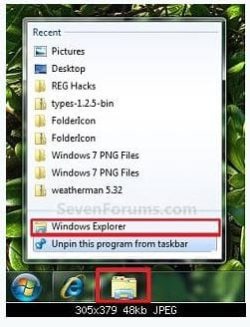
Explorer icon in taskbar doesn't show recent items

bru

New member
Pro User
Local time
11:59 AM
Messages
417
Location
A suburb of Chicago
When right-clicked my Windows Explorer icon in the taskbar only displays "Desktop" under "Recent". I use it to open lots of things, how come I never see them listed under "Recent". I guess these are called Jump Lists. They also don't display at all for Microsoft Word. There are some there for IE but they don't seem like my most recent visits. Are my jump lists messed up? This example is from a tutorial.
 

Attachments

  • exp.JPG
    exp.JPG
    25.8 KB · Views: 19

My Computer

Computer Manufacturer/Model Number
HP p6608f
OS
Win 7 Home Premium x64
CPU
Intel Core i3-540 3.07 GHz
Motherboard
MS-7613 (Iona-GL8E)
Memory
4 GB (2 X 2) Dual-Channel PC-10600 DDR3 @ 665MHz (9-9-9-24)
Graphics Card(s)
Integrated Intel H57
Sound Card
Integrated Realtek ALC888S Audio
Monitor(s) Displays
17" SDM-HS73 (a vestige from my old computer)
Screen Resolution
1280 X 1024
Hard Drives
750GB SATA 7200 RPM
PSU
250W
Keyboard
HP USB keyboard
Mouse
HP USB optical mouse
Internet Speed
15Mbps/1Mbps
Right click taskbar, select properties, switch to Start menu page, check Store and display recently opened items in the Start menu and the taskbar.
 

My Computer

OS
Windows 7 Enterprise x64 SP1
Right click on the taskbar and choose properties.... the taskbar and startmenu properties window will appear.

Select the start menu tab, and make it sure that the second line under privacy is not unchecked .

Untitled.jpg

BTW, a disk cleanup deletes the recent history .
 

My Computer

Computer type
PC/Desktop
Computer Manufacturer/Model Number
Self Assembled
OS
Microsoft Windows 10 Pro Insider Preview 64-bit
CPU
Intel(R) Core(TM) i3-4130 CPU @ 3.40GHz
Motherboard
Gigabyte Technology Co., Ltd. B85M-D3H
Memory
Corsair Vengence 4GB x2 (8.00GB Dual-Channel DDR3 @ 798MHz)
Graphics Card(s)
2047MB GeForce GTS 450 (ZOTAC International)
Sound Card
Onboard (Realtek High Definition Audio)
Monitor(s) Displays
LG Flatron E2040T
Screen Resolution
1600x900
Hard Drives
Western Digital 1 TB
Seagate 500 GB
PSU
Corsair VS550
Case
Cooler Master K380
Cooling
Cooler Master Seidon 120V Plus
Keyboard
Logitech MK260r
Mouse
Logitech MK260r
Internet Speed
PMPL Broadband
Antivirus
Windows Defender + MBAM
Browser
Firefox
Other Info
Dell Studio 15" Laptop
That box is checked. As mentioned it does show recent items for Internet Explorer. So it is working for that, but not Explorer. Your mention of Disk Cleanup clearing it made sense until I thought about Internet Explorer icon and how it is displaying recent items and also why as I have been opening things right now in Explorer it isn't showing under recent. I also opened a Word document and it does now show under recent. So it seems it is Explorer not working properly.

More experimenting. Now the folder I opened for the Word document does show under Explorer recent. But why not things like Pictures, and other things I open directly from Explorer. I must be doing something wrong.

edit: I unchecked the box "store and display...taskbar" and all recent items disappeared. Now they come back for Word. But not Explorer and so far IE.

Searching around I found that there could be corruption and saw this fix:

The issue may happen because one of the Jump Lists’ recent items in automaticDestinations hidden system folder is corrupted.


Delete or clear Jumplist recent items in Windows 7 that is corrupted in AutomaticDestinations-hidden system folder is the likely solution.. To resolve and fix the issue, follow these steps:
  1. Open Windows Explorer
    Type or copy and paste the following into the address bar: %AppData%\Microsoft\Windows\Recent\AutomaticDestinations
  2. Identify files that are comparatively larger in size than the rest of the file, such as files that have file size of 1 MB or more. Delete the abnormal file.
Another solution took it one step further:

There is one other location that may have a corrupted file that is causing this problem.
Make sure that all programs are closed.
Open Windows Explorer, paste the following path into the Address Bar and press Enter.
%AppData%\Microsoft\Windows\Recent\AutomaticDestinations

Select and delete all of the files in that folder.
Perform the same procedure on the following folder.

%AppData%\Microsoft\Windows\Recent\CustomDestinations

This will completely reset all of the Taskbar Jump Lists.
Exit and reboot the computer.

I think it may be working but I am not doing something right. So I'd like to figure it out before I do this. Thanks
 
Last edited:

My Computer

Computer Manufacturer/Model Number
HP p6608f
OS
Win 7 Home Premium x64
CPU
Intel Core i3-540 3.07 GHz
Motherboard
MS-7613 (Iona-GL8E)
Memory
4 GB (2 X 2) Dual-Channel PC-10600 DDR3 @ 665MHz (9-9-9-24)
Graphics Card(s)
Integrated Intel H57
Sound Card
Integrated Realtek ALC888S Audio
Monitor(s) Displays
17" SDM-HS73 (a vestige from my old computer)
Screen Resolution
1280 X 1024
Hard Drives
750GB SATA 7200 RPM
PSU
250W
Keyboard
HP USB keyboard
Mouse
HP USB optical mouse
Internet Speed
15Mbps/1Mbps
I am thinking I do not know how to use Explorer correct. Because now somehow Desktop and OS (C: are listed in recent when I right click the Explorer icon on the task bar. But other things I open are not in recent. The ones I think of specifically are pictures and music. I open those all the time but they don't appear under recent.
 

My Computer

Computer Manufacturer/Model Number
HP p6608f
OS
Win 7 Home Premium x64
CPU
Intel Core i3-540 3.07 GHz
Motherboard
MS-7613 (Iona-GL8E)
Memory
4 GB (2 X 2) Dual-Channel PC-10600 DDR3 @ 665MHz (9-9-9-24)
Graphics Card(s)
Integrated Intel H57
Sound Card
Integrated Realtek ALC888S Audio
Monitor(s) Displays
17" SDM-HS73 (a vestige from my old computer)
Screen Resolution
1280 X 1024
Hard Drives
750GB SATA 7200 RPM
PSU
250W
Keyboard
HP USB keyboard
Mouse
HP USB optical mouse
Internet Speed
15Mbps/1Mbps
Easiest way to get a folder to show up in your Jump list (assuming it is working) is create a text file in that folder and open it and then close it. If that doesn't work try adding some text and saving it.

This always works for me when I want to pin a folder.

 

My Computer

OS
Windows 7 x64 Enterprise/Home Premium
Deleting the Abnormally large file worked for me! Thanks....
 

My Computer

Computer type
PC/Desktop
Computer Manufacturer/Model Number
Dell 990
OS
Florida
CPU
Intel i7-2600 @3.40GHz, 4 Core(s), 8 Logical Processors
Memory
4GB
Antivirus
VIPRE
Browser
Chrome
Back
Top