
Extending Windows 7 partition?

City Builder

New member
Local time
4:41 PM
Messages
32
Hello,
I would like to extend my Windows 7 partition to take up the remaining space on the drive that I've got the Win 7 partition on (currently 100GB unallocated).

I've read some tutorials and tried method two where it has me try to do it with an elevated command prompt, however that didn't work. The first time I tried it, it said that it worked but it never really did, and when I tried it a second time it told me there was no space to allocate.

Anyway, my system is divided like this:
C:\ holds my Vista installation
E:\ is partitioned into 3 drives, one of them being the Win 7 drive and 100GB of unallocated space.

When I use disk management in Vista, and right click on the Win 7 partition to extend it, it's grayed out so I can't do it that way. That is why I tried it with the elevated command prompt.

I also read the suggestion to use Partition Wizard, so I burned it to a bootable disk and rebooted into partition wizard, however as soon as it starts it gives me a big warning that says if I resize or whatever a partition that has Windows 7 on it, then I will no longer be able to boot into that partition/drive.

So I am stumped.

Here is a snapshot of disk management to help you understand what I've got, and hopefully somebody can help me so that I can extend the 40GB windows 7 partition to become a 140GB partition:
 

Attachments
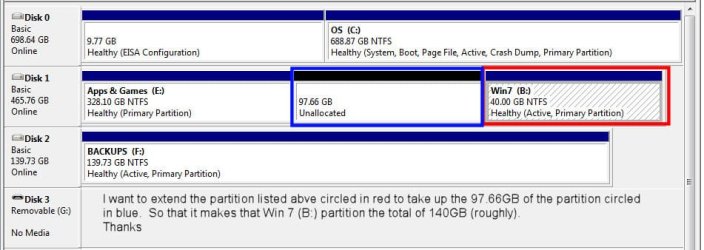
  • partitionhell.jpg
    partitionhell.jpg
    58.5 KB · Views: 160

My Computer

Computer Manufacturer/Model Number
Gateway
OS
Windows Vista 64 bit and Windows 7
CPU
quadcore 2.2GHz
Memory
8GB
Graphics Card(s)
Nvidia 8800
Sound Card
AC97
Monitor(s) Displays
Acer 24"
Hard Drives
Too many to list.
PSU
Thermaltake 750w
Case
Gateway
Cooling
Stock with added side door fan and added exhaust fan(s)
partition wizard
download it it is free
 

My Computer

Computer Manufacturer/Model Number
acer aspire 6920g
OS
win 7 64bit
CPU
t8300
Memory
4gb
Graphics Card(s)
9500m
Monitor(s) Displays
full hd
Screen Resolution
1920-1080
Internet Speed
100mb
partition wizard
download it it is free

As I said in my original post:

I also read the suggestion to use Partition Wizard, so I burned it to a bootable disk and rebooted into partition wizard, however as soon as it starts it gives me a big warning that says if I resize or whatever a partition that has Windows 7 on it, then I will no longer be able to boot into that partition/drive.

When I read the warning, what I took away from it was that if I tried to extend the win 7 partition into the unallocated space then windows 7 would no longer boot. I would like to avoid this as it's all setup nicely and I don't want to have to reinstall it and everything else.
 

My Computer

Computer Manufacturer/Model Number
Gateway
OS
Windows Vista 64 bit and Windows 7
CPU
quadcore 2.2GHz
Memory
8GB
Graphics Card(s)
Nvidia 8800
Sound Card
AC97
Monitor(s) Displays
Acer 24"
Hard Drives
Too many to list.
PSU
Thermaltake 750w
Case
Gateway
Cooling
Stock with added side door fan and added exhaust fan(s)
I personally tend to use Acronis Disk Director for my partitioning tasks. It costs a little bit, but its the best and most reliable partitioning tool I've ever used.

As for the warning about being unable to boot up Windows 7 (this would apply to Vista as well, btw), mosto f the time you can fix that by booting from your Windows 7 installation disk, click on Repair rather than Install, and have it fix your startup/boot manager. It sometimes takes a couple of tries, but I've always had it it fix my bootloader in the end; my bootloader usually gets screwed up when I do an OS re-install on a new partition and then delete the old one afterm oving my data over. The WIndows isntall disk's Startup repair usually fixes it. :)
 

My Computer

Computer Manufacturer/Model Number
Self-made
OS
Windows 7 Professional x64
CPU
Intel Core 2 Duo E6750 2.66GHz OC'd to 3.6GHz
Motherboard
Abit IP-35 Pro
Memory
4x1GB Patriot PDC24G6400LLQK Extreme Performance @ 900MHz
Graphics Card(s)
eVga GeForce 8800GT Superclocked 512MB
Sound Card
Creative X-Fi XtremeGamer
Monitor(s) Displays
22" Samsung SyncMaster 226BW - 1680x1050 - 2ms
Hard Drives
2x Seagate Barracuda 7200.10 250GB SATA drives, RAID 0
PSU
Antec NeoPower Blue 650w
Case
Raidmax Smilodon
Cooling
Arctic Cooling Freezer 7 Pro Rev. 2
The reason that you cannot extend the partition within Windows is that you can only extend drives to the right. It has to be space to expand into past the end of the current drive.

You can use something like gparted to first move your Windows 7 partition to the left and then extend into the free space available on the right. It will take some time if you have stuff on the drive though.

On my box at home, I got rid of my 150GB partition at the start of a 1TB drive (which used to hold my OS). I wanted to turn the 1TB drive into 1 big partition just for storage. Even though I had less than 100GB of stuff on it (which I should have just copied to an external USB drive in retrospect), it took about 7-9 hours to complete. In the end, it all worked perfectly though.
 

My Computer

Computer Manufacturer/Model Number
Self-Built in July 2009
OS
Windows 7 Ultimate x64
CPU
Intel Q9550 2.83Ghz OC'd to 3.40Ghz
Motherboard
Gigabyte GA-EP45-UD3R rev. 1.1, F12 BIOS
Memory
8GB G.Skill PI DDR2-800, 4-4-4-12 timings
Graphics Card(s)
EVGA 1280MB Nvidia GeForce GTX570
Sound Card
Realtek ALC899A 8 channel onboard audio
Monitor(s) Displays
23" Acer x233H
Screen Resolution
1920x1080
Hard Drives
Intel X25-M 80GB Gen 2 SSD
Western Digital 1TB Caviar Black, 32MB cache. WD1001FALS
PSU
Corsair 620HX modular
Case
Antec P182
Cooling
stock
Keyboard
ABS M1 Mechanical
Mouse
Logitech G9 Laser Mouse
Internet Speed
15/2 cable modem
Other Info
Windows and Linux enthusiast. Logitech G35 Headset.
Hi all

Quick and easy way (around 30 - 60 mins).


1) Create bootable restore CD of Acronis TI / Ghost / other Disk imaging software.

2) Backup OS partition with Acronis TI.

3) backup data on adjacent partition with TI.

4) Delete OS and adjacent partitions.

5) Boot restorable bootable media with your Acronis TI program on it.

6) Restore OS to re-sized partition - TI will prompt you for the size you want to make it.

6) Boot restored OS.

7) create new partition (via Windows) to restore your data.

8) Restore data with Acronis TI.

Job done.


(Use external USB / network drive for storing backup data - the Acronis TI has all the USB / network drivers even when using the bootable restore disk).

Note also the bootable Acronis program will allow you to delete partitions so you don't need to fiddle around with GPARTED for this type of job.

Cheers
jimbo
 

My Computer

Computer type
PC/Desktop
Computer Manufacturer/Model Number
Custom built, several laptops HP/ASUS
OS
Linux CENTOS 7 / various Windows OS'es and servers
CPU
Intel i7 Intel i5
Memory
8GB, 16GB
Graphics Card(s)
On Motherboard
Sound Card
Realtek HD audio
Monitor(s) Displays
Apple Cinema display, Samsung LCD
Screen Resolution
1920 X 1080
Hard Drives
4 X 1TB SATA
Mouse
Toshiba wireless laser
Internet Speed
> 20MB up
Okay. Thanks for the clear instructions Jimbo, I am now downloading the trial for Acronis TI and will give it a go.
 

My Computer

Computer Manufacturer/Model Number
Gateway
OS
Windows Vista 64 bit and Windows 7
CPU
quadcore 2.2GHz
Memory
8GB
Graphics Card(s)
Nvidia 8800
Sound Card
AC97
Monitor(s) Displays
Acer 24"
Hard Drives
Too many to list.
PSU
Thermaltake 750w
Case
Gateway
Cooling
Stock with added side door fan and added exhaust fan(s)
Duh, never mind. I do step 2 from the bootable cd.
 

My Computer

Computer Manufacturer/Model Number
Gateway
OS
Windows Vista 64 bit and Windows 7
CPU
quadcore 2.2GHz
Memory
8GB
Graphics Card(s)
Nvidia 8800
Sound Card
AC97
Monitor(s) Displays
Acer 24"
Hard Drives
Too many to list.
PSU
Thermaltake 750w
Case
Gateway
Cooling
Stock with added side door fan and added exhaust fan(s)
jimbo45s advice can also be applied but using WinPE w/ imagex instead of acronis.

Just another way to accomplish it.
 

My Computer

OS
Windows Vista Business / Windows 7 Ultimate
Okay,

Well I *almost* got it right (even though almost only matters in hand grenades and horse shoes).

I created a system partition backup.

I deleted the original B partition, and extended the new M partition to encompass both it's own 100GB partition and the old B partition's 40GB.

I restored the backup. However, I was confused when it comes to restoring the MBR and what drive I was supposed to put that on.

I ended up putting it on the E:\ drive since that is where the partition is that I restored. However now when I start the computer I no longer see the dual boot screen that used to let me boot into Win 7 or Vista, now it just directly boots into Vista.

I was concerned about restoring the MBR to my real C:\ drive (as that's where vista is installed) and was concerned if I do that then the computer won't boot up at all.

So, once again, I am stuck, all the restored data is now on my new larger partition, but apparently I no longer have the dual boot.

I just figured that when making the backup, it wouldn't pull the MBR from the C drive, but Im guessing that I'm wrong, so before I try to restore it again, and this time put the MBR on the C:\ drive I want to ask if that is the correct thing to do or is that going to wipe out my system and make it non bootable from the HDD?

Thanks,
 

My Computer

Computer Manufacturer/Model Number
Gateway
OS
Windows Vista 64 bit and Windows 7
CPU
quadcore 2.2GHz
Memory
8GB
Graphics Card(s)
Nvidia 8800
Sound Card
AC97
Monitor(s) Displays
Acer 24"
Hard Drives
Too many to list.
PSU
Thermaltake 750w
Case
Gateway
Cooling
Stock with added side door fan and added exhaust fan(s)
Hi
you don't need to restore the whole image again - Restore MBR is a separate 20 sec job.

You shouldn't normally have to restore the MBR.

Incidentally if you do get a boot failure (usually very rare - I've used T.I almost weekly for all sorts of moving / cloning system images) you can "repair" the W7 boot by using the Repair option from the Windows 7 install DVD.

If you haven't got one create one from the ISO.

Luckily so far as W7 isn't out yet we don't have that abomination that existed with VISTA where a lot of computers came "pre-installed with Vista" but without an install disk.

You mentioned Dual booting -- now this is a different problem to that mentioned in the OP.

For dual booting you need to mess around with Easy BCD to restore the boot menu.
Once you've got the boot menu OK you can backup / restore the different OS'es at will without any problem.

Cheers
jimbo
 

My Computer

Computer type
PC/Desktop
Computer Manufacturer/Model Number
Custom built, several laptops HP/ASUS
OS
Linux CENTOS 7 / various Windows OS'es and servers
CPU
Intel i7 Intel i5
Memory
8GB, 16GB
Graphics Card(s)
On Motherboard
Sound Card
Realtek HD audio
Monitor(s) Displays
Apple Cinema display, Samsung LCD
Screen Resolution
1920 X 1080
Hard Drives
4 X 1TB SATA
Mouse
Toshiba wireless laser
Internet Speed
> 20MB up
Okay, I tried the Easy BCD, unfortunately it tells me that there is only one entry in the bootloader (Vista) and doesn't even give me the option to choose to add a Windows 7 entry, only 98, 2000, xp vista etc. Hmmmm, flippity flap, it's never easy.
 

My Computer

Computer Manufacturer/Model Number
Gateway
OS
Windows Vista 64 bit and Windows 7
CPU
quadcore 2.2GHz
Memory
8GB
Graphics Card(s)
Nvidia 8800
Sound Card
AC97
Monitor(s) Displays
Acer 24"
Hard Drives
Too many to list.
PSU
Thermaltake 750w
Case
Gateway
Cooling
Stock with added side door fan and added exhaust fan(s)
There is a FREE program which works in Windows 7.
I'm sure it will do exactly what you want.

google "REFLECT". for your version. x86 or x64

I use Acronis and it works perfect. moving the partition any way you want.. but a noobie friend of mine suggested REFLECT. (FREE)
 
Okay, I tried the Easy BCD, unfortunately it tells me that there is only one entry in the bootloader (Vista) and doesn't even give me the option to choose to add a Windows 7 entry, only 98, 2000, xp vista etc. Hmmmm, flippity flap, it's never easy.

Maybe too late but, in EasyBCD you use 'Vista' when your adding a Win7 option to the Boot menu.

Hopefully they will add the Win7 option soon.
 

My Computer

Computer type
PC/Desktop
Computer Manufacturer/Model Number
76~2.0
OS
Windows 7 Ult x64 - SP1/ Windows 8 Pro x64
CPU
Intel Core i5-3570K 4.6GHz
Motherboard
Gigabyte GA-Z77X UD3H, f18
Memory
8GB (2X4GB) DDR3 1600 Corsair Vengeance CL8 1.5v
Graphics Card(s)
Sapphire HD 7770 Vapor-X OC 1GB DDR5
Sound Card
Onboard VIA VT2021
Monitor(s) Displays
22" LCD Dell
Screen Resolution
1680x1050
Hard Drives
Samsung 840Pro 128GB SSD,
Seagate Barracuda 500GB SATA2 7200rpm 32MB cache, Seagate Barracuda 1TB SATA2 7200rpm 32MB cache,
PSU
Corsair HX650W
Case
Cooler Master Storm Scout
Cooling
Corsair H80 2x12cm Noctua NF P12 , 2x14cm case fans
Keyboard
Logitech Wave
Mouse
CM Sentinel
Internet Speed
Dismal
Antivirus
Avast
Browser
Opera Next
Other Info
Haswell laptop: HP Envy 17t-j, i7-4700MQ, GeForce 740M 2GB DDR3, 17.3" Full HD 1920x1080, 16GB RAM, Samsung 840 Pro 128GB, 1TB Hitachi 7200 HDD,
Desktop: eSATA ports,
External eSATA Seagate 500GB SATA2 7200rpm,
External WD USB 500GB
Just a little but thanks just the same for trying to help. Im sure many other people looking to do what I needed to do will also find this thread, it is after all how I found this forum in the first place.

I chose to just reinstall 7 from scratch and resintall my programs all over again to be sure everything was clean and not going to give me a headache down the road. All is now well.
 

My Computer

Computer Manufacturer/Model Number
Gateway
OS
Windows Vista 64 bit and Windows 7
CPU
quadcore 2.2GHz
Memory
8GB
Graphics Card(s)
Nvidia 8800
Sound Card
AC97
Monitor(s) Displays
Acer 24"
Hard Drives
Too many to list.
PSU
Thermaltake 750w
Case
Gateway
Cooling
Stock with added side door fan and added exhaust fan(s)
Back
Top