Solved External Hard Drive issue cannot stay detected

kufr

New member
Member
Local time
10:53 AM
Messages
42
I have an external 2 TB WD Green Craviar HD. Well it used to work without any problem in my older pc where I had Winxp. Now I have a different pc details are

Operating System
Windows 7 Ultimate 64-bit SP1
CPU
Intel Xeon E5410 @ 2.33GHz 63 °C
Harpertown 45nm Technology
Intel Xeon E5410 @ 2.33GHz 65 °C
Harpertown 45nm Technology
RAM
8.00GB FB-DDR2 @ 333MHz (5-5-5-15)
Motherboard
Hewlett-Packard 0A9Ch (XU1 PROCESSOR) 39 °C
Graphics
Acer X163H (1366x768@60Hz)
Generic Non-PnP Monitor (1024x768@29Hz)
256MB ATI Radeon HD 2400 (Dell) 46 °C
Storage
931GB Western Digital WDC WD1002FAEX-00Z3A0 (SATA) 30 °C
1863GB Western Digital WDC WD2002FAEX-007BA0 (SATA) 34 °C
148GB Western Digital WDC WD1600BB-56GUC0 ATA Device (ATA) 33 °C
2794GB Western Digital WD My Book 1140 USB Device (USB (SATA)) 33 °C
2794GB Western Digital WD My Book 1140 USB Device (USB (SATA)) 32 °C
931GB SAMSUNG HD103UI USB Device (USB)
2794GB Western Digital WD My Book 1140 USB Device (USB (SATA)) 31 °C
2794GB Western Digital WD My Book 1140 USB Device (USB (SATA)) 35 °C
Optical Drives
ASUS DRW-24B3ST
HP DVD Writer 1260t
Audio
Creative X-Fi Audio Processor (WDM)

The problem started when I first connected my external drive to the above mentioned system at first it gave me an error for the disk being Dynamic and I had to convert it to basic so i attached the external HD via an enclosure to an old laptop copied all the data 1.78 TB just to be on the safe side then converted the Dynamic disc to basic disk via a software Easeus Partition Master Edition. Everything worked out fine I copied all the data back i attached it to the Intel Xeon E5410 and it was instantly detected. After a few days i started noticing something strange sometimes I has to replug the HD to be seen as a drive via the USB. I even attached with a SATA cable to the motherboard but the problem was still there.
Now the issue is I am completely unable to detect access the HD i attach the HD with the sata cable it is not recognized as a drive and when use the USB cable if is shown for a few secs that drive X (yes that is the name as I have assigned all the rest of the letters to my other external already attached HD's) is attached and then it again shows HD removed without a warning all on its own.

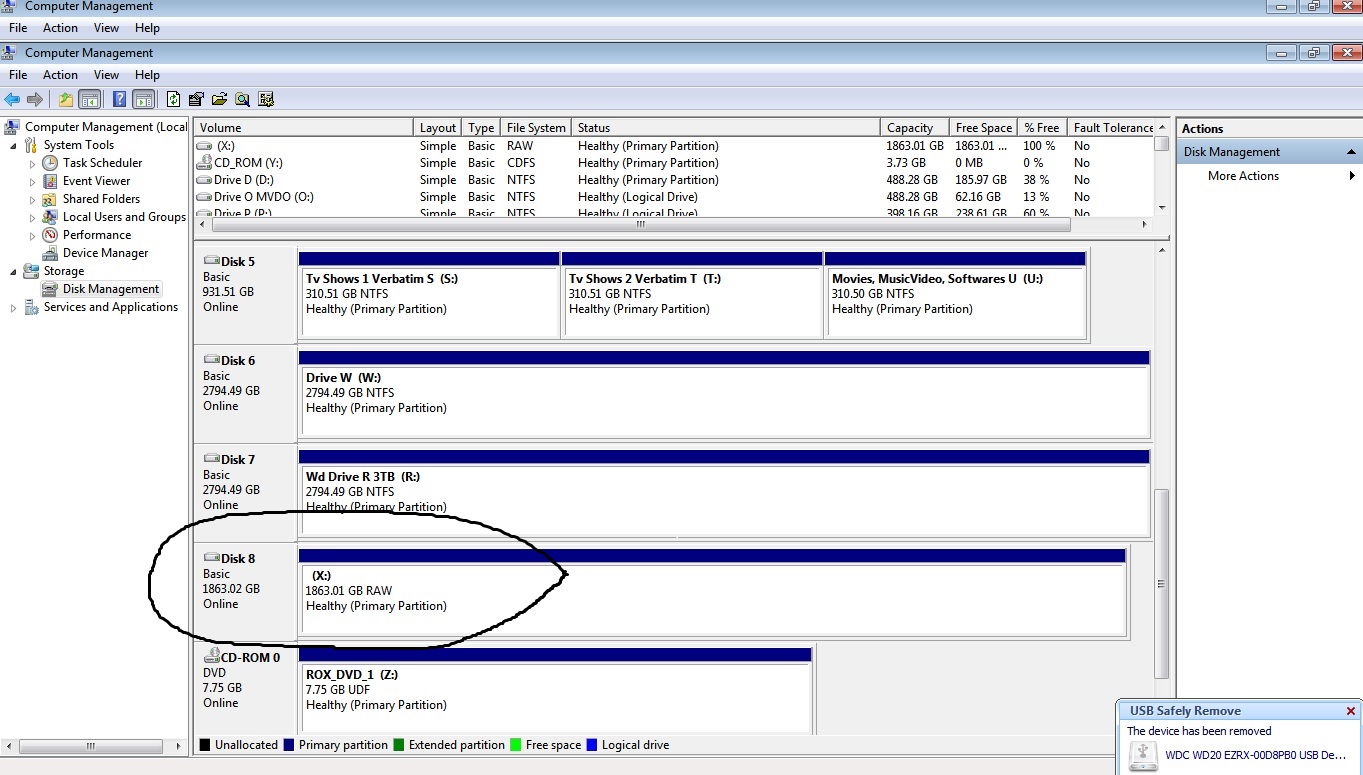
I have read the forums here and tried almost anything I have important data on that drive which I have hardly used it was bought 3 months back I am attaching two screen shots the drive shows up in the Disk managment section for a few secs and then vanished I took a screen shot here
Q5RIlqn.jpg


I have marked the drive in the screenshot although the screenshot shows the drive is online but you can see in the right corner I instantly got the message that the drive has been removed I am unable to stop this I connect the drive it says drive connected and is instantly followed by the drive has been removed :cry::cry:

After all this I even used the software mentioned here in the forums called "MiniTool Partition Wizard Home Edition 8.1.1" although it was very difficult to get the drive to stay long enough for other softwares to detect it I was able to to use MiniTool Partition Wizard Home Edition only once to scan the HD. It was being shown there as a Bad Disk I tried the partition recovery wizard but even after scanning it showed it as Bad Disk
see screenshot below

nxlAxLm.jpg


Now I just dont know what else should I do so I am writing in vain that someone can help me out here please like I said I have important data in the drive can someone please please please help me to recover my disk or atleast my data
 

My Computer

Computer type
PC/Desktop
Computer Manufacturer/Model Number
HP
OS
Windows 7 Ultimate x64
CPU
Intel(R) Xeon(R) E5450 (Quad Core @ 3.00GHZ)
Motherboard
HP - Chipset Intel 0A98h Model No 5400B (XU1 PROCESSOR)
Memory
FB-DDR2 Total: 16 Gb
Graphics Card(s)
1) ATI Radeon HD 2400 2) Nvidia GeForce GT 420
Sound Card
Creative X-Fi Audio Processor (WDM)
Monitor(s) Displays
Acer Monitor
Screen Resolution
1024x768@29Hz
Hard Drives
1 X 931GB SATA
1 X 148GB Device ATA
1 x 3725GB USB Device SATA
2 X 1863GB SATA
6 X 2794GB USB Device SATA
PSU
800 Watt Power Supply
Case
Hewlett-Packard HP XW8600 Workstation Case
Cooling
2 fans at back, 1 on top of memory, CPU & PSU Fans
Keyboard
Logitech Illuminated Keyboard K740
Mouse
Logitech Trackman Marble
Internet Speed
30 Mbps
Antivirus
Emsisoft Anti-Malware, Eset Smart Security, MSE
Browser
Chrome
Hi kufr, noted on the difficulty you're facing on the WD external hard disk. I strongly recommend you to try out the Data Lifeguard Diagnostics test first for the drive which might help to detect any errors on the drive itself. Here is the link for the test accordingly.

How to test a drive for problems using Data Lifeguard Diagnostics for Windows

Hope it helps.


Have already tried it the drive is not listed .. like I said in my post "I am unable to stop this I connect the drive it says drive connected and is instantly followed by the drive has been removed" hence the drive is not seen in the list of drives of Data Lifeguard Diagnostics .. I just do not know what to do. Anyone know of something else for me to access my drive make it workable and let me copy my data to another drive so that I can format it once and for all and then re-copy my data back to get rid of all the errors if any on the drive ....
 

My Computer

Computer type
PC/Desktop
Computer Manufacturer/Model Number
HP
OS
Windows 7 Ultimate x64
CPU
Intel(R) Xeon(R) E5450 (Quad Core @ 3.00GHZ)
Motherboard
HP - Chipset Intel 0A98h Model No 5400B (XU1 PROCESSOR)
Memory
FB-DDR2 Total: 16 Gb
Graphics Card(s)
1) ATI Radeon HD 2400 2) Nvidia GeForce GT 420
Sound Card
Creative X-Fi Audio Processor (WDM)
Monitor(s) Displays
Acer Monitor
Screen Resolution
1024x768@29Hz
Hard Drives
1 X 931GB SATA
1 X 148GB Device ATA
1 x 3725GB USB Device SATA
2 X 1863GB SATA
6 X 2794GB USB Device SATA
PSU
800 Watt Power Supply
Case
Hewlett-Packard HP XW8600 Workstation Case
Cooling
2 fans at back, 1 on top of memory, CPU & PSU Fans
Keyboard
Logitech Illuminated Keyboard K740
Mouse
Logitech Trackman Marble
Internet Speed
30 Mbps
Antivirus
Emsisoft Anti-Malware, Eset Smart Security, MSE
Browser
Chrome
I don't know what all your problems but I think I found one of them by reading your system specs.

Antivirus Emsisoft Anti-Malware, Eset Smart Security, MSE
Browser Chrome

Emsisoft and/or Eset could be stopping thing from entering the compurter including another hard drive.

You should only use one anti virus program on one computer at one time.
 

My Computer

Computer type
PC/Desktop
Computer Manufacturer/Model Number
Home made Desktop
OS
Windows 10 Pro. 64/ version 1709 Windows 7 Pro/64
CPU
Intel i7-6800K @ 4.3
Motherboard
ASUS X-99 Deluxe II
Memory
Corsair Platinum 16 gig @2400
Graphics Card(s)
EVGA GTX 1070 OC
Monitor(s) Displays
Asus 27" LED LCD/VE278Q
Screen Resolution
1920-1080 or 1280-720 HDMI
Hard Drives
INTEL SSD 730-240 Gb Sata 3.0/
PSU
EVGA Platium 1200W
Case
Phanteks Luxe Tempered Glass 8 fans/ one radiator
Cooling
XSPC/ Water Cooled CPU
Keyboard
Das 4 Professional
Mouse
Logitech M705/MX Anywhere 2-S
Internet Speed
100 mbits
Antivirus
Microsoft Security Essentials/ Malwarebytes Premium 3.0/ SAS
Browser
I.E. 11 default/Firefox/ ISP Time Warner Cable/Spectrum
Other Info
LG BluRay Burner/
Sound system-KLipsch-THX/
Icy Dock ssd Hot Swap bays.
I noticed that you said the drive was only three months old. It sounds to me like the drive is failing.

Have you tried it in different USB ports? Have you tried booting up with the drive plugged in? Not plugged in? Those things probably won't make a difference, but it's worth a shot.

I would just return the drive under warranty and get a new one. If it won't work under USB or SATA, and keeps going on and off line, it's probably a bad drive. It happens. At least you have your data backed up.
 

My Computer

Computer type
PC/Desktop
Computer Manufacturer/Model Number
Mellon Labs (custom build)
OS
Win 7 Pro x64/Win 10 Pro x64 dual boot
CPU
AMD FX 8350 Vishera @ 4200
Motherboard
ASUS M5A97 R2.0
Memory
16 GB Mushkin Blackline DDR3-2400 @ 1866 (9-10-10-10-31)
Graphics Card(s)
XFX Radeon R9 280 Double D Black Edition
Sound Card
Realtek HD Audio on MB. Sounds great.
Monitor(s) Displays
Acer 24", Acer 22"
Screen Resolution
3840 x 1080
Hard Drives
1 x Mushkin Chronos 120 GB SSD (Win 10)
1 x Samsung 850 EVO 250 GB SSD (Win 7)
1 x WD 1TB SATA Blue
1 x WD 1TB SATA Green
PSU
Corsair TX-750
Case
CoolerMaster HAF 912+
Cooling
Coolermaster Seidon 240M Liquid AIO. 6 case fans
Keyboard
Logitech G710+
Mouse
Logitech G500s
Internet Speed
Much better since I got fiber, but still way overpriced.
Antivirus
MSE, Malware Bytes for scanning
Browser
Firefox
Other Info
Corsair VOID USB headphones.

A Mellon Labs X-1 - LCD Smartie driven system status display.

Brought to you by the letter E
I don't know what all your problems but I think I found one of them by reading your system specs.

Antivirus Emsisoft Anti-Malware, Eset Smart Security, MSE
Browser Chrome

Emsisoft and/or Eset could be stopping thing from entering the compurter including another hard drive.

You should only use one anti virus program on one computer at one time.

That is not the case I have tried the drive in other pc even pc's without any antivirus installed the issue is drive related.

I noticed that you said the drive was only three months old. It sounds to me like the drive is failing.

Have you tried it in different USB ports? Have you tried booting up with the drive plugged in? Not plugged in? Those things probably won't make a difference, but it's worth a shot.

I would just return the drive under warranty and get a new one. If it won't work under USB or SATA, and keeps going on and off line, it's probably a bad drive. It happens. At least you have your data backed up.

Yep yep yep been there done that have tried everything booted plugged in via sata also tried the external ensloure with the usb botted without plugged in then plugged in via both sata and usb same issue ... I have sent the drive with the warranty card to the shop they are having a look at it lets see what they say they will get back to me by Monday ... im keeping my fingers crossed even if they say the drive is A OK I will ask them to replace it with another drive.
 

My Computer

Computer type
PC/Desktop
Computer Manufacturer/Model Number
HP
OS
Windows 7 Ultimate x64
CPU
Intel(R) Xeon(R) E5450 (Quad Core @ 3.00GHZ)
Motherboard
HP - Chipset Intel 0A98h Model No 5400B (XU1 PROCESSOR)
Memory
FB-DDR2 Total: 16 Gb
Graphics Card(s)
1) ATI Radeon HD 2400 2) Nvidia GeForce GT 420
Sound Card
Creative X-Fi Audio Processor (WDM)
Monitor(s) Displays
Acer Monitor
Screen Resolution
1024x768@29Hz
Hard Drives
1 X 931GB SATA
1 X 148GB Device ATA
1 x 3725GB USB Device SATA
2 X 1863GB SATA
6 X 2794GB USB Device SATA
PSU
800 Watt Power Supply
Case
Hewlett-Packard HP XW8600 Workstation Case
Cooling
2 fans at back, 1 on top of memory, CPU & PSU Fans
Keyboard
Logitech Illuminated Keyboard K740
Mouse
Logitech Trackman Marble
Internet Speed
30 Mbps
Antivirus
Emsisoft Anti-Malware, Eset Smart Security, MSE
Browser
Chrome
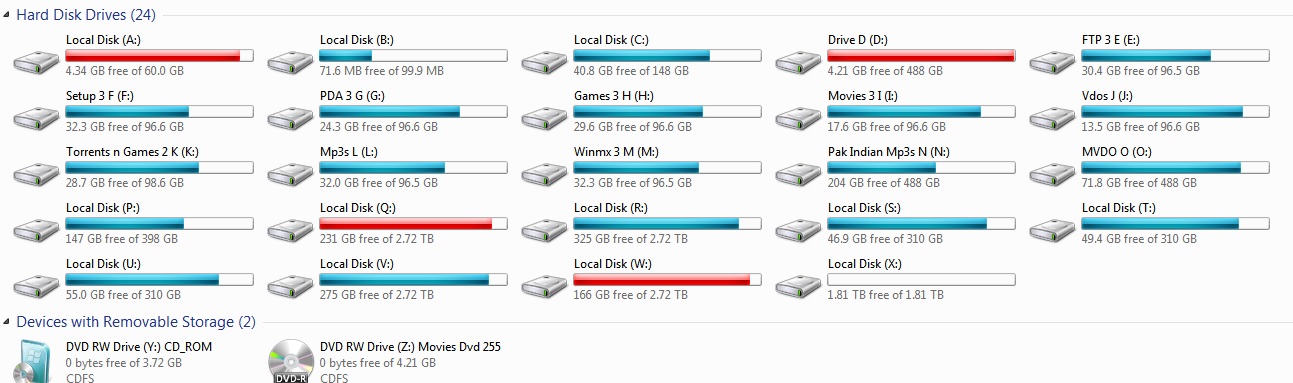
Got my drive back after I sent it in with my warranty card and they said everything was ok with the drive .... Plugged my drive in it was detected I instantly copied all my data to other HD's thank God it was still all there ... Then I formatted the drive and also now the drive is empty as u can see in the screenshot below.

jJwO607.jpg


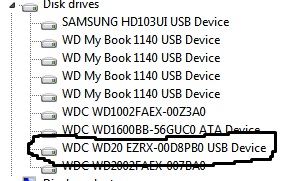
My device manager also started showing it in the Hard drive list

5epqKS4.jpg


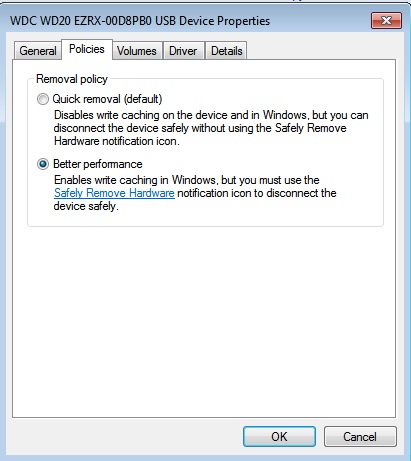
I went in to the drive properties via device manager and changed the policies from quick removal (recommended) to better performance

XqY2XNa.jpg


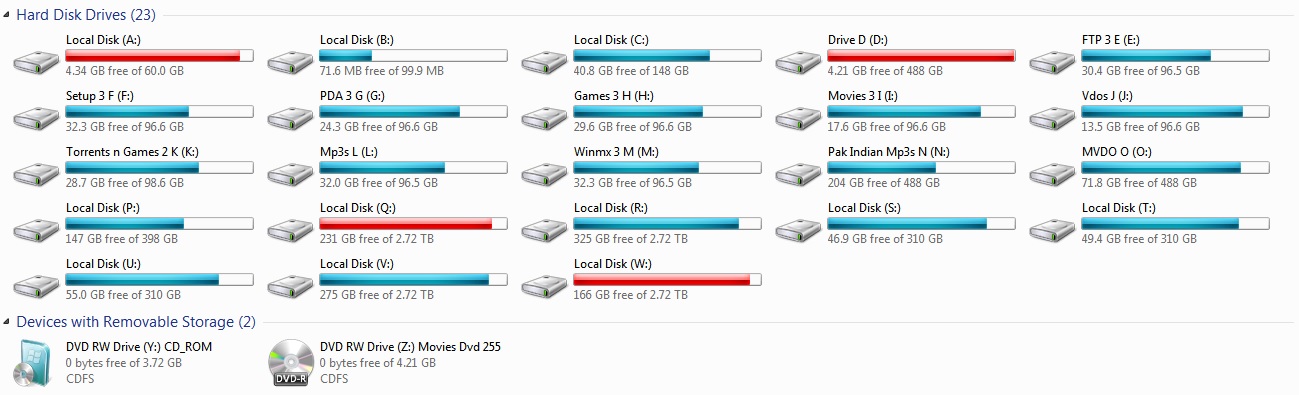
This way the drive stayed detected for more then a few hours. Now the funny thing is after a few hours it was again not listed

TQDwncx.jpg


I had to unplug the USB and Re-plug it and it was detected again I am so sick of this the vendor and the Western Digital people whom I got in touch with are saying the drive is ok there is nothing wrong with it they have checked it again and again.

I was trying to copy large amount data back to it the one i reallocated to the existing drives while doing that the drive again stopped being detected. RE plugged in was being shown as Drive X again I went it using EaseUs Partition Master and tried to wipe the partition which never finished the EaseUs stopped responding stuck said wiping data on 5% for over half and hour so i replugged it again and using the windows option from right mouse click reformatted the drive. Now after reformatted it. It is still there and I am copying about 100+ GB data to it to see if its still being detected or would vanish again from the disk list

LuVQ8Ec.jpg


So far so good 54 Gb data copied and the disk drive is still there being in my drive list without any problem I am keeping my fingers crossed

MTPHBtR.jpg


Because I am on the last straw here and have pulled out enough of my hair due to this problem. If I again face the issue i'll beback in the meantime please feel free to comment or advise if u guys think of anything else.

ONE MORE THINK IS THAT SHOULD I SET THIS DRIVE AS ACTIVE OR LEAVE IT AS IT IS
 

My Computer

Computer type
PC/Desktop
Computer Manufacturer/Model Number
HP
OS
Windows 7 Ultimate x64
CPU
Intel(R) Xeon(R) E5450 (Quad Core @ 3.00GHZ)
Motherboard
HP - Chipset Intel 0A98h Model No 5400B (XU1 PROCESSOR)
Memory
FB-DDR2 Total: 16 Gb
Graphics Card(s)
1) ATI Radeon HD 2400 2) Nvidia GeForce GT 420
Sound Card
Creative X-Fi Audio Processor (WDM)
Monitor(s) Displays
Acer Monitor
Screen Resolution
1024x768@29Hz
Hard Drives
1 X 931GB SATA
1 X 148GB Device ATA
1 x 3725GB USB Device SATA
2 X 1863GB SATA
6 X 2794GB USB Device SATA
PSU
800 Watt Power Supply
Case
Hewlett-Packard HP XW8600 Workstation Case
Cooling
2 fans at back, 1 on top of memory, CPU & PSU Fans
Keyboard
Logitech Illuminated Keyboard K740
Mouse
Logitech Trackman Marble
Internet Speed
30 Mbps
Antivirus
Emsisoft Anti-Malware, Eset Smart Security, MSE
Browser
Chrome
A shot in the dark: Your problem exists when the drive has your valued data?

When formatted and mostly empty, the drive does not exhibit any problems?

If that is the case, then it may be the way your valued data is organized.

I had a folder in an external drive where I would offload into webpages for future reading. These webpages had long titles and the folder had in excess of 500, likely closer to 1000. I had gotten lazy and kept offloading. At some threshold, the drive began misbehaving. During the troubleshooting process, I tried to save the data on the drive. While moving the data to another drive, I ended up organizing these offloads. When I moved the reorganized files back to the drive, the problem(s) never reappeared.

A shot in the dark.
 

My Computer

OS
Windows 7 Home Premium x64
A shot in the dark: Your problem exists when the drive has your valued data?

When formatted and mostly empty, the drive does not exhibit any problems?

If that is the case, then it may be the way your valued data is organized.

I had a folder in an external drive where I would offload into webpages for future reading. These webpages had long titles and the folder had in excess of 500, likely closer to 1000. I had gotten lazy and kept offloading. At some threshold, the drive began misbehaving. During the troubleshooting process, I tried to save the data on the drive. While moving the data to another drive, I ended up organizing these offloads. When I moved the reorganized files back to the drive, the problem(s) never reappeared.

A shot in the dark.

Thanks for the post. At the moment the drive is working I formatted it twice via windows and connected it via a SATA cable transferred over 200+GB data and no issues it has been full 24 hours and i'm praying that it behaves. Also showing up in my WD Data Lifeguard Diagnostic software and checked the drive and it came out ok no errors or problems so i guess that now its ok to copy data to this drive ???
 
Last edited:

My Computer

Computer type
PC/Desktop
Computer Manufacturer/Model Number
HP
OS
Windows 7 Ultimate x64
CPU
Intel(R) Xeon(R) E5450 (Quad Core @ 3.00GHZ)
Motherboard
HP - Chipset Intel 0A98h Model No 5400B (XU1 PROCESSOR)
Memory
FB-DDR2 Total: 16 Gb
Graphics Card(s)
1) ATI Radeon HD 2400 2) Nvidia GeForce GT 420
Sound Card
Creative X-Fi Audio Processor (WDM)
Monitor(s) Displays
Acer Monitor
Screen Resolution
1024x768@29Hz
Hard Drives
1 X 931GB SATA
1 X 148GB Device ATA
1 x 3725GB USB Device SATA
2 X 1863GB SATA
6 X 2794GB USB Device SATA
PSU
800 Watt Power Supply
Case
Hewlett-Packard HP XW8600 Workstation Case
Cooling
2 fans at back, 1 on top of memory, CPU & PSU Fans
Keyboard
Logitech Illuminated Keyboard K740
Mouse
Logitech Trackman Marble
Internet Speed
30 Mbps
Antivirus
Emsisoft Anti-Malware, Eset Smart Security, MSE
Browser
Chrome
I just skimmed your thread so apologies if i overlooked any detail but here are some thoughts
  1. Have you tried the drive on a different PC? Determine if it's truly a drive problem or PC may be part of the problem
  2. Have you tried the drive while other USB devices (other then mouse/keyboard) are disconneted. Some USB issues can be power related
  3. Have you checked for any BIOS updates for your machine?
  4. Any chipset driver updates? You can reinstall them as well
  5. I'd also go into device manager, right click each ROOT hub, go to Power Management tab. Don't allow the computer to turn off this device to save power
 

My Computer

Computer type
PC/Desktop
Computer Manufacturer/Model Number
Dell Optiplex 360 and Optiplex 755
OS
Desk 1: Win 7 Pro x32; Desk 2: Windows 10 x64
Hard Drives
500GB Crucial SSD in both Desktops
Other Info
Buffalo 6TB NAS, Raid 1
I just skimmed your thread so apologies if i overlooked any detail but here are some thoughts
  1. Have you tried the drive on a different PC? Determine if it's truly a drive problem or PC may be part of the problem
  2. Have you tried the drive while other USB devices (other then mouse/keyboard) are disconneted. Some USB issues can be power related
  3. Have you checked for any BIOS updates for your machine?
  4. Any chipset driver updates? You can reinstall them as well
  5. I'd also go into device manager, right click each ROOT hub, go to Power Management tab. Don't allow the computer to turn off this device to save power

Thank you for the post ComputerGeek as for your queries

Yes I have tried the drive on a different PC initially. It had the same of popping up as detected and instantly not being detected within secs.
I tried with all other USB not connected apart from mouse/keyboard had the same issue.
BIOS and all drivers are already updated.
I have checked the ROOT hub in device manager none were marked to reserve/save power all were working at full speed.

Now since the drive is connected via a SATA cable I dont think the USB Root will be an issue for it.

So gimme your thoughts.
 

My Computer

Computer type
PC/Desktop
Computer Manufacturer/Model Number
HP
OS
Windows 7 Ultimate x64
CPU
Intel(R) Xeon(R) E5450 (Quad Core @ 3.00GHZ)
Motherboard
HP - Chipset Intel 0A98h Model No 5400B (XU1 PROCESSOR)
Memory
FB-DDR2 Total: 16 Gb
Graphics Card(s)
1) ATI Radeon HD 2400 2) Nvidia GeForce GT 420
Sound Card
Creative X-Fi Audio Processor (WDM)
Monitor(s) Displays
Acer Monitor
Screen Resolution
1024x768@29Hz
Hard Drives
1 X 931GB SATA
1 X 148GB Device ATA
1 x 3725GB USB Device SATA
2 X 1863GB SATA
6 X 2794GB USB Device SATA
PSU
800 Watt Power Supply
Case
Hewlett-Packard HP XW8600 Workstation Case
Cooling
2 fans at back, 1 on top of memory, CPU & PSU Fans
Keyboard
Logitech Illuminated Keyboard K740
Mouse
Logitech Trackman Marble
Internet Speed
30 Mbps
Antivirus
Emsisoft Anti-Malware, Eset Smart Security, MSE
Browser
Chrome
Again started facing the issue the drive again stopped being listed in my list of HD's

I went into device manager and scanned for hardware changes and then it came back on for sometime and the same pattern repeats stays on for a while and then goes off the grid without any warning I am using this drive for seeding purpose only and have only put data that I am seeding to the many sites I am a member of incase something goes wrong with the drive I can live without that data .....

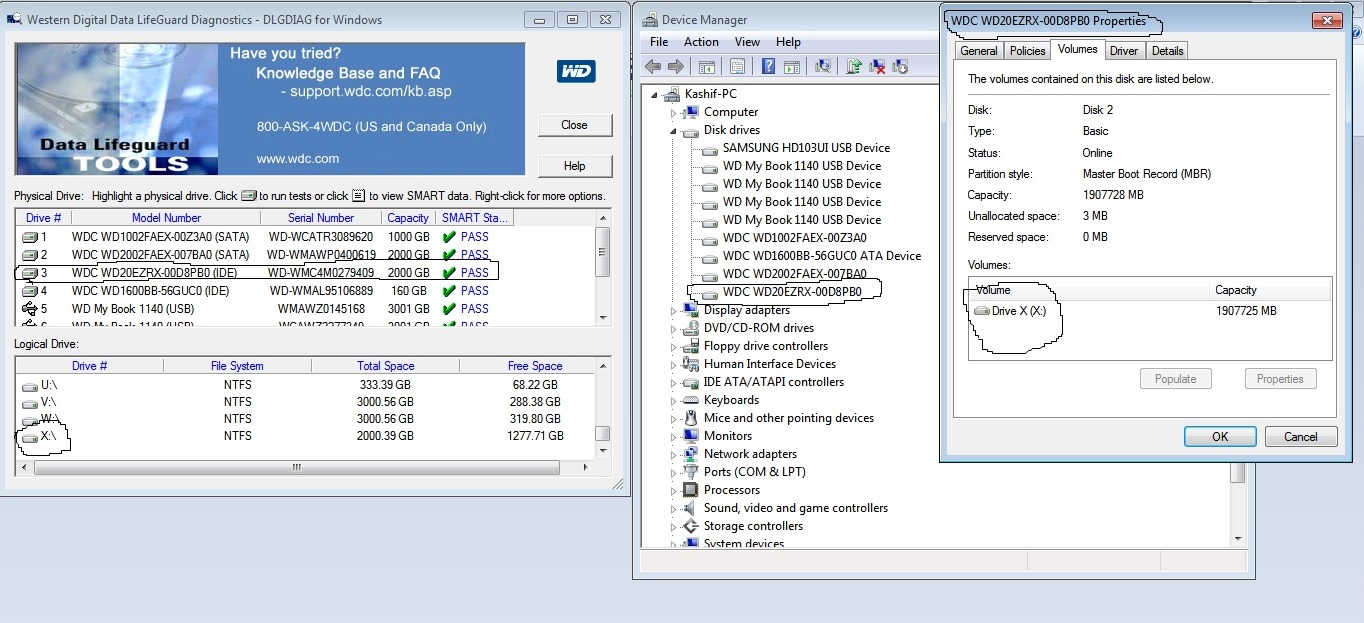
Then I again noticed another weird thing that is most disturbing for me and I cannot seem to get around to see what's causing it. The drive is connected via a SATA cable have tried 2-4 different cables and then I used the Western Digital Data LifeGuard Diagnostic software. My drive that is (Drive X) is listed there but it shows that it shows its connectivity via IDE (see screenshot)

3ntYixO.jpg


Can someone please shed some light on to this issue. Or how to permanently resolve this once and for all.
 

My Computer

Computer type
PC/Desktop
Computer Manufacturer/Model Number
HP
OS
Windows 7 Ultimate x64
CPU
Intel(R) Xeon(R) E5450 (Quad Core @ 3.00GHZ)
Motherboard
HP - Chipset Intel 0A98h Model No 5400B (XU1 PROCESSOR)
Memory
FB-DDR2 Total: 16 Gb
Graphics Card(s)
1) ATI Radeon HD 2400 2) Nvidia GeForce GT 420
Sound Card
Creative X-Fi Audio Processor (WDM)
Monitor(s) Displays
Acer Monitor
Screen Resolution
1024x768@29Hz
Hard Drives
1 X 931GB SATA
1 X 148GB Device ATA
1 x 3725GB USB Device SATA
2 X 1863GB SATA
6 X 2794GB USB Device SATA
PSU
800 Watt Power Supply
Case
Hewlett-Packard HP XW8600 Workstation Case
Cooling
2 fans at back, 1 on top of memory, CPU & PSU Fans
Keyboard
Logitech Illuminated Keyboard K740
Mouse
Logitech Trackman Marble
Internet Speed
30 Mbps
Antivirus
Emsisoft Anti-Malware, Eset Smart Security, MSE
Browser
Chrome
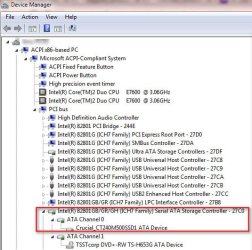
I'm not sure why you think it's IDE from those snapshots (maybe i'm missing something?).

To see how your devices connect to one another, in Device Manager menu click View->Device by connection. Expand the ACPI devices till you see the PCI bus. Then expand the PCI bus. Now expand the rest till you find your disk. I'm guessing (as is my case) you'll find it connected via the SATA controller.

As to your problem, I don't really know :( But one other test you might try, create a Knoppix Live CD and boot into it. Connect your drive via USB. If the drive is still problematic under Knoppix then it must be computer hardware or BIOS.
 

Attachments

  • Pic1.jpg
    Pic1.jpg
    58.6 KB · Views: 23

My Computer

Computer type
PC/Desktop
Computer Manufacturer/Model Number
Dell Optiplex 360 and Optiplex 755
OS
Desk 1: Win 7 Pro x32; Desk 2: Windows 10 x64
Hard Drives
500GB Crucial SSD in both Desktops
Other Info
Buffalo 6TB NAS, Raid 1
I'm not sure why you think it's IDE from those snapshots (maybe i'm missing something?).

To see how your devices connect to one another, in Device Manager menu click View->Device by connection. Expand the ACPI devices till you see the PCI bus. Then expand the PCI bus. Now expand the rest till you find your disk. I'm guessing (as is my case) you'll find it connected via the SATA controller.

As to your problem, I don't really know :( But one other test you might try, create a Knoppix Live CD and boot into it. Connect your drive via USB. If the drive is still problematic under Knoppix then it must be computer hardware or BIOS.

Thank you for the reply I did try to check it in the device manager Device by connection option it is connected via sata but in screenshot here for the Data LifeGuard Diagnostic

3ntYixO.jpg


Do you see the circle in the left most window same drive has an IDE written infront of it in the bracket while the device manager shows it to be SATA that is whats disturbing me
 
Last edited:

My Computer

Computer type
PC/Desktop
Computer Manufacturer/Model Number
HP
OS
Windows 7 Ultimate x64
CPU
Intel(R) Xeon(R) E5450 (Quad Core @ 3.00GHZ)
Motherboard
HP - Chipset Intel 0A98h Model No 5400B (XU1 PROCESSOR)
Memory
FB-DDR2 Total: 16 Gb
Graphics Card(s)
1) ATI Radeon HD 2400 2) Nvidia GeForce GT 420
Sound Card
Creative X-Fi Audio Processor (WDM)
Monitor(s) Displays
Acer Monitor
Screen Resolution
1024x768@29Hz
Hard Drives
1 X 931GB SATA
1 X 148GB Device ATA
1 x 3725GB USB Device SATA
2 X 1863GB SATA
6 X 2794GB USB Device SATA
PSU
800 Watt Power Supply
Case
Hewlett-Packard HP XW8600 Workstation Case
Cooling
2 fans at back, 1 on top of memory, CPU & PSU Fans
Keyboard
Logitech Illuminated Keyboard K740
Mouse
Logitech Trackman Marble
Internet Speed
30 Mbps
Antivirus
Emsisoft Anti-Malware, Eset Smart Security, MSE
Browser
Chrome
So looks like no one here has a solution to my problem :(
 
Last edited:

My Computer

Computer type
PC/Desktop
Computer Manufacturer/Model Number
HP
OS
Windows 7 Ultimate x64
CPU
Intel(R) Xeon(R) E5450 (Quad Core @ 3.00GHZ)
Motherboard
HP - Chipset Intel 0A98h Model No 5400B (XU1 PROCESSOR)
Memory
FB-DDR2 Total: 16 Gb
Graphics Card(s)
1) ATI Radeon HD 2400 2) Nvidia GeForce GT 420
Sound Card
Creative X-Fi Audio Processor (WDM)
Monitor(s) Displays
Acer Monitor
Screen Resolution
1024x768@29Hz
Hard Drives
1 X 931GB SATA
1 X 148GB Device ATA
1 x 3725GB USB Device SATA
2 X 1863GB SATA
6 X 2794GB USB Device SATA
PSU
800 Watt Power Supply
Case
Hewlett-Packard HP XW8600 Workstation Case
Cooling
2 fans at back, 1 on top of memory, CPU & PSU Fans
Keyboard
Logitech Illuminated Keyboard K740
Mouse
Logitech Trackman Marble
Internet Speed
30 Mbps
Antivirus
Emsisoft Anti-Malware, Eset Smart Security, MSE
Browser
Chrome
I finally figured it out my motherboard had some issue with it. Since then now I have a new mother board without and the drive is being detected without any issue.
 

My Computer

Computer type
PC/Desktop
Computer Manufacturer/Model Number
HP
OS
Windows 7 Ultimate x64
CPU
Intel(R) Xeon(R) E5450 (Quad Core @ 3.00GHZ)
Motherboard
HP - Chipset Intel 0A98h Model No 5400B (XU1 PROCESSOR)
Memory
FB-DDR2 Total: 16 Gb
Graphics Card(s)
1) ATI Radeon HD 2400 2) Nvidia GeForce GT 420
Sound Card
Creative X-Fi Audio Processor (WDM)
Monitor(s) Displays
Acer Monitor
Screen Resolution
1024x768@29Hz
Hard Drives
1 X 931GB SATA
1 X 148GB Device ATA
1 x 3725GB USB Device SATA
2 X 1863GB SATA
6 X 2794GB USB Device SATA
PSU
800 Watt Power Supply
Case
Hewlett-Packard HP XW8600 Workstation Case
Cooling
2 fans at back, 1 on top of memory, CPU & PSU Fans
Keyboard
Logitech Illuminated Keyboard K740
Mouse
Logitech Trackman Marble
Internet Speed
30 Mbps
Antivirus
Emsisoft Anti-Malware, Eset Smart Security, MSE
Browser
Chrome
OK, I am not sure whether I am right but these are my thoughts on the issue.

On some motherboards there were two different controller chips each serving a set of SATA ports. One specific chip of a company - I don't remember the name exactly. Is it Marvel??? - was always giving problems. When the HDD was connected to a SATA port controlled by the other controller the problem vanished. I remember having seen some threads on this issue.

Just check and report whether the old motherboard had two controller chips. Of course this is a post-mortem but it is good for us to know whether this was the problem.
 

My Computer

OS
Windows 7 Home Premium 32 bit
Back
Top