How to Hide or Show Known File Type Extensions in Windows 7
Information
A file name extension is a set of characters added to the end of a file name that identifies the file type or format that determines what default program should open it. This will show you how to have Windows 7 hide or show known file type extensions. By default in Windows 7, known file types are set to hide.
EXAMPLE: Files Type Extensions Set to Show and Hide
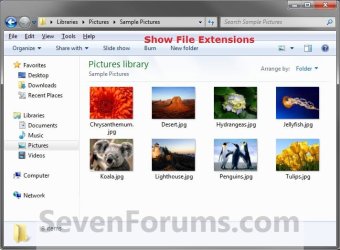
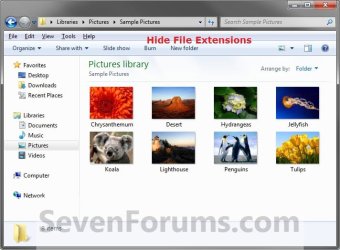
OPTION ONE
Hide or Show Known File Extensions in Folder Options
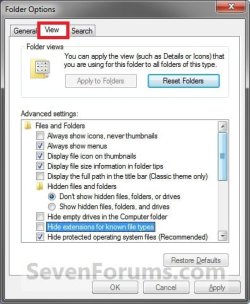
1. Open Folder Options, and click on the View tab. (See screenshot below)
2. To Hide Known File Type Extensions
A) Check the Hide extensions for known file types box, then click on OK. (see screenshot above)
NOTE: This is the default setting.
3. To Show Known File Type Extensions
A) Uncheck the Hide extensions for known file types box, then click on OK. (see screenshot above)
OPTION TWO
Hide or Show Known File Extensions using a REG file
1. To Show Known File Type Extensions
A) Click on the Download button below to download the file below.
Show_Known_File_Extensions.reg
Download
B) Go to step 3.
2. To Hide Known File Type Extensions
A) Click on the Download button below to download the file below.
NOTE: This is the default setting.
Hide_Known_File_Extensions.reg
Download
3. Click on Save, and save the .reg file to the desktop.
4. Right click on the downloaded .reg file and click on Merge.
5. Click on Run, Yes, Yes, and OK when prompted.
6. Refresh (F5) Window Explorer or Desktop to see the changes.
7. When done, you can delete the downloaded .reg file if you like.
OPTION THREE
Hide or Show Known File Extensions in Registry Editor
1. Open the Start Menu, then type regedit in the search box and press Enter.
2. If prompted by UAC, then click on Yes.
3. In regedit, navigate to the location below. (see screenshot below)
HKEY_CURRENT_USER\Software\Microsoft\Windows\CurrentVersion\Explorer\Advanced

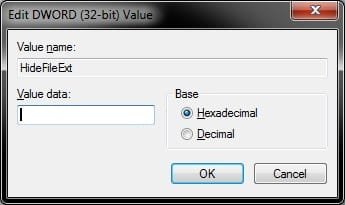
4. In the right pane of Advanced, right click on HideFileExt and click on Modify. (see screenshot above)
5. To Hide Known File Type Extensions
A) Type 1 (number zero), and click on OK. (see screenshot below)
NOTE: This is the default setting.
B) Go to step 7.
6. To Show Known File Type Extensions
A) Type 0, and click on OK. (see screenshot above)
7. Close regedit.
8. Refresh (F5) Window Explorer or Desktop to see the changes.
That's it,
Shawn
Related Tutorials
- How to Remove or Restore the "Shortcut" Name Extension in Windows 7 and Windows 8
- How to Associate a File Type or Protocol Default Program in Window 7
- How to Unassociate a File Extension Type in Vista, Windows 7, and Windows 8
- Restore Default Windows 7 File Extension Type Associations
- How to Set Default Associations for a Program in Windows 7
- How to Add or Remove "Always use selected program" in Open with
- How to Have "Always use selected program" Always Checked or Unchecked in "Open with"
- How to Change the Default Icon of a File Extension in Windows 7
- Add "Show/Hide Known File Extensions" to Context Menu in Vista, Windows 7, and Windows 8
Attachments
Last edited: