
How to Enable or Disable Auto Suggest in Firefox
Information
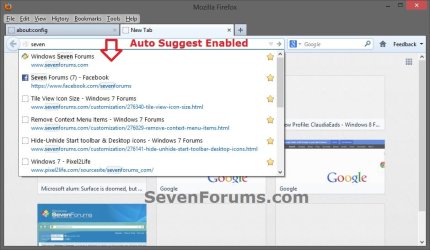
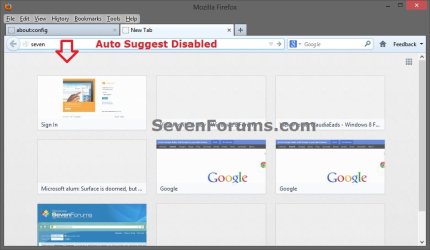
This tutorial will show you how to enable or disable the auto suggest address bar drop down list of previously typed valid URLs in Firefox for only your user account in Windows.
EXAMPLE: Auto Suggest Enabled and Disabled in Firefox
Here's How:
1. Open Firefox.
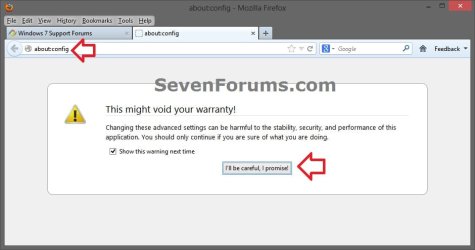
2. In the address bar of Firefox type about:config, and click/tap on the I'll be careful, I promise button. (see screenshot below)
3. Do step 4 or 5 below for what you would like to do.
4. To Enable "Auto Suggest" in Firefox
NOTE: This is the default setting.
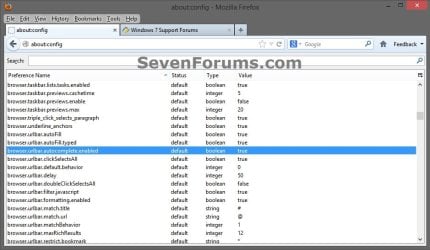
A) Scroll down to and double click/tap on browser.urlbar.autocomplete.enabled to have it say true, and go to step 6 below. (see screenshot below step 5)
5. To Disable "Auto Suggest" in Firefox
A) Scroll down to and double click/tap on browser.urlbar.autocomplete.enabled to have it say false, and go to step 6 below. (see screenshot below)
6. When finished, you can close the about:config tab.
That's it,
Shawn
Last edited:
