
How to Enable or Disable Firefox Automatic Updates
Information
By default, Firefox is configured to automatically checks for and install updates.
This tutorial will show you how to enable or disable Firefox from automatically checking for and installing updates.
This tutorial will show you how to enable or disable Firefox from automatically checking for and installing updates.
Note
- Firefox does not automatically update plugins.
- By default, updates will be downloaded in the background and installed when you restart Firefox.
- If an update has been waiting to be installed for more than 24 hours, you'll see a notification with the option to restart Firefox and install the update.
- Click on Help (menu bar), and click on About Firefox.
- The About Firefox window will open and Firefox will begin checking for updates.
- If updates are available, they will begin downloading automatically.
- If Firefox is already up to date, just close the About Firefox window.
- If updates were downloaded and ready to be installed, click Restart to Update. Firefox will be restarted and the updates will be installed.
Here's How:
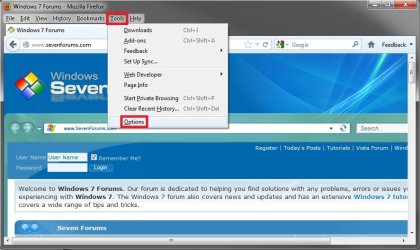
1. In Firefox, click on Tools (menu bar) and Options. (see screenshot below)
2. Click on the Advanced panel icon, and click on the Update tab. (see screenshot below)
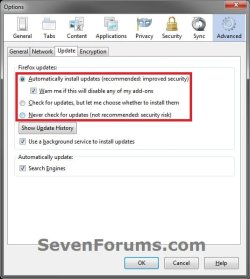
3. Select the update options you want, and click on OK. (see screenshot above)
- Automatically install updates (recommended: improved security): Firefox automatically downloads and installs found updates.
- Warn me if this will disable any of my add-ons: If you wish to be prompted if the downloads will disable any installed add-ons, select that setting.
- Check for updates, but let me choose whether to install them: Firefox lets you choose if you want to download and install updates. If you do not choose to do so, you can download them at a later time.
- Never check for updates (not recommended: security risk): Firefox will not check for updates.
WarningIf you select this setting, you will not receive critical security updates that may keep you safe online unless you frequently do a manual check for updates. - To review the history of updates that have been downloaded and installed, click Show Update History.
- Use a background service to install updates: Firefox will use the Mozilla Maintenance Service when installing updates. This will remove the need to authorize Firefox to make changes to your computer through the User Account Control dialog in Windows 7 and Vista.
- Search Engines: Check this to receive automatic updates to your search engines.
That's it,
Shawn
Last edited:


