Found some other posts on this subject and it appears I need the Boot files copied to my SSD so it can boot without the other drive active. Situation is:
Win7 installed on SSD while first system disk still connected now won't boot unless first system disk also installed. First system disk has Win XP installed. Not normally an issue as it boots up with both drives but assume I'd be better having the ability to boot independently. Here is result from bcdedit /enum all:
Windows Boot Manager
--------------------
identifier {bootmgr}
device partition=E:
description Windows Boot Manager
locale en-US
inherit {globalsettings}
default {current}
resumeobject {504f5c04-70b6-11e1-b7a7-bf5493004b3c}
displayorder {ntldr}
{current}
toolsdisplayorder {memdiag}
timeout 0
Windows Boot Loader
-------------------
identifier {current}
device partition=C:
path \Windows\system32\winload.exe
description Windows 7
locale en-US
loadoptions DDISABLE_INTEGRITY_CHECKS
inherit {bootloadersettings}
recoverysequence {504f5c06-70b6-11e1-b7a7-bf5493004b3c}
recoveryenabled Yes
osdevice partition=C:
systemroot \Windows
resumeobject {504f5c04-70b6-11e1-b7a7-bf5493004b3c}
nx OptIn
Windows Boot Loader
-------------------
identifier {504f5c06-70b6-11e1-b7a7-bf5493004b3c}
device ramdisk=[C:]\Recovery\504f5c06-70b6-11e1-b7a7-bf5493004b3c\Winre.wim,{504f5c07-70b6-11e1-b7a7-bf5493004b3c}
path \windows\system32\winload.exe
description Windows Recovery Environment
inherit {bootloadersettings}
osdevice ramdisk=[C:]\Recovery\504f5c06-70b6-11e1-b7a7-bf5493004b3c\Winre.wim,{504f5c07-70b6-11e1-b7a7-bf5493004b3c}
systemroot \windows
nx OptIn
winpe Yes
Resume from Hibernate
---------------------
identifier {504f5c04-70b6-11e1-b7a7-bf5493004b3c}
device partition=C:
path \Windows\system32\winresume.exe
description Windows Resume Application
locale en-US
inherit {resumeloadersettings}
filedevice partition=C:
filepath \hiberfil.sys
debugoptionenabled No
Windows Memory Tester
---------------------
identifier {memdiag}
device partition=E:
path \boot\memtest.exe
description Windows Memory Diagnostic
locale en-US
inherit {globalsettings}
badmemoryaccess Yes
Windows Legacy OS Loader
------------------------
identifier {ntldr}
device partition=E:
path \ntldr
description Earlier Version of Windows
EMS Settings
------------
identifier {emssettings}
bootems Yes
Debugger Settings
-----------------
identifier {dbgsettings}
debugtype Serial
debugport 1
baudrate 115200
RAM Defects
-----------
identifier {badmemory}
Global Settings
---------------
identifier {globalsettings}
inherit {dbgsettings}
{emssettings}
{badmemory}
Boot Loader Settings
--------------------
identifier {bootloadersettings}
inherit {globalsettings}
{hypervisorsettings}
Hypervisor Settings
-------------------
identifier {hypervisorsettings}
hypervisordebugtype Serial
hypervisordebugport 1
hypervisorbaudrate 115200
Resume Loader Settings
----------------------
identifier {resumeloadersettings}
inherit {globalsettings}
Device options
--------------
identifier {504f5c07-70b6-11e1-b7a7-bf5493004b3c}
description Ramdisk Options
ramdisksdidevice partition=C:
ramdisksdipath \Recovery\504f5c06-70b6-11e1-b7a7-bf5493004b3c\boot.sdi
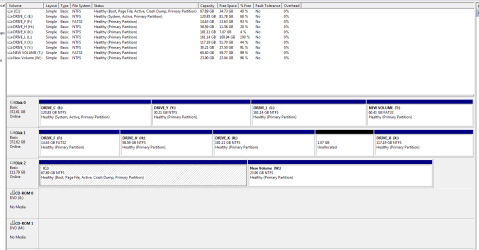
and here is screen shot of disk manager:
Ideally I'd like to leave the spinning disc bootable from a boot menu if required but to normally boot to the SSD without going through the boot menu. From what I've read I think I only need to copy the boot files to the SSD. Currently it boots straight from the SSD but fails if I disconnect the XP HDD which has the boot files. Only found this out when trouble shooting a boot problem after installing some new hardware.
In the screen shot disk 0 is the original spinning disc with XP. Disk 1 is my data storage array. Disk 2 is the SSD with Win 7.
Appreciate any guidance on fixing this.
Thanks
Chris
Win7 installed on SSD while first system disk still connected now won't boot unless first system disk also installed. First system disk has Win XP installed. Not normally an issue as it boots up with both drives but assume I'd be better having the ability to boot independently. Here is result from bcdedit /enum all:
Windows Boot Manager
--------------------
identifier {bootmgr}
device partition=E:
description Windows Boot Manager
locale en-US
inherit {globalsettings}
default {current}
resumeobject {504f5c04-70b6-11e1-b7a7-bf5493004b3c}
displayorder {ntldr}
{current}
toolsdisplayorder {memdiag}
timeout 0
Windows Boot Loader
-------------------
identifier {current}
device partition=C:
path \Windows\system32\winload.exe
description Windows 7
locale en-US
loadoptions DDISABLE_INTEGRITY_CHECKS
inherit {bootloadersettings}
recoverysequence {504f5c06-70b6-11e1-b7a7-bf5493004b3c}
recoveryenabled Yes
osdevice partition=C:
systemroot \Windows
resumeobject {504f5c04-70b6-11e1-b7a7-bf5493004b3c}
nx OptIn
Windows Boot Loader
-------------------
identifier {504f5c06-70b6-11e1-b7a7-bf5493004b3c}
device ramdisk=[C:]\Recovery\504f5c06-70b6-11e1-b7a7-bf5493004b3c\Winre.wim,{504f5c07-70b6-11e1-b7a7-bf5493004b3c}
path \windows\system32\winload.exe
description Windows Recovery Environment
inherit {bootloadersettings}
osdevice ramdisk=[C:]\Recovery\504f5c06-70b6-11e1-b7a7-bf5493004b3c\Winre.wim,{504f5c07-70b6-11e1-b7a7-bf5493004b3c}
systemroot \windows
nx OptIn
winpe Yes
Resume from Hibernate
---------------------
identifier {504f5c04-70b6-11e1-b7a7-bf5493004b3c}
device partition=C:
path \Windows\system32\winresume.exe
description Windows Resume Application
locale en-US
inherit {resumeloadersettings}
filedevice partition=C:
filepath \hiberfil.sys
debugoptionenabled No
Windows Memory Tester
---------------------
identifier {memdiag}
device partition=E:
path \boot\memtest.exe
description Windows Memory Diagnostic
locale en-US
inherit {globalsettings}
badmemoryaccess Yes
Windows Legacy OS Loader
------------------------
identifier {ntldr}
device partition=E:
path \ntldr
description Earlier Version of Windows
EMS Settings
------------
identifier {emssettings}
bootems Yes
Debugger Settings
-----------------
identifier {dbgsettings}
debugtype Serial
debugport 1
baudrate 115200
RAM Defects
-----------
identifier {badmemory}
Global Settings
---------------
identifier {globalsettings}
inherit {dbgsettings}
{emssettings}
{badmemory}
Boot Loader Settings
--------------------
identifier {bootloadersettings}
inherit {globalsettings}
{hypervisorsettings}
Hypervisor Settings
-------------------
identifier {hypervisorsettings}
hypervisordebugtype Serial
hypervisordebugport 1
hypervisorbaudrate 115200
Resume Loader Settings
----------------------
identifier {resumeloadersettings}
inherit {globalsettings}
Device options
--------------
identifier {504f5c07-70b6-11e1-b7a7-bf5493004b3c}
description Ramdisk Options
ramdisksdidevice partition=C:
ramdisksdipath \Recovery\504f5c06-70b6-11e1-b7a7-bf5493004b3c\boot.sdi
and here is screen shot of disk manager:
Ideally I'd like to leave the spinning disc bootable from a boot menu if required but to normally boot to the SSD without going through the boot menu. From what I've read I think I only need to copy the boot files to the SSD. Currently it boots straight from the SSD but fails if I disconnect the XP HDD which has the boot files. Only found this out when trouble shooting a boot problem after installing some new hardware.
In the screen shot disk 0 is the original spinning disc with XP. Disk 1 is my data storage array. Disk 2 is the SSD with Win 7.
Appreciate any guidance on fixing this.
Thanks
Chris
My Computer
At a glance
Win 7 Pro 64 Biti5-469016GB KingstonGigabyte R7/260X
- Computer type
- PC/Desktop
- Computer Manufacturer/Model Number
- Gigabyte GA-H97-D3H
- OS
- Win 7 Pro 64 Bit
- CPU
- i5-4690
- Motherboard
- Gigabyte GA-H97-D3H
- Memory
- 16GB Kingston
- Graphics Card(s)
- Gigabyte R7/260X
- Sound Card
- none
- Monitor(s) Displays
- NEC PA302W
- Screen Resolution
- 2560 x 1600
- Hard Drives
- Smasing 850EVO 256GB SSD
WD 2TB Red
- PSU
- Antec 650W
- Case
- Antec
- Cooling
- n/a
- Keyboard
- IBM
- Mouse
- MS
- Internet Speed
- 1500