- Local time
- 7:15 PM
- Messages
- 5,063
Video: Give XCopy a graphical interface with this free download | TR Dojo | TechRepublic.com
Overview: The XCopy command has risen from the ashes of deprecation to save you time and make your file management tasks easier. This tool automates the process for XP, Vista, and Windows 7.
Many Windows power users were more than a little annoyed when Xcopy was deprecated in Windows Vista in favor of RoboCopy–especially those with lots of scripts that made use of Xcopy. Luckily, Xcopy is back in Windows 7 and TechRepublic blogger Greg Shultz has updated his Xcopy tool to work automatically in Windows XP, Vista, and Windows 7. During this episode of TR Dojo, I show you how to download, install, and use this free tool.
http://i.techrepublic.com.com/downloads/Gilbert/xcopy_tool.zip
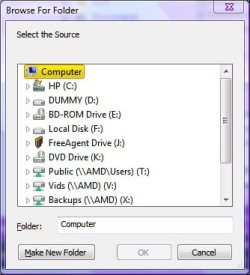
One nice easy tweak you can make is comment out line 65 of XCopyTool.hta like so:
'Set SelectedFolder = WindowsShell.BrowseForFolder(0, Prompt, &H0001, 17)
and replace it with the same line but with the &H0001 flag changed to &H0011 giving this result:
Set SelectedFolder = WindowsShell.BrowseForFolder(0, Prompt, &H0011, 17)
Setting that flag option adds an Edit Line to the BrowseForFolder dialog. Instead of having to click down and expand the tree to pick a folder you can type or paste it in. It doesn't accept drag & drop but at least if you have your source and destination folders open in explorer windows you can click the title or address bar and copy/paste into the dialog. Makes it a lot easier than clicking down.
Last edited:
My Computer
- Computer Manufacturer/Model Number
- HP Media Center
- OS
- Windows 7 32 bit
- CPU
- AMD 5200+ dual core
- Memory
- 2 GB
- Graphics Card(s)
- NVidia GeForce 6150SE 128 MB
- Monitor(s) Displays
- CRT
- Screen Resolution
- 1280x1024
- Hard Drives
- 500 GB Sata internal :
SIIG USB 3.0 docking stations w/WD Caviar Black 6 Gb/s drives
- Keyboard
- PS/2
- Mouse
- PS/2 Wheel Mouse
- Other Info
- SIIG USB 3.0 PCIexpress card.