
Frequent unresponsiveness, 100% hardware disk usage, 0% software usage

SpringHalo

New member
Local time
1:23 PM
Messages
21
Every 10-40 minutes, the application I'm currently working in [whither it be skype, L4D2, or firefox] becomes unresponsive, and after a minute or two, the window turns white, notifying me that it's not responding. This unresponsiveness quickly spreads to other open processes, rendering them frozen as well. I can still use the mouse, and it appears rainmeter still responds [updates, showing barely any CPU usage].

Steps I've taken to try and resolve this:
Using only one main program, still does it
turning the computer off and on again
Memtest is clean
chkdisk passes
MBAM/MSE scans return nothing
defragged
no memory overflows that I can see

While troubleshooting, I noticed that during the 'fit of unresponsiveness' the disk usage light on my tower is solid, but when I looked at the disk usage in the resource monitor, no processes whatsoever were using it [screenshot related]

If any more specifications are needed, I'll be happy to elaborate.


Thanks!
 

Attachments
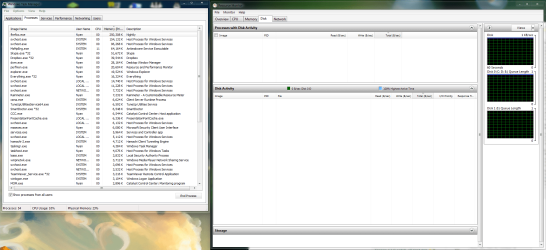
  • no disk use.png
    no disk use.png
    125.9 KB · Views: 472

My Computer

OS
Windows 7 Ultimate x64
CPU
i3-2100
Motherboard
MSI P67a-GD65
Memory
2x2gb+2x4gb G.Skill
Graphics Card(s)
Asus EAH6850
Sound Card
n/a
Monitor(s) Displays
Dell 24" 1080p
Hard Drives
Seagate 1TB
PSU
Antec Truepower 650w 80+ Bronze
Case
Lian-li k58w
It could be indexing. What if you turn off indexing just as an experiment?
 

My Computer

Computer Manufacturer/Model Number
Dell and Custom
OS
Systems 1 and 2: Windows 7 Enterprise x64, Win 8 Developer
CPU
System 1: i7 [email protected], System 2: AMD FX-4100 Zambezi 3.6G
Motherboard
System 1:Dell 06NWYK System 2: ASUS M5A97 AM3+
Memory
System 1: 8GB System 2: 8GB
Graphics Card(s)
System 1: ATI FirePro V4800 System 2: Radeon HD 6850
Sound Card
System 1: onboard System 2: onboard
Monitor(s) Displays
System1: Viewsonic HDMI 24"
Screen Resolution
System 1: 1920x1080 System 2: 1920x1080
Hard Drives
System 1: Mirrored .5B drives System 2: Seagate Barracuda ST1000DM003 1TB 7200 RPM 64MB Cache SATA 6.0Gb/s
Case
System 1: Dell System 2: Cooler Master
Internet Speed
10 MBPS
I've disabled it long ago. I use everything now.
 

My Computer

OS
Windows 7 Ultimate x64
CPU
i3-2100
Motherboard
MSI P67a-GD65
Memory
2x2gb+2x4gb G.Skill
Graphics Card(s)
Asus EAH6850
Sound Card
n/a
Monitor(s) Displays
Dell 24" 1080p
Hard Drives
Seagate 1TB
PSU
Antec Truepower 650w 80+ Bronze
Case
Lian-li k58w
Try running msconfig, then diagnostic startup. See if you have any problems.

You can also look at startup in msconfig, and temporarily uncheck these.
 

My Computer

Computer Manufacturer/Model Number
Dell and Custom
OS
Systems 1 and 2: Windows 7 Enterprise x64, Win 8 Developer
CPU
System 1: i7 [email protected], System 2: AMD FX-4100 Zambezi 3.6G
Motherboard
System 1:Dell 06NWYK System 2: ASUS M5A97 AM3+
Memory
System 1: 8GB System 2: 8GB
Graphics Card(s)
System 1: ATI FirePro V4800 System 2: Radeon HD 6850
Sound Card
System 1: onboard System 2: onboard
Monitor(s) Displays
System1: Viewsonic HDMI 24"
Screen Resolution
System 1: 1920x1080 System 2: 1920x1080
Hard Drives
System 1: Mirrored .5B drives System 2: Seagate Barracuda ST1000DM003 1TB 7200 RPM 64MB Cache SATA 6.0Gb/s
Case
System 1: Dell System 2: Cooler Master
Internet Speed
10 MBPS
Doing so seems to have fixed the problem, though there wasn't much to do to check if it would happen again, since there's nothing to do in diagnostic mode.
 

My Computer

OS
Windows 7 Ultimate x64
CPU
i3-2100
Motherboard
MSI P67a-GD65
Memory
2x2gb+2x4gb G.Skill
Graphics Card(s)
Asus EAH6850
Sound Card
n/a
Monitor(s) Displays
Dell 24" 1080p
Hard Drives
Seagate 1TB
PSU
Antec Truepower 650w 80+ Bronze
Case
Lian-li k58w
If it flares up again you may look to see if any of these are enabled:

WMP sharing media files over the network

WMP logging the location of every media file on your system in case you might want to add it to the library at some future date(I'm not kidding.)

Network shares set up to run in offline mode(local copy is cached so the system keeps checking the remote copy for changes.)

Some application monitoring a large folder for changes, such as the Windows folder.

Also you may try disabling or opting out of the Customer Experience Program. The system gathers all kinds of stats(I forget if this is in W7. I know I had to turn it off in Vista.)

Vista my drive churned something fierce. Windows Seven the problem was diminished but it still calmed down after some tuning.
 

My Computer

Computer Manufacturer/Model Number
HP Media Center
OS
Windows 7 32 bit
CPU
AMD 5200+ dual core
Memory
2 GB
Graphics Card(s)
NVidia GeForce 6150SE 128 MB
Monitor(s) Displays
CRT
Screen Resolution
1280x1024
Hard Drives
500 GB Sata internal :

SIIG USB 3.0 docking stations w/WD Caviar Black 6 Gb/s drives
Keyboard
PS/2
Mouse
PS/2 Wheel Mouse
Other Info
SIIG USB 3.0 PCIexpress card.
I never use WMP, so I would doubt that it's starting any shenanigans right now. As for something indexing or searching, firefox could be the culprit, as a while ago I created a ramdisk for it to use as a cache, and now the ramdisk is gone. I looked back to change the cache location to default, but the bit I changed seems to be gone. That's the only thing I can think of off the top of my head.
 

My Computer

OS
Windows 7 Ultimate x64
CPU
i3-2100
Motherboard
MSI P67a-GD65
Memory
2x2gb+2x4gb G.Skill
Graphics Card(s)
Asus EAH6850
Sound Card
n/a
Monitor(s) Displays
Dell 24" 1080p
Hard Drives
Seagate 1TB
PSU
Antec Truepower 650w 80+ Bronze
Case
Lian-li k58w
That's the thing about WMP. It was being started by a service in the background to index the media files to share over the network. Even though I never clicked on it and set other players as default player. I finally got the settings to the point I can use WMP if I want. Version 12 has PGS and XSub subtitle support. So on occasion I'll take a quick view with it to check subs.

I used to run Firefox portable out of a Ramdisk totally. Not just the cache. Best way is to discard the Ramdisk contents on system shutdown. Use XCopy to copy the Firefox portable folder contents recursively into the Ramdisk at logon(you can find the batch file if you search the web.)

Only real downside is you have to start FF portable from the HD folder if you want to store any settings changes or install AddOns. But it loads quickly even if the HD is busy from the Ramdisk. Kind of fun, but then I moved to Chromium. Even with multiple processes I start Chromium with a blank page so it loads fast if HD is busy.

Some people just load the browser and leave it open. But that would be cheating. :)
 

My Computer

Computer Manufacturer/Model Number
HP Media Center
OS
Windows 7 32 bit
CPU
AMD 5200+ dual core
Memory
2 GB
Graphics Card(s)
NVidia GeForce 6150SE 128 MB
Monitor(s) Displays
CRT
Screen Resolution
1280x1024
Hard Drives
500 GB Sata internal :

SIIG USB 3.0 docking stations w/WD Caviar Black 6 Gb/s drives
Keyboard
PS/2
Mouse
PS/2 Wheel Mouse
Other Info
SIIG USB 3.0 PCIexpress card.
Do you know which service it was that was causing the problem?

Edit: My problem isn't solved yet. When I said it seems to have fixed it, I meant that the problem didn't occur in diagnostic mode, from what I could tell.
 

My Computer

OS
Windows 7 Ultimate x64
CPU
i3-2100
Motherboard
MSI P67a-GD65
Memory
2x2gb+2x4gb G.Skill
Graphics Card(s)
Asus EAH6850
Sound Card
n/a
Monitor(s) Displays
Dell 24" 1080p
Hard Drives
Seagate 1TB
PSU
Antec Truepower 650w 80+ Bronze
Case
Lian-li k58w
If you're willing to bugcheck your box "for science", you can set it to be crashed manually via the keyboard. Once you set the appropriate CrashOnCtrlScroll registry value for either a PS/2 or USB keyboard (depending on what's attached to your computer) and configuring your machine for a complete memory dump, you should reboot for the changes to take effect. Then, the next time your machine goes into such a state, you can simply hold down the right-hand CTRL key on your keyboard and press the SCROLL LOCK key twice to bugcheck the machine (on purpose, of course). This will generate a rather large memory.dmp file in %windir%, but that can be zipped up using 7zip or WinRAR to a much smaller size, at which point the zipped file can be uploaded somewhere for us to download and analyze the hang condition.
 

My Computer

Computer type
PC/Desktop
Computer Manufacturer/Model Number
Custom
OS
Windows 10 Pro x64
CPU
Intel Core i7 4790K @ 4.5GHz
Motherboard
Asus Maximus Hero VII
Memory
32GB DDR3
Graphics Card(s)
Nvidia GeForce GTX970
Sound Card
Realtek HD Audio
Screen Resolution
1920x1200
Hard Drives
1x Samsung 250GB SSD
4x WD RE 2TB (RAIDZ)
PSU
Corsair AX760i
Case
Fractal Design Define R4
Cooling
Noctua NH-D15
I read about that, but I can't seem to find a scroll lock button on my keyboard. Would it be preferable to have as few programs open as possible at the time?
 

My Computer

OS
Windows 7 Ultimate x64
CPU
i3-2100
Motherboard
MSI P67a-GD65
Memory
2x2gb+2x4gb G.Skill
Graphics Card(s)
Asus EAH6850
Sound Card
n/a
Monitor(s) Displays
Dell 24" 1080p
Hard Drives
Seagate 1TB
PSU
Antec Truepower 650w 80+ Bronze
Case
Lian-li k58w
Double post
 

My Computer

OS
Windows 7 Ultimate x64
CPU
i3-2100
Motherboard
MSI P67a-GD65
Memory
2x2gb+2x4gb G.Skill
Graphics Card(s)
Asus EAH6850
Sound Card
n/a
Monitor(s) Displays
Dell 24" 1080p
Hard Drives
Seagate 1TB
PSU
Antec Truepower 650w 80+ Bronze
Case
Lian-li k58w
I had this same problem some time ago. It was on a new SSD install though.

The issue turned out to be a problem with the disk drivers "NCQ" (Native Command Queing).

I had to go to the hardware manager and to the SATA port for the drive itself and on the advanced options I turned off NCQ and it never happened again.

Only some drivers expose that option though, but it's worth taking a look...
 

My Computer

Computer Manufacturer/Model Number
Scratch built
OS
Windows 7 x64 Ultimate
CPU
i7 960
Motherboard
Asus P6X58D
Memory
12 Gig Corsair Dominator
Graphics Card(s)
Nvidia 480
Sound Card
Maudio Delta 44 + breakout box
Monitor(s) Displays
Dell UltraSharp U2410 24in and Samsung 21 dual monitors
Screen Resolution
1920x1200 and 1280x1024
Hard Drives
Primary: Intel X-25M G2 160G SSD
Secondary: Segate baracuda 1.0 TB
HDs in AHCI mode.
PSU
Corasair TX850
Case
Cooler Master HAF
Cooling
Corsair H50
Keyboard
Logitech G15 + N52 game pad
Mouse
Logitech MX518
Internet Speed
15kbs down 4.5kbps up
Other Info
WEI 7.6
CPU & RAM 7.6
Graphics 7.9
Hard disk 7.7
Sounds like it could help. I'll give it a try when I get back to my computer.
 

My Computer

OS
Windows 7 Ultimate x64
CPU
i3-2100
Motherboard
MSI P67a-GD65
Memory
2x2gb+2x4gb G.Skill
Graphics Card(s)
Asus EAH6850
Sound Card
n/a
Monitor(s) Displays
Dell 24" 1080p
Hard Drives
Seagate 1TB
PSU
Antec Truepower 650w 80+ Bronze
Case
Lian-li k58w
Do you know which service it was that was causing the problem?

Edit: My problem isn't solved yet. When I said it seems to have fixed it, I meant that the problem didn't occur in diagnostic mode, from what I could tell.

I have Windows Media Player Network Sharing Service disabled. Unfortunately I don't keep a log of every system change. I know I turned that service off. The rest of the tweaks I believe are in the WMP settings themselves.

Also if I remember correctly when you set up the network with the radio buttons for the various settings, it wants to have WMP share media. After making the settings I wanted, I went back into the configuration on several occasions to make sure my settings "stuck." For example if you log out, then log back on, or reboot, take a look at the config to make sure it didn't go back to what it wants.
 

My Computer

Computer Manufacturer/Model Number
HP Media Center
OS
Windows 7 32 bit
CPU
AMD 5200+ dual core
Memory
2 GB
Graphics Card(s)
NVidia GeForce 6150SE 128 MB
Monitor(s) Displays
CRT
Screen Resolution
1280x1024
Hard Drives
500 GB Sata internal :

SIIG USB 3.0 docking stations w/WD Caviar Black 6 Gb/s drives
Keyboard
PS/2
Mouse
PS/2 Wheel Mouse
Other Info
SIIG USB 3.0 PCIexpress card.
I've found something peculiar. When I enabled the memory dump option and commenced dumping when the freeze happened again, the computer just stayed in bluescreen for about 2 and a half hours without doing anything. At the time of the dump I had about 1.7GB of ram used, and 2GB of SWAP. It shouldn't take that long to dump, should it?
 

My Computer

OS
Windows 7 Ultimate x64
CPU
i3-2100
Motherboard
MSI P67a-GD65
Memory
2x2gb+2x4gb G.Skill
Graphics Card(s)
Asus EAH6850
Sound Card
n/a
Monitor(s) Displays
Dell 24" 1080p
Hard Drives
Seagate 1TB
PSU
Antec Truepower 650w 80+ Bronze
Case
Lian-li k58w
No, it really shouldn't. It should also note that it's committing memory to the dump file with a counter at the bottom, so it would seem that perhaps it wasn't deciding to dump at all if you didn't see a count up to 100...
 

My Computer

Computer type
PC/Desktop
Computer Manufacturer/Model Number
Custom
OS
Windows 10 Pro x64
CPU
Intel Core i7 4790K @ 4.5GHz
Motherboard
Asus Maximus Hero VII
Memory
32GB DDR3
Graphics Card(s)
Nvidia GeForce GTX970
Sound Card
Realtek HD Audio
Screen Resolution
1920x1200
Hard Drives
1x Samsung 250GB SSD
4x WD RE 2TB (RAIDZ)
PSU
Corsair AX760i
Case
Fractal Design Define R4
Cooling
Noctua NH-D15
There was no counter, just something saying 'preparing memory for dump' and 'preparing HDD for being dumpee' or something of that nature.

Edit: it said collecting data for crash dump
initializing disk for crash dump

With no progress bar or counter underneath.
 
Last edited:

My Computer

OS
Windows 7 Ultimate x64
CPU
i3-2100
Motherboard
MSI P67a-GD65
Memory
2x2gb+2x4gb G.Skill
Graphics Card(s)
Asus EAH6850
Sound Card
n/a
Monitor(s) Displays
Dell 24" 1080p
Hard Drives
Seagate 1TB
PSU
Antec Truepower 650w 80+ Bronze
Case
Lian-li k58w
Hrm - sounds like the hard drive hardware has gone out from underneath. Once Windows gets to a blue screen, it has very little information left running, but it does have a very minimal driver for hard disk access to dump all data to pagefile.sys, and then reboot to rename it memory.dmp in the \Windows directory (by default). If the drive running the OS has gone south at that point and is no longer physically available, though, it won't have enough logic available at that point to do anything but wait with what you see there. This could still be a driver issue (as part of it is still used at that point), but it could also be a hardware issue with the underlying disk subsystem or the disk itself. If it works in diagnostics mode, though, it would seem more a driver issue than a hardware one. If you don't see any issues in the event log regarding your disks, then while it is still worth checking the SMART status of the drives to be sure, I'd put money on this being a disk controller driver issue.
 

My Computer

Computer type
PC/Desktop
Computer Manufacturer/Model Number
Custom
OS
Windows 10 Pro x64
CPU
Intel Core i7 4790K @ 4.5GHz
Motherboard
Asus Maximus Hero VII
Memory
32GB DDR3
Graphics Card(s)
Nvidia GeForce GTX970
Sound Card
Realtek HD Audio
Screen Resolution
1920x1200
Hard Drives
1x Samsung 250GB SSD
4x WD RE 2TB (RAIDZ)
PSU
Corsair AX760i
Case
Fractal Design Define R4
Cooling
Noctua NH-D15
How would I go about checking this SMART activity? I'm currently running an error scan on the hard drive itself, but I'm not sure how to check the driver

EDIT: Downloading updated motherboard drivers, just to check.
 
Last edited:

My Computer

OS
Windows 7 Ultimate x64
CPU
i3-2100
Motherboard
MSI P67a-GD65
Memory
2x2gb+2x4gb G.Skill
Graphics Card(s)
Asus EAH6850
Sound Card
n/a
Monitor(s) Displays
Dell 24" 1080p
Hard Drives
Seagate 1TB
PSU
Antec Truepower 650w 80+ Bronze
Case
Lian-li k58w
Back
Top