Full system image restore & testing

wizbit

New member
Member
Local time
5:50 PM
Messages
23
Hi

I have a win 7 x64 system on a partition "C" drive SATA 250GB and this drive is partitioned with another 2 data drives. (1TB total)

I want to buy another SATA drive to use as a backup image drive which will be used internally which will be a large drive of 2TB what I thought I would do was partition this drive to hold the backup images of the "C" drive and another partition area for doing image testing to prove the image works (and still keep the original just in case on the C drive with no changes) The drive should be large enough to keep the full size of the test images on there own partition.

I have done images from both Windows 7 own image program and Acronis True Image Home 2010 Trial to see which works best (would like to use the built in one as acronis I hear is having problems in win 7 and I need to be able to test a program)

I know I can change the boot order in my bios to boot from another hard drive which should allow me to boot from the new hard drive.


My questions are
  • If booting from this new drive will windows object having another drive on the system called C or will one drive have its letter changed (I think I read win 7 can boot from another letter)?
  • If so will it mess the original drive letter up and course problems later when testing is over? or will this drive go back to being "C" when the new image boot drive is deleted? (as I do not want any changes to this drive through testing and once the image is teste I want things to go back to the way they was before image testing)
  • Or would I have to disable the old C drive to test (remove its power cord
Thanks for any help you can give me I just want to find a safe way of testing an image with no risk to the original disk C.

If you need any more information or if I have not explanined my self very well please ask.
 

My Computer

Computer Manufacturer/Model Number
home made
OS
win 7 Home premium X64
CPU
Intel I7 860
Motherboard
P7P55D-DELUXE
Memory
4GB Corsair CMX4GX3M2A1600C8 2x 2gb
Graphics Card(s)
PNY GTX 285 (XFX died)
Sound Card
Creative Labs SB X-Fi Xtreme Audio PCI-Express
Monitor(s) Displays
viewsonic pf775
Screen Resolution
1024x768 85hz
Hard Drives
Samsung 1tb f3 x2,
Samsung 500GB x1,
Samsung 2TB x1,
PSU
Corsair 750HX
Case
Silverstone SST-FT01B Fortress ATX, Mid tower
Cooling
3 case fans 1 x 120mm, 2 x 180mm and a Noctua cpu fan
Keyboard
Logitech
Mouse
Logitech
Internet Speed
1 MB
Hi there, whatever drive is set to the 1st boot device in BIOS, that hard drive will be used to boot. So it doesnt really matter if you have 2 hard drives and both contains a "C" drive. you also dont need to unplug and drive while booting one. just set the default drive in BIOS. Your idea of backup is great. Also, I recommend using windows system image backup. Hope this helps. :)
 

My Computer

Computer Manufacturer/Model Number
Samsung NP530U4B-S02IN
OS
Windows® 8 Pro (64-bit)
CPU
Intel® Core™ i5 Processor 2467M (1.60GHz, 3MB L3 Cache)
Motherboard
Samsung Electronics
Memory
6GB DDR3 System Memory at 1,333MHz (on BD 4GB + 2GB x 1)
Graphics Card(s)
AMD Radeon™ HD7550M 1GB DDR3 (Ext. Graphic)
Sound Card
Realtek High Definition Audio
Monitor(s) Displays
35.56cm (14.0) SuperBright 300nit HD LED Display
Screen Resolution
1366x768
Hard Drives
1TB S-ATA II Hard Drive (5400RPM) with ExpressCache 16GB SSD
Internet Speed
sucks
Antivirus
Microsoft Security Essentials
Browser
Google Chrome (Sync enabled)
Hi there, whatever drive is set to the 1st boot device in BIOS, that hard drive will be used to boot. So it doesnt really matter if you have 2 hard drives and both contains a "C" drive. you also dont need to unplug and drive while booting one. just set the default drive in BIOS. Your idea of backup is great. Also, I recommend using windows system image backup. Hope this helps. :)


Thanks Dinesh for the quick reply and helping me put my mind at rest! :D
 

My Computer

Computer Manufacturer/Model Number
home made
OS
win 7 Home premium X64
CPU
Intel I7 860
Motherboard
P7P55D-DELUXE
Memory
4GB Corsair CMX4GX3M2A1600C8 2x 2gb
Graphics Card(s)
PNY GTX 285 (XFX died)
Sound Card
Creative Labs SB X-Fi Xtreme Audio PCI-Express
Monitor(s) Displays
viewsonic pf775
Screen Resolution
1024x768 85hz
Hard Drives
Samsung 1tb f3 x2,
Samsung 500GB x1,
Samsung 2TB x1,
PSU
Corsair 750HX
Case
Silverstone SST-FT01B Fortress ATX, Mid tower
Cooling
3 case fans 1 x 120mm, 2 x 180mm and a Noctua cpu fan
Keyboard
Logitech
Mouse
Logitech
Internet Speed
1 MB
You are welcome.
 

My Computer

Computer Manufacturer/Model Number
Samsung NP530U4B-S02IN
OS
Windows® 8 Pro (64-bit)
CPU
Intel® Core™ i5 Processor 2467M (1.60GHz, 3MB L3 Cache)
Motherboard
Samsung Electronics
Memory
6GB DDR3 System Memory at 1,333MHz (on BD 4GB + 2GB x 1)
Graphics Card(s)
AMD Radeon™ HD7550M 1GB DDR3 (Ext. Graphic)
Sound Card
Realtek High Definition Audio
Monitor(s) Displays
35.56cm (14.0) SuperBright 300nit HD LED Display
Screen Resolution
1366x768
Hard Drives
1TB S-ATA II Hard Drive (5400RPM) with ExpressCache 16GB SSD
Internet Speed
sucks
Antivirus
Microsoft Security Essentials
Browser
Google Chrome (Sync enabled)
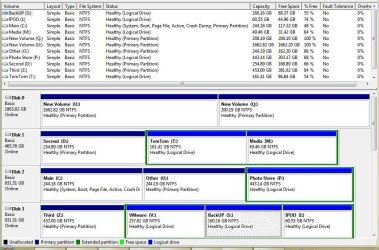
I now have my new 2 Tb drive and I would like a little more clarification because windows restore is a bit basic and does not give me all the information I would like to confidently image the main C (Main) drive to the new test drive U (New volume).
As it does not tell you or give a choice which drive to use. I have done a screen shot of all my drives I know with so many it makes it real confusing
Capture.JPG
Please tell me I am correct in my thinking,

The main 2 drives I am backing up at the moment are going to be the C (Main) drive along with the Z (Third) data drive which this drive contains all my window folders like docs, download, Favourites moved from C (Main).

Now if in the bios I change the boot order so that the U (new volume) drive is set to boot. Then tell win image restore to only restore my C (Main) image at the moment this will be complete on the U (new volume) drive and if windows is then allowed to boot this would be the drive that windows loads from and once loaded it would then work fine as before with drive Z?

(As windows image will image only to the C drive and changing the boot will make U the C drive correct?)

Sorry I know this is getting a bit heavy and soon I will need my own IT department but I was also thinking that if the new C image was a little old it would not have some of the more recent references to some of the files on the Z drive would this mater in this testing state and MORE importantly would this matter when the original drive C Main is set to boot.
 

My Computer

Computer Manufacturer/Model Number
home made
OS
win 7 Home premium X64
CPU
Intel I7 860
Motherboard
P7P55D-DELUXE
Memory
4GB Corsair CMX4GX3M2A1600C8 2x 2gb
Graphics Card(s)
PNY GTX 285 (XFX died)
Sound Card
Creative Labs SB X-Fi Xtreme Audio PCI-Express
Monitor(s) Displays
viewsonic pf775
Screen Resolution
1024x768 85hz
Hard Drives
Samsung 1tb f3 x2,
Samsung 500GB x1,
Samsung 2TB x1,
PSU
Corsair 750HX
Case
Silverstone SST-FT01B Fortress ATX, Mid tower
Cooling
3 case fans 1 x 120mm, 2 x 180mm and a Noctua cpu fan
Keyboard
Logitech
Mouse
Logitech
Internet Speed
1 MB
Does anyone have any ideas about the above or would it be recomended to use a third party program???
(not acronis 2010 as the recovery disc crash's on my computer)
 

My Computer

Computer Manufacturer/Model Number
home made
OS
win 7 Home premium X64
CPU
Intel I7 860
Motherboard
P7P55D-DELUXE
Memory
4GB Corsair CMX4GX3M2A1600C8 2x 2gb
Graphics Card(s)
PNY GTX 285 (XFX died)
Sound Card
Creative Labs SB X-Fi Xtreme Audio PCI-Express
Monitor(s) Displays
viewsonic pf775
Screen Resolution
1024x768 85hz
Hard Drives
Samsung 1tb f3 x2,
Samsung 500GB x1,
Samsung 2TB x1,
PSU
Corsair 750HX
Case
Silverstone SST-FT01B Fortress ATX, Mid tower
Cooling
3 case fans 1 x 120mm, 2 x 180mm and a Noctua cpu fan
Keyboard
Logitech
Mouse
Logitech
Internet Speed
1 MB
Still Open?

Did you ever resolve this? There are lots of directions on creating a Windows 7 system image, but very little on how to test it without risking your system.
 

My Computer

Computer Manufacturer/Model Number
Dell SPX 8000
OS
Windows 7 x64
CPU
i5 750
Memory
8 Gb
I gave up on the built in image back up as it did not give me what I needed.

So with help for acronis customer service I managed to create a working back disk which liked by system (all the other free ones did not work well and this had to be built with a windows PE disk and windows drivers).

I asked the question about trying the above backup and testing method and they said it would work fine (I have not tried it as yet and below it what information they sent me)

As for the testing restore procedure, your thoughts are absolutely correct - you can restore your system image (image of C: partition) to the U: drive and test how it works after that. Please be aware that all links to your downloads, favorites, etc. you have set up will stay intact as the information about these links are located in the registry itself and will be restored along with your system.

So the basic testing procedure will be:

1. Create an image of disk C:.
2. Boot from Acronis bootable rescue media. Please be aware that letters can be named in different way in rescue environment: http://kb.acronis.com/content/1519
3. Restore the image to new drive U:.
4. Wait for the operation to be completed.
5. Reboot the machine and go to the BIOS.
6. Set the boot sequence to be booted from drive U:.
7. Save the settings and reboot the machine.


Hope it helps
 

My Computer

Computer Manufacturer/Model Number
home made
OS
win 7 Home premium X64
CPU
Intel I7 860
Motherboard
P7P55D-DELUXE
Memory
4GB Corsair CMX4GX3M2A1600C8 2x 2gb
Graphics Card(s)
PNY GTX 285 (XFX died)
Sound Card
Creative Labs SB X-Fi Xtreme Audio PCI-Express
Monitor(s) Displays
viewsonic pf775
Screen Resolution
1024x768 85hz
Hard Drives
Samsung 1tb f3 x2,
Samsung 500GB x1,
Samsung 2TB x1,
PSU
Corsair 750HX
Case
Silverstone SST-FT01B Fortress ATX, Mid tower
Cooling
3 case fans 1 x 120mm, 2 x 180mm and a Noctua cpu fan
Keyboard
Logitech
Mouse
Logitech
Internet Speed
1 MB
Hi

I was wondering if this person ended up successfully testing Acronis True Image by restoring to a 2nd drive on their system BUT without it affecting their normal working C drive.

I have validated my backup in Windows and on the rescue boot media which after updating my 2011 copy can now recognise all drives and the network card.

My system drive is a 120Gb SSD - working fine.

I have a 1Tb internal HD, which i created a 200gb partition in to test and another 1Tb USB external Hardrive. I have a backup on the external drive which I want to restore to the 1Tb internal drive and then swap the boot order to it and see if W7 loads correctly.

However I am afraid that when I switch the boot priority back and go and delete the temporary test partition with the restored backup something may go awry with my main original W7 Pro install?
 

My Computer

OS
Windows 7 Pro x64
I don't disagree with earlier advice but still believe pulling cables was the way for me:
1) Image OS to an external HDD. I used Windows imaging but Macrium Reflect is fine. Acronis if you want.
2) Unplug existing OS HDD & plug in new.
3) Reimage and confirm it boots ok. Then unplug.
4) Return existing OS HDD.

My logic is why have a backup HDD spinning and wearing out for no good reason. If your main OS HDD dies it takes 5 min to plug in the backup and a little longer if you want to reimage to your most current image.
 

My Computer

Computer type
PC/Desktop
Computer Manufacturer/Model Number
Own build
OS
Windows 7x64 Home Premium SP1
CPU
Intel i7 2600k
Motherboard
ASUS P8Z68 Deluxe
Memory
G.Skill Ripjaws (DDR3-1600) 2x4GB
Graphics Card(s)
Nvidia GeForce GTS 450; Intel HD Graphics 3000(GT2+)
Monitor(s) Displays
Dell Ultrasharp IPS panel U2311H, Samsung SyncMaster P2350
Screen Resolution
1920x1080
Hard Drives
Samsung 850 Pro SSD 256GB, Samsung SSD 840 120GB, Seagates 1TB Barracuda ST31000528AS x2
PSU
Seasonic M12II 520W
Case
Lian Li Lancool PC-K60
Cooling
Case: 1x120mm, 3x140mm CPU: Hyper 212+
Keyboard
Logitech MK520 (wireless)
Mouse
Logitech MK520
Internet Speed
6-7 Mbps
Antivirus
Norton Security Premium, Malwarebytes on 2 (MSE on 3rd PC)
Browser
FireFox
Other Info
Audio: Logitech Z523 2.1
I don't disagree with earlier advice but still believe pulling cables was the way for me:
1) Image OS to an external HDD. I used Windows imaging but Macrium Reflect is fine. Acronis if you want.
2) Unplug existing OS HDD & plug in new.
3) Reimage and confirm it boots ok. Then unplug.
4) Return existing OS HDD.

My logic is why have a backup HDD spinning and wearing out for no good reason. If your main OS HDD dies it takes 5 min to plug in the backup and a little longer if you want to reimage to your most current image.

Hi thanks for the response. I do have a full time internal 1Tb HDD but not purely for backups its my storage drive for pics,docs,videos etc whilst my 120gb SATA drive handles my Win 7 Pro installation. I just tried my first backup, backing up from my other 1Tb external USB2 HDD. It worked but upon restart and then pressing F11 to temporarily change the boot sequence to this 2nd HDD it said ' Boot Manager is missing'. I knew I clicked the entire C drive to restore including System Partition 100mb system restore Partition , MBR and ticked the ' Recover Disk Signature' box some googling found I had probably not ticked 'Active' against the System Reserved Partition. I assume if I only had this one drive i was restoring to I might have been stuffed? but I restarted let it load its normal sequence which is Optical Drive (nothing in it) SDD 120GB (normal drive for W7) HDD 1Tb and it loaded to windows normally, I then use Disk Management to choose the System reserved partition on the HDD and right clicked 'make active' rebooted, hit F11 choose the HDD to boot from and then it loaded with no problems. Does all this seem right? So it appears my initial concerns over a full test of a backup (ie the restore not just validating it from the bootable rescue media environment) adversly affecting my current SSD c drive Win 7 Pro installation have not come to bear. My question now is, it seems like I have 2 perfectly working Win 7 Pro installations on each drive that I can choose depending on the boot sequence. I dont really want the 2nd one to stay so should I just delete the restored partitions via disk management or CMD ' CLEAN' ? Whilst I have only 100mb on a ' huge' 1tb storage drive and I could leave this restored installation on there, it was only a test and I would always intend to have my system restored to a new SSD if the current one broke. ** sorry for no paragraph breaks but thats how the post is coming out even if I hit enter
 

My Computer

OS
Windows 7 Pro x64
Hi MJF or others

just wondering what your opinion on the above is? What should I do with my TEST restore on the 2nd HDD? can I simply delete the partition containing it?

I think i might go and make a Windows 7 backup and a Macrium one too
 

My Computer

OS
Windows 7 Pro x64
Back
Top