
Galaxy S3 Tethering crashed PC

laungst

New member
Local time
5:07 PM
Messages
23
So, just recently got a new phone (Samsung Galaxy S3). I'm going through all the basics, which eventually leads to plugging it in and sending things back and fourth from my computer.

I plug it in and it asks me if I want to install some or other Verizon software so that my phone could interact with my computer more easily. I accept it and half way during the installation my computer just completely blue-screens. I try once more to install the software after a restart, to no prevail; another crash.

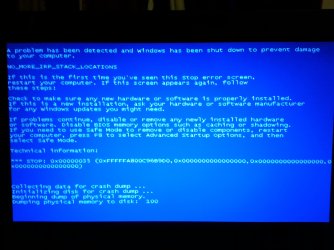
At that point I did a bit of research and (although nobody else had my problem) the software wasn't 100% necessary to connecting the phone to the computer. I follow the directions: Went to settings, found tethering "Share your device's data via USB." Its supposed to make the phone basically just a USB stick and you can access the data that way. I plug my phone in once again, click the tether button, and blue screen. Tried once more: this is when the picture was taken.

Anybody have any ideas on whats causing my computer to act this way?
 

Attachments
  • 20130503_201045.jpg
    20130503_201045.jpg
    415.1 KB · Views: 5

My Computer

Computer type
PC/Desktop
Computer Manufacturer/Model Number
ASUS G74SX-BBK11
OS
Windows 7 Home Premium 64bit
CPU
Intel Core i7 2720QM @ 2.20GHz
Motherboard
ASUSTeK Computer Inc. G74Sx (CPU 1)
Memory
8 GB
Graphics Card(s)
NVIDIA GeForce GTX 560M
Screen Resolution
1920x1080
Hard Drives
977GB Seagate ST1000LM024 HN-M101MBB (SATA)
128 GB SSD
Internet Speed
~20 Mbps
Your stop error: BSOD Index | STOP 0x00000035: NO_MORE_IRP_STACK_LOCATIONS Points to a device driver then memory.

Can you check to see if any of the verizon software was installed on your machine? It might be causing this.

Tried a restore point to before your first attempt then checking if 7 can see it okay?

Tried running a sfc /scannow, then checking?

Tried "Last Known Good Configuration", then checking if phone works?


According to my wife's galaxy nexus manual (verizon), If you're using 7 you don't need verizon's software.

Here are two passages:
Connect to a Windows computer via USB

  • You can use a USB cable to connect your phone to a Windows computer and transfer music, pictures, and other files in both directions. This connection uses the MTP protocol, which is supported by most recent versions of Windows.
  • If you are using USB tethering, you must turn that off before you can use USB to transfer files between your tablet and computer.
  • When you connect your phone to the USB port on your computer, its USB storage is mounted as a drive and appears on your computer screen. You can now copy files back and forth as you would using any other external device.
  • When you're finished, simply disconnect the phone by unplugging the USB cable.
  • Related settings
  • Settings > Wireless & networks > More > Tethering & portable hotspot
  • Settings > Device > Storage > Menu > USB computer connection
Share your phone's data connection via USB

  • If your computer is running Windows 7, Mac OS X, or a recent distribution of some flavors of Linux (such as Ubuntu), you can follow these instructions without any special preparation.
  • If you're running a version of Windows that precedes Windows 7, or some other operating system, you may need to prepare your computer to establish a network connection via USB.
  • 1.) Connect your phone to your computer with a USB cable. A USB icon appears at the top of the screen, and the notification Connected as a media device or Connected as a camera appears briefly at the top of the screen. For the purposes of tethering, the type of connection doesn't matter.
  • 2.) Go to Settings > Wireless & networks > More > Tethering & portable hotspot.
  • 3.) Check USB tethering. Your computer is now sharing your device's data connection.
  • 4.) To stop sharing your data connection, uncheck USB tethering or disconnect the USB cable.
We're running wi-fi to her phone, but we haven't had the need to have a physical connection between her phone and our machine, yet.
 

My Computer

Computer type
PC/Desktop
Computer Manufacturer/Model Number
Gateway DX4831-01e (Mid-Tower Desktop)
OS
Originally Win 7 Hm Prem x64 Ver 6.1.7600 Build 7601-SP1 | Upgraded to Windows 10 December 14, 2019
CPU
Intel i3 530 2.93GHz, 2933MHz 2 Cores 4 Logical Processors
Motherboard
Gateway H57M01 133 megahertz
Memory
6GB of 1,333MHz DDR3 SDRAM
Graphics Card(s)
32MB Intel Graphics Media Accelerator HD IGChip
Sound Card
Realtek High Definition Audio
Monitor(s) Displays
Gateway HX2000 20inch TFT active matrix TN
Screen Resolution
1600 x 900 x 59 hertz
Hard Drives
WDC WD10EADS-00M2B0 [HDD] (1000.20 GB) -- drive 0,
HL-DT-ST DVDRAM GH41N [CD-ROM dr]
Four card readers, and Four USB 2.0
PSU
300watts.
Case
Mid-Tower Desktop
Cooling
Stock from Gateway
Keyboard
Natural Ergonomic Keyboard 4000, see Other Info
Mouse
Orig. Gateway wore out now using Insignia USB wired optical
Internet Speed
Vz FIOS 10ms png 57.64Mbps down 65.53Mbps up Speedtest.org
Antivirus
Zamana Anti-logger with Anti-malware, MSE, Windows Firewall,
Browser
IE11.0.9600.19399-Upd ver11.0.135, Firefox 68.0.1 x64
Other Info
System Specs by Belarc.

BIOS: American Megatrends Inc. P01-A0 11/17/2009

Replaced the MS 'Natural' Standard PS/2 Enhanced 101-102 Keyboard with a new Natural Ergonomic Keyboard 4000 on August 1st 2014.

Canon Pixma MG3222 Printer.

Updated to IE11 on 12102015 | Fios Quantum Router g1100

Additional AV: SpywareBlaster, manual Mbam, SAS
Back
Top