
OmegaSeven
New member
- Local time
- 3:54 AM
- Messages
- 15
Hi there,
I just recently bought a new laptop, which has a SSD and a HDD. The plan was to install the OS and my main programs on the SSD, with everything else on the HDD. Things didn't seem to go to plan.
I'm not quite sure what's actually happened, but it seems like the OS has installed itself differently from how I was expecting, as the SSD seems to have two partitions, and my HDD has some/all of the OS installed on it.
Here's a screenshot of what my drives look like in Disk Management:
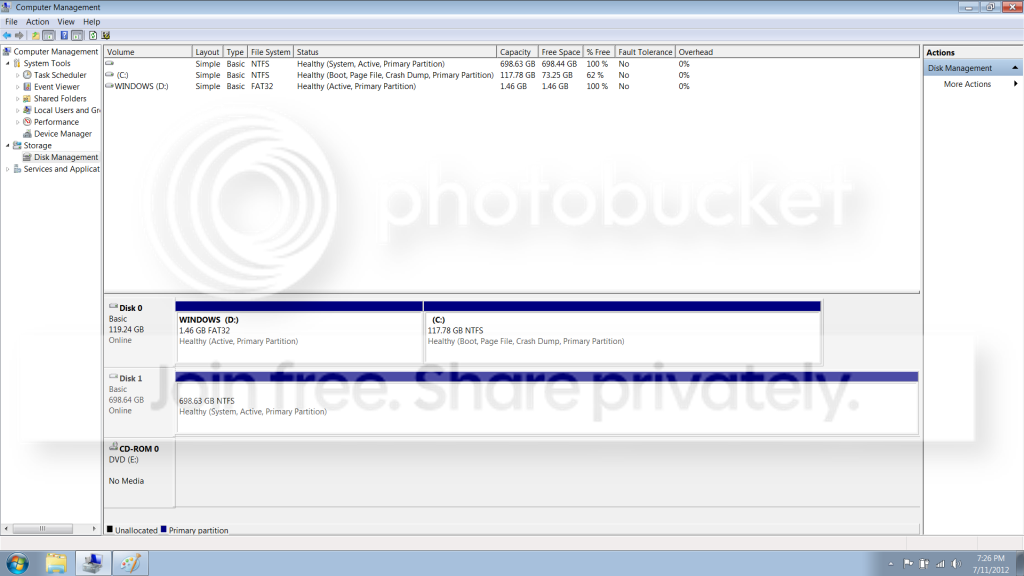
So I need to work out a way to make my SSD the main boot drive (as I'm assuming the setup above isn't really letting me get the most out of it), and make it so the entire OS is installed to it. Its probably worth noting that as its a laptop, I can't really open it up. Also, I think that for some reason the HDD is set as my primary drive (which might be why I'm having problems).
Any help with this would be greatly appreciated!

I just recently bought a new laptop, which has a SSD and a HDD. The plan was to install the OS and my main programs on the SSD, with everything else on the HDD. Things didn't seem to go to plan.
I'm not quite sure what's actually happened, but it seems like the OS has installed itself differently from how I was expecting, as the SSD seems to have two partitions, and my HDD has some/all of the OS installed on it.
Here's a screenshot of what my drives look like in Disk Management:
So I need to work out a way to make my SSD the main boot drive (as I'm assuming the setup above isn't really letting me get the most out of it), and make it so the entire OS is installed to it. Its probably worth noting that as its a laptop, I can't really open it up. Also, I think that for some reason the HDD is set as my primary drive (which might be why I'm having problems).
Any help with this would be greatly appreciated!
My Computer
- OS
- Windows 7
