Solved Grammer mistakes? Word you are wrong!

  • Thread starter Thread starter The Blessed One
  • Start date Start date
T

The Blessed One

Guest
So I made a CV/Resume on MS Word 2007 but Word keeps underlining like half the page with the green line to say there's a problem with the formatting. But there isn't so I've tried to spell check and click on 'Ignore' and even 'Ignore Rule'. Right-clicking the line doesn't give me any options apart from the usual fragment (consider revising). Nothing works because as soon as I close the doc and open it again the silly green lines are there.

I have had to apply for jobs by sending this file so imagine an employer opening it and half the page being covered in green slime! How do I get rid of it? thx :)
 
Hiya

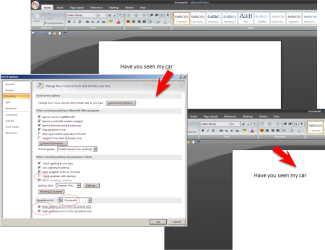
Goto "word options" then "proofing". untick the boxes "check grammar with spelling" and tick the 2 "Hide" options below that (see pic).
I tested it by saving the doc on my PC first then opening it on my lappy and squiggly green lines are gone ;)
 

Attachments

  • word_grammer.png
    word_grammer.png
    59.9 KB · Views: 73

My Computer My Computer

Computer type
PC/Desktop
Computer Manufacturer/Model Number
Self Built
OS
Windows 7 Ultimate 64bit
CPU
AMD Phenom Quad core 9950 black edition
Motherboard
Gigabyte
Memory
16Gb
Graphics Card(s)
2x XFX Radeon 5850
Sound Card
PCI Express X-Fi Titanium / Logitech G35
Monitor(s) Displays
2x HP 2410i
Screen Resolution
1920x1080
Hard Drives
2x 500Gb Seagate
1x 300Gb Seagate
1x 1Tb Seagate
2x 1Tb Hitatchi
PSU
Jean Tech Storm 700W
Case
Cooler Master COSMOS S
Cooling
Akasa Evo Blue Pro
Keyboard
Logitech G15
Mouse
Mad Catz M.M.O. 7
Internet Speed
12mb
Thanks!

1. On a slightly different note, say if I have a 3 page document and I want to delete the first page, normally I would do this manually by pressing the backspace from the bottom of page 1 right through the top. However, sometimes this gives me formatting errors when the second page content shifts to the first page. If that makes sense lol.

Is there a feature in Word which basically says 'Delete Page'? This way it would just take a couple of clicks to delete pages.

2. Sometimes I have to submit work whilst attaching a University terms and conditions page on the first few pages. Problem is, when I choose to number pages, I want to skip numbering the first 2 pages and so start with the 3rd page as number 3, and so on 4,5 etc...

When I try to do this I just can't manage to skip the first two pages, only the first one by ticking that 'First page different' option. Plus, I can't manage to start the page three with the number 3, word wants to control the number assignment which is so frustrating!

Can you help with these lol? thx :)
 
Sometimes I have to submit work whilst attaching a University terms and conditions page on the first few pages. Problem is, when I choose to number pages, I want to skip numbering the first 2 pages and so start with the 3rd page as number 3, and so on 4,5 etc...

When I try to do this I just can't manage to skip the first two pages, only the first one by ticking that 'First page different' option. Plus, I can't manage to start the page three with the number 3, word wants to control the number assignment which is so frustrating!

Can you help with these lol? thx :)
Starting with a blank document:

  1. Paste in the T&C pages.
  2. Insert a Section Break (Next Page) by going to Page Layout > Breaks > Section Breaks > Next Page.
  3. Paste or type in your own material, after the Section Break.
  4. Go to Insert > Page Number.
  5. You should get page numbers appearing - starting right from the beginning, so including the University pages.
  6. With your cursor on the first page number in the header or footer area of your material (depending on where you chose to place the numbers in step 4 above), go to Insert > Page Number > Format Page Numbers...
  7. Hit the radio button under Page numbering to indicate that you want it to start at 1.
  8. Go to Header and Footer Tools > Design > Navigation and deselect Link to Previous.
  9. Now go to the header or footer area on the University T&C pages, and click on Insert > Page Number > Remove Page Numbers.
  10. Go to Header and Footer Tools > Design > Close Header and Footer.
  11. You should end up with no page numbers in the University T&C part of the document, and your own work having page numbers starting at 1.
  12. :)
 

My Computer My Computer

Computer Manufacturer/Model Number
Custom
OS
Windows 7 Enterprise x64
CPU
Intel i7 920
Motherboard
Asus P6T Deluxe v2
Memory
6 GB
Graphics Card(s)
nVidia GTX260 + nVidia 3D
Sound Card
Onboard
Monitor(s) Displays
Samsung SyncMaster 2233RZ
Screen Resolution
1680 x 1050
Hard Drives
1 x 64GB SSD primary
2 x 1 TB (mirrored)
PSU
700W
Other Info
Edimax 802.11n Wireless PCI Card
Netgear DG834G router
@ clunkfish

Everything apart from step 9 worked!

In step 9, the option to 'Remove Page Numbers' was greyed out on the University pages. Strangely though, I was able to just highlight the numbers on there and press backspace which deleted them just fine!

So thanks a lot. :D :party:
 
Back
Top