Guest OS (XP) won't boot as Virtual System

todoinst

New member
Local time
6:58 PM
Messages
2
I'm a virtual newbie and run a small non-profit organization. We have made a VHD of our old computer drive with Windows XP Pro and moved it to our new computer running Windows 7. I've installed VirtualBox 3.1.4 and it appears to have installed correctly. I open VB and hit "start" but all I get is a black screen in the middle of my monitor. No boot activity and nothing appears on the screen. I'm hoping that there's just something simple we're doing wrong. The program is pointing towards the VHD file.

We would greatly appreciate any ideas about how to get the virtual system up and running.

thanks.

Here is the config info:


Name:
RyokanXP
OS Type:
Windows XP

System
Base Memory:
767 MB
Processor(s):
1
Boot Order:
Hard Disk
VT-x/AMD-V:

Enabled
Nested Paging:
Enabled
Display
Video Memory:
16 MB
3D Acceleration:
Disabled
2D Video Acceleration:
Disabled
Remote Display Server:
Disabled

Storage
IDE Controller
IDE Primary Master:

RYOKAN.VHD (Normal, 111.79 GB)
IDE Secondary Master (CD/DVD):

VBoxGuestAdditions.iso (28.39 MB)
Floppy Controller
Floppy Device 0:
Empty

Audio
Host Driver:
Windows DirectSound
Controller:
ICH AC97

NetworkAdapter 1:
PCnet-FAST III (Host-only adapter, 'VirtualBox Host-Only Ethernet Adapter')

Serial Ports
Disabled

USB
Device Filters:
0 (0 active)

Shared Folders
 

My Computer My Computer

OS
windows 7
Hello Todoinst, welcome to the Seven Forums.

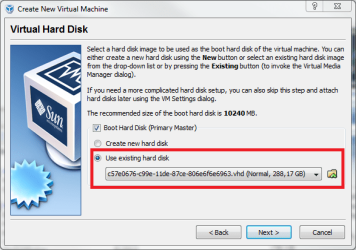
Which virtualization software you used to make the vhd? Did you go through the whole process to create a new virtual machine choosing the option Use existing hard disk?

Kari
 

Attachments

  • VBox_use_existing.png
    VBox_use_existing.png
    29.3 KB · Views: 39

My Computer My Computer

Computer type
Laptop
Computer Manufacturer/Model Number
HP ENVY 17-1150eg
OS
Windows 10 Pro x64 EN-GB
CPU
1.6 GHz Intel Core i7-720QM Processor
Memory
6 GB
Graphics Card(s)
ATI Mobility Radeon HD 5850 Graphics
Sound Card
Beats sound system with integrated subwoofer
Monitor(s) Displays
17" laptop display, 22" LED and 32" Full HD TV through HDMI
Screen Resolution
1600*900 (1), 1920*1080 (2&3)
Hard Drives
Internal: 2 x 500 GB SATA Hard Disk Drive 7200 rpm
External: 2TB for backups, 3TB USB3 network drive for media
Cooling
As Envy runs a bit warm, I have it on a Cooler Master pad
Keyboard
Logitech diNovo Media Desktop Laser (bluetooth)
Mouse
Logitech Performance Mouse MX
Internet Speed
50/10 Mbps VDSL
Antivirus
Windows Defender 4.3.9431.0
Browser
Maxthon 3.5.2., IE11
Hi Kari,

Thanks for responding. We used a utility called Disk2vhd to make a vhd file from our old hard drive. That drive included our XP OS and also data files. Then we copied this file from the old computer to the hard drive on the new Win 7 computer. One thing I should mention, maybe relevant, is that the old hard drive was IDE type, and the new drive is SATA type. Then we used the wizard, as in your graphic above, to point VirtualBox towards the vhd file.

What do you think?
 

My Computer My Computer

OS
windows 7
You mean the host HD is SATA but the vhd is IDE? If so, that's not an issue. To be able to mount an existing vhd, it has to be IDE.

How big is your vhd? If it's under 127 gigs, it could also be mounted to Microsoft's Virtual PC to test it's working. A couple of weeks ago we had an almost similar case, only difference being that although he wanted to mount the vhd to VPC, it was too big but he managed to mount it to VirtualBox. You can read the thread here, if you are interested.

I've not had any problems to mount my XP and Vista images, using both VPC and VBox. It is quite straight forward procedure if the image or vhd is OK. I really do not know where to start looking.

One thing to do would be to create another virtual machine and install an OS to that, then mount your XP vhd as a second hard drive, boot the new virtual machine and then check if it can read the second HD.

I'll be back if I find something. Not much help this time, I'm sorry for that.

Kari
 

My Computer My Computer

Computer type
Laptop
Computer Manufacturer/Model Number
HP ENVY 17-1150eg
OS
Windows 10 Pro x64 EN-GB
CPU
1.6 GHz Intel Core i7-720QM Processor
Memory
6 GB
Graphics Card(s)
ATI Mobility Radeon HD 5850 Graphics
Sound Card
Beats sound system with integrated subwoofer
Monitor(s) Displays
17" laptop display, 22" LED and 32" Full HD TV through HDMI
Screen Resolution
1600*900 (1), 1920*1080 (2&3)
Hard Drives
Internal: 2 x 500 GB SATA Hard Disk Drive 7200 rpm
External: 2TB for backups, 3TB USB3 network drive for media
Cooling
As Envy runs a bit warm, I have it on a Cooler Master pad
Keyboard
Logitech diNovo Media Desktop Laser (bluetooth)
Mouse
Logitech Performance Mouse MX
Internet Speed
50/10 Mbps VDSL
Antivirus
Windows Defender 4.3.9431.0
Browser
Maxthon 3.5.2., IE11
Virtual image can be mounted directly in Win7

I know this is an old thread, but just wanted to add the following info.

ToDoInst said their host OS is Windows 7.
There is no need to create another Virtual PC environment just so the converted virtual disk can be mounted to check its validity.
It can be mounted directly in Win7.

They can just go to Disk Management and directly mount the vhd image there, and then browse the disk using Windows Explorer.

To get to Disk Manager:
Start Menu -> All Programs -> Administrative Tools -> Computer Management -> Disk Management
(FYI: I have Computer Management pinned to the Start Menu.)

Right click on Disk Management and select Attach VHD.
(If it is grayed out, click somewhere in the window & try again.)
Then browse to your VHD to mount it.

hope this helps future visitors to this page.
 

My Computer My Computer

OS
XP Pro; Vista Business
Hi there
Provided you have vhd images of a "discrete" XP system either a REAL XP image or a Virtual image created as a separate Virtual Machine you should find you can use these images using Virtual Box / vmware or even Virtual PC as others have posted.
In the case of a Real XP image you'll need to to a P2V conversion (Physical to Virtual). You can do this either via creating an Acronis image of the XP system and then restoring it to a "virgin" virtual machine using the "universal restore feature -- boot the Acronis restore program up in the Virtual Machine and restore, or use utilities available on the vmware site.


If however you are trying to create a separate bootable guest OS from an "XP" mode virtual disk integrated into W7 I believe its a bit more complicated if it can even be done at all.

Running an acronis backup and running with the universal restore feature might work for an "XP MODE" vhd but you would certainly get asked for a product key after install --assuming it would even boot as a separate Guest OS. What the product key would be in this case I've no idea.

Hi Kari -- welcome back -- you've been HUGELY missed.

Cheers
jimbo
 

My Computer My Computer

Computer type
PC/Desktop
Computer Manufacturer/Model Number
Custom built, several laptops HP/ASUS
OS
Linux CENTOS 7 / various Windows OS'es and servers
CPU
Intel i7 Intel i5
Memory
8GB, 16GB
Graphics Card(s)
On Motherboard
Sound Card
Realtek HD audio
Monitor(s) Displays
Apple Cinema display, Samsung LCD
Screen Resolution
1920 X 1080
Hard Drives
4 X 1TB SATA
Mouse
Toshiba wireless laser
Internet Speed
> 20MB up
Back
Top