
You are using an out of date browser. It may not display this or other websites correctly.
You should upgrade or use an alternative browser.
You should upgrade or use an alternative browser.
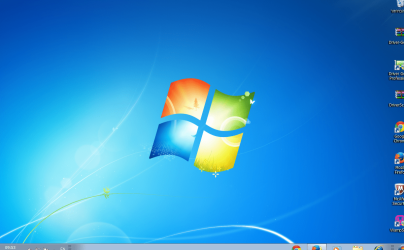
Half of taskbar is missing
- Thread starter bookgeek
- Start date

Hi bookgeek and welcome to Seven Forums.
You display is horizontally backwards too unless you changed it some way, the clock should be on the right side.
Right click an empty spot on the desktop/Screen Resolution, make sure it's set to Recommended.
If that doesn't work, use your monitor's settings for sizing the screen or under/over scan.
You display is horizontally backwards too unless you changed it some way, the clock should be on the right side.
Right click an empty spot on the desktop/Screen Resolution, make sure it's set to Recommended.
If that doesn't work, use your monitor's settings for sizing the screen or under/over scan.
My Computer
- Computer type
- PC/Desktop
- Computer Manufacturer/Model Number
- Home Built Desktop By DataTech
- OS
- Windows 7 Ultimate X64 SP1
- CPU
- Intel i5-2550K, Differing ~4.4-4.8GHz No built in GPU
- Motherboard
- ASUS P8Z68-V PRO/GEN3
- Memory
- 16GB G.Skill Sniper 1866MHz @ 2133MHz 2x8GB
- Graphics Card(s)
- ASUS GTX650TIB-DC2OC-2GD5, (650TI Boost)
- Sound Card
- Onboard Realtek 5-1
- Monitor(s) Displays
- Samsung P2570HD
- Screen Resolution
- 1920x1080
- Hard Drives
- Samsung 840 Pro 256GB SSD for OS, 500GB Seagate Constellation (Enterprise drive) for Data
- PSU
- Corsair HX650W
- Case
- Inwin Dragon Rider
- Cooling
- Hyper 212 EVO w/two Noctua fans, push-pull, @1300 RPM
- Keyboard
- E-Z Eyes, bright yellow keys with large characters
- Mouse
- steelseries SENSEI Laser Pro Gaming
- Internet Speed
- 48-51Mbs Mbs down, 11 Mbs up Xfinity Cable
- Antivirus
- Norton Internet Security 2013
- Browser
- IE 10, Opera, Pale Moon if needed
- Other Info
- 4 case fans, LG BluRay-RE, ASUS DVD-RW, Mr. Fusion power supply, 1.21 gigawatts.
Hi bookgeek and welcome to Seven Forums.
You display is horizontally backwards too unless you changed it some way, the clock should be on the right side.
Right click an empty spot on the desktop/Screen Resolution, make sure it's set to Recommended.
If that doesn't work, use your monitor's settings for sizing the screen or under/over scan.
Hi
the clock is in the left side because the system is in hebrew.
how do i set the monitor's setting to the right size?
My Computer
- Computer type
- PC/Desktop
- OS
- windows 7 64 bit

- Local time
- 3:13 PM
- Messages
- 4,563
Push the auto button on your monitor.
Also check your screen resolution and make sure it is at the recommended setting under right click desktop-screen resolution.
Also check your screen resolution and make sure it is at the recommended setting under right click desktop-screen resolution.
My Computer
- Computer type
- PC/Desktop
- Computer Manufacturer/Model Number
- Custom Built
- OS
- Windows 10 Pro
- CPU
- AMD Ryzen 5 2400G Processor with Radeon RX Vega 11 Graphics
- Motherboard
- ASRock X470 Master SLI/AC AM4 AMD Promontory X470 SATA 6Gb/s
- Memory
- G.SKILL Ripjaws V Series 16GB (2 x 8GB) 288-Pin DDR4 SDRAM D
- Graphics Card(s)
- 2047MB NVIDIA GeForce GTX 1060 6GB (EVGA)
- Sound Card
- Motherboard Built in
- Monitor(s) Displays
- Acer R240HY bidx 23.8-Inch IPS HDMI DVI VGA (1920 x 1080) Wi
- Screen Resolution
- 1920 x 1080
- Hard Drives
- 1TB Sandisk SSD PLUS (Main drive)
500 GB Seagate 7200 RPM (Games)
500 GB Western Digital 7200 RPM (Virtual Machines)
- PSU
- CORSAIR TX Series TX650M 650W 80+ Gold Modular Power Supply
- Case
- CORSAIR CARBIDE SPEC-02 Mid-Tower Gaming Case, Red LED Fan
- Cooling
- 220mm, two 120mm, and four 60mm fans
- Keyboard
- Wired Dell keyboard
- Mouse
- Wireless Logitech mouse
- Internet Speed
- 250mb down, 30mb up
- Antivirus
- Panda Cloud Antivirus
- Browser
- Chrome-ish x64
- Other Info
- Your awesome for reading this.

Fill in your system specs. If you have an AMD GPU you will be able to set the overscan size through Catalyst Control Center.
My Computer
- Computer type
- PC/Desktop
- Computer Manufacturer/Model Number
- Custom Build
- OS
- W7 Pro x64 SP1 | W10 Pro IP x64 | W8.1 Pro x64 VM | Linux Mint VM
- CPU
- i7-4790k @ 4GHz (4.4GHz Boost)
- Motherboard
- ASUS Sabertooth Z87 (BIOS Rev 2004)
- Memory
- 16GB DDR3 Kingston HyperX Fury @ 1600MHz CL 9-9-9-27
- Graphics Card(s)
- EVGA GTX 980 Classified
- Sound Card
- Realtek Onboard
- Monitor(s) Displays
- Samsung S27D390
- Screen Resolution
- 1920 x 1080
- Hard Drives
- 240GB Intel 520 Series SSD |
Samsung 850 EVO 120GB SSD |
2TB WD Caviar Black |
2TB WD Caviar Black |
2TB WD Caviar Green
- PSU
- Corsair HX850-80 Gold Modular
- Case
- Cooler Master Silencio 650
- Cooling
- Corsair H80i w/2 x Corsair SP120 | 2 x 120mm Noctua NF-S12B
- Keyboard
- Microsoft Sidewinder X4
- Mouse
- Gigabyte M6900 optical
- Internet Speed
- 152mb
- Antivirus
- F-Secure
- Browser
- Firefox 38.0
- Other Info
- Backup Rig: Win 7 Pro 64-bit | AMD A10-5800k | ASUS F2A85-V Pro | 8GB Samsung DDR3 @1600MHz | 120GB Toshiba SDD | 2TB Seagate HDD | Cooler Master Silencio 550

I had a similar issue when I swapped from a CRT monitor to an LCD monitor.
I had adjusted the "overscan" setting, so that images in Windows filled the CRT monitor screen width.
When I swapped to the LCD that wasn't required, but because it was still set in the graphics card, the images were too big for the screen.
I had adjusted the "overscan" setting, so that images in Windows filled the CRT monitor screen width.
When I swapped to the LCD that wasn't required, but because it was still set in the graphics card, the images were too big for the screen.
My Computer
- Computer type
- PC/Desktop
- Computer Manufacturer/Model Number
- n/a
- OS
- W7 Ultimate SP1, LM19.2 MATE, W10 Home 1703, W10 Pro 1703 VM, #All 64 bit
- CPU
- AMD Phenom II x6 1100T, 3.3 GHz
- Motherboard
- ASUS M4A88T-M/USB3 (AM3)
- Memory
- 12GB DDR3 1333 G-Skill (4GB x 2), G-Skill (2GB x 2)
- Graphics Card(s)
- NVIDIA GeForce GTX 660
- Sound Card
- Realtek?
- Monitor(s) Displays
- Samsung S23B350
- Screen Resolution
- 1920x1080
- Hard Drives
- WD Green 2TB (SATA), WD Green 3TB (SATA), WD Blue 4TB (SATA), WD Blue 6TB (SATA)
- PSU
- Cooler Master
- Case
- Antec GX300 Tower
- Cooling
- 3x Antec TRICOOL 120mm Fans
- Mouse
- Wired Optical
- Internet Speed
- DSL
- Antivirus
- Avast
- Browser
- Pale Moon (64 bit)
- Other Info
- 2018-12-27 Upgraded HDDs
2015-12-10 Upgraded case, graphics card, storage
2015-08-15 Upgraded motherboard & RAM
2015-07-15 Upgraded LM17.1 to LM17.2