Solved Hard Drive Compatibility with different computers

zomboromano

New member
Member
VIP
Local time
1:13 AM
Messages
132
So I was recently told that upgrading my hard drive may help increase performance.

My current hard drive is:

Size: 500 GB
Interface: SATA
Rotational Speed: 7200 RPM

I have another computer that went out on me. The bios got bricked when doing a system restore on windows 8. So I sold off the ram, and the processor in the computer. Since I know neither would be compatible with my system.

However I do wonder about the hard drive.

It actually came with a SATA hard drive, but it was 1.5 TB.

I'm curious to learn more about upgrading hard drives. I'm interested in learning:

1: What type of hard drives would be good bang for your bucks for upgrading. How much of an increase in performance I should expect from each hard drive.

2: I currently have about 150 GB worth of stuff on my computer. I only have 100 GB free. How much does free space play into how well the hard drive runs? Is there a certain amount of space where the hard drive starts really slowing down (for example, if I'm only down to 30 GB it may start to get much slower)

3: I'm assuming if I move a hard drive in it won't boot up properly or work immediately. I'll maybe have to boot from a usb drive and then wipe the hard drive out? Then install windows? Just how that process works.

Thanks! I really appreciate all the wisdom I've gotten off of here. The knowledge given to me here has been extremely practical to me and very useful, and saved me hundreds.
 

My Computer

OS
Windows 7 Home Premium 64 Bit
We'd need to know the make, model number, and size of any hard drive you have to properly comment on them.

Generally, the faster performance comes from 7200 RPM SATA drives made in the last 3 or 4 years. These drives will have high areal density and high capacity per platter--often 1 gb per platter. Western Digital "Black" drives and the most recent Seagate models are fast.

See some other comments below:

1: What type of hard drives would be good bang for your bucks for upgrading. How much of an increase in performance I should expect from each hard drive.

Hard drive speed will have an effect only on operations that actually involve the disc. Fast drives generally are no substitute for a fast CPU.


2: I currently have about 150 GB worth of stuff on my computer. I only have 100 GB free. How much does free space play into how well the hard drive runs? Is there a certain amount of space where the hard drive starts really slowing down (for example, if I'm only down to 30 GB it may start to get much slower)

I've generally heard somewhere like 10 to 15 percent free space before it becomes noticeable. You are nowhere near that crowded. I've never noticed any slowdown on my drives due to space issues.

3: I'm assuming if I move a hard drive in it won't boot up properly or work immediately. I'll maybe have to boot from a usb drive and then wipe the hard drive out? Then install windows? Just how that process works.

Briefly, 2 methods:

1: Use a "clean install". You get the installation media in order. That could be an ordinary Windows installation DVD or a USB thumb drive you have prepared. You need the 25 character "Product Key".

You disconnect the old drive. Connect the new drive. Install Windows to the new drive. Update Windows through Windows Update. Re-connect the old drive through another cable. Copy personal data from the old drive to wherever you want it on the new drive. Re-install applications to the new drive. Disconnect the old drive and do whatever you want to do with it.

Or 2: you could "clone" the old drive to the new drive using an application like Macrium Reflect. Works pretty well, but not guaranteed. You could also make an "image" file of the old drive with Macrium and then "restore" that image file to the new drive. Works pretty well, but not guaranteed. The main advantage of this method is you don't have to reinstall your applications--it saves time. If it works.

Most would tell you to do the clean install method.

There are numerous tutorials on this site about how to do all of that stuff. Take a look at them.


My Computer

Computer type
PC/Desktop
Computer Manufacturer/Model Number
Ignatz Special; 4 speed manual gearbox; factory air conditioning; one of one
OS
Windows 7 Home Premium SP1, 64-bit
CPU
Intel Skylake i5-6600K, not overclocked
Motherboard
AsRock Z170M Extreme 4, micro ATX
Memory
8 GB HyperX DDR4-2666 (2 x 4 GB)
Graphics Card(s)
none; graphics are integrated on CPU
Sound Card
onboard: Realtek ALC1150; external: USB Behringer UF0-202
Monitor(s) Displays
Dell S2340M 23 inch IPS
Screen Resolution
1600 x 900
Hard Drives
System: Crucial MX100 series SSD, 128 GB;
Data: Samsung Spinpoint 103SJ, 1 TB;
Backup: WD Caviar Green WD30EZRX-00D8PB0, 3 TB
PSU
Rosewill SilentNight 500 watt fanless, semi-modular
Case
Antec Solo II
Cooling
Noctua NH-U12S; Noctua F12 intake, Noctua S12A exhaust
Keyboard
Microsoft 200 6JH-00001 USB
Mouse
Dell or Microsoft optical wired; USB
Antivirus
Microsoft Security Essentials and Malwarebytes Premium
Browser
Pale Moon
Other Info
All fans PWM; speeds at idle: CPU circa 500 rpm; intake circa 600 rpm; exhaust circa 600 rpm; CPU temps 27 idle and 47 C load in a warm room (27 C/81 F) when running Intel Extreme Tuning Utility stress test.
First, unless you are building a PC from scratch, your new computer probably comes with Windows pre-installed and a recovery partition, so that is something to take into consideration before simply repurposing your old drive.

Yes, you can reinstall Windows on your old drive, assuming you have something to boot from.

But you might want to consider putting the old drive in an external case and using it as an external storage device.

Next, there are a several benchmark sites, but I like PassMark myself, and they publish things like drive performance and from there your performance / cost benefits.

You noted you are using about 150 GB. I myself recently upgraded from 120 GB to 250 GB solid state drive. They get cheaper all the time. Eventually I will likely need 500 GB to. In the 18 months I had this laptop, Windows alone has grown 30 GB due to updates, without considering the applications or data that I add.
 

My Computer

Computer type
Laptop
Computer Manufacturer/Model Number
Dell Insprion 7559 next to a Toshiba Portege
OS
Win 7 Pro 64-bit
CPU
Intel Core i5
Motherboard
Intel
Memory
16 GB Dell, 6 GB Toshiba
Graphics Card(s)
Intel crap on both but Dell also has nVidia GeForce GTX960M
Sound Card
RealTek
Monitor(s) Displays
internal and external ACER KA270H 27"
Screen Resolution
1920x1080
Hard Drives
SSD 256 GB plus numerous WD Red or Purple on USB3 docks. Used to buy a lot of Seagate but tossed them the second time I got unrecoverable disc corruption in the midst of use.
Keyboard
Garage Mouse SW and some cheap Amazon China made USB device
Mouse
Garage Mouse and some cheap Amazon China made USB device
Internet Speed
50 Mbps (allegedly, depends on server)
Antivirus
Defender, Malwarebytes Premium and Kaspersky
Browser
IE 11, and Chrome something
I don't normally use much more than I have now honestly.

But I'm not sure what brand the old hard drive is.

Current hard drive:
Size: 500 GB
Interface: SATA
Rotational Speed: 7200 RPM


Hard drive from better computer that I scrapped:
Seagate
Size: 1.5 TB
Interface: SATA
Rotational Speed: 7200 RPM

Would that hard drive give me much better performance?
 

My Computer

OS
Windows 7 Home Premium 64 Bit
If so, would I just need to unscrew the old hard drive, screw this one in, boot from a usb, wipe the hard drive and install windows 7 fresh???


(That's what I did with my current computer. I have no partion or anything of the sort. I have a windows 7 boot usb and I just used that to wipe it and start fresh, got rid of all the programs I didn't want anyway)
 

My Computer

OS
Windows 7 Home Premium 64 Bit
You need to do at least one of the following:

1: read from the label of the hard drives in question. It will show brand, model, and size

2: download Belarc system info tool from Belarc.com and run it. It will provide a complete report on your system, including hard drive brand, model, and size.

No one can comment on those drives without that info.

Newer and larger drives typically are faster, but as usual you get to define "much better performance". If your problem isn't hard drive related, it wouldn't help at all.
 

My Computer

Computer type
PC/Desktop
Computer Manufacturer/Model Number
Ignatz Special; 4 speed manual gearbox; factory air conditioning; one of one
OS
Windows 7 Home Premium SP1, 64-bit
CPU
Intel Skylake i5-6600K, not overclocked
Motherboard
AsRock Z170M Extreme 4, micro ATX
Memory
8 GB HyperX DDR4-2666 (2 x 4 GB)
Graphics Card(s)
none; graphics are integrated on CPU
Sound Card
onboard: Realtek ALC1150; external: USB Behringer UF0-202
Monitor(s) Displays
Dell S2340M 23 inch IPS
Screen Resolution
1600 x 900
Hard Drives
System: Crucial MX100 series SSD, 128 GB;
Data: Samsung Spinpoint 103SJ, 1 TB;
Backup: WD Caviar Green WD30EZRX-00D8PB0, 3 TB
PSU
Rosewill SilentNight 500 watt fanless, semi-modular
Case
Antec Solo II
Cooling
Noctua NH-U12S; Noctua F12 intake, Noctua S12A exhaust
Keyboard
Microsoft 200 6JH-00001 USB
Mouse
Dell or Microsoft optical wired; USB
Antivirus
Microsoft Security Essentials and Malwarebytes Premium
Browser
Pale Moon
Other Info
All fans PWM; speeds at idle: CPU circa 500 rpm; intake circa 600 rpm; exhaust circa 600 rpm; CPU temps 27 idle and 47 C load in a warm room (27 C/81 F) when running Intel Extreme Tuning Utility stress test.
So I've found out what hard drives I have.

PassMark - Hitachi HDT725032VLA380 - Price performance comparison

That is what I have now..

And the link below is what I have on my other computer:

PassMark - Seagate ST1500DM003-9YN16G - Price performance comparison

Clearly a big upgrade at least for how bad the first drive was.

So my question is: Should I install both, if so what should I put on each drive? Will it be faster to put the operating system on the bigger one, and store smaller things on the smaller drive? etc.
 

My Computer

OS
Windows 7 Home Premium 64 Bit
Well I just installed both hard drives.

I'm about to wipe them both out. My main concern is:

What is the best way to use both of these hard drives? I'm basically looking to get the best performance out of my computer without buying anything. And this new hard drive had way better benchmarks from what passmark said.

So I'm mainly just wanting to know what would make my computer run more efficiently.

Like which drive should I have the operating system on, which drive should have all of my games, music, etc. etc. That's all I really need help with at this point.

Thanks again for the tip with passmark, and looking up benchmarks. I am such a noob with hard drives I didn't even know they had benchmarks lol.
 

My Computer

OS
Windows 7 Home Premium 64 Bit
1. Hang on to the Hitachi. Those are very reliable. The Seagates are not.

2. If you are looking for performance, none of those drives will give you better performance. In fact the bigger the drive, the slower it usually is.

3. A real performance boost you would get with a SSD for the OS. A 120GB drive for $69 would suffice. Then you put the user data on the Hitachi.

4. The Seagate I would use for non-critical data - e.g. images.
 

My Computer

Computer Manufacturer/Model Number
HP, Dell, Gateway, Toshiba - 4 laptops and 2 desktops
OS
Vista, Windows7, Mint Mate, Zorin, Windows 8
CPU
from 1.6GHz Duo to i7
Monitor(s) Displays
2x HP w2207
Hard Drives
5x HDD, 7x SSD, 12x Externals
Keyboard
with trackball - no mices
Mouse
Trackball mice
Internet Speed
DSL 6000
While I know the website I posted probably doesn't have a lot of data on the Hitachi I don't see anything that shows it performs better than the Seagate.

I appreciate the advice with an SSD. I will probably plan to upgrade to one eventually, but not now.

I'd like to find some good benchmarks somewhere but I couldn't find much.

Based off of those benchmarks I'd like to know again, should I only use one for a backup and put the os, all games, and everything all on one drive?
 

My Computer

OS
Windows 7 Home Premium 64 Bit
And considering I don't plan to upgrade hard drives for awhile, are both hard drives even worth keeping or could I sell it and get enough money out of it to make it worth it?
 

My Computer

OS
Windows 7 Home Premium 64 Bit
The performance of the Hitachi is no better than that of the Seagate. But it is much more reliable.

People who have thousands of disks and kept records over years have reported that the Hitachis have the least failures followed by WD and that Seagates have failed very often.

Since those are real life numbers I trust them more than any benchmarks.
 
Last edited:

My Computer

Computer Manufacturer/Model Number
HP, Dell, Gateway, Toshiba - 4 laptops and 2 desktops
OS
Vista, Windows7, Mint Mate, Zorin, Windows 8
CPU
from 1.6GHz Duo to i7
Monitor(s) Displays
2x HP w2207
Hard Drives
5x HDD, 7x SSD, 12x Externals
Keyboard
with trackball - no mices
Mouse
Trackball mice
Internet Speed
DSL 6000
I would disagree.

Companies can make lower quality products to cater to a certain demographic, but that doesn't mean they don't make any high quality products.

Certain drives are going to perform faster than other ones and general statistics on two brands won't tell me what hard drive will give me better performance. I'm not necessarily looking to see what hard drive will last me 20 years, just which one is faster. And a simple brand name won't tell me which one will perform better.

That doesn't mean I don't appreciate you commenting. I'm just looking more to see if anyone knows any good benchmark sites that could show specifically how these two drives perform against each other, and based off of those what I should install on what drive to get the best performance with what I have
 

My Computer

OS
Windows 7 Home Premium 64 Bit
The benchmarks I posted show out of 90 samples, the hard drive was under half of the performance of the seagate. While I know it might not be that big of a difference in reality, it's there. I think I might just need a few more overall opinions.

EDIT:

Let me say I've done my own research and I find some good value in what your saying. It's not just the brand even itself, but the Barracuda hard drive in particular does have a bigger fail rate. So if the Seagate won't give me much better performance than I think the best way to go would actually be to follow your advice. whs. I really appreciate it.

I just want to get the most performance out of what I have, and the most bang for my buck. Maybe I could sell that hard drive for $30 bucks and buy a good SSD for around $100
 
Last edited:

My Computer

OS
Windows 7 Home Premium 64 Bit
If you look for performance (of the OS), you have to look at access times. An avaerage HDD has an access time of 15ms - an average SSD has an access time of 0.1ms. That is 150 times faster and the reason why SSDs are so fast.

Even my 128GB stick has an access time of 0.7ms and can beat any HDD hands down. That shows when I run my system from the stick. I have another 65GB stick that I just bought with an access time of 0.3ms. But I have not yet installed a system on it.

Now that is for the OS that deals with a lot of random access 4KB files. For streaming large amounts of data in large blocks in a sequential fashion, that is another story. Here I have made a comparison once using an imaging program writing to a SSD, a SSHD (btw a Seagate) and a HDD. Here is the data. As you can see, the differences are not that significant because that is not random access. Here the data transfer rate plays the main role.
 

My Computer

Computer Manufacturer/Model Number
HP, Dell, Gateway, Toshiba - 4 laptops and 2 desktops
OS
Vista, Windows7, Mint Mate, Zorin, Windows 8
CPU
from 1.6GHz Duo to i7
Monitor(s) Displays
2x HP w2207
Hard Drives
5x HDD, 7x SSD, 12x Externals
Keyboard
with trackball - no mices
Mouse
Trackball mice
Internet Speed
DSL 6000
So what is your recommendation? I could probably sell the Seagate for 20-30. I could also use it to backup files. I'm not any good with making a partition or anything, but maybe I could use it for partitions? I would probably get a a SSD in a few months.

I also heard making a small partition on my drive and installing windows could improve performance. What is the best recommendation considering the resources I have?
 

My Computer

OS
Windows 7 Home Premium 64 Bit
Right now I would keep the OS on the Hitachi and use the Seagate for e.g. images. Reducing the size of the C partitioon will not really help. But for better safety of your data it would make sense to seperate the user data from the OS and put it into a seperate partition.

It makes no sense to sell the disk. They are always useful to have. I have kept about 20 of them plus 7 SSDs - and they are all used for something. Just on this system I have 2 internal and 4 external disks.
 

My Computer

Computer Manufacturer/Model Number
HP, Dell, Gateway, Toshiba - 4 laptops and 2 desktops
OS
Vista, Windows7, Mint Mate, Zorin, Windows 8
CPU
from 1.6GHz Duo to i7
Monitor(s) Displays
2x HP w2207
Hard Drives
5x HDD, 7x SSD, 12x Externals
Keyboard
with trackball - no mices
Mouse
Trackball mice
Internet Speed
DSL 6000
You could download HDTune_255.exe from this link at no charge and test the speed of the drives yourself:

HD Tune website

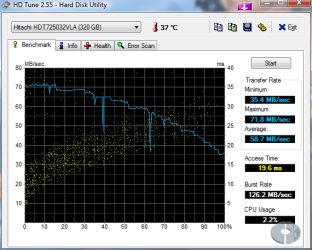
The Hitachi is from circa 2007; it has a small 8 mb buffer.

I'll save you the trouble of testing it yourself; here is an HDTune test of it.

Note access time of 19 ms.

The Seagate is from circa 2010 or 2011. I couldn't find an online test of it, but you could test it yourself with that download.

The Seagate is clearly faster as you'd expect and as the Passmark tests confirm. It has a larger 64mb buffer and denser platters.

BUT, whether or not it's enough faster to make your computing experience better is another question. Maybe it isn't.

Nobody knows which of your drives will last longer. It's unknowable. Either of them could drop dead later today.

Keep your expectations low regardless. If speed is your only concern, I'd put the OS and as much as possible of everything else on the Seagate. BUT be prepared to say "I can't tell the difference between the two drives, so I'd be better off saving and upgrading the CPU".

You're pretty much trying to feed oats to a dying horse. Not likely to have a good outcome and mostly a waste of your time.
 

Attachments

  • hdtune-424-88026-247Wykoa7RiSq.png
    hdtune-424-88026-247Wykoa7RiSq.png
    17.3 KB · Views: 14

My Computer

Computer type
PC/Desktop
Computer Manufacturer/Model Number
Ignatz Special; 4 speed manual gearbox; factory air conditioning; one of one
OS
Windows 7 Home Premium SP1, 64-bit
CPU
Intel Skylake i5-6600K, not overclocked
Motherboard
AsRock Z170M Extreme 4, micro ATX
Memory
8 GB HyperX DDR4-2666 (2 x 4 GB)
Graphics Card(s)
none; graphics are integrated on CPU
Sound Card
onboard: Realtek ALC1150; external: USB Behringer UF0-202
Monitor(s) Displays
Dell S2340M 23 inch IPS
Screen Resolution
1600 x 900
Hard Drives
System: Crucial MX100 series SSD, 128 GB;
Data: Samsung Spinpoint 103SJ, 1 TB;
Backup: WD Caviar Green WD30EZRX-00D8PB0, 3 TB
PSU
Rosewill SilentNight 500 watt fanless, semi-modular
Case
Antec Solo II
Cooling
Noctua NH-U12S; Noctua F12 intake, Noctua S12A exhaust
Keyboard
Microsoft 200 6JH-00001 USB
Mouse
Dell or Microsoft optical wired; USB
Antivirus
Microsoft Security Essentials and Malwarebytes Premium
Browser
Pale Moon
Other Info
All fans PWM; speeds at idle: CPU circa 500 rpm; intake circa 600 rpm; exhaust circa 600 rpm; CPU temps 27 idle and 47 C load in a warm room (27 C/81 F) when running Intel Extreme Tuning Utility stress test.
I've got one more question now that I think about it.

We have concluded that technically the Seagate is faster,

But it might not make much of a difference.

Personally it seems like too much work to reinstall the operating system on there. It would take awhile , and would maybe involve taking it off the other hard drive, it seems like a bigger pain.


However simply moving my games and a few other applications seems really ready easy.

My question is, would I need to move the operating system AND my games to have any type of performance increase or would moving the games alone give me an increase? Does that make sense? I know moving the operating system over might make it start a little quicker but I'm mainly wanting to know if moving the operating system effects other applications and programs, if that makes sense.

Seems easier just to move my games
 

My Computer

OS
Windows 7 Home Premium 64 Bit
I don't game, but my guess would be that moving anything will have very little effect and would not be worth your effort.

Application performance and gaming performance are mostly determined by CPU power and the graphics card. Drive speed can have an effect, but it would be marginal when comparing one HDD with another.

If an elf transferred your OS to the faster drive while you slept tonight and you started the PC tomorrow without knowing what the elf did, I wouldn't be surprised in the least if you didn't notice any difference at all.

Sure, you would see some differences in benchmarks, but that's far from what you would actually experience.

You're limited by your hardware, which you are unable to change.

But since you think it would be easy to move your games, you can always do it and answer your own question about how much difference it might make.
 

My Computer

Computer type
PC/Desktop
Computer Manufacturer/Model Number
Ignatz Special; 4 speed manual gearbox; factory air conditioning; one of one
OS
Windows 7 Home Premium SP1, 64-bit
CPU
Intel Skylake i5-6600K, not overclocked
Motherboard
AsRock Z170M Extreme 4, micro ATX
Memory
8 GB HyperX DDR4-2666 (2 x 4 GB)
Graphics Card(s)
none; graphics are integrated on CPU
Sound Card
onboard: Realtek ALC1150; external: USB Behringer UF0-202
Monitor(s) Displays
Dell S2340M 23 inch IPS
Screen Resolution
1600 x 900
Hard Drives
System: Crucial MX100 series SSD, 128 GB;
Data: Samsung Spinpoint 103SJ, 1 TB;
Backup: WD Caviar Green WD30EZRX-00D8PB0, 3 TB
PSU
Rosewill SilentNight 500 watt fanless, semi-modular
Case
Antec Solo II
Cooling
Noctua NH-U12S; Noctua F12 intake, Noctua S12A exhaust
Keyboard
Microsoft 200 6JH-00001 USB
Mouse
Dell or Microsoft optical wired; USB
Antivirus
Microsoft Security Essentials and Malwarebytes Premium
Browser
Pale Moon
Other Info
All fans PWM; speeds at idle: CPU circa 500 rpm; intake circa 600 rpm; exhaust circa 600 rpm; CPU temps 27 idle and 47 C load in a warm room (27 C/81 F) when running Intel Extreme Tuning Utility stress test.
Back
Top