Solved Hard drive memory is disappearing

tightlynes

New member
Local time
1:06 AM
Messages
9
Forgive me if I've posted this in the wrong forum. Hopefully if I did a moderator will move it to the right place.

I've got a Dell Inspiron running Windows 7. I just opened a my computer window and noticed that I have almost no space left on my C drive. I've got 1.8 GB free of 58.5 GB, down from 2.5 GB left just a few weeks ago. I have no clue how I've chewed up that much hard drive space.

This is my work computer and I don't use it for anything other than internet access and word processing. I run Chrome, and Word Perfect for word processing. The only data intensive folder I have is My Pictures, and it's got about 12.4 GB.

At the same time, it shows I've got 396 GB free of 397 GB on my D drive (local disk). So here are my questions:

1. Does anyone have any idea why I'm losing so much space on my C drive? I don't have a lot of stuff loaded on this computer and certainly my Word Perfect documents aren't gobbling up that much space.

2. Can I move folders into the D drive to start using space there?
 

My Computer My Computer

At a glance

Windows 7
OS
Windows 7
Have you recently run a disk cleanup tool? There is one built into Windows. Type "Disk Cleanup" into the start button search box.

Windows gradually gets larger to some extent through updates. But mine is under 30 GB and always has been.

How much space do you have allotted to System Restore. That can be reduced to save space if needed.

Do you use hibernation? If not, you can turn it off and save gigabytes equal to the amount of RAM you have.

Are C and D on the same hard drive? If so, you can in effect take space from D and give it to C.

You can also save files to D directly, but that probably would involve some manipulation of your "user" folders.

How large is your C:\users folder?

If possible, post a screen shot of Windows Disk Management.
 

My Computer My Computer

At a glance

Windows 7 Home Premium SP1, 64-bitIntel Skylake i5-6600K, not overclocked8 GB HyperX DDR4-2666 (2 x 4 GB)none; graphics are integrated on CPU
Computer type
PC/Desktop
Computer Manufacturer/Model Number
Ignatz Special; 4 speed manual gearbox; factory air conditioning; one of one
OS
Windows 7 Home Premium SP1, 64-bit
CPU
Intel Skylake i5-6600K, not overclocked
Motherboard
AsRock Z170M Extreme 4, micro ATX
Memory
8 GB HyperX DDR4-2666 (2 x 4 GB)
Graphics Card(s)
none; graphics are integrated on CPU
Sound Card
onboard: Realtek ALC1150; external: USB Behringer UF0-202
Monitor(s) Displays
Dell S2340M 23 inch IPS
Screen Resolution
1600 x 900
Hard Drives
System: Crucial MX100 series SSD, 128 GB;
Data: Samsung Spinpoint 103SJ, 1 TB;
Backup: WD Caviar Green WD30EZRX-00D8PB0, 3 TB
PSU
Rosewill SilentNight 500 watt fanless, semi-modular
Case
Antec Solo II
Cooling
Noctua NH-U12S; Noctua F12 intake, Noctua S12A exhaust
Keyboard
Microsoft 200 6JH-00001 USB
Mouse
Dell or Microsoft optical wired; USB
Antivirus
Microsoft Security Essentials and Malwarebytes Premium
Browser
Pale Moon
Other Info
All fans PWM; speeds at idle: CPU circa 500 rpm; intake circa 600 rpm; exhaust circa 600 rpm; CPU temps 27 idle and 47 C load in a warm room (27 C/81 F) when running Intel Extreme Tuning Utility stress test.
Have you recently run a disk cleanup tool? There is one built into Windows. Type "Disk Cleanup" into the start button search box.

It tells me it can free up 120 MB. I'm underwhelmed.

Windows gradually gets larger to some extent through updates. But mine is under 30 GB and always has been.

How much space do you have allotted to System Restore. That can be reduced to save space if needed.

Sorry, but I'm not quite that computer literate and couldn't find it through the search box. Where do I find it?

Do you use hibernation? If not, you can turn it off and save gigabytes equal to the amount of RAM you have.

I set it to hybernate when I leave work every day. Is that contributing to the problem?

Are C and D on the same hard drive? If so, you can in effect take space from D and give it to C.

As far as I know they are. It's a laptop so I'm assuming there is just the one HD, but I don't know that.

You can also save files to D directly, but that probably would involve some manipulation of your "user" folders.

How large is your C:\users folder?

22.5 GB

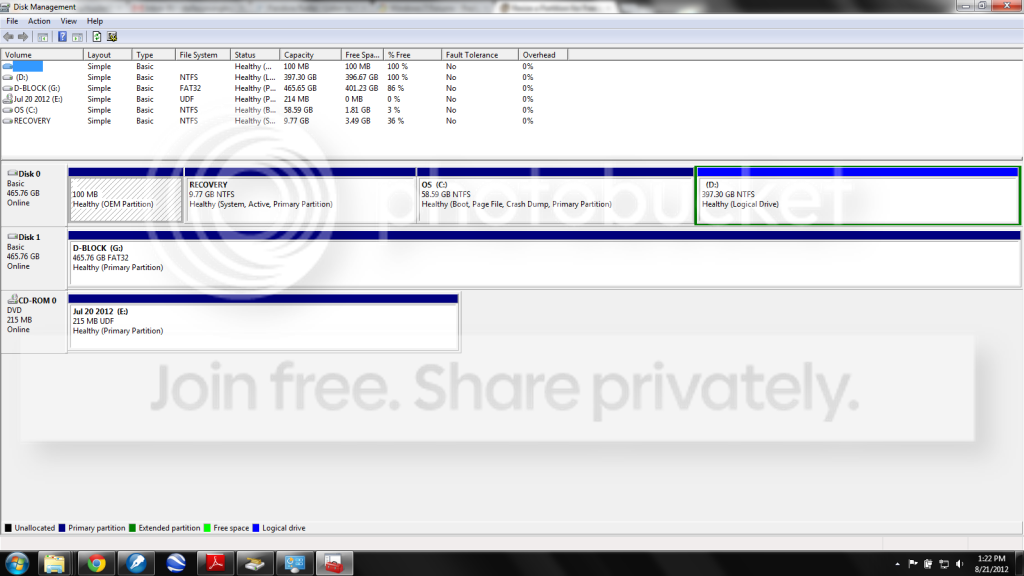
If possible, post a screen shot of Windows Disk Management.

Diskmanagement.png


G: is an external I use for back up.
 

My Computer My Computer

At a glance

Windows 7
OS
Windows 7
Hibernate capability takes up space equal to the amount of RAM you have---2 GB, 4 GB, whatever. If you can do without hibernation, you can get back that much space. Your choice entirely.

System Restore is at control panel/system/system protection in the upper left/configure button. How many GB do you show as "current usage"??

You can move that "max usage" slider to control how much is devoted to it. Mine is currently at about 7 GB. Yours could be 3 GB or 30 GB. You have to inspect it.

You say user folder is about 22, with about 12 in pictures. That leaves 10 GB. That's an awful lot of Wordperfect files if that's all you have other than pix.

What's on D? Why have a D at all?

It appears near empty. Why not just delete it and add that space to C?
 

My Computer My Computer

At a glance

Windows 7 Home Premium SP1, 64-bitIntel Skylake i5-6600K, not overclocked8 GB HyperX DDR4-2666 (2 x 4 GB)none; graphics are integrated on CPU
Computer type
PC/Desktop
Computer Manufacturer/Model Number
Ignatz Special; 4 speed manual gearbox; factory air conditioning; one of one
OS
Windows 7 Home Premium SP1, 64-bit
CPU
Intel Skylake i5-6600K, not overclocked
Motherboard
AsRock Z170M Extreme 4, micro ATX
Memory
8 GB HyperX DDR4-2666 (2 x 4 GB)
Graphics Card(s)
none; graphics are integrated on CPU
Sound Card
onboard: Realtek ALC1150; external: USB Behringer UF0-202
Monitor(s) Displays
Dell S2340M 23 inch IPS
Screen Resolution
1600 x 900
Hard Drives
System: Crucial MX100 series SSD, 128 GB;
Data: Samsung Spinpoint 103SJ, 1 TB;
Backup: WD Caviar Green WD30EZRX-00D8PB0, 3 TB
PSU
Rosewill SilentNight 500 watt fanless, semi-modular
Case
Antec Solo II
Cooling
Noctua NH-U12S; Noctua F12 intake, Noctua S12A exhaust
Keyboard
Microsoft 200 6JH-00001 USB
Mouse
Dell or Microsoft optical wired; USB
Antivirus
Microsoft Security Essentials and Malwarebytes Premium
Browser
Pale Moon
Other Info
All fans PWM; speeds at idle: CPU circa 500 rpm; intake circa 600 rpm; exhaust circa 600 rpm; CPU temps 27 idle and 47 C load in a warm room (27 C/81 F) when running Intel Extreme Tuning Utility stress test.
System Restore is at control panel/system/system protection in the upper left/configure button. How many GB do you show as "current usage"??

You can move that "max usage" slider to control how much is devoted to it. Mine is currently at about 7 GB. Yours could be 3 GB or 30 GB. You have to inspect it.

Sorry, I'm a dunce. I can't find the page you're talking about.

You say user folder is about 22, with about 12 in pictures. That leaves 10 GB. That's an awful lot of Wordperfect files if that's all you have other than pix.

I've got a few other random things, but nothing that should take up much space. That's what's so confusing about it to me. I thought this was supposed to have a pretty huge hard drive.

What's on D? Why have a D at all?

It appears near empty. Why not just delete it and add that space to C?

I have no idea, and was actually wondering what the purpose of it was. I get nervous about messing with stuff like that because I know about enough about Windows to create problems. That won't mess with the OS? And how do I do it because that would go a long way in solving the problem.

At least 3 characters.
 

My Computer My Computer

At a glance

Windows 7
OS
Windows 7
Re system restore: can you go to control panel and locate the "system" icon? You may have to choose "small icons" in the upper right.

Re the unexplained 10 GB. You could go to your "users" folder and start right clicking all the subfolders and look at the properties tab to show their size. There is probably one or two in there that have multiple GB of something.

Re D drive: Navigate to it in Windows Explorer and open any and all subfolders. Does it appear to have ANYTHING in it? If not, it's the primary candidate to get space back.

No, it won't interfere with your OS. The OS is on C partition and Recovery partition---which is weird. Normally, it would be on C and the very small OEM partition. Who built this PC??

Anyway, if you can confirm D is empty, the next step would be to delete it. That partition would instantly become "unallocated space". And you can then "extend" C into that unallocated space.
 

My Computer My Computer

At a glance

Windows 7 Home Premium SP1, 64-bitIntel Skylake i5-6600K, not overclocked8 GB HyperX DDR4-2666 (2 x 4 GB)none; graphics are integrated on CPU
Computer type
PC/Desktop
Computer Manufacturer/Model Number
Ignatz Special; 4 speed manual gearbox; factory air conditioning; one of one
OS
Windows 7 Home Premium SP1, 64-bit
CPU
Intel Skylake i5-6600K, not overclocked
Motherboard
AsRock Z170M Extreme 4, micro ATX
Memory
8 GB HyperX DDR4-2666 (2 x 4 GB)
Graphics Card(s)
none; graphics are integrated on CPU
Sound Card
onboard: Realtek ALC1150; external: USB Behringer UF0-202
Monitor(s) Displays
Dell S2340M 23 inch IPS
Screen Resolution
1600 x 900
Hard Drives
System: Crucial MX100 series SSD, 128 GB;
Data: Samsung Spinpoint 103SJ, 1 TB;
Backup: WD Caviar Green WD30EZRX-00D8PB0, 3 TB
PSU
Rosewill SilentNight 500 watt fanless, semi-modular
Case
Antec Solo II
Cooling
Noctua NH-U12S; Noctua F12 intake, Noctua S12A exhaust
Keyboard
Microsoft 200 6JH-00001 USB
Mouse
Dell or Microsoft optical wired; USB
Antivirus
Microsoft Security Essentials and Malwarebytes Premium
Browser
Pale Moon
Other Info
All fans PWM; speeds at idle: CPU circa 500 rpm; intake circa 600 rpm; exhaust circa 600 rpm; CPU temps 27 idle and 47 C load in a warm room (27 C/81 F) when running Intel Extreme Tuning Utility stress test.
Re system restore: Found it. It's set at 279.98 MB.

Re unexplained 10 GB: I've thought about that and I've found a few files that seem to have a lot of stuff in them. I have no idea what it is. I'm nervous about deleting something that appears to be a program file. I don't know what is safe to delete and what is not.

Re D drive: It's got two folders in it. One is a folder where I dumped some stuff I wanted off my desktop and didn't know where else to put it. The other is a folder titled "92b3b9f92c92b3e8edd82a" No clue what it is and it's got an application called MRT in it. I don't have permission to access it with my login.

I inherited the computer when another attorney left the firm. He might have created the D drive, or it came that way from Dell, I guess. That's my best guess as to why it's set up that way, but it's purely a guess.
 

My Computer My Computer

At a glance

Windows 7
OS
Windows 7
Given that:

1: you want to continue using hibernation
2: you are fearful of deleting anything from C
3: you are fearful of deleting D and don't know or can't find out the purpose of that MRT application

Then your remaining choice is to change the location of your user folders--get them to the D drive.

See this tutorial:

http://www.sevenforums.com/tutorials/18629-user-folders-change-default-location.html

I'm not an expert on user folders. I don't use them at all and regard them as superfluous.

There are other guys around here such as Greg, Brink, WHS, etc that can probably set you straight if you can't figure it out from that tutorial.

Re system restore: 280 MB is a very low amount for it. I would guess that little space might only afford you 1 or possibly 2 restore points---or possibly none? It's not going to help you much with that little space devoted to it, but you may never use it or have any interest in it anyway.

What would I do in your shoes: I'd wipe out all partitions, do a clean install, and set up partitions exactly how I wanted them. But that's me and I understand your reluctance.

You could install an app called WinDirStat (free download) which will reveal to you what is taking up space on C, but you might still be reluctant to delete anything even if you knew exactly what type of files were on C. So probably not much point in that.

There is another choice: shrink D, and add the amount of the shrink to C. You would need to use a free downloadable application called Partition Wizard to do it. Download it, burn it to a CD, boot from that CD, and make the changes. D is virtually empty, so you could add over 390 GB to C if you did this. In this scenario, you would not have to mess with your user folders.
 
Last edited:

My Computer My Computer

At a glance

Windows 7 Home Premium SP1, 64-bitIntel Skylake i5-6600K, not overclocked8 GB HyperX DDR4-2666 (2 x 4 GB)none; graphics are integrated on CPU
Computer type
PC/Desktop
Computer Manufacturer/Model Number
Ignatz Special; 4 speed manual gearbox; factory air conditioning; one of one
OS
Windows 7 Home Premium SP1, 64-bit
CPU
Intel Skylake i5-6600K, not overclocked
Motherboard
AsRock Z170M Extreme 4, micro ATX
Memory
8 GB HyperX DDR4-2666 (2 x 4 GB)
Graphics Card(s)
none; graphics are integrated on CPU
Sound Card
onboard: Realtek ALC1150; external: USB Behringer UF0-202
Monitor(s) Displays
Dell S2340M 23 inch IPS
Screen Resolution
1600 x 900
Hard Drives
System: Crucial MX100 series SSD, 128 GB;
Data: Samsung Spinpoint 103SJ, 1 TB;
Backup: WD Caviar Green WD30EZRX-00D8PB0, 3 TB
PSU
Rosewill SilentNight 500 watt fanless, semi-modular
Case
Antec Solo II
Cooling
Noctua NH-U12S; Noctua F12 intake, Noctua S12A exhaust
Keyboard
Microsoft 200 6JH-00001 USB
Mouse
Dell or Microsoft optical wired; USB
Antivirus
Microsoft Security Essentials and Malwarebytes Premium
Browser
Pale Moon
Other Info
All fans PWM; speeds at idle: CPU circa 500 rpm; intake circa 600 rpm; exhaust circa 600 rpm; CPU temps 27 idle and 47 C load in a warm room (27 C/81 F) when running Intel Extreme Tuning Utility stress test.
There is another choice: shrink D, and add the amount of the shrink to C. You would need to use a free downloadable application called Partition Wizard to do it. Download it, burn it to a CD, boot from that CD, and make the changes. D is virtually empty, so you could add over 390 GB to C if you did this. In this scenario, you would not have to mess with your user folders.

This makes the most sense. I've got the home and pro edition of Partition Wizard downloaded. I'm assuming all I need to do is use the merge feature to merge C and D? Is that accurate? I shrunk down D, but that didn't change the available space for C, but only left a whole lot of space unallocated.

If that's how you do it, do I have to drop $30 on the pro edition of the Wizard? It doesn't look like you can use the merge feature on the home edition.

Let me know if I'm trying to skin this cat the wrong way.

And thanks for all your help.
 

My Computer My Computer

At a glance

Windows 7
OS
Windows 7
There is another choice: shrink D, and add the amount of the shrink to C. You would need to use a free downloadable application called Partition Wizard to do it. Download it, burn it to a CD, boot from that CD, and make the changes. D is virtually empty, so you could add over 390 GB to C if you did this. In this scenario, you would not have to mess with your user folders.

This makes the most sense. I've got the home and pro edition of Partition Wizard downloaded. I'm assuming all I need to do is use the merge feature to merge C and D? Is that accurate? I shrunk down D, but that didn't change the available space for C, but only left a whole lot of space unallocated.

If that's how you do it, do I have to drop $30 on the pro edition of the Wizard? It doesn't look like you can use the merge feature on the home edition.

Let me know if I'm trying to skin this cat the wrong way.

And thanks for all your help.

Did you download the bootable home version 7.5 from the bottom of this link:

Free download Magic Partition Manager Software, partition magic alternative, free partition magic, partition magic Windows 7 and server partition software - Partition Wizard Online

I seriously doubt you need the Pro edition. You MAY need to download an earlier version (4.22) of the free version as it has a feature or two not offered in the current version.

You don't "merge" partitions. You shrink one, generating unallocated space. Unallocated space is NOT a partition. You then add the unallocated space to the other partition.

Your situation may be complicated by the fact that D is a "logical" partition inside an "extended" partition. You can tell it is an extended partition by seeing the green border in that screen shot of Disk Management. If it were not "logical", it may be a simpler issue.

You may get some clues at this link. At any rate, look it over.

Resize extended partition and resize logical partition.

NOTE: I'd advise you to have your data backed up before you mess with partitions. Partition Wizard is an excellent product, but nothing is foolproof.

I don't use logical partitions and rarely use Partition Wizard, so I'm not highly qualified.

Stand pat for a bit. I will try to get more experienced help into this thread.

I assume you have made a burned bootable Partition Wizard disk and are NOT using the installed version?
 

My Computer My Computer

At a glance

Windows 7 Home Premium SP1, 64-bitIntel Skylake i5-6600K, not overclocked8 GB HyperX DDR4-2666 (2 x 4 GB)none; graphics are integrated on CPU
Computer type
PC/Desktop
Computer Manufacturer/Model Number
Ignatz Special; 4 speed manual gearbox; factory air conditioning; one of one
OS
Windows 7 Home Premium SP1, 64-bit
CPU
Intel Skylake i5-6600K, not overclocked
Motherboard
AsRock Z170M Extreme 4, micro ATX
Memory
8 GB HyperX DDR4-2666 (2 x 4 GB)
Graphics Card(s)
none; graphics are integrated on CPU
Sound Card
onboard: Realtek ALC1150; external: USB Behringer UF0-202
Monitor(s) Displays
Dell S2340M 23 inch IPS
Screen Resolution
1600 x 900
Hard Drives
System: Crucial MX100 series SSD, 128 GB;
Data: Samsung Spinpoint 103SJ, 1 TB;
Backup: WD Caviar Green WD30EZRX-00D8PB0, 3 TB
PSU
Rosewill SilentNight 500 watt fanless, semi-modular
Case
Antec Solo II
Cooling
Noctua NH-U12S; Noctua F12 intake, Noctua S12A exhaust
Keyboard
Microsoft 200 6JH-00001 USB
Mouse
Dell or Microsoft optical wired; USB
Antivirus
Microsoft Security Essentials and Malwarebytes Premium
Browser
Pale Moon
Other Info
All fans PWM; speeds at idle: CPU circa 500 rpm; intake circa 600 rpm; exhaust circa 600 rpm; CPU temps 27 idle and 47 C load in a warm room (27 C/81 F) when running Intel Extreme Tuning Utility stress test.
Bah. I was running the installed version. So now I've got the bootable version burned to a CD and when I try to boot from the disc, there's nothing that will open. The disc has a folder called "BOOT." Inside BOOT is a folder called "ISOLINUX" and 3 other files, two specified as "files" and the third a GZ file.

ISOLINUX has a security catalog, a VLC file, a CFG file, a JPEG, and a C32 file. None of which will open (other than the JPEG, but that doesn't help me much).

So now I can't seem to get the bootable version to do anything other than make the disk spin in the drive. Also not helpful. I'll download it again to see if that was just a hiccup somehow...?
 

My Computer My Computer

At a glance

Windows 7
OS
Windows 7
*Edit* Double post. Oops.
 

My Computer My Computer

At a glance

Windows 7
OS
Windows 7
How did you go about burning the iso to the disk?

Did you check the BIOS to ensure the machine would boot from the optical drive before trying the hard drive?
 

My Computer My Computer

At a glance

Windows 7 Ultimate x64
OS
Windows 7 Ultimate x64
How did you go about burning the iso to the disk?

Did you check the BIOS to ensure the machine would boot from the optical drive before trying the hard drive?

1: I went to the site and downloaded the bootable version (http://www.partitionwizard.com/download/pwhe7.iso). The download took care of everything from there.

2: I have no idea what you're asking me. You're going to have to dumb it down because I don't understand computers that well.
 

My Computer My Computer

At a glance

Windows 7
OS
Windows 7
1: I went to the site and downloaded the bootable version (http://www.partitionwizard.com/download/pwhe7.iso). The download took care of everything from there.

After downloading it you've go to do something with it. Double click on the downloaded iso file in Explorer. Your preferred (or default) burning app should launch, allowing you to burn the iso to a blank CD/DVD.

2: I have no idea what you're asking me. You're going to have to dumb it down because I don't understand computers that well.

Place the burned disc into the optical drive. Reboot, and as soon as you see the machine restart, quickly tap F12 a few times. A Boot Options menu should appear where you can select to boot from your optical drive. (If you don't succeed in pressing F12 at the right time it'll continue to load Windows -- let it finish loading and then try rebooting again. It may be easier to time it correctly if the machine is powered down -- about a half second after powering it up start tapping the F12 key.)
 

My Computer My Computer

At a glance

Windows 7 Ultimate x64
OS
Windows 7 Ultimate x64
How did you go about burning the iso to the disk?

Did you check the BIOS to ensure the machine would boot from the optical drive before trying the hard drive?

1: I went to the site and downloaded the bootable version (http://www.partitionwizard.com/download/pwhe7.iso). The download took care of everything from there.

2: I have no idea what you're asking me. You're going to have to dumb it down because I don't understand computers that well.

The ISO by itself is useless.

It must be "burned" to a blank CD or DVD. You do that with a burning application. Windows has one built-in, or you can download such an app.

Have you ever burned a disc?

Follow F5's instructions after you get it burned. You must boot FROM the burned disc in order to run Partition Wizard.
 

My Computer My Computer

At a glance

Windows 7 Home Premium SP1, 64-bitIntel Skylake i5-6600K, not overclocked8 GB HyperX DDR4-2666 (2 x 4 GB)none; graphics are integrated on CPU
Computer type
PC/Desktop
Computer Manufacturer/Model Number
Ignatz Special; 4 speed manual gearbox; factory air conditioning; one of one
OS
Windows 7 Home Premium SP1, 64-bit
CPU
Intel Skylake i5-6600K, not overclocked
Motherboard
AsRock Z170M Extreme 4, micro ATX
Memory
8 GB HyperX DDR4-2666 (2 x 4 GB)
Graphics Card(s)
none; graphics are integrated on CPU
Sound Card
onboard: Realtek ALC1150; external: USB Behringer UF0-202
Monitor(s) Displays
Dell S2340M 23 inch IPS
Screen Resolution
1600 x 900
Hard Drives
System: Crucial MX100 series SSD, 128 GB;
Data: Samsung Spinpoint 103SJ, 1 TB;
Backup: WD Caviar Green WD30EZRX-00D8PB0, 3 TB
PSU
Rosewill SilentNight 500 watt fanless, semi-modular
Case
Antec Solo II
Cooling
Noctua NH-U12S; Noctua F12 intake, Noctua S12A exhaust
Keyboard
Microsoft 200 6JH-00001 USB
Mouse
Dell or Microsoft optical wired; USB
Antivirus
Microsoft Security Essentials and Malwarebytes Premium
Browser
Pale Moon
Other Info
All fans PWM; speeds at idle: CPU circa 500 rpm; intake circa 600 rpm; exhaust circa 600 rpm; CPU temps 27 idle and 47 C load in a warm room (27 C/81 F) when running Intel Extreme Tuning Utility stress test.
This looks much simpler than you're making it here.

In Disk Mgmt delete D after moving any files off, although it appears to be empty. You will need to delete it twice: once for the partition, then for the Logical volume. Partition or Volume - Delete

Then extend C into its Unallocated space: Partition or Volume - Extend

The best way to organize your data is to sort it into the provided User folders, then cull those regularly to delete any not needed. Just do it.
 
This looks much simpler than you're making it here.

In Disk Mgmt delete D after moving any files off, although it appears to be empty. You will need to delete it twice: once for the partition, then for the Logical volume. Partition or Volume - Delete

Greg:

He does not want to delete D.

It is not empty. Just nearly empty. It has a few files and an app on it that he is unsure of---doesn't know their purpose. File/folder names in D are cryptic.

See OP post 7.

It's a business laptop he inherited from another employee; set up presumably by that other employee.

The OP is fearful of messing with D other than to shrink it and give the space to C. D is a logical in an extended.
 

My Computer My Computer

At a glance

Windows 7 Home Premium SP1, 64-bitIntel Skylake i5-6600K, not overclocked8 GB HyperX DDR4-2666 (2 x 4 GB)none; graphics are integrated on CPU
Computer type
PC/Desktop
Computer Manufacturer/Model Number
Ignatz Special; 4 speed manual gearbox; factory air conditioning; one of one
OS
Windows 7 Home Premium SP1, 64-bit
CPU
Intel Skylake i5-6600K, not overclocked
Motherboard
AsRock Z170M Extreme 4, micro ATX
Memory
8 GB HyperX DDR4-2666 (2 x 4 GB)
Graphics Card(s)
none; graphics are integrated on CPU
Sound Card
onboard: Realtek ALC1150; external: USB Behringer UF0-202
Monitor(s) Displays
Dell S2340M 23 inch IPS
Screen Resolution
1600 x 900
Hard Drives
System: Crucial MX100 series SSD, 128 GB;
Data: Samsung Spinpoint 103SJ, 1 TB;
Backup: WD Caviar Green WD30EZRX-00D8PB0, 3 TB
PSU
Rosewill SilentNight 500 watt fanless, semi-modular
Case
Antec Solo II
Cooling
Noctua NH-U12S; Noctua F12 intake, Noctua S12A exhaust
Keyboard
Microsoft 200 6JH-00001 USB
Mouse
Dell or Microsoft optical wired; USB
Antivirus
Microsoft Security Essentials and Malwarebytes Premium
Browser
Pale Moon
Other Info
All fans PWM; speeds at idle: CPU circa 500 rpm; intake circa 600 rpm; exhaust circa 600 rpm; CPU temps 27 idle and 47 C load in a warm room (27 C/81 F) when running Intel Extreme Tuning Utility stress test.
Those files on D are not needed, so put them on a CD or stick or move temporarily to C so you can delete D and extend C which is what you need - more space.

If you insist on going to the unnecessary trouble of resizing C to preserve a Logical partition you don't intend to use, then rightclick D to Resize, drag left border to the right as much as possible, click OK. Then rightclick C to Resize, drag right border to the right up to D, OK, Apply both steps.

Partition Wizard Move/Resize Partition Video Help.
 
This looks much simpler than you're making it here.

In Disk Mgmt delete D after moving any files off, although it appears to be empty. You will need to delete it twice: once for the partition, then for the Logical volume. Partition or Volume - Delete

Then extend C into its Unallocated space: Partition or Volume - Extend

The best way to organize your data is to sort it into the provided User folders, then cull those regularly to delete any not needed. Just do it.

Aaaand boom goes the dynamite.

That's exactly what I was looking for. Problem solved. Thanks a ton guys!
 

My Computer My Computer

At a glance

Windows 7
OS
Windows 7
Back
Top