Solved Hard drive not recognized after partition - hp ultrabook

dfw1977

New member
Local time
12:39 PM
Messages
4
I have hp ultrabook 1043 cl, Yesterday i created partition after defragmenting the C: drive. Next i tried to do simple volume on new partition but was throwing error was not able to create.

In the process the label on C: became empty, i assigned and made the c: as active and was prompted with warning "If you make this a Dynamic Disk, you wont be able to boot installed OS'es from this disk" and clicked YES thinking i already made c as active.

restarted the machine and the boot manager didnot list windows and displayed error Windows Boot Manager oxc000000f on laptop and displayed message to repair using windows disc

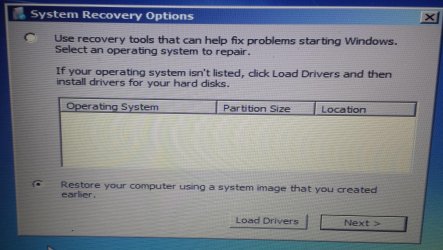
next created win 7 USB bootable in order to install windows, but during the installation process i get messages "Where do you want to install windows?" and no drives are listed.

How do i get the C: back ?
 

My Computer My Computer

At a glance

win 7
Computer type
PC/Desktop
OS
win 7

My Computer My Computer

At a glance

Windows 10 Pro X64Intel Quad Core i7-4770 @ 3.4Ghz16.0GB PC3-12800 DDR3 SDRAM 1600 MHzIntel Integrated HD Graphics
Computer type
PC/Desktop
Computer Manufacturer/Model Number
Lenovo IdeaCenter 450
OS
Windows 10 Pro X64
CPU
Intel Quad Core i7-4770 @ 3.4Ghz
Memory
16.0GB PC3-12800 DDR3 SDRAM 1600 MHz
Graphics Card(s)
Intel Integrated HD Graphics
Sound Card
Realtek HD Audio
Monitor(s) Displays
HP 22" LCD
Screen Resolution
1680 x 1050
Hard Drives
250GB Samsung EVO SATA-3 SSD
2TB Seagate ST2000DM001 SATA-2
1.5TB Seagate ST3150041AS SATA
Keyboard
Dell USB
Mouse
Lenovo USB
Internet Speed
Cable via Road Runner 3MB Upload, 30MB Download
Antivirus
Windows Defender, MBAM Pro, MBAE
Browser
Seamonkey
Other Info
UEFI/GPT
PLDS DVD-RW DH16AERSH
thx for reply, I was able to check and the disk is still basic,
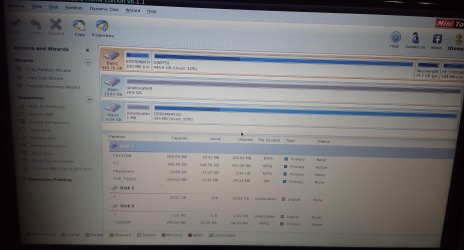
I have attached screens of windows installation where it doesnt identify the hdd and partition wizard of the partitions. Any settings i need to do via partition wizard ?
 

Attachments

  • 1.jpg
    1.jpg
    833.8 KB · Views: 0
  • 2.jpg
    2.jpg
    974.2 KB · Views: 2

My Computer My Computer

At a glance

win 7
Computer type
PC/Desktop
OS
win 7
Mark System Reserved Partition Active and not C. The PW screenshot shows there is no Boot flag on System Reserved proving it is booting the System, because the Active flag has been moved off.

So with all other drives unplugged, boot into PW CD, rightclick on System Reserved in PW to Modify>Set to Active, OK, Apply.

Then highlight the Win7 disk, from Disk tab Rebuild MBR, OK, Apply.

Reboot to see if Win7 boots. If not unplug all other drives to boot into Win7 disk to run Startup Repair - Run 3 Separate Times

To keep HP Recovery, Diagnostics and OS bootable you should use PW to Modify>Set to Logical the C partition first if you want to shrink it to add any other adjacent Logical partitions. This keeps everything bootable on HP's.

But be aware the HP preinstalled WIn7 is the worst install of the OS one can have. You'd be much better off to run HP Minimal Recovery or do a Clean Reinstall - Factory OEM Windows 7 to get rid of the smothering bloatware and duplicate utilities which interfere with better versions built into Win7.
 
thx for reply
I did set the system partition as active and rebuild the MBR, restarted - no success
Next I did startup repair (from wind7 usb) around 4-5 times with restarting after each attempt - no success

The harddrive is not listed in the diskpart utility or even in new win7 installation process. Only place it shows up is in PW

Any suggestion what to do next ?
 

My Computer My Computer

At a glance

win 7
Computer type
PC/Desktop
OS
win 7
The harddrive is not listed in the diskpart utility or even in new Windows 7 installation process. Only place it shows up is in PW


That is because your laptop is not a normal "Notebook" but an "Ultrabook" which uses a special kind of RAID 0 like setup ( Intel Rapid Start Technology ). You may need to provide Intel storage driver manually.

1. Download x64 version of IRST driver from https://downloadcenter.intel.com/co...006/eng/f6flpy-x64.zip&Lang=eng&Dwnldid=24006

2. Extract the zip file to blank folder on your USB flash drive. Plug the flash drive in your "Ultrabook" and boot the system from Install DVD/USB. Make sure the USB flash drive is plugged in to a "USB 2.0" port. Windows setup or "Startup Repair" won't see "USB 3.0" ports which operates in native XHCI mode.

3. At the screen to select Windows installation, choose "Load Driver".

windows-7-startup-repair-6.jpg


4. Use the browse dialogue and open the IRST driver folder on your USB disk and select the inf file inside it. There are two inf files inside but i am not sure which one to select. Please try one at a time. If successful, you will see a screen similar to the below one.

58479d1379277868t-sata-driver-load-windows-7-vista-setup-11.png


Press "Next" and hopefully "Startup Repair" will be able to detect the HDD.


Btw, not all "Ultrabooks" require IRST driver to be provided manually - some early models will work fine with Win 7 stock stotrage drivers. It all depends upon the system Chipset and the way SSD+HDD RIAD setup implemented by the manufacturer. Some monthe ago, i had a hard time troubleshooting an HP Ultrabook which showed a similar boot failure message. My WinPE boot disks and Install DVD failed to detect the HDD. After two days of trying, i concluded that the HDD is faulty. But before returing the system to the customer (system was still under warranty ) , i decided to check the HDD health using "Parted Magic". To my surprise, "Parted Magic" is able to see the HDD and that is when i realized that the issue is related to storage driver.
 

My Computer My Computer

At a glance

Windows 7 Ultimate x64
Computer type
PC/Desktop
OS
Windows 7 Ultimate x64
The harddrive is not listed in the diskpart utility or even in new Windows 7 installation process. Only place it shows up is in PW


That is because your laptop is not a normal "Notebook" but an "Ultrabook" which uses a special kind of RAID 0 like setup ( Intel Rapid Start Technology ). You may need to provide Intel storage driver manually.

1. Download x64 version of IRST driver from https://downloadcenter.intel.com/co...006/eng/f6flpy-x64.zip&Lang=eng&Dwnldid=24006

2. Extract the zip file to blank folder on your USB flash drive. Plug the flash drive in your "Ultrabook" and boot the system from Install DVD/USB. Make sure the USB flash drive is plugged in to a "USB 2.0" port. Windows setup or "Startup Repair" won't see "USB 3.0" ports which operates in native XHCI mode.

3. At the screen to select Windows installation, choose "Load Driver".

windows-7-startup-repair-6.jpg


4. Use the browse dialogue and open the IRST driver folder on your USB disk and select the inf file inside it. There are two inf files inside but i am not sure which one to select. Please try one at a time. If successful, you will see a screen similar to the below one.

58479d1379277868t-sata-driver-load-windows-7-vista-setup-11.png


Press "Next" and hopefully "Startup Repair" will be able to detect the HDD.


Btw, not all "Ultrabooks" require IRST driver to be provided manually - some early models will work fine with Win 7 stock stotrage drivers. It all depends upon the system Chipset and the way SSD+HDD RIAD setup implemented by the manufacturer. Some monthe ago, i had a hard time troubleshooting an HP Ultrabook which showed a similar boot failure message. My WinPE boot disks and Install DVD failed to detect the HDD. After two days of trying, i concluded that the HDD is faulty. But before returing the system to the customer (system was still under warranty ) , i decided to check the HDD health using "Parted Magic". To my surprise, "Parted Magic" is able to see the HDD and that is when i realized that the issue is related to storage driver.


Ultrabook displayed the windows installation after installing the driver and machine is working fine now, thanks for help
 

My Computer My Computer

At a glance

win 7
Computer type
PC/Desktop
OS
win 7
Back
Top