hard drive setup

lazylyons

New member
Local time
5:52 PM
Messages
1
I have been trying to run windows 7 ultimate in raid 0 and I am having too many problems and error messages.

Right now I can't even boot up. How can I get rid of my raid set up so I can just install my operating system on Drive C and the rest of my programs on the 2nd drive?
 

My Computer

OS
windows 7 ultimate
Hello lazylyons, welcome to Seven Forums!


Leave only a single Hard Disk Drive connected to the motherboard and that connected to the #1 SATA port; I would suggest a complete wipe on the entire HDD before the install, have a look at the information below and be sure to post back with any further questions you may have and to keep us informed.


After you have copied out or made back-ups of the data you need to save to external media, then boot the Windows 7 installation media to use Step One of this tutorial at the first link below to do a wipe (secure erase) to the entire Hard Disk Drive / Solid State Drive.

:info: Whether you use diskpart to run either the clean all command to completely wipe a HDD / SSD or just the clean command to remove the format configuration data and don't use diskpart to create at least a single partition to do the installation to, letting the Windows installer do the format you will end up with the new Windows 7 System Reserved partition, if you want to make your own decision whether this partition is added, study these two (2) options below.
  • Then if you do not want to create the new Windows 7 "System Reserved" partition use the outline in Step Two #2 to create, format and mark Active a single 100GB partition to do the installation to.
  • If you do want to create the "System Reserved" partition use the outline in Step Two #3 to create, format and mark Active the System Reserved partition and then create and format the 100GB partition to do the installation to.
Either way, running the "clean all" then creating and formatting the partition(s) using diskpart will get you the best possible space to do a clean install of Windows 7 to; you can always extend the Windows partition to include the remaining unallocated space on the HDD / SSD or create additional Primary partitions or an Extended partition after the installation completes if you choose.

SSD / HDD : Optimize for Windows Reinstallation

DISKPART : At PC Startup

Do a Clean Install with a Upgrade Windows 7 Version

If you don't want to wipe the entire HDD, you can do a partition-specific wipe of the Windows partition using the Partition Wizard Bootable Disk (PWBD) have a look at Option Three in the tutorial at this link below.

Partition Wizard : Use the Bootable CD

 

My Computer

Computer Manufacturer/Model Number
* BFK Customs *
OS
W 7 64-bit Ultimate
CPU
Intel Q9550 Yorkfield
Motherboard
ASUS P5Q Pro
Memory
8GB Dominator 8500C5D
Graphics Card(s)
ATI : XFX 5870
Sound Card
Realtek HD Audio 7-1
Monitor(s) Displays
1x 47" LCD HDMI & 3x 26" LCD HDMI
Screen Resolution
1920x1080P & 1920x1200
Hard Drives
1x 80GB Intel X25-M G2 SSD : 1x 500GB & 1x 640GB WD Caviar Black(s)
PSU
Corsair 620HX
Case
Cooler Master RC-690
Cooling
Tuniq Tower 120, 2x 140mm and 3x 120mm case fans
Keyboard
Microsoft 500
Mouse
Razer Diamondback 3G
Internet Speed
14 Mb/s
Other Info
1x Koutech 3Gb/s SATA HDD Hot Swap Rack
I would leave the programs on the C drive and move the user files to the other drive. For that, go to properties of Document, Music, Pictures, etc. Go to the the Location tab and MOVE. But make sure you first define folders (with any name) on the other drive and DO NOT move the folders to the root of the drive. Once you moved the folders, they will assume their old name again.

Another method that I use: I leave the original user folders on C and define new user folders on the other drive. Then I move my own stuff there and INCLUDE the folders into the corresponding library (just right click on the folders, you'll see). The advantage is that all the system and program generated folders still go into the folders on C and are not mixed with my own stuff.

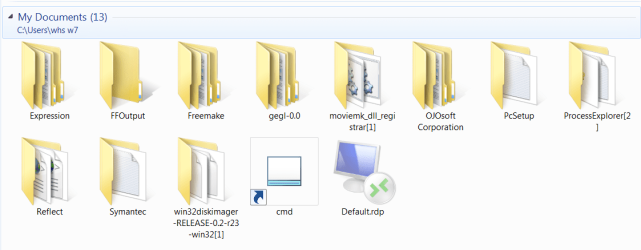
Example: All those folders in Documents were generated by programs and not by me:
 

Attachments

  • 2011-04-23_2100.png
    2011-04-23_2100.png
    35.2 KB · Views: 7

My Computer

Computer Manufacturer/Model Number
HP, Dell, Gateway, Toshiba - 4 laptops and 2 desktops
OS
Vista, Windows7, Mint Mate, Zorin, Windows 8
CPU
from 1.6GHz Duo to i7
Monitor(s) Displays
2x HP w2207
Hard Drives
5x HDD, 7x SSD, 12x Externals
Keyboard
with trackball - no mices
Mouse
Trackball mice
Internet Speed
DSL 6000
Back
Top