
Solved Hardware RAID installation after Windows 7 OS install

Late951

New member
Local time
8:26 PM
Messages
9
HARDWARE RAID ACTIVATION POST WIN 7 OS INSTALL

Installing a RAID array during a new system build is not so difficult but Once I decided I wanted a RAID 0 array on my existing Win 7 PC, I quickly discovered that it is not easy to accomplish that particular wish. However it can be achieved without hacking the registry. Here is the procedure that worked for me.


Goal – to install a pair of 1TB WD Caviar blacks in Hardware RAID 0 on an already installed Win 7 system.


Win 7 OS resides on a separate 64GB SSD boot disk.

Motherboard: ASUS P9X79PRO,

SATA Ports as follows:

  • 2 x Intel SATA 3
  • 4 x Intel SATA 2
  • 2 x Marvel SATA 2


CPU i7 3820, 32GB
OS Win 7 Professional x64

Drives: (in final configurations)

1 SSD 64GB Win 7 Drive, On Intel SATA 3 controller, Non RAID assigned, but controller in RAID mode.
1 SSD 128 GB Data Drive, On Intel SATA 3 controller, Non RAID assigned, but controller in RAID mode.
1 x 2TB Internal, non RAID drive to backup RAID array, 7200RPM, 64MB, on Marvel SATA 3 Controller/AHCI
2 x 1TB Caviar Black in RAID 0, 7200 RPM, 64MB, on Intel SATA 2 controller, in RAID mode
2 x 1TB External USB 2.0 Drives (Backups)
1 x DVD on Intel SATA 2 controller – Non RAID assigned, but controller in RAID mode.

Issue.

Once windows is installed without RAID it is difficult to get it to recognise RAID hardware.
If you install RAID drivers without the RAID hardware enabled the drivers do not fully install.
If you enable the RAID hardware without drivers installed windows will crash on boot. Catch 22.

Outline of procedure.


  • Part install the latest RAID drivers while the SATA ports are in AHCI mode.
  • Juggle the boot & RAID disks to appropriate SATA ports temporarily
  • Enable RAID in BIOS and set it up with its POST utility.
  • With RAID hardware enabled Windows driver install can be completed
  • Disks are reorganised onto their appropriate controllers if necessary.
  • The BIOS is tidied up & the RAID disks are finalised for use in diskmgr or partition wizard.

Detailed Procedure:


  • I flashed the motherboard BIOS to its latest version (2104).
  • Begin with BIOS in SATA controller in AHCI mode for all disk controllers.
  • I backed up C drive to External Disk prior to messing with RAID drivers.
  • Win 7, Norton Ghost & Partition wizard recovery disks were on hand.
  • Downloaded and installed latest Asmedia SATA Controller driver V1.3.1.0 using the provided setup.exe / Reboot.
  • Downloaded & installed the Intel Rapid Storage Technology Enterprise (IRST) driver 3.2.0.1126 using the setup.exe / Reboot. This is the RAID driver and it gets partly installed at this step.
  • Backed up again, post driver install.
  • Copied these drivers to USB for use later in the process.
  • You may note that diskmgr now has some RAID functionality in its menu options but we are not done yet.
  • Turn off PC


  • Physically connect boot drive (SSD) & CD to Marvel SATA controller.
  • Put RAID drives on the Intel SATA 3 controllers.
  • Boot to BIOS, switch BIOS from AHCI to RAID.
  • Check/set boot sequence to DVD 1st , SSD boot disk 2nd.
  • Save & Exit / Reboot
  • Pass the BIOS, but enter the IRST RAID by CTRL-I during POST.
  • Assign the two Caviar disks to RAID 0, 128K, Save/Exit / Reboot.


  • If all has gone well at this point it will boot into windows.
  • If the driver installation hasn’t succeeded windows will BSOD during the load.
  • If it hangs put the drives & bios back to their original settings and windows will probably load fine in which case you can re-attempt to load the SATA & RAID drivers.
  • If Windows won’t boot, restore the C drive from backup and then reattempt to load the drivers.


  • Carrying on as if Windows booted successfully after setting BIOS SATA to RAID …
  • Windows will now detect the active RAID Controller hardware.
  • I had to direct windows to the drivers I had placed on the USB key.
  • Those drivers were recognised & installed correctly, reboot.
  • Check that the system boots correctly (drive letters may have jumped around but don’t reset them yet).
  • Turn off the system.
  • Now I placed my SSDs on the 6GB Intel SATA ports and my DVD on the SATA 3 ports with the RAID disks.
  • Next I booted to the BIOS and checked/set the boot sequence to DVD 1st and my 64GB SSD boot drive 2nd.
  • Save / Exit /.
  • Reboot to Partition Wizard, the RAID pair should appear as a single drive, in my case with two unallocated areas.
  • I set the 1st area to a primary partition & formatted it. Then I expanded the partition to occupy the full capacity of the pair. Apply & Exit / Reboot.
  • When Windows fires up it may advise that it has found new hardware, in my case it now started calling my SSDs SCSI drives, but it installed the drivers by itself & prompted me to restart again. / Reboot.
  • Once back in Windows, go to diskmgr.
  • Reassign / allocate drive letters, as necessary.
  • My RAID disk was visible but still showing zero capacity so I formatted it again from diskmgr and then it was ready.
  • Note that a drive letter must be allocated before the drive will be visible to applications.

Notes:

I was intentionally avoiding setting up RAID disks on the ASUS X79PRO Marvell controller ports due to the performance constraints of the Marvel RAID Controller.

So that left me with 6 drives across 2 Intel SATA 3 ports, 4 Intel SATA 2 ports & 2 Marvel SATA 3 ports. All the Intel ports go to RAID when the Intel controller is switched from AHCI to RAID. Not all drives on the RAID ports have to be allocated to a RAID array. Windows will fail to boot from a drive on a RAID controller until such time as the RAID drivers have been fully installed. Then it will happily boot from a non RAID drive on a RAID controller.

Prior to succeeding with the above process I attempted to boot into windows with the boot disk on a RAID controller before the RAID drivers were fully installed in windows. Several variations of that were tried unsuccessfully and I had to restore the OS 64GB SSD disk before going through with the procedure I described above.
 

My Computer

Computer Manufacturer/Model Number
Self built
OS
Win 7 Professional x64 - SevenForums optimised !
CPU
i7 3820 3.6GHz
Motherboard
Asus P9 X79Pro
Memory
4x4GB G Skill RipjawsZ DDR3 1866MHz
Graphics Card(s)
GTX 670
Sound Card
inbuilt
Monitor(s) Displays
Samsung 23" x 2 LED
Screen Resolution
1920x1080
Hard Drives
Samsung 64GB SSD on SATA 3
Samsung 128GB SSD on SATA 3
1x2TB 7200/64Mb SATA 3 Seagate 7200.14 on SATA 2
2x1TB WD Caviar Black 7200 / 64Mb SATA 3, RAID 0
2x1TB USB 2.0 External backup drives
PSU
850W Silverstone
Case
CM Storm
Cooling
Noctua NH-D14
Internet Speed
20MBps
Other Info
Video -Power Director 10, Panasonic HVC500, HD-Hero II
Photography - Photoshop elements 11, Nikon D70,D90, Canon G12
Here is a pic showing various driver details etc

RAIDSetup.JPG
 

My Computer

Computer Manufacturer/Model Number
Self built
OS
Win 7 Professional x64 - SevenForums optimised !
CPU
i7 3820 3.6GHz
Motherboard
Asus P9 X79Pro
Memory
4x4GB G Skill RipjawsZ DDR3 1866MHz
Graphics Card(s)
GTX 670
Sound Card
inbuilt
Monitor(s) Displays
Samsung 23" x 2 LED
Screen Resolution
1920x1080
Hard Drives
Samsung 64GB SSD on SATA 3
Samsung 128GB SSD on SATA 3
1x2TB 7200/64Mb SATA 3 Seagate 7200.14 on SATA 2
2x1TB WD Caviar Black 7200 / 64Mb SATA 3, RAID 0
2x1TB USB 2.0 External backup drives
PSU
850W Silverstone
Case
CM Storm
Cooling
Noctua NH-D14
Internet Speed
20MBps
Other Info
Video -Power Director 10, Panasonic HVC500, HD-Hero II
Photography - Photoshop elements 11, Nikon D70,D90, Canon G12
I would have argued that RAID0 isn't worth it at all on a single-user system, and there is plenty of proof of that. However, I have another suggestion to simplify. If you insist on using RAID0, as opposed to the SSD drive for cache, you should do it properly. Don't mess with the onboard controllers that are basically software RAID setups. Get a dedicated RAID controller and run your array off of that.

Aside from leaving your other drives alone and allowing them to run properly in AHCI, you will have your array isolated. In the event of a mainboard failure, you could connect the drives and card into another system and have access to the file system without any reconfiguration or recovery.

I realize I'm late to the party, but it's something to consider. I've been a very big opponent of RAID on a desktop ever since the myth was debunked 5-7 years ago, and I'll freely admit to that stance.
 

My Computer

OS
Windows 7 Ultimate x64 SP1
CPU
Intel Core i7-2600
Motherboard
Gigabyte GA-P67A-UD3P-B3
Memory
12 GB Patriot Extreme DDR3-1333
Graphics Card(s)
Nvidia GTX 470
Monitor(s) Displays
Dell UltraSharp 2209WA
Hard Drives
OCZ Agility3 240 GB, WD5001AALS, WD7501AALS
PSU
OCZ ModStream 700W
Case
CoolerMaster HAF 912 Advanced
Cooling
CoolerMaster Hyper 212 Plus
I would have argued that RAID0 isn't worth it at all on a single-user system, and there is plenty of proof of that. However, I have another suggestion to simplify. If you insist on using RAID0, as opposed to the SSD drive for cache, you should do it properly. Don't mess with the onboard controllers that are basically software RAID setups. Get a dedicated RAID controller and run your array off of that.

Aside from leaving your other drives alone and allowing them to run properly in AHCI, you will have your array isolated. In the event of a mainboard failure, you could connect the drives and card into another system and have access to the file system without any reconfiguration or recovery.

I realize I'm late to the party, but it's something to consider. I've been a very big opponent of RAID on a desktop ever since the myth was debunked 5-7 years ago, and I'll freely admit to that stance.


Yes your comments would have been handy earlier in the week. In this thread http://www.sevenforums.com/hardware-devices/257213-raid-0-vs-ssd-cached-hdd-video-editing.html I sought advice regarding SSD cache before deciding which way to proceed. Unfortunately, no advice was offered despite 400 or so views and the thread had dropped out of sight to page 3 so I went ahead with investigating it for myself. My last post to that thread shows that I benchmarked the various disk arrangements and concluded that a SSD Cache/workspace solution would outperform the RAID.

I'd have to disagree with your assessment that the onboard Intel RAID controller is no better than a software RAID controller. It's dedicated hardware and I monitored the CPU loading during some significant data movements and it was <3% as usual when my system is idle.
 

My Computer

Computer Manufacturer/Model Number
Self built
OS
Win 7 Professional x64 - SevenForums optimised !
CPU
i7 3820 3.6GHz
Motherboard
Asus P9 X79Pro
Memory
4x4GB G Skill RipjawsZ DDR3 1866MHz
Graphics Card(s)
GTX 670
Sound Card
inbuilt
Monitor(s) Displays
Samsung 23" x 2 LED
Screen Resolution
1920x1080
Hard Drives
Samsung 64GB SSD on SATA 3
Samsung 128GB SSD on SATA 3
1x2TB 7200/64Mb SATA 3 Seagate 7200.14 on SATA 2
2x1TB WD Caviar Black 7200 / 64Mb SATA 3, RAID 0
2x1TB USB 2.0 External backup drives
PSU
850W Silverstone
Case
CM Storm
Cooling
Noctua NH-D14
Internet Speed
20MBps
Other Info
Video -Power Director 10, Panasonic HVC500, HD-Hero II
Photography - Photoshop elements 11, Nikon D70,D90, Canon G12
I'd have to disagree with your assessment that the onboard Intel RAID controller is no better than a software RAID controller. It's dedicated hardware and I monitored the CPU loading during some significant data movements and it was <3% as usual when my system is idle.
I used to think that too, and used to argue as such that it was a dedicated controller. It was explained to me that the controller still doesn't contain a dedicated RAID chip/processor to handle the RAID functions, which is why it was referred to as a software RAID solution, or SoftRAID for short. It was chalked up as yet one more reason why RAID on a desktop didn't serve a purpose anymore.
 

My Computer

OS
Windows 7 Ultimate x64 SP1
CPU
Intel Core i7-2600
Motherboard
Gigabyte GA-P67A-UD3P-B3
Memory
12 GB Patriot Extreme DDR3-1333
Graphics Card(s)
Nvidia GTX 470
Monitor(s) Displays
Dell UltraSharp 2209WA
Hard Drives
OCZ Agility3 240 GB, WD5001AALS, WD7501AALS
PSU
OCZ ModStream 700W
Case
CoolerMaster HAF 912 Advanced
Cooling
CoolerMaster Hyper 212 Plus
I'd have to disagree with your assessment that the onboard Intel RAID controller is no better than a software RAID controller. It's dedicated hardware and I monitored the CPU loading during some significant data movements and it was <3% as usual when my system is idle.
I used to think that too, and used to argue as such that it was a dedicated controller. It was explained to me that the controller still doesn't contain a dedicated RAID chip/processor to handle the RAID functions, which is why it was referred to as a software RAID solution, or SoftRAID for short. It was chalked up as yet one more reason why RAID on a desktop didn't serve a purpose anymore.


Whilst there are software RAID solutions out there, the X79 chipset includes an intel RSTE chip to provide RAID functionality. aka ...

x79-blockdiagram-800x696.png


Whilst there are undoubtedly higher performance dedicated enterprise class controllers available, that doesn't mean that the integrated X79 RSTE controller is a software RAID system.
 

My Computer

Computer Manufacturer/Model Number
Self built
OS
Win 7 Professional x64 - SevenForums optimised !
CPU
i7 3820 3.6GHz
Motherboard
Asus P9 X79Pro
Memory
4x4GB G Skill RipjawsZ DDR3 1866MHz
Graphics Card(s)
GTX 670
Sound Card
inbuilt
Monitor(s) Displays
Samsung 23" x 2 LED
Screen Resolution
1920x1080
Hard Drives
Samsung 64GB SSD on SATA 3
Samsung 128GB SSD on SATA 3
1x2TB 7200/64Mb SATA 3 Seagate 7200.14 on SATA 2
2x1TB WD Caviar Black 7200 / 64Mb SATA 3, RAID 0
2x1TB USB 2.0 External backup drives
PSU
850W Silverstone
Case
CM Storm
Cooling
Noctua NH-D14
Internet Speed
20MBps
Other Info
Video -Power Director 10, Panasonic HVC500, HD-Hero II
Photography - Photoshop elements 11, Nikon D70,D90, Canon G12
From what I understand, that's just a subset of the X79 chipset, meaning it is just that the features are added to the existing controller, not governed by a separate physical chip/controller, still making it a software controller. The way it's always presented online is that you'd need to get a server-class motherboard to have embedded RAID chip/controllers, which partly accounts for the higher cost.

I've been down the same paths and made the same arguments as you are making right now, and I've been corrected each and every time.
 

My Computer

OS
Windows 7 Ultimate x64 SP1
CPU
Intel Core i7-2600
Motherboard
Gigabyte GA-P67A-UD3P-B3
Memory
12 GB Patriot Extreme DDR3-1333
Graphics Card(s)
Nvidia GTX 470
Monitor(s) Displays
Dell UltraSharp 2209WA
Hard Drives
OCZ Agility3 240 GB, WD5001AALS, WD7501AALS
PSU
OCZ ModStream 700W
Case
CoolerMaster HAF 912 Advanced
Cooling
CoolerMaster Hyper 212 Plus
From what I understand, that's just a subset of the X79 chipset, meaning it is just that the features are added to the existing controller, not governed by a separate physical chip/controller, still making it a software controller. The way it's always presented online is that you'd need to get a server-class motherboard to have embedded RAID chip/controllers, which partly accounts for the higher cost.

I've been down the same paths and made the same arguments as you are making right now, and I've been corrected each and every time.


Call it what you will (server grade or otherwise), Intel's website/specs & details for the x79 chipset clearly shows that the ISRT RAID module exists as hardware. This is different to software RAID controllers such as the windows implementations which are CPU tasks and are subject to the constraints of a busy CPU. I'm sure there are many examples of server technology from a few years back being implemented as mainstream functions in todays more demanding consumer grade machines... as would be expected with increasingly demanding consumer applications such as HD NLE video apps.
 

My Computer

Computer Manufacturer/Model Number
Self built
OS
Win 7 Professional x64 - SevenForums optimised !
CPU
i7 3820 3.6GHz
Motherboard
Asus P9 X79Pro
Memory
4x4GB G Skill RipjawsZ DDR3 1866MHz
Graphics Card(s)
GTX 670
Sound Card
inbuilt
Monitor(s) Displays
Samsung 23" x 2 LED
Screen Resolution
1920x1080
Hard Drives
Samsung 64GB SSD on SATA 3
Samsung 128GB SSD on SATA 3
1x2TB 7200/64Mb SATA 3 Seagate 7200.14 on SATA 2
2x1TB WD Caviar Black 7200 / 64Mb SATA 3, RAID 0
2x1TB USB 2.0 External backup drives
PSU
850W Silverstone
Case
CM Storm
Cooling
Noctua NH-D14
Internet Speed
20MBps
Other Info
Video -Power Director 10, Panasonic HVC500, HD-Hero II
Photography - Photoshop elements 11, Nikon D70,D90, Canon G12
I don't think you're understanding my point, and I'm probably not using the best terminology, so I found a link to explain it. I shouldn't have referred to it as software RAID, because that's the Windows/OS/file system method. I still stand by my comments that it is not a dedicated hardware controller for RAID. It's still done by offloading the work to the system's CPU, where has a hardware RAID controller handles all of that for you. This article explains what I meant under the FakeRAID section, specifically listing Intel as an example.

Differences between Hardware RAID, HBAs, and Software RAID
 

My Computer

OS
Windows 7 Ultimate x64 SP1
CPU
Intel Core i7-2600
Motherboard
Gigabyte GA-P67A-UD3P-B3
Memory
12 GB Patriot Extreme DDR3-1333
Graphics Card(s)
Nvidia GTX 470
Monitor(s) Displays
Dell UltraSharp 2209WA
Hard Drives
OCZ Agility3 240 GB, WD5001AALS, WD7501AALS
PSU
OCZ ModStream 700W
Case
CoolerMaster HAF 912 Advanced
Cooling
CoolerMaster Hyper 212 Plus
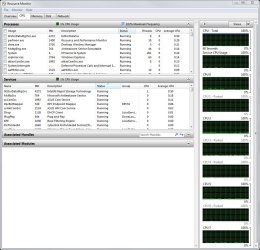
I don't want to make this thread into a pissing match regarding the semantics of what constitutes a real RAID system vs a fake RAID system. At the end of the day, when I put my 1TB disks into a RAID 0 array they showed a 40% improvement in sustained write throughput (compared to the disks operating in standalone AHCI mode). When a 4000 file, 9GB, copy to the RAID array is being performed the the CPU attributes a 0.5% CPU load to the RAID IRST service/process (as per attached capture). It's a worthwhile boost/tradeoff in anyone's terms.
 

Attachments

  • RAID controller CPU use.JPG
    RAID controller CPU use.JPG
    193.4 KB · Views: 17

My Computer

Computer Manufacturer/Model Number
Self built
OS
Win 7 Professional x64 - SevenForums optimised !
CPU
i7 3820 3.6GHz
Motherboard
Asus P9 X79Pro
Memory
4x4GB G Skill RipjawsZ DDR3 1866MHz
Graphics Card(s)
GTX 670
Sound Card
inbuilt
Monitor(s) Displays
Samsung 23" x 2 LED
Screen Resolution
1920x1080
Hard Drives
Samsung 64GB SSD on SATA 3
Samsung 128GB SSD on SATA 3
1x2TB 7200/64Mb SATA 3 Seagate 7200.14 on SATA 2
2x1TB WD Caviar Black 7200 / 64Mb SATA 3, RAID 0
2x1TB USB 2.0 External backup drives
PSU
850W Silverstone
Case
CM Storm
Cooling
Noctua NH-D14
Internet Speed
20MBps
Other Info
Video -Power Director 10, Panasonic HVC500, HD-Hero II
Photography - Photoshop elements 11, Nikon D70,D90, Canon G12
It's a worthwhile boost/tradeoff in anyone's terms.
If you are trying to avoid a pissing match over semantics, don't make such bold generalizations. RAID0 is FAR from worth it for everyone. Why do you think RAID0 is considered dead on pretty much all enthusiast forums around the web? It was never really worth the trade-offs, and now that SSDs have been around and settled in price, RAID0 takes a bigger hit.

It was all the rage 6 or 7 years ago, when the Raptor 36 GB drives hit the market. I was one who jumped on board with two of them. Seemed great and my synthetic benchies proved it. Then something happened. Anandtech and [H]ardForums started real world testing and comparing notes. Then the tests were opened to forum members. Once we all saw the hype didn't match reality, RAID on a desktop faded into history. Anandtech probably still has their article online that's been linked and relinked millions of times to explain the myth and it's debunking.

The debate was briefly reopened when companies started RAIDing two small SSDs together. However, that was determined to be done only for capacity sake, and could actually hurt the SSDs performance.

In short, it's never been worth the tradeoffs. You yourself have even admitted the SSD cache would have been a faster option. You don't have to worry about this becomine a debate or a pissing match, because there's really nothing left to settle or debate. It's been debunked and put to bed for several years now. But you don't have to take my word for it. This forum is wonderful, but it's more about support. Read on some enthusiast boards and you'll see for yourself.
 

My Computer

OS
Windows 7 Ultimate x64 SP1
CPU
Intel Core i7-2600
Motherboard
Gigabyte GA-P67A-UD3P-B3
Memory
12 GB Patriot Extreme DDR3-1333
Graphics Card(s)
Nvidia GTX 470
Monitor(s) Displays
Dell UltraSharp 2209WA
Hard Drives
OCZ Agility3 240 GB, WD5001AALS, WD7501AALS
PSU
OCZ ModStream 700W
Case
CoolerMaster HAF 912 Advanced
Cooling
CoolerMaster Hyper 212 Plus
How to convert an existing Windows 7 installation from IDE to RAID

How to convert an existing Windows 7 installation from IDE to RAID

I have successfully converted a pre-existing Windows 7 IDE installation to a RAID 0 configuration. It was actually not that difficult. I read hundreds of posts on multiple forums and was never able to find a solution, so I figured it out myself. Below are the steps to accomplish the task. Note: If your current OS hard drive will be used in the RAID array, you must first clone your operating system partition to a hard drive that will not be used in the RAID array.

1. Prerequisites: You must have the hard drives you will be using in your RAID, a different hard drive with your current Windows 7 installation, and an external hard drive for an OS image (DVDs or Blu-Rays would work, but much more time consuming).

2. In the Windows start menu search box type "regedit" (without the quotes) then right click the entry and click "Run as Administrator" then enter your user credentials for the UAC prompt then click yes to open regedit.

3. In regedit navigate to HKEY_LOCAL_MACHINE\SYSTEM\CurrentControlSet\services\msahci, in the right pane right click "start" then click "modify"

4. In the window that opens change the hexadecimal value to "0" and click OK. Close regedit click "File" at the top left and click "Exit".

5. Restart your computer. Enter the BIOS and change your SATA configuration to AHCI. Save settings and exit BIOS.

6. When the computer boots up, Windows 7 will install the AHCI drivers automatically. A prompt will tell you that your computer needs to restart.

7. Restart your computer. After booting up you should receive no hardware installation prompts. If you do, restart again.

8. Once there are no hardware installation prompts or restart notifications. Shut down your computer.

9. Most motherboards and RAID cards have an option to run specific SATA ports as IDE in RAID mode.

10. Verify/Connect your hard drive to a SATA RAID port that supports IDE (refer to your BIOS or motherboard manual to determine port, on my board it was SATA 5 & 6).

11. Power on your system, enter the BIOS, and change SATA operation to RAID, but change the mode to IDE (RAID is turned on, but will be running in IDE mode on the specified ports). Save BIOS settings and exit.

12. Boot into Windows 7 and you should be prompted to restart. Restart your computer.

13. You should now have a RAID controller that requires drivers. Install your RAID drivers. Restart computer.

14. Verify that your computer boots up and all hardware is installed and there are no prompts to restart. If asked to restart again, restart computer.

15. Check the device manager and verify that everything is installed properly and functioning. Shut down the computer.

16. Connect your OS hard drive to a different SATA port not assigned to the RAID. Connect the hard drives you want to use in the RAID to the proper SATA ports (I set up a RAID 0 with two identical 1 terabyte drives on SATA ports 5 & 6).

17. Power on computer and enter the BIOS. Go to SATA operation and change the mode from IDE to RAID (Should now have RAID enabled and mode set to RAID). Save changes and exit BIOS.

18. During boot up, press the key combination to enter the RAID configuration utility (mine was Ctrl-F). Create your RAID. Save changes and exit.

19. Boot up to Windows and, using Windows Disk Management (right click Computer and choose Manage, then click Disk Management), initialize the drive and partition/format if desired/required.

20. If the OS or RAID drives contain multiple partitions, go to the next step. If cloning drive follow this step and skip the next step.
Using your favorite image creating software (I use Acronis or Ghost), clone the OS drive to the RAID drive. This can be tricky if there are multiple partitions on the OS drive or the RAID drive. If the OS drive and RAID drive both utilize a single partition, cloning is the best option. After cloning drive, reboot computer.

21. Skip this step if you cloned the OS drive to the RAID drive.
Using your favorite image creating software (I use Acronis or Ghost), create an image of your Windows 7 partition and restore the image to the desired partition on your newly created RAID. Reboot computer.

22. Enter your system BIOS and change your hard drive boot priority to start with your RAID drive. Save changes and exit BIOS.

23. Boot in to Windows and verify that the RAID drive is now your C:\ drive. Using Windows Disk Management, re-partition/format original OS drive, or if no longer needed in system, shut down computer and disconnect original OS drive.

24. If all went well, you should now be running Windows 7 on your newly created RAID drive and your original OS drive is either blank and available as a backup/storage drive or no longer installed in the computer.
 

My Computer

OS
Windows 7 Ultimate x64
Here is my case


I have a sata drive 300gb for windows 7 OS install, and I add two 4tb hard drive to set this as RAID1


I want to boot to sata drive 300GB with OS, it is in ACHI mode.

I change to RAID mode and setup the RAID1

reboot and then I got blue screen error


I change in BIOS to ACHI mode again, leaving my RAID configuration same RAID1

reboot and able to access windows 7 with Intel Matrix software.


I open Interl matrix software and it shows both Raid sata drives

I open disk management, it shows disk 0 only one drive 3.7Gb , it shows to initicialize drive.


Is this configuration ok?? I confuse
 

My Computer

Computer type
PC/Desktop
OS
windows 8
Raid Setup

If your OS drive is not in a RAID (which it is not), plug that drive into a port that is not part of the RAID. Usually one or two SATA ports are not RAIDed.
 

My Computer

OS
Windows 7 Ultimate x64
Back
Top