Solved help me:Unable to load Windows after using EasyBCD to write MBR

nav

New member
Local time
4:52 AM
Messages
10
Hi, I have a dual-boot Ubuntu/Windows 7 Lenovo Ideapad G460 that I'm trying to remove Ubuntu from (decided running Wubi is sufficient for my purposes). I used EasyBCD (The Non-Geeks Guide To Safely Uninstall Ubuntu From A Dual-Booting Machine) to write MBR. Now Windows won't load! I get an error Windows failed to start... 1. Insert your Windows installation disc... 2. Choose your language.. 3. Click "Repair your computer" If you do not have the disc, ... File: \Boot\BCD Status: 0xc0000098 Info: The Windows Boot Configuration Data file does not contain a valid OS entry. The Operating System Recovery Disc from lenovo (thanks Lenovo for sending it) boots to Lenovo Rescue and Recovery 4, or in "Safe mode with command prompt" but immediately crashes. Any advice on what to do?? Many thanks.help me asap...:
eek:
 

My Computer My Computer

OS
Windows 7 Home Premium 64bit.
doubt

well i have a one key recovery button and when i presss it..it takes me to a cmd window with prompt ‎"x:\windows\system32:>"...so are you sure i can use diskpart command directly???also i dont want data on my d or e drive to be lost..
 

My Computer My Computer

OS
Windows 7 Home Premium 64bit.
Did you try all of the repair steps given first? If so why no response to any of them but jumping directly to trying Factory Recovery? I couldn't have been more clear on exactly what to do, complete with illustrated tutorials in the blue links.

The steps for Troubleshooting Windows 7 Failure to Boot include methods for retrieving stranded files before running Factory Recovery or Clean Reinstall - Factory OEM Windows 7.

If Factory Recovery will not run then the only way to reinstall it as well as the OS is to run Recovery Disks you should have made when you set up your laptop. Otherwise you can order them from manufacturer's tech Support or run the superior Clean Reinstall - Factory OEM Windows 7. Everything you need is in the blue link. Please read it so I don't have type the steps out a third time.
 
phuuhhhhhhhhhhhhhhh.....thanks man...it worked...i got my system back...thanks a lot..i need to know one more thing..when system starts now...though there z only one system...it takes me to boot menu to select it...it doesn't gets in directly ..what can be done for this???also i am getting 3 options 1.windows 7
2.microsoft window
3.microsoft window

by easy bcd i deleted 2nd and 3rd but still i have to select the 1st to get in
by the way thnk you very much for your time and guidance...
 

My Computer My Computer

OS
Windows 7 Home Premium 64bit.
Under Edit Boot Menu tab in EasyBCD make sure only the one OS is still listed, then tick the box to Skip Boot Menu.

If you want to post back a maximized Disk mgmt screenshot showing drive map and listings, we can look it over for you to make sure its correct. Tell us what is on each partition if they're not labeled.
 
"If you want to post back a maximized Disk mgmt screenshot showing drive map and listings, we can look it over for you to make sure its correct. Tell us what is on each partition if they're not labeled."
1.i didn't get what you are asking for...also i don't know how to take screen shot showing drive map.
2.i had ubuntu earlier but though that's gone i am not able to use that space of 15gb i allocated for ubuntu.
thank you.
 

My Computer My Computer

OS
Windows 7 Home Premium 64bit.
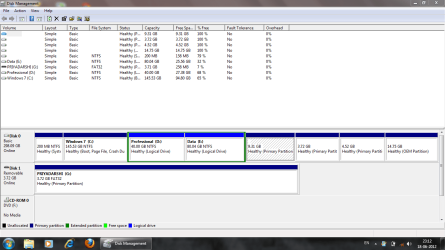
this is the screen shot....


Capture.PNG


hope evrything is ok...sorry for posting bit late..
 

My Computer My Computer

OS
Windows 7 Home Premium 64bit.
thanks for guiding,concern and time...god bless...
 

My Computer My Computer

OS
Windows 7 Home Premium 64bit.
You need to become aware of your disk layout as it's a mess.

I cannot read the labels on System Reserved to see if it is correctly marked System Active. You need to expand the Status column by dragging it's right border to the right so all labels can be read.

What is on D: Professional which is part of a Logical extended partition also containing E: Data?

What are the small partitions to the right of Data which appear to have no content? You should delete all of these and create a new partition there or extend the Data partition to the right. Read how here:
Partition or Volume - Delete
Partition or Volume - Create New
Partition or Volume - Extend
 
i guess...the right side unlabeled partitions are the hidden partition by the company as in the manual of my laptop its written that the company has kept some unusable hidden partition in order to restore to factory setting...
 

My Computer My Computer

OS
Windows 7 Home Premium 64bit.
The factory partition is the one labeled "OEM partition 14.75gb." Isn't this where you said Ubuntu was installed? If so you installed over the factory OEM Recovery partition.

None of the other two small partitions appear to be factory OEM partitions, however you can check for sure by unhiding Hidden and System files in Control Panel>Folder Options>View, then in Disk Management give each one a letter to browse into it from Computer: Drive Letter - Add, Change, or Remove in Windows 7 - Windows 7 Forums.

Post back a screenshot of the contents of each, if any, otherwise you can delete them in Disk Management and extend data partition into the space.

If you've overwritten Recovery with Ubuntu then you'll need to rely for future Recovery on the Recovery Disks you should have made when setting up the machine, or order them from maker's Tech Support. You can also consider leaving all of the factory bloatware behind to Clean Reinstall - Factory OEM Windows 7 which is a much superior install of just the OS.
 
the only option i am getting is to delete volume...i am neither able to label it nor i am able to add it to my d or e drives...data and professional are the name i gave to my drives e and d respectively..and logically extended is the stuff done by the company i don't have any clue in this regard..also i mistakenly told that i loaded ububtu on oem partition..it was on the one with 9GB space..very sorry for my very late reply..
 

My Computer My Computer

OS
Windows 7 Home Premium 64bit.
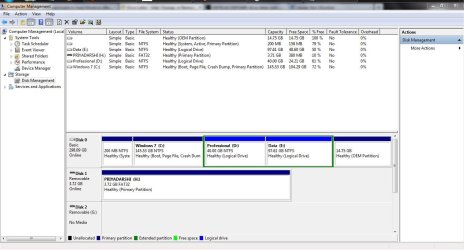
hey i did the following steps:
1.i deleted the volume
2.i followed the steps you gave to extend
3.below is the screenshot of the same however i was wondering if i can add some 15GB of my e drive to d drive but it all got added up in e drive...iff it can b done please inform...and i love you man...you are a saver...thanks a lot..

Capture.JPG
 

My Computer My Computer

OS
Windows 7 Home Premium 64bit.
To add space from E to D, boot free Partition Wizard, rightclick on E to Resize, drag left border to the right to make as much space as you want to add to D, click OK. Then rightclick E to Resize, slide right border to right to take up the space you made, OK, Apply. Partition Wizard Move/Resize Partition Video Help.

Since OneKey Recovery wasn't working you can also delete the Recovery partition if you need the space for E. Then you can rely on a Win7 backup image stored externally for Recovery: Backup Complete Computer - Create an Image Backup

If you haven't yet done the superior Clean Reinstall - Factory OEM Windows 7 here are the steps to get a perfect one, or to Clean Up Factory Bloatware to get better performance.
 
Back
Top