
Solved Help! Partition not showing up in My Computer

crimson

New member
Power User
VIP
Local time
4:43 AM
Messages
178
I'm working on a friend's PC which had Vista installed. Vista was installed on the first partition of the hard drive. The second partition was for back up files such as docs, music, vids, pics, etc.

I installed W7 on the first partition. But it isn't detecting the 2nd partition when I pull up My Computer.

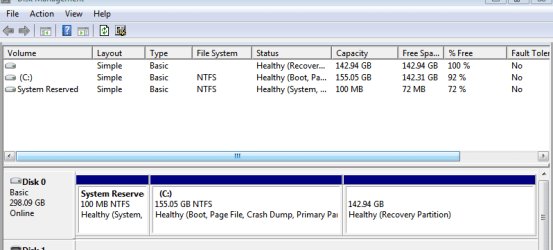
I went into Disk Management, and the following shows the partitions. The 2nd partition doesn't have a drive letter. When I right click it, the only option that comes up is "Help".

As you can see in the image. The top one with no letter isn't showing up in My Computer.
 

Attachments
  • Capture.PNG
    Capture.PNG
    10.5 KB · Views: 680

My Computer My Computer

At a glance

Windows 7 Retail
OS
Windows 7 Retail
Hello Crimson,

Since the 2nd 142.94 GB partition has nothing on it, see if you could delete that partition in the command prompt using OPTION TWO in the tutorial below. This will leave this as "unallocated space". Be sure to use the correct listed volume # for the 142.94 GB volume/partition.
Afterwards, see if you may be able to create a new volume in Disk Management or command prompt with the now 142.94 GB "unallocated space".
Hope this helps,
Shawn
 

My Computer My Computer

At a glance

64-bit Windows 11 Pro for WorkstationsIntel i7-8700K OC'd to 5 GHz64 GB (4x16GB) G.SKILL TridentZ RGB DDR4 3600...ASUS ROG-STRIX-GTX1080TI-O11G-GAMING
Computer type
PC/Desktop
Computer Manufacturer/Model Number
Self built custom
OS
64-bit Windows 11 Pro for Workstations
CPU
Intel i7-8700K OC'd to 5 GHz
Motherboard
ASUS ROG Maximus XI Formula Z390
Memory
64 GB (4x16GB) G.SKILL TridentZ RGB DDR4 3600 MHz
Graphics Card(s)
ASUS ROG-STRIX-GTX1080TI-O11G-GAMING
Sound Card
Integrated
Monitor(s) Displays
2 x Samsung Odyssey G7 27"
Screen Resolution
2560x1440
Hard Drives
1TB Samsung 990 PRO M.2,
4TB Samsung 990 PRO PRO M.2,
TerraMaster F8 SSD Plus NAS
PSU
Seasonic Prime Titanium 850W
Case
Thermaltake Core P3
Cooling
Corsair Hydro H115i
Keyboard
Logitech wireless K800
Mouse
Logitech MX Master 4
Internet Speed
2 Gb/s Download and 100 Mb/s Upload
Antivirus
Malwarebyte Anti-Malware Premium
Browser
Google Chrome
Other Info
Logitech Z625 speaker system,
Logitech BRIO 4K Pro webcam,
HP Color LaserJet Pro MFP M477fdn,
APC SMART-UPS RT 1000 XL - SURT1000XLI,
Galaxy S23 Plus phone
No it's not empty. It has all the important data backed up on it. I can try to transfer it all to the main partition in DOS. Then I guess delete the 2nd one so there's only one partition. But I'd rather try to get it to read in Windows. Command promt in W7 won't even show the other partition. I have to actually boot into a DOS with CD to see the other partition with all the important files in it.
 

My Computer My Computer

At a glance

Windows 7 Retail
OS
Windows 7 Retail
The Recovery partition looks like it had been resized to hold data. But for some reason it now shows in the drive listings at top of your screenshot to be empty.

There's a thin chance that at reinstall it might have reverted to hidden status of most Recovery partitions.

You can try unhiding Hidden files such as those on Recovery Partitions in Control Panel>Folder Options>View.

You can Explore it to confirm that are any remaining files using free Partition Wizard which may also allow you to assign a drive letter.
 
Ya. I went into custom drives during installation. I deleted the extra partion that was there as well as the C partition. I left the other partition alone. So there were 2 partitions. I formatted and installed W7 on the C partition, and left the other partition alone. I already explored it in DOS, and determined the files are all there, and intact.
 

My Computer My Computer

At a glance

Windows 7 Retail
OS
Windows 7 Retail
Then use the Win7 installation DVD or System Repair Disk to rescue the files by copying and pasting to C or external: Copy & Paste - in Windows Recovery Console, or use Paragon rescue disk; recover data freeware.

After all files are off the partition, I would delete it using PW CD if necessary and then create a new data partition.

This is one reason why all data must be backed up externally when reinstalling or repairing lest you are missing an important safety net.
 
I went into the Windows 7 DVD, and followed the instructions for copy and pasting. I don't understand. I was able to navigate to the partition drive. I found the folder I wanted to copy. Then I right clicked it, and chose copy.

Then I went to the main C drive, and tried to paste it there. There was no indicator of transfer, and the screen locked for awhile. After I was able to click, some of the files had been copied, but not all of the files in the folder.

I'll try again.
 

My Computer My Computer

At a glance

Windows 7 Retail
OS
Windows 7 Retail
Explorer will appear to hang as long as the files are copying in WinRe.

What about unhiding the files, assigning a drive letter with Partition Wizard?
 
I installed Partition Wizard Home version. It was able to see the partition including all the files in it. I set the letter to "H:". I can't copy the files from the partition into the main drive though. And the H: drive still isn't showing up in My Computer. I'll try restarted, and see if it appears.
 

My Computer My Computer

At a glance

Windows 7 Retail
OS
Windows 7 Retail
OK I hit the "Apply" button. Problem solved! Thanks!
 

My Computer My Computer

At a glance

Windows 7 Retail
OS
Windows 7 Retail
And after rebooting are your files accessible?

It's possible as I stated that Win7 reverted the Recovery partition to hidden during install because it read that partition restriction, removing the letter which likely was added when the Recovery Partition was wrongly resized into a data partition without first deleting it - or creating another.

I would move the data off and delete H now, if necessary using PW Wipe Partition format on an EISA or restricted partition which won't delete outright. Then create a new Logical data partition there so it can't get marked Active or otherwise affected by reinstall again.
 
Skeptical but it worked and fixed my problem

I downloaded the Rescue Kit that was recommended above. I could see my partitions but couldn't access or see any drive letters. I ran the Rescue Kit and bingo on reboot I came right up. Saved me HOURS of rebuilding this computer. Thanks for the advice and the correct answer.

BTW, I have Windows 8.1 and even through the Rescue Kit didn't say it supported it, it fixed the partition errors I had and got me going.
 

My Computer My Computer

At a glance

Windows 8 Pro 64-bit
Computer type
Laptop
Computer Manufacturer/Model Number
Dell
OS
Windows 8 Pro 64-bit
Back
Top