Windows 7 temporary files stored and how to delete them
Windows temporary files are usually leftovers from previous installations of various applications or documents once needed by Windows to run certain task. These files can in a time grow large and take up to 1 GB of hard drive space if not deleted once in a while.
For example temp files already take up 50 MB on my 2 days old fresh installation of Windows 7. It might not sound a lot but in time this can grow larger, fragment hard drive and lower overall computer performance.
Bear in mind that Windows temporary files are not the same as Internet temporary files which specifically belong to Internet Explorer and internet traffic. By deleting Windows temp files those belonging to IE will remain intact.
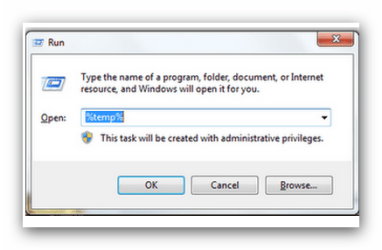
To view temp files press simultaneously win logo+r key to open run box. Type in %temp% and you are going to see the list of your files that can be deleted Simply select them all and press delete key.
Sometimes you are not going to be able to delete a file or two which may be locked due to being in use by Windows Explorer. Do not bother about it just skip that one.
Windows Temp File is located at C:\Users\Owner\AppData\Local\Temp but then to visit this folder & view the content, users will have to turn off the 'hidden files & folder' option.