Hidden Files and Folders - Show or Hide

How to Show or Hide All Hidden Files, Folders, and Drives in Vista, Windows 7, and Windows 8

   Information
This tutorial will show you how to have all hidden files, folders, and drives to show or don't show in Windows 7. These are set to be hidden by default in Vista, Windows 7, and Windows 8.
   Note
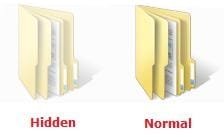
When you have these hidden files, folders, and drives set to show, the icon shows as transparent to indicate that they are set as hidden.

EXAMPLE: A Hidden and Normal Folder Example.jpg
EXAMPLE: A Hidden Protected Operating System File Protected_System_File.jpg



OPTION ONE

To Hide or Show Hidden Files using Folder Options


NOTE: This option only affects the current user. 1. Open Folder Options.

2. To Show Hidden Files, Folders, and Drives
NOTE: This will also allow hidden drives to show despite if Hide empty drives in the Computer folder is checked. A) Select (dot) Show hidden files, folders, and drives. (See screenshot below)
B) Click on the Apply button. Folder_Options-1.jpg
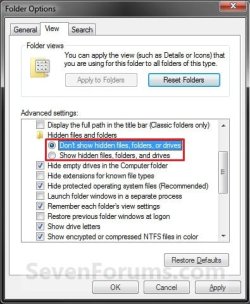
3. To Don't Show Hidden Files, Folders, and Drives A) Select (dot) Don't Show hidden files, folders, and drives. (See screenshot above)

B) Click on the Apply button.
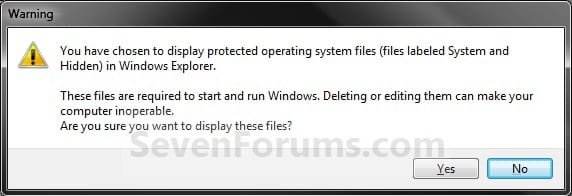
4. To Show Protected Operating System Files
NOTE: For example, desktop.ini files. A) If you have not already, do step 2.

B) Uncheck the Hide protected operating system files box. (See screenshot below step 5B)

C) Click/tap on Yes to confirm, and go to step 6 below. (See screenshot below) Confirm.jpg5. To Hide Protected Operating System Files A) Check the Hide protected operating system files box, and go to step 6 below. (See screenshot below) Folder_Options-2.jpg
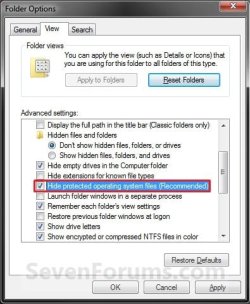
6. Click/tap on OK. (See screenshot above)


OPTION TWO

To Hide or Show Hidden Files using a BAT File Download


NOTE: This option only affects the current user. 1. To Show Hidden Files, Folders, and Drives
NOTE: This will also allow hidden drives to show despite if Hide empty drives in the Computer folder is checked. A) Click on the Download button below to download the file below. Show_hidden_files_folders_and_drives.bat


Download


B) Go to step 5.
2. To Don't Show Hidden Files, Folders, and Drives A) Click on the Download button below to download the file below. Don't_show_hidden_files_folders_and_drives.bat

Download


B) Go to step 5.
3. To Show Protected Operating System Files
NOTE: For example, desktop.ini files. This also applies step 1. A) Click on the Download button below to download the file below. Show_protected_operating_system_files.bat

Download


B) Go to step 5.
4. To Hide Protected Operating System Files A) Click on the Download button below to download the file below. Hide_protected_operating_system_files.bat

Download


5. Save the .bat file to your desktop, and run it.

6. If prompted, click/tap on Run.
NOTE: If you like, you can stop getting the Run prompt by unblocking the downloaded .bat file.

7. You will now notice a command prompt quckly open and close while applying the changes to your registry.

8. When finished, you can delete the downloaded .bat file(s) if you like.


OPTION THREE

To Hide or Show Hidden Files using Registry Editor

1. Open the Start Menu, then type regedit in the search line and press enter.

2. If prompted by UAC, then click on Yes.

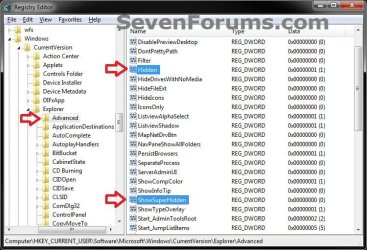
3. In regedit, navigate to the location below. (see screenshot below) For Current User Only:
HKEY_CURRENT_USER\Software\Microsoft\Windows\CurrentVersion\Explorer\Advanced

For All Users: (Must be logged in as an administrator to be able to do this option)
HKEY_LOCAL_MACHINE\SOFTWARE\Microsoft\Windows\CurrentVersion\Explorer\Advanced
Reg1.jpg
4. To Show Hidden Files, Folders, and Drives
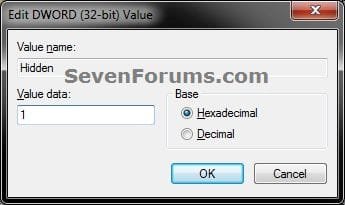
NOTE: This will also allow hidden drives to show despite if Hide empty drives in the Computer folderis checked. A) In the right pane of Advanced, right click on Hidden and click on Modify. (see screenshot above)

B) Type 1 and click on OK. (see screenshot below) Modify-1.jpg
C) Go to step 8.
5. To Don't Show Hidden Files, Folders, and Drives A) In the right pane of Advanced, right click on Hidden and click on Modify. (see screenshot below step 3)

B) Type 0 and click on OK. (see screenshot below step 4B)

C) Go to step 8.
6. To Show Protected Operating System Files
NOTE: For example, desktop.ini files. A) Do step 4.

B) In the right pane of Advanced, right click on ShowSuperHidden and click on Modify. (see screenshot below step 3)

C) Type 1 and click on OK. (see screenshot below step 7B)

D) Go to step 8.
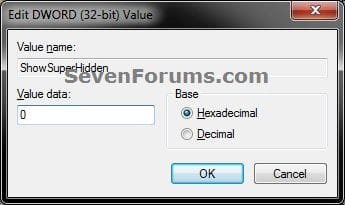
7. To Hide Protected Operating System Files A) In the right pane of Advanced, right click on ShowSuperHidden and click on Modify. (see screenshot below step 3)

B) Type 0 and click on OK. (see screenshot below ) Modify-2.jpg
8. Close regedit.

9. Log off and log on, or restart the computer to apply.
That's it,
Shawn


Attachments

Last edited:
   Note

Tutorial Update:

Added Option Two and Option Three to be able to hide or show system files with a REG file download, or manually through the Registry Editor.


My Computer

Computer type
PC/Desktop
Computer Manufacturer/Model Number
Self built custom
OS
64-bit Windows 11 Pro for Workstations
CPU
Intel i7-8700K OC'd to 5 GHz
Motherboard
ASUS ROG Maximus XI Formula Z390
Memory
64 GB (4x16GB) G.SKILL TridentZ RGB DDR4 3600 MHz
Graphics Card(s)
ASUS ROG-STRIX-GTX1080TI-O11G-GAMING
Sound Card
Integrated
Monitor(s) Displays
2 x Samsung Odyssey G7 27"
Screen Resolution
2560x1440
Hard Drives
1TB Samsung 990 PRO M.2,
4TB Samsung 990 PRO PRO M.2,
TerraMaster F8 SSD Plus NAS
PSU
Seasonic Prime Titanium 850W
Case
Thermaltake Core P3
Cooling
Corsair Hydro H115i
Keyboard
Logitech wireless K800
Mouse
Logitech MX Master 4
Internet Speed
2 Gb/s Download and 100 Mb/s Upload
Antivirus
Malwarebyte Anti-Malware Premium
Browser
Google Chrome
Other Info
Logitech Z625 speaker system,
Logitech BRIO 4K Pro webcam,
HP Color LaserJet Pro MFP M477fdn,
APC SMART-UPS RT 1000 XL - SURT1000XLI,
Galaxy S23 Plus phone
hi friend
when i show hidden files from Folder Options and apply then nothing happend .
Check mark is not working and can i get back it to the orignal position without registry patches.
Thanks:sarc:
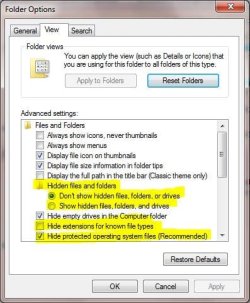
Thanks for reply the highlited Options in screen shot are not working
highlited.JPG
 
Last edited:

My Computer

Computer Manufacturer/Model Number
HP DX5150 MT
OS
Windows 7 Ultimate x86
CPU
AMD Athlon 64 3500+ 2.2Ghz
Motherboard
MSI09AC
Memory
1.5 GB
Graphics Card(s)
ATI Radeon X1300 265 MB
Sound Card
Creative Sound Blaster Audigy2
Monitor(s) Displays
Dell 17" LCD
Hard Drives
120 GB SATA
Case
ATX Tower
Hello Asad ali, and welcome to Seven Forums.

Could you post back a screenshot of this? It may help better determine what may be wrong. :)
 

My Computer

Computer type
PC/Desktop
Computer Manufacturer/Model Number
Self built custom
OS
64-bit Windows 11 Pro for Workstations
CPU
Intel i7-8700K OC'd to 5 GHz
Motherboard
ASUS ROG Maximus XI Formula Z390
Memory
64 GB (4x16GB) G.SKILL TridentZ RGB DDR4 3600 MHz
Graphics Card(s)
ASUS ROG-STRIX-GTX1080TI-O11G-GAMING
Sound Card
Integrated
Monitor(s) Displays
2 x Samsung Odyssey G7 27"
Screen Resolution
2560x1440
Hard Drives
1TB Samsung 990 PRO M.2,
4TB Samsung 990 PRO PRO M.2,
TerraMaster F8 SSD Plus NAS
PSU
Seasonic Prime Titanium 850W
Case
Thermaltake Core P3
Cooling
Corsair Hydro H115i
Keyboard
Logitech wireless K800
Mouse
Logitech MX Master 4
Internet Speed
2 Gb/s Download and 100 Mb/s Upload
Antivirus
Malwarebyte Anti-Malware Premium
Browser
Google Chrome
Other Info
Logitech Z625 speaker system,
Logitech BRIO 4K Pro webcam,
HP Color LaserJet Pro MFP M477fdn,
APC SMART-UPS RT 1000 XL - SURT1000XLI,
Galaxy S23 Plus phone
How do make hidden folders permanently unhidden?

I have gone to folder options and changed to show hidden folders, which works but I want them to show as a normal folder... not grayed out. I don't ever want them to show as a hidden folder. How do I correct in Windows 7?
Thanks

UPDATE: Found in folder, right click, properties, uncheck hidden.
http://www.sevenforums.com/tutorials/56005-file-folder-hide-unhide.html
 

My Computer

OS
Windows 7 Home Premium 64bit

My Computer

Computer type
PC/Desktop
Computer Manufacturer/Model Number
Custom built by me.
OS
Windows 10 Pro
CPU
Intel Core i7-4770K (3.5Ghz)
Motherboard
Gigabyte G1 Sniper 5 (F10 Bios)
Memory
32 gig Corsair Dominator Platinum (4x8Gig)
Graphics Card(s)
Sapphire Tri-X R9 Fury
Sound Card
Soundblaster ZXR
Monitor(s) Displays
NEC PA242W 24" LCD Monitor
Screen Resolution
1920 x 1200
Hard Drives
Primary - Samsung 850 Pro (512gig), Samsung 840 Pro (256gig), 2TB WD Caviar Black.
PSU
EVGA Supernova 1000 G2
Case
Cooler Master HAF X
Cooling
Corsair H100i with Corsair Air Series SP120 Quiet Fans
Keyboard
Logitech Wireless Wave
Mouse
Logitech Performance MX
Internet Speed
High Speed Cable
Antivirus
Norton Security
Browser
IE11
Other Info
Memory Timings - 1866MHz @ 9-9-9-27-1T @ 1.5 volts
Thanks...now here is my issue.

Yeah I love Mike Oldfield...Tubular Bells is my favorite piece of music.

Thanks for your help again!
 
Last edited by a moderator:

My Computer

OS
Windows 7 Home Premium 64bit
TubularBell,

Can you post a screenshot so that we can which folders are grayed out? It's important for us to exactly which ones are. ::
 

My Computer

Computer type
PC/Desktop
Computer Manufacturer/Model Number
Self built custom
OS
64-bit Windows 11 Pro for Workstations
CPU
Intel i7-8700K OC'd to 5 GHz
Motherboard
ASUS ROG Maximus XI Formula Z390
Memory
64 GB (4x16GB) G.SKILL TridentZ RGB DDR4 3600 MHz
Graphics Card(s)
ASUS ROG-STRIX-GTX1080TI-O11G-GAMING
Sound Card
Integrated
Monitor(s) Displays
2 x Samsung Odyssey G7 27"
Screen Resolution
2560x1440
Hard Drives
1TB Samsung 990 PRO M.2,
4TB Samsung 990 PRO PRO M.2,
TerraMaster F8 SSD Plus NAS
PSU
Seasonic Prime Titanium 850W
Case
Thermaltake Core P3
Cooling
Corsair Hydro H115i
Keyboard
Logitech wireless K800
Mouse
Logitech MX Master 4
Internet Speed
2 Gb/s Download and 100 Mb/s Upload
Antivirus
Malwarebyte Anti-Malware Premium
Browser
Google Chrome
Other Info
Logitech Z625 speaker system,
Logitech BRIO 4K Pro webcam,
HP Color LaserJet Pro MFP M477fdn,
APC SMART-UPS RT 1000 XL - SURT1000XLI,
Galaxy S23 Plus phone
Alright. Got hidden issue resolved....one more thing about favorites.

Thanks to all for help. I know NOTHING about computers. This laptop is my first one. I got it 7 months ago.
As I have stated, I got a virus. I THINK I got rid of it. Let's hope.

My favorites list is gone. When I try to readd a favorite to my favorites list, I get a message that says "The name you have entered for the shortcut already exists on your favorites menu. Would you like to override it?"
This means my favorites list is somewhere and I can't find it. Where is my "favorites menu" so I can repopulate my favorites listings?

ALSO, I keep getting Windows updates OVER AND OVER...I keep rebooting and still get them. I restored my computer to 04/12/11 to get back what I lost. Would this be why? They don't configure when it reboots, and I'm afraid this is the virus. What do I do?

Thanks again.
 

My Computer

OS
Windows 7 Home Premium 64bit
TubularBell,

I'm glad to hear that the hidden issue is sorted.

Your Favorites folder is located at C:\Users\(user-name)\Favorites.
 

My Computer

Computer type
PC/Desktop
Computer Manufacturer/Model Number
Self built custom
OS
64-bit Windows 11 Pro for Workstations
CPU
Intel i7-8700K OC'd to 5 GHz
Motherboard
ASUS ROG Maximus XI Formula Z390
Memory
64 GB (4x16GB) G.SKILL TridentZ RGB DDR4 3600 MHz
Graphics Card(s)
ASUS ROG-STRIX-GTX1080TI-O11G-GAMING
Sound Card
Integrated
Monitor(s) Displays
2 x Samsung Odyssey G7 27"
Screen Resolution
2560x1440
Hard Drives
1TB Samsung 990 PRO M.2,
4TB Samsung 990 PRO PRO M.2,
TerraMaster F8 SSD Plus NAS
PSU
Seasonic Prime Titanium 850W
Case
Thermaltake Core P3
Cooling
Corsair Hydro H115i
Keyboard
Logitech wireless K800
Mouse
Logitech MX Master 4
Internet Speed
2 Gb/s Download and 100 Mb/s Upload
Antivirus
Malwarebyte Anti-Malware Premium
Browser
Google Chrome
Other Info
Logitech Z625 speaker system,
Logitech BRIO 4K Pro webcam,
HP Color LaserJet Pro MFP M477fdn,
APC SMART-UPS RT 1000 XL - SURT1000XLI,
Galaxy S23 Plus phone
No, they are not there either

I've looked there too. They aren't there either.
It doesn't have them but I still get the 'override' message. I think that means they are somewhere...or hidden.
Any other suggestions?
Thanks for your help.
 

My Computer

OS
Windows 7 Home Premium 64bit

My Computer

Computer type
PC/Desktop
Computer Manufacturer/Model Number
Self built custom
OS
64-bit Windows 11 Pro for Workstations
CPU
Intel i7-8700K OC'd to 5 GHz
Motherboard
ASUS ROG Maximus XI Formula Z390
Memory
64 GB (4x16GB) G.SKILL TridentZ RGB DDR4 3600 MHz
Graphics Card(s)
ASUS ROG-STRIX-GTX1080TI-O11G-GAMING
Sound Card
Integrated
Monitor(s) Displays
2 x Samsung Odyssey G7 27"
Screen Resolution
2560x1440
Hard Drives
1TB Samsung 990 PRO M.2,
4TB Samsung 990 PRO PRO M.2,
TerraMaster F8 SSD Plus NAS
PSU
Seasonic Prime Titanium 850W
Case
Thermaltake Core P3
Cooling
Corsair Hydro H115i
Keyboard
Logitech wireless K800
Mouse
Logitech MX Master 4
Internet Speed
2 Gb/s Download and 100 Mb/s Upload
Antivirus
Malwarebyte Anti-Malware Premium
Browser
Google Chrome
Other Info
Logitech Z625 speaker system,
Logitech BRIO 4K Pro webcam,
HP Color LaserJet Pro MFP M477fdn,
APC SMART-UPS RT 1000 XL - SURT1000XLI,
Galaxy S23 Plus phone
Thanks, but that didn't do it.

The default is already set to favorites. It's set where it's supposed to be.
Where in the hell could they have gone?
I'm so confused.
I do appreciate you trying to help me, but I guess they're lost. If you have any other suggestions, please let me know.
This whole virus thing is my fault anyway.
Thanks again. I'm learning a lot as I go along.
 

My Computer

OS
Windows 7 Home Premium 64bit
Hey there

Just wondering if anyone can help me. After creating a new user account, I found I couldn't view the Documents, Pictures, Videos and Music folders in the new User's Libraries. I've un-hidden my hidden folders, and now I can see them, but they come up paler than the other folders do, and I want them to be normal files so I can hide the originally--hidden folders so I don't accidentally delete something!

Please don't answer with loads of tech-y words, I do understyand computers basically, but I don't know all of these computer words!

Thanks,
Teeen-In-Trouble
 

My Computer

OS
Windows 7
Hell Teen-in-trouble, and welcome to Seven Forums.

A faded folder or file indicates that the file or folder is set to be hidden. Unhiding hidden files using this tutorial only lets you see the hidden files/folders as faded files/folders, but does not actually unset them as hidden files/folders.

Using the commands at the link below should set the library folders to be unhidden them so that they will no long be faded (hidden) anymore.

http://www.sevenforums.com/tutorials/581-libraries-restore-default-3.html#post1408198

Hope this helps,
Shawn
 

My Computer

Computer type
PC/Desktop
Computer Manufacturer/Model Number
Self built custom
OS
64-bit Windows 11 Pro for Workstations
CPU
Intel i7-8700K OC'd to 5 GHz
Motherboard
ASUS ROG Maximus XI Formula Z390
Memory
64 GB (4x16GB) G.SKILL TridentZ RGB DDR4 3600 MHz
Graphics Card(s)
ASUS ROG-STRIX-GTX1080TI-O11G-GAMING
Sound Card
Integrated
Monitor(s) Displays
2 x Samsung Odyssey G7 27"
Screen Resolution
2560x1440
Hard Drives
1TB Samsung 990 PRO M.2,
4TB Samsung 990 PRO PRO M.2,
TerraMaster F8 SSD Plus NAS
PSU
Seasonic Prime Titanium 850W
Case
Thermaltake Core P3
Cooling
Corsair Hydro H115i
Keyboard
Logitech wireless K800
Mouse
Logitech MX Master 4
Internet Speed
2 Gb/s Download and 100 Mb/s Upload
Antivirus
Malwarebyte Anti-Malware Premium
Browser
Google Chrome
Other Info
Logitech Z625 speaker system,
Logitech BRIO 4K Pro webcam,
HP Color LaserJet Pro MFP M477fdn,
APC SMART-UPS RT 1000 XL - SURT1000XLI,
Galaxy S23 Plus phone
Thank you very much for your useful information but I got an opposite problem.

I tried to Hide my hidden files and folders but they keep Showing them.
I selected: Don’t show hidden files, folders or drives and also i selected Hide protected operating system files
It keeps change this option to SHOW Hidden files, folders and drives.


Please help .. how can I Hide those folders?
Thank you soo much
 

My Computer

OS
Windows 7 Home Premium 32bit
Hello Dante, and welcome to Seven Forums.

I have updated the REG files in OPTION TWO in the tutorial to help with this. Please see if they may be able to help. :)
 

My Computer

Computer type
PC/Desktop
Computer Manufacturer/Model Number
Self built custom
OS
64-bit Windows 11 Pro for Workstations
CPU
Intel i7-8700K OC'd to 5 GHz
Motherboard
ASUS ROG Maximus XI Formula Z390
Memory
64 GB (4x16GB) G.SKILL TridentZ RGB DDR4 3600 MHz
Graphics Card(s)
ASUS ROG-STRIX-GTX1080TI-O11G-GAMING
Sound Card
Integrated
Monitor(s) Displays
2 x Samsung Odyssey G7 27"
Screen Resolution
2560x1440
Hard Drives
1TB Samsung 990 PRO M.2,
4TB Samsung 990 PRO PRO M.2,
TerraMaster F8 SSD Plus NAS
PSU
Seasonic Prime Titanium 850W
Case
Thermaltake Core P3
Cooling
Corsair Hydro H115i
Keyboard
Logitech wireless K800
Mouse
Logitech MX Master 4
Internet Speed
2 Gb/s Download and 100 Mb/s Upload
Antivirus
Malwarebyte Anti-Malware Premium
Browser
Google Chrome
Other Info
Logitech Z625 speaker system,
Logitech BRIO 4K Pro webcam,
HP Color LaserJet Pro MFP M477fdn,
APC SMART-UPS RT 1000 XL - SURT1000XLI,
Galaxy S23 Plus phone
Thank you Brink for your response .. I feel happy to join this great forum.

Regarding my problem, I did what you told me but unfortunately it doesnt work... still it insists to SHOW the hidden files and folders :(
 

My Computer

OS
Windows 7 Home Premium 32bit
Dante,

Could you post a screenshot of these hidden files and folders showing their full path in the address bar to see if something may stand out?
 

My Computer

Computer type
PC/Desktop
Computer Manufacturer/Model Number
Self built custom
OS
64-bit Windows 11 Pro for Workstations
CPU
Intel i7-8700K OC'd to 5 GHz
Motherboard
ASUS ROG Maximus XI Formula Z390
Memory
64 GB (4x16GB) G.SKILL TridentZ RGB DDR4 3600 MHz
Graphics Card(s)
ASUS ROG-STRIX-GTX1080TI-O11G-GAMING
Sound Card
Integrated
Monitor(s) Displays
2 x Samsung Odyssey G7 27"
Screen Resolution
2560x1440
Hard Drives
1TB Samsung 990 PRO M.2,
4TB Samsung 990 PRO PRO M.2,
TerraMaster F8 SSD Plus NAS
PSU
Seasonic Prime Titanium 850W
Case
Thermaltake Core P3
Cooling
Corsair Hydro H115i
Keyboard
Logitech wireless K800
Mouse
Logitech MX Master 4
Internet Speed
2 Gb/s Download and 100 Mb/s Upload
Antivirus
Malwarebyte Anti-Malware Premium
Browser
Google Chrome
Other Info
Logitech Z625 speaker system,
Logitech BRIO 4K Pro webcam,
HP Color LaserJet Pro MFP M477fdn,
APC SMART-UPS RT 1000 XL - SURT1000XLI,
Galaxy S23 Plus phone
Yes But

Is there a way to change the view settings for a single folder? At least once a week I want to find something in AppData/... and have to change the setting back and forth. This is idiotic.
 

My Computer

OS
windows 7
Back
Top