
You are using an out of date browser. It may not display this or other websites correctly.
You should upgrade or use an alternative browser.
You should upgrade or use an alternative browser.
Solved How can I change the default cursor?
- Thread starter niceguy75
- Start date

- Local time
- 10:25 PM
- Messages
- 18,396
My Computer
- Computer type
- PC/Desktop
- Computer Manufacturer/Model Number
- Airbot 2.0
- OS
- Windows 7 Ultimate x64 SP1
- CPU
- Core i7 920 (D0) @ 4Ghz, *26c idle *65c full load on air
- Motherboard
- Asus P6X58D Premium - Sata 6Gb/s - USB 3.0
- Memory
- 12GB DDR3 Corsair Dominator -CMD12GX3M6A1600C8 at 1600MHz
- Graphics Card(s)
- Zotac Geforce GTX 770
- Sound Card
- ASUS Xonar D2X
- Monitor(s) Displays
- 1 LG 24" Flatron W2453V-PF 1 Samsung 24" P2450H both 2ms RT
- Screen Resolution
- 1920x1080@60hz
- Hard Drives
- 1 Samsung 250GB 840 Evo SSD
1 OCZ Vertex2 180GB SSD
1 TB Samsung Spinpoint F1 7200RPM 32MB cache
2 500GB WD Caviar Blacks 7200RPM 32MB cache (WD5001AALS)
Pioneer DVD Burner DVR-S18M
- PSU
- Corsair HX1000W
- Case
- Cooler Master HAF 932
- Cooling
- Case Fans *3 230mm, *1 140mm/CPU - *Tuniq Tower 120 Extreme
- Keyboard
- Logitech Wireless MK700
- Mouse
- Logitech Wireless MK700
- Internet Speed
- DL 15 Mbps UL 0.98 Mbps
- Antivirus
- None
- Browser
- Firefox Nightly
- Other Info
- Processor-7.7 *RAM- 7.9 *Graphics-7.9 *Gaming Graphics- 7.9 *SSD- 7.8 W.E.I final score= 7.7
*Phone- LG Nexus 5

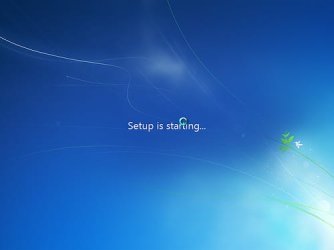
If you are talking about the spinning cursor at start up its in C/Windows/system32/imageres.dll for 32 bit
& C:\Windows\SysWOW64/imageres.dll for 64-bit
be sure to back up the old one before you make any changes
Jerry
& C:\Windows\SysWOW64/imageres.dll for 64-bit
be sure to back up the old one before you make any changes
Jerry
My Computer
- Computer type
- Laptop
- Computer Manufacturer/Model Number
- Sager NP9170
- OS
- Win 7 Pro x64 / Win 10 Pro
- CPU
- Intel(R) Core(TM) i7-3630QM CPU @ 2.40GHz
- Motherboard
- CLEVO P170EM
- Memory
- 12 GB
- Graphics Card(s)
- (1) Intel(R) HD Graphics 4000 (2) NVIDIA GeForce GTX 675M
- Sound Card
- (1) Realtek High Definition Audio (2) Intel(R) Display Aud
- Monitor(s) Displays
- 17.3
- Screen Resolution
- 1920x1080
- Hard Drives
- (1) Samsung 860 EVO 500GB(OS) (1) Samsung 860 EVO 500GB(Data)
- Keyboard
- Backlite
- Antivirus
- MSE, Malwarebytes Pro
- Browser
- Firefox
- Other Info
- DESKTOP: Custom-built.
OS: Win 10 Pro x64.
CASE: Rosewill R5.
CPU: Intel I5 4670K CPU @ 3.40GHz.
CPU COOLER: Cool Master Hyper 212 EVO.
MOTHERBOARD: Asus Z87-A.
MEMORY: Kingston HyperX 2x4 GB.
GPU: Nvidia Geforce 650 TI.
PSU: Corsair TX750.
DRIVES: (1) Samsung 840 120 GB SSD (2) Western Digital blue 500 GB 7200 RPM.

So, I took a look at C:\Windows\SysWOW64\imageres.dll because I was interested in this as well.
I made a copy of the .dll and opened it in Resource Hacker.
The "Spinning blue Ring" cursor is in the PNG folder. There are then 4 sub-folders with 18 individual PNG images that represent the spinning animations. I am assuming that all 18 images in all 4 sub-folders would have to be swapped out individually to acquire the desired effect.
Too much time and effort for me!
I made a copy of the .dll and opened it in Resource Hacker.
The "Spinning blue Ring" cursor is in the PNG folder. There are then 4 sub-folders with 18 individual PNG images that represent the spinning animations. I am assuming that all 18 images in all 4 sub-folders would have to be swapped out individually to acquire the desired effect.
Too much time and effort for me!
My Computer
- Computer Manufacturer/Model Number
- Dell XPS 400
- OS
- Windows 7 X64 Professional
- CPU
- Intel® Pentium D Dual Core 3.6GHZ
- Motherboard
- DELL Dimension 9150 MotherBoard DXP051 XPS400 FJ030
- Memory
- 4GB DDR2 PC2-5300
- Graphics Card(s)
- GeForce GT 440 (Fermi) 2GB 128-bit DDR3 PCI Express 2.0 x16
- Sound Card
- ASUS XONAR DG 5.1 Channels PCI Interface Xonar DG
- Monitor(s) Displays
- 2 X 23" Apple Cinema Display
- Screen Resolution
- 1920 X 1200p
- Hard Drives
- 250GB Intel® 510 Series SSD SATA 6G (w/TRIM) [500MB/s Reads]
1.0TB Western Digital Caviar Black SATA 6G 7200rpm 64MB Cache
- PSU
- 375 Watt Dell
- Case
- Dell XPS 400 BTX Case
- Cooling
- Dell XPS 400 Air Cooling
- Keyboard
- Logitech Illuminated Keyboard
- Mouse
- Logitech M705 Marathon
- Internet Speed
- +/- 9929 Kbps
- Other Info
- This machine was given to me when my dad bought a new computer. I keep throwing upgrades at it and it keeps on ticking. Think I've done everything to it that can be done outside a PSU upgrade so I can run an even BETTER GPU.
lol, its not that easy mate, the one I am talking about appears when the installation starts.
So, I took a look at C:\Windows\SysWOW64\imageres.dll because I was interested in this as well.
I made a copy of the .dll and opened it in Resource Hacker.
The "Spinning blue Ring" cursor is in the PNG folder. There are then 4 sub-folders with 18 individual PNG images that represent the spinning animations. I am assuming that all 18 images in all 4 sub-folders would have to be swapped out individually to acquire the desired effect.
Too much time and effort for me!
Doing with "restorator and photoshop" would be easy mate.
My Computer
- OS
- Windows 7 Ultimate
- Local time
- 10:25 PM
- Messages
- 18,396
Yeah, I thought you might have just wanted to change the cursors in general. 
About as easy as changing the animated glowing Windows logo at bootup, huh.
About as easy as changing the animated glowing Windows logo at bootup, huh.
My Computer
- Computer type
- PC/Desktop
- Computer Manufacturer/Model Number
- Airbot 2.0
- OS
- Windows 7 Ultimate x64 SP1
- CPU
- Core i7 920 (D0) @ 4Ghz, *26c idle *65c full load on air
- Motherboard
- Asus P6X58D Premium - Sata 6Gb/s - USB 3.0
- Memory
- 12GB DDR3 Corsair Dominator -CMD12GX3M6A1600C8 at 1600MHz
- Graphics Card(s)
- Zotac Geforce GTX 770
- Sound Card
- ASUS Xonar D2X
- Monitor(s) Displays
- 1 LG 24" Flatron W2453V-PF 1 Samsung 24" P2450H both 2ms RT
- Screen Resolution
- 1920x1080@60hz
- Hard Drives
- 1 Samsung 250GB 840 Evo SSD
1 OCZ Vertex2 180GB SSD
1 TB Samsung Spinpoint F1 7200RPM 32MB cache
2 500GB WD Caviar Blacks 7200RPM 32MB cache (WD5001AALS)
Pioneer DVD Burner DVR-S18M
- PSU
- Corsair HX1000W
- Case
- Cooler Master HAF 932
- Cooling
- Case Fans *3 230mm, *1 140mm/CPU - *Tuniq Tower 120 Extreme
- Keyboard
- Logitech Wireless MK700
- Mouse
- Logitech Wireless MK700
- Internet Speed
- DL 15 Mbps UL 0.98 Mbps
- Antivirus
- None
- Browser
- Firefox Nightly
- Other Info
- Processor-7.7 *RAM- 7.9 *Graphics-7.9 *Gaming Graphics- 7.9 *SSD- 7.8 W.E.I final score= 7.7
*Phone- LG Nexus 5
Yeah, I thought you might have just wanted to change the cursors in general.
About as easy as changing the animated glowing Windows logo at bootup, huh.
I guess you didn't notice the screen, anyways about changing the boot animation, its also easy now-a-days mate with Windows 7 boot Updater, even in SP1.

My Computer
- OS
- Windows 7 Ultimate
- Local time
- 10:25 PM
- Messages
- 18,396
Hmm, I'll have to check it out. Last time I looked into it couldn't find a way to do it.
My Computer
- Computer type
- PC/Desktop
- Computer Manufacturer/Model Number
- Airbot 2.0
- OS
- Windows 7 Ultimate x64 SP1
- CPU
- Core i7 920 (D0) @ 4Ghz, *26c idle *65c full load on air
- Motherboard
- Asus P6X58D Premium - Sata 6Gb/s - USB 3.0
- Memory
- 12GB DDR3 Corsair Dominator -CMD12GX3M6A1600C8 at 1600MHz
- Graphics Card(s)
- Zotac Geforce GTX 770
- Sound Card
- ASUS Xonar D2X
- Monitor(s) Displays
- 1 LG 24" Flatron W2453V-PF 1 Samsung 24" P2450H both 2ms RT
- Screen Resolution
- 1920x1080@60hz
- Hard Drives
- 1 Samsung 250GB 840 Evo SSD
1 OCZ Vertex2 180GB SSD
1 TB Samsung Spinpoint F1 7200RPM 32MB cache
2 500GB WD Caviar Blacks 7200RPM 32MB cache (WD5001AALS)
Pioneer DVD Burner DVR-S18M
- PSU
- Corsair HX1000W
- Case
- Cooler Master HAF 932
- Cooling
- Case Fans *3 230mm, *1 140mm/CPU - *Tuniq Tower 120 Extreme
- Keyboard
- Logitech Wireless MK700
- Mouse
- Logitech Wireless MK700
- Internet Speed
- DL 15 Mbps UL 0.98 Mbps
- Antivirus
- None
- Browser
- Firefox Nightly
- Other Info
- Processor-7.7 *RAM- 7.9 *Graphics-7.9 *Gaming Graphics- 7.9 *SSD- 7.8 W.E.I final score= 7.7
*Phone- LG Nexus 5
Hmm, I'll have to check it out. Last time I looked into it couldn't find a way to do it.
Code:
http://www.coderforlife.com/projects/win7boot/My Computer
- OS
- Windows 7 Ultimate
twenty90seven
New member
- Local time
- 1:25 PM
- Messages
- 2
The fix
Deleting the cursors from imagres.dll is not enough. Because you will still get a quick cursor and circle pop up later in the boot sequence. What you also need to do is press the start button, type regedt32, click on the regedt32 program that pops up, and in the registry editor you need to go Hkey_users/.default/control panel/cursors. In there you need to change the cursors and the spinning circles to a blank cursor. I downloaded a blank cursor and put it in the C:/Windows/Cursors folder. And then I edited the paths in Hkey_users/.default/control panel/cursors to point to the blank cursor. This did the trick and finally removed the last remains of the cursor and spinning circle.
My Computer
- OS
- Windows 7 32 bit
Remove cursor
Hi there! I know this is an old post but I too am wondering exactly what to do with regedit as far as the paths go. I can easily get into regedit and find the cursor directory as stated, but once in there I believe there’s about 7 files inside. Which ones did you edit exactly and what paths did you write into the selected files? I’d Love to remove my boot cursor, as well as the spinning orb and so on. Not sure if anyone could make a video tutorial but that would be an amazing contribution to the world of Win 7 modification!
Thanks for any help!
Hi there! I know this is an old post but I too am wondering exactly what to do with regedit as far as the paths go. I can easily get into regedit and find the cursor directory as stated, but once in there I believe there’s about 7 files inside. Which ones did you edit exactly and what paths did you write into the selected files? I’d Love to remove my boot cursor, as well as the spinning orb and so on. Not sure if anyone could make a video tutorial but that would be an amazing contribution to the world of Win 7 modification!
Thanks for any help!
My Computer
- Computer type
- PC/Desktop
- OS
- Windows 7 x64