How Do I Add Another SATA HDD ? Only got room for 2?

So I got the SATA to USB..
Connected, Showed up that it was installing drivers but in My Computer & Disk Management its not showing my HDD.

I disconnected it and a message popped up saying "Disk H must be formatted before use"

Any ideas?
There's been so much said here that I've lost sight of whether there was anything on this old drive (which you're now connecting using the eBay purchased USB-to-IDE/SATA adapter to read through) is known usable right now?

Is there actually content you have on it that you want to salvage? Or do you just want to be able to use it as a brand new external drive (including one or more partitions)?

If you just want to use it as a new 3rd drive, and Windows says it is effectively unformatted, it either (a) is somehow "corrupted" in terms of its current file system and really does need to be formatted (to NTFS I would recommend) again which would make it completely empty but newly available, or (b) you should really just give it one more try to be usable "as-is".

The proper sequence of plug-ins for this type of external attachment would be to (1) plug in the data cable to the drive and to the adapter "heart", then (2) plug the USB cable into the adapter "heart", then (3) plug in the power cable to the the adapter "heart" and then (4) plug the power cable to the wall (so that the drive spins up and stabilizes), and then (5) plug the USB cable from the adapter "heart" into the PC which now makes the drive visible to Windows. This will result in "installing drivers" (for the USB adapter mechanism and externally visible drive), and a drive letter assigned (apparently you got H).

If its contents are still unrecognizable and "must be formatted first" still appears you can RUN Windows's own DISCMGMT.MSC to deal with FORMAT to NTFS in order to erase and format the drive as one large single partition. For maximum convenience and flexibility and partitioning needs (if you want to create multiple partitions on this drive, each one getting a drive letter) I would strongly recommend you use the highly recommended Minitool Partition Wizard (home FREE version or non-free PROFESSIONAL version). You will find Partition Wizard infinitely easier to use for your formatting and partitioning needs. Obviously Partition Wizard also works fine used just like DISKMGMT.MSC, to format/create just one partition on that drive... but I think you'll find its user interface easier and more intuitive.

==> Don't forget that anytime you want to remove a "removable device" (i.e. to pull the USB cable from your case first, only then powering down the drive second) that has been given a drive letter (like your new H hard drive) you must follow the well known standard SAFEFLY REMOVE HARDWARE procedure, to guarantee that all in-memory non-flushed data buffers (resulting from performance utilization methods of Windows that produces "write cache" data) are first written out to the drive before dropping the USB connection and removing the drive letter.
 

My Computer My Computer

At a glance

Windows 7 Pro x64 (1), Win7 Pro X64 (2)i5-3350p 3.1Ghz/6MB-cache (1); E8400 3.0Ghz/6...8GB PC3-12800 DDR3 (1); 4GB PC3-10600 DDR3 (2)ATI HD7750 (1), (see TV cards); ATI R7 250 (2)
Computer type
PC/Desktop
Computer Manufacturer/Model Number
Home-built, two systems (1) and (2)
OS
Windows 7 Pro x64 (1), Win7 Pro X64 (2)
CPU
i5-3350p 3.1Ghz/6MB-cache (1); E8400 3.0Ghz/6MB-cache (2)
Motherboard
ASUS P8Z77-V Pro (1); ASUS P5Q3 (2)
Memory
8GB PC3-12800 DDR3 (1); 4GB PC3-10600 DDR3 (2)
Graphics Card(s)
ATI HD7750 (1), (see TV cards); ATI R7 250 (2)
Sound Card
Realtek ALC892 HD Audio (1); Realtek ALC1200 HD Audio (2)
Monitor(s) Displays
Eizo HD2441W LCD, Eizo S2433W (1); Eizo 24" S2433W (2)
Screen Resolution
1920x1200, 1920x1200 (1); 1920x1200 (2)
Hard Drives
(1) 1TB SATA-II (7200RPM), 2x2TB SATA-III (7200RPM), 250GB SATA-III (10000RPM) for OS; 2x2TB external USB 3.0

(2) 320GB SATA-II (7200RPM), 750GB SATA-II (7200RPM), 150GB SATA-II (10000RPM) for OS; 2TB external USB 3.0
PSU
Nesteq ECS-6001 600W (1); Nesteq ECS-5001 500W (2)
Case
Acousti-Case 360 (1) and (2)
Cooling
Noctua NH-U12P SE2 for CPU, 2x120mm case fans (1) and (2)
Keyboard
IBM PS/2 (1) and (2)
Mouse
Logitech MX Revolution wireless (1); Microsoft wired (2)
Internet Speed
100mbps down / 10mbps up
Antivirus
Microsoft Security Essentials; Malwarebyte Anti-Malware Pro
Browser
Firefox
Other Info
Ceton InfiniTV 4-tuner cablecard-enabled TV card as well as Hauppauge HVR-2250 OTA/ATSC 2-tuner TV card in (1), running under Win7 WMC
I'm sorry, I'm totally lost.

Lets forget about everything previous.

I have a 1TB HDD, This was causing my PC to die (Think i had a virus)

I've replaced it and my PC is working fine now.

As I have the 1TB I really don't want to loose that memory as I don't have enough money to buy a new one, and I have 500GB worth of data on my brothers external HDD and he wants it back.

So I bought THIS USB TO SATA

I've connected it, The disk drive is working (making sound)

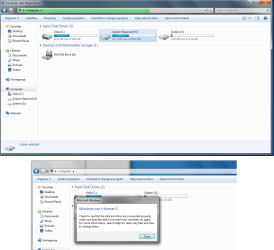
I connected it to my PC and it made the sound to install drivers, Now its not showing and saying it needs to be formatted first.
 

Attachments

  • fadfadf.png
    fadfadf.png
    65.9 KB · Views: 8
  • ffffsas.png
    ffffsas.png
    49.7 KB · Views: 9

My Computer My Computer

At a glance

Windows 7 Home Premium 64 bitAMD Athlon(tm) II X4 620 Processor (4 CPUs) 2...4GB 2X2GBNDIDIA GeForce 9200
Computer type
PC/Desktop
Computer Manufacturer/Model Number
Acer - Aspire X 1301
OS
Windows 7 Home Premium 64 bit
CPU
AMD Athlon(tm) II X4 620 Processor (4 CPUs) 2.6GHz
Motherboard
Aspire X1301
Memory
4GB 2X2GB
Graphics Card(s)
NDIDIA GeForce 9200
Sound Card
Unknown
Monitor(s) Displays
2x 22" Acer 1080p
Screen Resolution
1920 x 1080
Hard Drives
Seagate Barracuda 7200
PSU
Acer Aspire Liteon PE-5221-08 - 210 Watt
Keyboard
Acer SK-9620
Internet Speed
Down: 30MB/s - Up: 16MB/s - Sky Fiber
Antivirus
AVG 2013
Browser
Chrome 31.x
Did you restart the PC after you got that Disk Management console error in your last screen print?

Did you ever run the diagnostics using the DOS Seatools utility I gave you in Post #39?
 

My Computer My Computer

At a glance

Multi-Boot W7_Pro_x64 W8.1_Pro_x64 W10_Pro_x6...AMD Athlon II x4 6206GB GSkill DDR2 800AMD 4670 GPU + AMD 4200 IGP
Computer type
PC/Desktop
Computer Manufacturer/Model Number
home built
OS
Multi-Boot W7_Pro_x64 W8.1_Pro_x64 W10_Pro_x64 +Linux_VMs +Chromium_VM
CPU
AMD Athlon II x4 620
Motherboard
Gigabyte GA-MA785G-UD3H
Memory
6GB GSkill DDR2 800
Graphics Card(s)
AMD 4670 GPU + AMD 4200 IGP
Sound Card
on board Realtek ALC889A
Monitor(s) Displays
RCA 40" LCD TV, Insignia 32" LCD TV, HP 15" LCD monitor
Screen Resolution
1680 x 1050
Hard Drives
OCZ Vertex 3 120GB,
Samsung F3 1TB (3),
Several others - WD, Seagate, Hitachi, ...
PSU
Corsair 500 W
Case
Rosewill mid tower
Cooling
CM 90mm rifle
Keyboard
Gyration wireless, Logitech wireless, Dell USB wired
Mouse
Gyration wireless, Logitech wireless, V7 USB wired
Internet Speed
Spectrum - 100Mbps D / 10Mbps U
Antivirus
Avast, MBAM3, EMET, WinPatrol
Browser
Pale Moon, Firefox, IE
Other Info
2 multi-boot PC's
Mainly HTPC/Office/Gen purpose (no gaming).
Trendnet USB KVM.
LG DVD burner/Blue Ray Player.
Tray system for removable SATA backup drives.

Not currently OCd, under-volted.
I use Hybrid sleep, rarely re-boot or shutdown.

Hauppauge HD-PVR, Avermedia PCIe TV Tuner, Hauppauge PCI TV Tuner.
I'm sorry, I'm totally lost.
Try and follow what I'm telling you.

The "Computer Management" screenshot is the output of what is referred to generically as "disk management", or more precisely DISKMGMT.MSC. But we can refer to it as "disk management.

Next, you can move the horizontal spreader separator (between top and bottom panes) up and down so as to enlarge one pane or the other. So if you pull that separator UP (to just under the last line shown in the top pane) you can probably see all of hard drives in the lower pane... which is what we're really like to see in one screenshot, rather than the two pieces you've posted because of your need to use the vertical scrollbar on the lower pane to see everything.

Nevertheless from the pieces you've posted I can see your two hard drives:

DISK 0 - internal 120GB(?) drive, with (a) an "active" 1.5GB S (SYSTEM) partition where Windows Boot Manager lives, and (b) as well as "boot" C (VISTA) partition where your actual OS lives. The BIOS on your machine first goes to the "active" partition, loads Boot Manager, which then redirects the rest of the boot process to your C-partition where the OS lives, to eventually bring up the Windows desktop. This drive also seems to have an un-lettered 5GB "recovery partition" no doubt installed by the laptop manufacturer, but you can disregard this. Also, normally that small "active" partition would not get a drive letter assigned and normally functions as the Boot Manager partition without a drive letter, but there's no harm here in lettering it S by Windows.

DISK 3 - external 1TB drive which used to be the internal hard drive in your PC, with (a) an "active" 100MB "system reserved" partition that has been assigned a drive letter of H (where Boot Manager lives, from when this hard drive was inside your PC, similar to the "S" partition on the laptop hard drive now being used internally in your PC), and (b) a 930GB partition that is currently unformatted and unusable as it stands. This was your C-partition when this hard drive was internal in your PC, but now it's apparently unrecognizable and no longer usable as it stands. It's possible the 930GB partition file system got corrupted by the virus you say attacked your machine and which started this whole story. You MUST format this 930GB partition in order to be able to use it now, at which time it will then be most likely given a drive letter of I by Windows.

Note that you can use DISKMGMT to change drive letters to whatever you want, if you're not happy with what you have. Only C cannot be changed.


If you left-click on that 930GB space on DISK 3, it will "light up", i.e. the cross-hatch currently shown on the 100MB "system reserved" partition lettered H will move over to the unformatted 930GB space. Now you can right-click on it and the popup menu should offer the FORMAT option for the currently selected 930GB raw hard drive space. Now left-click on that FORMAT option and follow the dialog to perform the FORMAT of that space and creation of a partition, being sure to select NTFS as the file system format. You can leave the rest of any options available to their default. If you want to just use that whole 930GB space as one partition, you don't have to consider "primary partition" vs. "logical partition" (and I don't want to complicate for you). But either "primary" or "logical" is perfectly acceptable.

That's it. You will now how this 930GB external partition most likely lettered I, and you can do whatever you want with it.


I was trying to point you to a 3rd-party vendor product named Partition Wizard which is a free alternative to "disk management" (i.e. DISKMGMT.MSC) and can do exactly the same FORMAT function and create new primary/logical partition on currently unformatted raw hard drive space (like this 930GB area on your 1TB drive). I'm sure you have 3rd-party programs installed or that you've downloaded/installed and used them when you found out about them and they served your needs. This is just such a program.

I recommended it to you because it's a wonderful product. But you can do the same types of basic things (though not the complete set of functions) with DISKMGMT as you can with Partition Wizard, so you're certainly under no obligation. I was simply trying to help by making this suggestion.
 

My Computer My Computer

At a glance

Windows 7 Pro x64 (1), Win7 Pro X64 (2)i5-3350p 3.1Ghz/6MB-cache (1); E8400 3.0Ghz/6...8GB PC3-12800 DDR3 (1); 4GB PC3-10600 DDR3 (2)ATI HD7750 (1), (see TV cards); ATI R7 250 (2)
Computer type
PC/Desktop
Computer Manufacturer/Model Number
Home-built, two systems (1) and (2)
OS
Windows 7 Pro x64 (1), Win7 Pro X64 (2)
CPU
i5-3350p 3.1Ghz/6MB-cache (1); E8400 3.0Ghz/6MB-cache (2)
Motherboard
ASUS P8Z77-V Pro (1); ASUS P5Q3 (2)
Memory
8GB PC3-12800 DDR3 (1); 4GB PC3-10600 DDR3 (2)
Graphics Card(s)
ATI HD7750 (1), (see TV cards); ATI R7 250 (2)
Sound Card
Realtek ALC892 HD Audio (1); Realtek ALC1200 HD Audio (2)
Monitor(s) Displays
Eizo HD2441W LCD, Eizo S2433W (1); Eizo 24" S2433W (2)
Screen Resolution
1920x1200, 1920x1200 (1); 1920x1200 (2)
Hard Drives
(1) 1TB SATA-II (7200RPM), 2x2TB SATA-III (7200RPM), 250GB SATA-III (10000RPM) for OS; 2x2TB external USB 3.0

(2) 320GB SATA-II (7200RPM), 750GB SATA-II (7200RPM), 150GB SATA-II (10000RPM) for OS; 2TB external USB 3.0
PSU
Nesteq ECS-6001 600W (1); Nesteq ECS-5001 500W (2)
Case
Acousti-Case 360 (1) and (2)
Cooling
Noctua NH-U12P SE2 for CPU, 2x120mm case fans (1) and (2)
Keyboard
IBM PS/2 (1) and (2)
Mouse
Logitech MX Revolution wireless (1); Microsoft wired (2)
Internet Speed
100mbps down / 10mbps up
Antivirus
Microsoft Security Essentials; Malwarebyte Anti-Malware Pro
Browser
Firefox
Other Info
Ceton InfiniTV 4-tuner cablecard-enabled TV card as well as Hauppauge HVR-2250 OTA/ATSC 2-tuner TV card in (1), running under Win7 WMC
I'm sorry, I'm totally lost.
Try and follow what I'm telling you.

The "Computer Management" screenshot is the output of what is referred to generically as "disk management", or more precisely DISKMGMT.MSC. But we can refer to it as "disk management.

Next, you can move the horizontal spreader separator (between top and bottom panes) up and down so as to enlarge one pane or the other. So if you pull that separator UP (to just under the last line shown in the top pane) you can probably see all of hard drives in the lower pane... which is what we're really like to see in one screenshot, rather than the two pieces you've posted because of your need to use the vertical scrollbar on the lower pane to see everything.

Nevertheless from the pieces you've posted I can see your two hard drives:

DISK 0 - internal 120GB(?) drive, with (a) an "active" 1.5GB S (SYSTEM) partition where Windows Boot Manager lives, and (b) as well as "boot" C (VISTA) partition where your actual OS lives. The BIOS on your machine first goes to the "active" partition, loads Boot Manager, which then redirects the rest of the boot process to your C-partition where the OS lives, to eventually bring up the Windows desktop. This drive also seems to have an un-lettered 5GB "recovery partition" no doubt installed by the laptop manufacturer, but you can disregard this. Also, normally that small "active" partition would not get a drive letter assigned and normally functions as the Boot Manager partition without a drive letter, but there's no harm here in lettering it S by Windows.

DISK 3 - external 1TB drive which used to be the internal hard drive in your PC, with (a) an "active" 100MB "system reserved" partition that has been assigned a drive letter of H (where Boot Manager lives, from when this hard drive was inside your PC, similar to the "S" partition on the laptop hard drive now being used internally in your PC), and (b) a 930GB partition that is currently unformatted and unusable as it stands. This was your C-partition when this hard drive was internal in your PC, but now it's apparently unrecognizable and no longer usable as it stands. It's possible the 930GB partition file system got corrupted by the virus you say attacked your machine and which started this whole story. You MUST format this 930GB partition in order to be able to use it now, at which time it will then be most likely given a drive letter of I by Windows.

Note that you can use DISKMGMT to change drive letters to whatever you want, if you're not happy with what you have. Only C cannot be changed.


If you left-click on that 930GB space on DISK 3, it will "light up", i.e. the cross-hatch currently shown on the 100MB "system reserved" partition lettered H will move over to the unformatted 930GB space. Now you can right-click on it and the popup menu should offer the FORMAT option for the currently selected 930GB raw hard drive space. Now left-click on that FORMAT option and follow the dialog to perform the FORMAT of that space and creation of a partition, being sure to select NTFS as the file system format. You can leave the rest of any options available to their default. If you want to just use that whole 930GB space as one partition, you don't have to consider "primary partition" vs. "logical partition" (and I don't want to complicate for you). But either "primary" or "logical" is perfectly acceptable.

That's it. You will now how this 930GB external partition most likely lettered I, and you can do whatever you want with it.


I was trying to point you to a 3rd-party vendor product named Partition Wizard which is a free alternative to "disk management" (i.e. DISKMGMT.MSC) and can do exactly the same FORMAT function and create new primary/logical partition on currently unformatted raw hard drive space (like this 930GB area on your 1TB drive). I'm sure you have 3rd-party programs installed or that you've downloaded/installed and used them when you found out about them and they served your needs. This is just such a program.

I recommended it to you because it's a wonderful product. But you can do the same types of basic things (though not the complete set of functions) with DISKMGMT as you can with Partition Wizard, so you're certainly under no obligation. I was simply trying to help by making this suggestion.

Thanks for the easy response :)

I've tried the format but the HDD disconnect's :(

If I plug it all in, it'll connect and show the old drive (H) but as soon as I go into my computer, Disk Management or the MiniPortition wizard it disconnects.

So each time I try to access my 1TB HDD it disconnects from my PC.
 

My Computer My Computer

At a glance

Windows 7 Home Premium 64 bitAMD Athlon(tm) II X4 620 Processor (4 CPUs) 2...4GB 2X2GBNDIDIA GeForce 9200
Computer type
PC/Desktop
Computer Manufacturer/Model Number
Acer - Aspire X 1301
OS
Windows 7 Home Premium 64 bit
CPU
AMD Athlon(tm) II X4 620 Processor (4 CPUs) 2.6GHz
Motherboard
Aspire X1301
Memory
4GB 2X2GB
Graphics Card(s)
NDIDIA GeForce 9200
Sound Card
Unknown
Monitor(s) Displays
2x 22" Acer 1080p
Screen Resolution
1920 x 1080
Hard Drives
Seagate Barracuda 7200
PSU
Acer Aspire Liteon PE-5221-08 - 210 Watt
Keyboard
Acer SK-9620
Internet Speed
Down: 30MB/s - Up: 16MB/s - Sky Fiber
Antivirus
AVG 2013
Browser
Chrome 31.x
Adding screen shot
 

Attachments

  • Untitled.png
    Untitled.png
    79.7 KB · Views: 6

My Computer My Computer

At a glance

Windows 7 Home Premium 64 bitAMD Athlon(tm) II X4 620 Processor (4 CPUs) 2...4GB 2X2GBNDIDIA GeForce 9200
Computer type
PC/Desktop
Computer Manufacturer/Model Number
Acer - Aspire X 1301
OS
Windows 7 Home Premium 64 bit
CPU
AMD Athlon(tm) II X4 620 Processor (4 CPUs) 2.6GHz
Motherboard
Aspire X1301
Memory
4GB 2X2GB
Graphics Card(s)
NDIDIA GeForce 9200
Sound Card
Unknown
Monitor(s) Displays
2x 22" Acer 1080p
Screen Resolution
1920 x 1080
Hard Drives
Seagate Barracuda 7200
PSU
Acer Aspire Liteon PE-5221-08 - 210 Watt
Keyboard
Acer SK-9620
Internet Speed
Down: 30MB/s - Up: 16MB/s - Sky Fiber
Antivirus
AVG 2013
Browser
Chrome 31.x
I would create the bootable CD version of Seatools for DOS and Partition Wizard.
Boot from the CD and see if you can work with the 1 TB drive this way...
This eliminates Windows as a possible problem at this point.

If you can't use these tools when they are booted from CD and the 1 TB is connect via USB:
Remove the Laptop HD that is connected with the internal Sata connection.
Put the 1 TB "faulty" HD back in the PC using the Sata connection.

Boot from the bootable CDs you created and see if they can work with the HD connected this way.
This will eliminate the SATA/USB connection as a possible problem right now.

I would run all the Seatools diagnostics (if it can see the HD) to test everything possible...
And "clean" it using that option...
 

My Computer My Computer

At a glance

Multi-Boot W7_Pro_x64 W8.1_Pro_x64 W10_Pro_x6...AMD Athlon II x4 6206GB GSkill DDR2 800AMD 4670 GPU + AMD 4200 IGP
Computer type
PC/Desktop
Computer Manufacturer/Model Number
home built
OS
Multi-Boot W7_Pro_x64 W8.1_Pro_x64 W10_Pro_x64 +Linux_VMs +Chromium_VM
CPU
AMD Athlon II x4 620
Motherboard
Gigabyte GA-MA785G-UD3H
Memory
6GB GSkill DDR2 800
Graphics Card(s)
AMD 4670 GPU + AMD 4200 IGP
Sound Card
on board Realtek ALC889A
Monitor(s) Displays
RCA 40" LCD TV, Insignia 32" LCD TV, HP 15" LCD monitor
Screen Resolution
1680 x 1050
Hard Drives
OCZ Vertex 3 120GB,
Samsung F3 1TB (3),
Several others - WD, Seagate, Hitachi, ...
PSU
Corsair 500 W
Case
Rosewill mid tower
Cooling
CM 90mm rifle
Keyboard
Gyration wireless, Logitech wireless, Dell USB wired
Mouse
Gyration wireless, Logitech wireless, V7 USB wired
Internet Speed
Spectrum - 100Mbps D / 10Mbps U
Antivirus
Avast, MBAM3, EMET, WinPatrol
Browser
Pale Moon, Firefox, IE
Other Info
2 multi-boot PC's
Mainly HTPC/Office/Gen purpose (no gaming).
Trendnet USB KVM.
LG DVD burner/Blue Ray Player.
Tray system for removable SATA backup drives.

Not currently OCd, under-volted.
I use Hybrid sleep, rarely re-boot or shutdown.

Hauppauge HD-PVR, Avermedia PCIe TV Tuner, Hauppauge PCI TV Tuner.
Adding screen shot
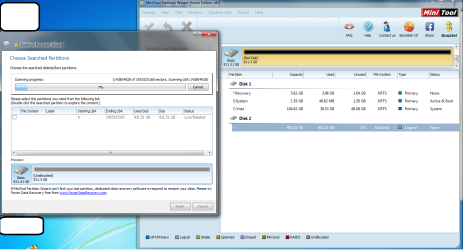
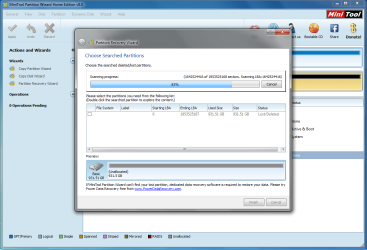
Ok. I see that you've installed Partition Wizard, and that it shows your externally connected 1TB drive as DISK 2 with a file system of "bad disk", with only that 931GB space shown. Interestingly, I don't see mention of the other 100MB "system reserved' partition that your earlier screenshot from Windows' disk management showed.

Anyway, on the left side of the Partition Wizard GUI interface, there should be a list of available (a) Wizards and (b) Operations available. Unfortunately you covered up that side of the window showing the available choices with what appears to be the result of your trying to use the "Partition Recovery Wizard". And it shows "lost/deleted" in your screenshot, which is essentially identical to what Windows' disk management implied when it said "must be formatted before use".

From this Partition Recovery Wizard window if you really wanted to try and get the contents restored (assuming this was still possible) I would expect for you to then have CHECKED the checkbox next to that partition and then pushed the FINISH button, to see what Partition Wizard could make of that 931GB space. It might be successful, but most likely not.

However I still don't understand why you are pursuing trying to salvage the contents of this space and "wasting time", if all you really want to do is be able to add this entire 1TB drive as a new external hard drive and make it fully usable as an NTFS partition (probably lettered I, but can't guarantee that is what it will get). Just forget about what used to be there, and wipe the drive completely. Start from scratch, as if you'd just bought this 1TB drive.

Forget trying to use the "Partition Recovery Wizard". Just cancel that, and start over with Partition Wizard and its showing your two drives, with DISK 2 being the problem.

In my opinion you should then simply select that DISK 2, and then select "delete all partitions" in the Operations section on the left side of the Partition Wizard GUI. Don't waste any more time on the "partition recovery wizard" idea.

This "delete all partitions" will hopefully simply get rid of everything on your 1TB drive (good or bad, usable or not) by recreating the MBR partition record... PERIOD! 100% of the drive will be returned to unallocated free space. The GUI picture of this drive will instantly change (as if you'd actually performed this operation successfully) showing the entire drive now as "unallocated". And this "delete all partitions" request will then become the FIRST "pending operation" in a queue of several operations, which will all be performed in sequence by Partition Wizard when you finally push the "APPLY" button.

Now you will be able to format/create one or more new partitions on that now entirely empty 1TB drive.

Next, select this apparently now unallocated space on that drive by left-clicking on that space in the GUI presentation. And then click on the "Create partition" operation shown as an available choice on the left side of the GUI presentation window. And fill in any of the parameters you want to in the dialog that will then appear. I'd suggest just leaving all the defaults (as long at NTFS is the file system), doesn't matter primary or logical partition type, and you might as well use all space for one partition on that drive. Again, push the "finish" (or OK, or whatever) button, and this second operation to format/create an NTFS partition on this drive out of its 100% unallocated free space will then be added as the SECOND "pending operation".

Finally, push the "APPLY" button, and both of the pending operations will now be applied in sequence. And you should now have this new partition available with a Windows drive letter assigned.

If you post a screenshot of this final situation, we can confirm you've finally got your desired result.

Also, if you again run Windows' disk management (i.e. DISKMGMT.MSC) you should now see this external drive available and with almost entirely free space in the one new NTFS partition you just created with Partition Wizard. This confirms what you saw in Partition wizard at the successful completion of both the pending operations.
 

My Computer My Computer

At a glance

Windows 7 Pro x64 (1), Win7 Pro X64 (2)i5-3350p 3.1Ghz/6MB-cache (1); E8400 3.0Ghz/6...8GB PC3-12800 DDR3 (1); 4GB PC3-10600 DDR3 (2)ATI HD7750 (1), (see TV cards); ATI R7 250 (2)
Computer type
PC/Desktop
Computer Manufacturer/Model Number
Home-built, two systems (1) and (2)
OS
Windows 7 Pro x64 (1), Win7 Pro X64 (2)
CPU
i5-3350p 3.1Ghz/6MB-cache (1); E8400 3.0Ghz/6MB-cache (2)
Motherboard
ASUS P8Z77-V Pro (1); ASUS P5Q3 (2)
Memory
8GB PC3-12800 DDR3 (1); 4GB PC3-10600 DDR3 (2)
Graphics Card(s)
ATI HD7750 (1), (see TV cards); ATI R7 250 (2)
Sound Card
Realtek ALC892 HD Audio (1); Realtek ALC1200 HD Audio (2)
Monitor(s) Displays
Eizo HD2441W LCD, Eizo S2433W (1); Eizo 24" S2433W (2)
Screen Resolution
1920x1200, 1920x1200 (1); 1920x1200 (2)
Hard Drives
(1) 1TB SATA-II (7200RPM), 2x2TB SATA-III (7200RPM), 250GB SATA-III (10000RPM) for OS; 2x2TB external USB 3.0

(2) 320GB SATA-II (7200RPM), 750GB SATA-II (7200RPM), 150GB SATA-II (10000RPM) for OS; 2TB external USB 3.0
PSU
Nesteq ECS-6001 600W (1); Nesteq ECS-5001 500W (2)
Case
Acousti-Case 360 (1) and (2)
Cooling
Noctua NH-U12P SE2 for CPU, 2x120mm case fans (1) and (2)
Keyboard
IBM PS/2 (1) and (2)
Mouse
Logitech MX Revolution wireless (1); Microsoft wired (2)
Internet Speed
100mbps down / 10mbps up
Antivirus
Microsoft Security Essentials; Malwarebyte Anti-Malware Pro
Browser
Firefox
Other Info
Ceton InfiniTV 4-tuner cablecard-enabled TV card as well as Hauppauge HVR-2250 OTA/ATSC 2-tuner TV card in (1), running under Win7 WMC
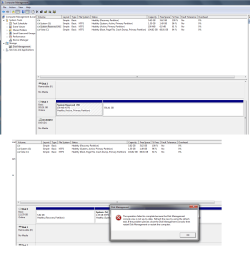
Adding screen shot
Ok. I see that you've installed Partition Wizard, and that it shows your externally connected 1TB drive as DISK 2 with a file system of "bad disk", with only that 931GB space shown. Interestingly, I don't see mention of the other 100MB "system reserved' partition that your earlier screenshot from Windows' disk management showed.

Anyway, on the left side of the Partition Wizard GUI interface, there should be a list of available (a) Wizards and (b) Operations available. Unfortunately you covered up that side of the window showing the available choices with what appears to be the result of your trying to use the "Partition Recovery Wizard". And it shows "lost/deleted" in your screenshot, which is essentially identical to what Windows' disk management implied when it said "must be formatted before use".

From this Partition Recovery Wizard window if you really wanted to try and get the contents restored (assuming this was still possible) I would expect for you to then have CHECKED the checkbox next to that partition and then pushed the FINISH button, to see what Partition Wizard could make of that 931GB space. It might be successful, but most likely not.

However I still don't understand why you are pursuing trying to salvage the contents of this space and "wasting time", if all you really want to do is be able to add this entire 1TB drive as a new external hard drive and make it fully usable as an NTFS partition (probably lettered I, but can't guarantee that is what it will get). Just forget about what used to be there, and wipe the drive completely. Start from scratch, as if you'd just bought this 1TB drive.

Forget trying to use the "Partition Recovery Wizard". Just cancel that, and start over with Partition Wizard and its showing your two drives, with DISK 2 being the problem.

In my opinion you should then simply select that DISK 2, and then select "delete all partitions" in the Operations section on the left side of the Partition Wizard GUI. Don't waste any more time on the "partition recovery wizard" idea.

This "delete all partitions" will hopefully simply get rid of everything on your 1TB drive (good or bad, usable or not) by recreating the MBR partition record... PERIOD! 100% of the drive will be returned to unallocated free space. The GUI picture of this drive will instantly change (as if you'd actually performed this operation successfully) showing the entire drive now as "unallocated". And this "delete all partitions" request will then become the FIRST "pending operation" in a queue of several operations, which will all be performed in sequence by Partition Wizard when you finally push the "APPLY" button.

Now you will be able to format/create one or more new partitions on that now entirely empty 1TB drive.

Next, select this apparently now unallocated space on that drive by left-clicking on that space in the GUI presentation. And then click on the "Create partition" operation shown as an available choice on the left side of the GUI presentation window. And fill in any of the parameters you want to in the dialog that will then appear. I'd suggest just leaving all the defaults (as long at NTFS is the file system), doesn't matter primary or logical partition type, and you might as well use all space for one partition on that drive. Again, push the "finish" (or OK, or whatever) button, and this second operation to format/create an NTFS partition on this drive out of its 100% unallocated free space will then be added as the SECOND "pending operation".

Finally, push the "APPLY" button, and both of the pending operations will now be applied in sequence. And you should now have this new partition available with a Windows drive letter assigned.

If you post a screenshot of this final situation, we can confirm you've finally got your desired result.

Also, if you again run Windows' disk management (i.e. DISKMGMT.MSC) you should now see this external drive available and with almost entirely free space in the one new NTFS partition you just created with Partition Wizard. This confirms what you saw in Partition wizard at the successful completion of both the pending operations.

I'm not trying to save anything from the HDD, I just want the 1TB so I can use the space.
Like I said above, I have another 500GB external HDD (which is my brothers) and it has all my data on it, I managed to back it up when my PC was working enough to copy the files.

I no longer have anything on the 1TB HDD or the 120GB laptop HDD (which i'm currently using to run my PC)
All my data is stored on a HDD under my bed out of the way.

When I use the partition wizard, I can't do anything with my 1TB, everything is greyed out.

Was reading up about it last night and some people said it might be bacause my PC needs updating with me having to re install windows 7.

So I connected to internet last night and did all the updates (140 of them)

So going to connect it again today and give it another shot.

With how everythings going, I think the HDD might be dead :( I don't need/want anything off it, just for it to work so I have 1TB of space to use, But not sure if I'll be able to trust it again so its looking like I better buy another :(


EDIT:
Added some screenshot of the Partition Wizard..

Also, Would it work with me having 2 SATA & power cables in my PC
1. HDD (running laptop hdd)
2. Disc Drive

What about if I disconnected the disc drive and plugged in the 1TB..
Then boot using the laptop HDD and try to format the 1TB... With me using USB i think thats why it keeps disconnecting and not letting me do much via USB..

Or would this just brake my PC?
 

Attachments

  • 3.png
    3.png
    77.9 KB · Views: 4
  • 4.png
    4.png
    56.5 KB · Views: 3
Last edited:

My Computer My Computer

At a glance

Windows 7 Home Premium 64 bitAMD Athlon(tm) II X4 620 Processor (4 CPUs) 2...4GB 2X2GBNDIDIA GeForce 9200
Computer type
PC/Desktop
Computer Manufacturer/Model Number
Acer - Aspire X 1301
OS
Windows 7 Home Premium 64 bit
CPU
AMD Athlon(tm) II X4 620 Processor (4 CPUs) 2.6GHz
Motherboard
Aspire X1301
Memory
4GB 2X2GB
Graphics Card(s)
NDIDIA GeForce 9200
Sound Card
Unknown
Monitor(s) Displays
2x 22" Acer 1080p
Screen Resolution
1920 x 1080
Hard Drives
Seagate Barracuda 7200
PSU
Acer Aspire Liteon PE-5221-08 - 210 Watt
Keyboard
Acer SK-9620
Internet Speed
Down: 30MB/s - Up: 16MB/s - Sky Fiber
Antivirus
AVG 2013
Browser
Chrome 31.x
I'm not trying to save anything from the HDD, I just want the 1TB so I can use the space.
Ok. Fair enough. That's what I was trying to accomplish with my suggestions.


When I use the partition wizard, I can't do anything with my 1TB, everything is greyed out.
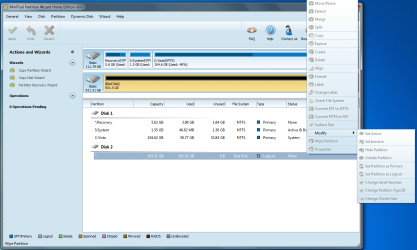
Now that you've posted the complete screenshot of the PW window, showing everything grayed out and zero "operations" available on the left side, it's more and more obvious that your 1TB hard drive may truly be DEAD and entirely unusable.

I do not believe the cause of this would be your USB-to-SATA adapter that you're running this through. I would suspect the problem to be the drive itself.


Was reading up about it last night and some people said it might be bacause my PC needs updating with me having to re install windows 7.

So I connected to internet last night and did all the updates (140 of them)
These are two entirely different things... (a) "reinstall Win7" and (b) apply all long overdue Windows Updates.

But I disagree that either of these has any hope of resolving your issue, if it is truly a dead piece of hard drive.

Also, factor in the amount of time (and equivalent cost of your time) that you've spent trying to get this to work, i.e. trying to get some benefit out of this hard drive that once worked but actually died so that you pulled it out and replaced it with another 120GB laptop drive just so that you could do work again.

If you remember my much earlier suggestion regarding how to most economically go about adding a true second external hard drive (since your machine does not allow adding a second internal hard drive), that would have included (a) about $18 for a PCIe x1 adapter card to add USB 3.0 support to your machine if it doesn't already have USB 3.0 support, and (b) about $115 for a 2TB external USB 3.0 drive (which is actually a SATA-II drive inside a USB 3.0 enclosure). You get 2TB instead of 1TB, and you run it at USB 3.0 speed instead of the USB 2.0 speed you're limited to with that eBay gizmo you bought.

Or, just buy a brand new internal large SATA hard drive and take the 120GB laptop hard drive out, and reinstall Windows from scratch and just start over with one internal drive.


So going to connect it again today and give it another shot.
Applying Windows Updates is not going to bring a failing dead hard drive back to life.


With how everythings going, I think the HDD might be dead
I agree.

Time for plan B or C.


so its looking like I better buy another
This allows you to decide how you really want to proceed... (a) brand new large internal hard drive (e.g. a replacement 1-2TB drive to replace the small old 120GB laptop hard drive, or (b) keep the 120GB laptop internal hard drive that is currently working fine, and do something like I suggested to give you USB 3.0 external hard drive support at minimal cost (but of course it's not entirely free).


Also, Would it work with me having 2 SATA & power cables in my PC
1. HDD (running laptop hdd)
2. Disc Drive
I don't believe you had room for a second internal hard drive, as I recall. An external second hard drive is your only option, I believe. That way you don't need internal power cables or SATA data cables, as the power to your external drive would be external (to the wall via 12V DC adapter) and the data cable to the external USB 3.0 drive is actually a USB 3.0 cable.


What about if I disconnected the disc drive and plugged in the 1TB..
Then boot using the laptop HDD and try to format the 1TB.
The drive is apparently DEAD.

Nothing will make it come back to life, as you've already proven to yourself with Partition Wizard telling you that and graying out every single possible option that might have worked on a "living" hard drive.


With me using USB i think thats why it keeps disconnecting and not letting me do much via USB.
You're talking about that eBay USB-to-SATA adapter you bought, which I suspect is actually working just fine. Your USB 2.0 interface is also probably working just fine.

The problem is the hard drive. End of story. It apparently died when it was inside your PC, and it's still dead. These things happen, and you have no other option but to replace it.
 

My Computer My Computer

At a glance

Windows 7 Pro x64 (1), Win7 Pro X64 (2)i5-3350p 3.1Ghz/6MB-cache (1); E8400 3.0Ghz/6...8GB PC3-12800 DDR3 (1); 4GB PC3-10600 DDR3 (2)ATI HD7750 (1), (see TV cards); ATI R7 250 (2)
Computer type
PC/Desktop
Computer Manufacturer/Model Number
Home-built, two systems (1) and (2)
OS
Windows 7 Pro x64 (1), Win7 Pro X64 (2)
CPU
i5-3350p 3.1Ghz/6MB-cache (1); E8400 3.0Ghz/6MB-cache (2)
Motherboard
ASUS P8Z77-V Pro (1); ASUS P5Q3 (2)
Memory
8GB PC3-12800 DDR3 (1); 4GB PC3-10600 DDR3 (2)
Graphics Card(s)
ATI HD7750 (1), (see TV cards); ATI R7 250 (2)
Sound Card
Realtek ALC892 HD Audio (1); Realtek ALC1200 HD Audio (2)
Monitor(s) Displays
Eizo HD2441W LCD, Eizo S2433W (1); Eizo 24" S2433W (2)
Screen Resolution
1920x1200, 1920x1200 (1); 1920x1200 (2)
Hard Drives
(1) 1TB SATA-II (7200RPM), 2x2TB SATA-III (7200RPM), 250GB SATA-III (10000RPM) for OS; 2x2TB external USB 3.0

(2) 320GB SATA-II (7200RPM), 750GB SATA-II (7200RPM), 150GB SATA-II (10000RPM) for OS; 2TB external USB 3.0
PSU
Nesteq ECS-6001 600W (1); Nesteq ECS-5001 500W (2)
Case
Acousti-Case 360 (1) and (2)
Cooling
Noctua NH-U12P SE2 for CPU, 2x120mm case fans (1) and (2)
Keyboard
IBM PS/2 (1) and (2)
Mouse
Logitech MX Revolution wireless (1); Microsoft wired (2)
Internet Speed
100mbps down / 10mbps up
Antivirus
Microsoft Security Essentials; Malwarebyte Anti-Malware Pro
Browser
Firefox
Other Info
Ceton InfiniTV 4-tuner cablecard-enabled TV card as well as Hauppauge HVR-2250 OTA/ATSC 2-tuner TV card in (1), running under Win7 WMC
OP, what's the born on date on that HD you removed, some date is likely on it's sticker or a code.

If you plugged it onto that USB/SATA adaptor (power and the USB) and connect it and it doesn't show up, it's probably bad drive electronics having rendered it a paperweight, and I wouldn't trust data back to it anyway if it's years old.

$100 USD buys an internal 7200RPM 2TB Seagate drive, I replaced 2 smallers ones with those and running great, nice to be SATA III/6gig drives, also at that price.

SATAs don't split, you can get PCI cards with secondary SATA controller and have heard of HD slot brackets to hold a HD in place in cases as well.

If just holding DATA that doesn't need to be available 24/7 like movies or MP3's, a USB external is a good solution, very bad speed wise if it's going to be written to all the time, thus the recommendation for internal drives made to take the abuse.
 

My Computer My Computer

At a glance

Windows 7 Ultimate Retail Box (64-bit install...AMD FX-8350 CPU v1.15 (or 1.0F) BIOS was requ...8G CAS-7 G-Skill DDR3 @1333 (2 fours) [mobo n...Radeon HD 7950 [3 gigs of GDDR5] MSI Twin Fro...
Computer type
PC/Desktop
Computer Manufacturer/Model Number
Self Built Custom
OS
Windows 7 Ultimate Retail Box (64-bit installed) + Service Pack 1
CPU
AMD FX-8350 CPU v1.15 (or 1.0F) BIOS was required!
Motherboard
MSI 890FXA-GD70
Memory
8G CAS-7 G-Skill DDR3 @1333 (2 fours) [mobo nonOC max rec'd]
Graphics Card(s)
Radeon HD 7950 [3 gigs of GDDR5] MSI Twin Frozr model
Sound Card
Realtek High Definition Audio (onboard mobo, ALC-889 chip)
Monitor(s) Displays
2 WS LED Monitors: One LG One Viewsonic
Screen Resolution
1920 by 1080
Hard Drives
SSD for OS: Samsung 840 Pro
SSD for VM and utilities: Adata SX900
7200 RPM SATA HDs for the rest: Hitachi and Seagate
PSU
Corsair TX850 - 850W max, in service since August 2010.
Case
Thermaltake Armor A90
Cooling
Thermaltake Spin Q CPU Cooler, in service since August 2010
Keyboard
Logitech G11
Mouse
Logitech M310 Wireless
Internet Speed
100 Megabit broadband supposedly upgraded from 50 (Cable)
Antivirus
Bitdefender Internet Security 2014 suite
Browser
Pale Moon 64-bit main, also IceDragon, Opera, and Maxthon.
Other Info
CompTIA A+ certified (220-800 series) in July 2013.
OP, what's the born on date on that HD you removed, some date is likely on it's sticker or a code.

If you plugged it onto that USB/SATA adaptor (power and the USB) and connect it and it doesn't show up, it's probably bad drive electronics having rendered it a paperweight, and I wouldn't trust data back to it anyway if it's years old.

$100 USD buys an internal 7200RPM 2TB Seagate drive, I replaced 2 smallers ones with those and running great, nice to be SATA III/6gig drives, also at that price.

SATAs don't split, you can get PCI cards with secondary SATA controller and have heard of HD slot brackets to hold a HD in place in cases as well.

If just holding DATA that doesn't need to be available 24/7 like movies or MP3's, a USB external is a good solution, very bad speed wise if it's going to be written to all the time, thus the recommendation for internal drives made to take the abuse.

Thats the thing, Money is hard at moment :(

I won't be using it again, Like you said.. Don't trust it.

The date code is: 10156 and using the Seagate Date Code Calculator the dates showing: 2009-10-13 so 4 years old.

Also attached a picture of the HDD.
 

Attachments

  • 20130720_112441.jpg
    20130720_112441.jpg
    473.6 KB · Views: 5

My Computer My Computer

At a glance

Windows 7 Home Premium 64 bitAMD Athlon(tm) II X4 620 Processor (4 CPUs) 2...4GB 2X2GBNDIDIA GeForce 9200
Computer type
PC/Desktop
Computer Manufacturer/Model Number
Acer - Aspire X 1301
OS
Windows 7 Home Premium 64 bit
CPU
AMD Athlon(tm) II X4 620 Processor (4 CPUs) 2.6GHz
Motherboard
Aspire X1301
Memory
4GB 2X2GB
Graphics Card(s)
NDIDIA GeForce 9200
Sound Card
Unknown
Monitor(s) Displays
2x 22" Acer 1080p
Screen Resolution
1920 x 1080
Hard Drives
Seagate Barracuda 7200
PSU
Acer Aspire Liteon PE-5221-08 - 210 Watt
Keyboard
Acer SK-9620
Internet Speed
Down: 30MB/s - Up: 16MB/s - Sky Fiber
Antivirus
AVG 2013
Browser
Chrome 31.x
I'm not sure if you ever ran the SeaTools for DOS diagnostic utility, as this thread is too confusing for me...
If I had this issue, I would run the SeaTools DOS utility to make sure the HD is dead, or see if it can be fixed.
The $ cost for using SeaTools for DOS is 1 blank CD, for burning the bootable disc.
It's your PC, your money, your choice.

The quote below is from Seagate regarding HDs returned for replacement...
Source: SeaTools for DOS Guide (link) at SeaTools | Seagate

After testing, a large percentage of the drives returned to Seagate
for warranty replacement are perfectly good drives with "No Problem
Found" (NPF). Returning a drive for warranty service means system
downtime and inconvenience for you in packing and returning your drive
product. Before you send in a drive, it is in your best interest to
determine if a replacement drive is really necessary. This hard disc
diagnostic utility will help you make that determination and possibly
save you time and money and preserve your data.
Some typical reasons for No Problem Found are:
* File System Corruption
* Driver Corruption
* Broken Master Boot Record
* Virus and Trojan Attack
* Spyware, Adware and Keystroke loggers
* Hardware Conflicts
 

My Computer My Computer

At a glance

Multi-Boot W7_Pro_x64 W8.1_Pro_x64 W10_Pro_x6...AMD Athlon II x4 6206GB GSkill DDR2 800AMD 4670 GPU + AMD 4200 IGP
Computer type
PC/Desktop
Computer Manufacturer/Model Number
home built
OS
Multi-Boot W7_Pro_x64 W8.1_Pro_x64 W10_Pro_x64 +Linux_VMs +Chromium_VM
CPU
AMD Athlon II x4 620
Motherboard
Gigabyte GA-MA785G-UD3H
Memory
6GB GSkill DDR2 800
Graphics Card(s)
AMD 4670 GPU + AMD 4200 IGP
Sound Card
on board Realtek ALC889A
Monitor(s) Displays
RCA 40" LCD TV, Insignia 32" LCD TV, HP 15" LCD monitor
Screen Resolution
1680 x 1050
Hard Drives
OCZ Vertex 3 120GB,
Samsung F3 1TB (3),
Several others - WD, Seagate, Hitachi, ...
PSU
Corsair 500 W
Case
Rosewill mid tower
Cooling
CM 90mm rifle
Keyboard
Gyration wireless, Logitech wireless, Dell USB wired
Mouse
Gyration wireless, Logitech wireless, V7 USB wired
Internet Speed
Spectrum - 100Mbps D / 10Mbps U
Antivirus
Avast, MBAM3, EMET, WinPatrol
Browser
Pale Moon, Firefox, IE
Other Info
2 multi-boot PC's
Mainly HTPC/Office/Gen purpose (no gaming).
Trendnet USB KVM.
LG DVD burner/Blue Ray Player.
Tray system for removable SATA backup drives.

Not currently OCd, under-volted.
I use Hybrid sleep, rarely re-boot or shutdown.

Hauppauge HD-PVR, Avermedia PCIe TV Tuner, Hauppauge PCI TV Tuner.
Back
Top