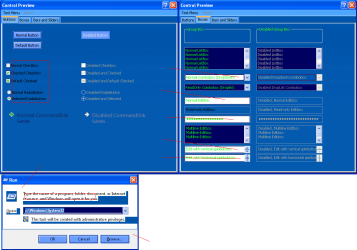
How do I change these colors?

BlueBonnett

New member
Pro User
VIP
Local time
5:07 AM
Messages
139
I tried changing every black or white value in WSB but none worked so I guess I have to add property, but where?
 

Attachments

  • editting.PNG
    editting.PNG
    79.3 KB · Views: 5

My Computer

Computer type
PC/Desktop
Computer Manufacturer/Model Number
Acer
OS
Windows 7 Ultimate 64-bit
CPU
Intel(R) Core(TM) i5-7400 CPU
Motherboard
Aspire TC-780
Memory
8GB DDR4
Graphics Card(s)
Intel HD Graphics 630
Monitor(s) Displays
1
Screen Resolution
1920x1080
Hard Drives
One system SSD, one data SSD, one 2TB data HDD.
PSU
240w
Keyboard
Logitech USB wireless
Mouse
USB wireless
Browser
Firefox
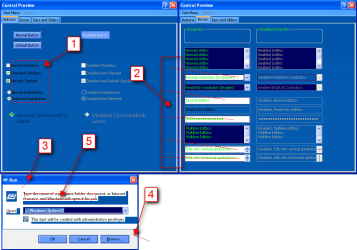
#1
Add Text color properties to
Buttons, Boxes & Controls > Buttons > Button > CheckBox
and
Buttons, Boxes & Controls > Buttons > Button > RadioButton


#2
Buttons, Boxes & Controls > Boxes > Edit > Basic > Background


#3
Explorer & Shell > Shell > Task Dialog > Content Pane > Fillcolor:Color
#4
Explorer & Shell > Shell > Task Dialog > Footnote Pane > Fillcolor:Color
#5
Fonts, Colors & System Metrics > Fonts & System Metrics > Windowstext:color
 

Attachments

  • editting.PNG
    editting.PNG
    117.4 KB · Views: 2

My Computer

Computer type
Laptop
Computer Manufacturer/Model Number
Sager NP9170
OS
Win 7 Pro x64 / Win 10 Pro
CPU
Intel(R) Core(TM) i7-3630QM CPU @ 2.40GHz
Motherboard
CLEVO P170EM
Memory
12 GB
Graphics Card(s)
(1) Intel(R) HD Graphics 4000 (2) NVIDIA GeForce GTX 675M
Sound Card
(1) Realtek High Definition Audio (2) Intel(R) Display Aud
Monitor(s) Displays
17.3
Screen Resolution
1920x1080
Hard Drives
(1) Samsung 860 EVO 500GB(OS) (1) Samsung 860 EVO 500GB(Data)
Keyboard
Backlite
Antivirus
MSE, Malwarebytes Pro
Browser
Firefox
Other Info
DESKTOP: Custom-built.
OS: Win 10 Pro x64.
CASE: Rosewill R5.
CPU: Intel I5 4670K CPU @ 3.40GHz.
CPU COOLER: Cool Master Hyper 212 EVO.
MOTHERBOARD: Asus Z87-A.
MEMORY: Kingston HyperX 2x4 GB.
GPU: Nvidia Geforce 650 TI.
PSU: Corsair TX750.
DRIVES: (1) Samsung 840 120 GB SSD (2) Western Digital blue 500 GB 7200 RPM.
Many thanks for this, Bongo. Everything looks so much better. It's weird that feeling you get when you get an answer and you think how obvious it is... after getting it that is.

Still a few things I need pointed out though. I already changed the text to something brighter for everything else but the details view text remains black for the System32 folder. Where do I edit this?

The text on the Run window also seems to be a bitmap because it's still covered in white. This isn't that important but if it's no trouble pointing it out it would be good. Also I'm puzzled how I missed that grey tab on the rightmost side of the details view tabs. It isn't that important either but it sort of sticks out.
 

Attachments

  • 1.PNG
    1.PNG
    84 KB · Views: 3

My Computer

Computer type
PC/Desktop
Computer Manufacturer/Model Number
Acer
OS
Windows 7 Ultimate 64-bit
CPU
Intel(R) Core(TM) i5-7400 CPU
Motherboard
Aspire TC-780
Memory
8GB DDR4
Graphics Card(s)
Intel HD Graphics 630
Monitor(s) Displays
1
Screen Resolution
1920x1080
Hard Drives
One system SSD, one data SSD, one 2TB data HDD.
PSU
240w
Keyboard
Logitech USB wireless
Mouse
USB wireless
Browser
Firefox
Text colors:

Fonts & System Metrics > WindowText:Color

Explorer & Shell > Explorer > Items View > Items VIew > Textcolor:Color

Explorer & Shell > Explorer > Items View > Items View > Subheader > Normal > Textcolor:Color

Grey tab on the rightmost side of the details view tabs:

Toolbars, Headers and Rebar > Toolbars & Headers > Items View Header

Run:

Download and extract the zip folder put the Stylehack in
C:\Program Files (x86)\AveApps\Windows Style Builder\StyleHacks folder.

This Stylehack will give Fonts & System Metrics > Btnface:Color as the background for the Run Dialog text.


When you apply the hack:

1
Import the images, later you can edit this image at Explorer & Shell > Shell > TaskDialog > PrimaryPanel.
2
Remove the fillcolor property from Explorer & Shell > Shell > TaskDialog > PrimaryPanel
3
Add the fillcolor property to Explorer & Shell > Shell > TaskDialog > ContentPane

Jerry
 

Attachments

My Computer

Computer type
Laptop
Computer Manufacturer/Model Number
Sager NP9170
OS
Win 7 Pro x64 / Win 10 Pro
CPU
Intel(R) Core(TM) i7-3630QM CPU @ 2.40GHz
Motherboard
CLEVO P170EM
Memory
12 GB
Graphics Card(s)
(1) Intel(R) HD Graphics 4000 (2) NVIDIA GeForce GTX 675M
Sound Card
(1) Realtek High Definition Audio (2) Intel(R) Display Aud
Monitor(s) Displays
17.3
Screen Resolution
1920x1080
Hard Drives
(1) Samsung 860 EVO 500GB(OS) (1) Samsung 860 EVO 500GB(Data)
Keyboard
Backlite
Antivirus
MSE, Malwarebytes Pro
Browser
Firefox
Other Info
DESKTOP: Custom-built.
OS: Win 10 Pro x64.
CASE: Rosewill R5.
CPU: Intel I5 4670K CPU @ 3.40GHz.
CPU COOLER: Cool Master Hyper 212 EVO.
MOTHERBOARD: Asus Z87-A.
MEMORY: Kingston HyperX 2x4 GB.
GPU: Nvidia Geforce 650 TI.
PSU: Corsair TX750.
DRIVES: (1) Samsung 840 120 GB SSD (2) Western Digital blue 500 GB 7200 RPM.
Text colors:

Fonts & System Metrics > WindowText:Color

Explorer & Shell > Explorer > Items View > Items VIew > Textcolor:Color

Explorer & Shell > Explorer > Items View > Items View > Subheader > Normal > Textcolor:Color

Grey tab on the rightmost side of the details view tabs:

Toolbars, Headers and Rebar > Toolbars & Headers > Items View Header

These didn't change the color in the System32 folder details view text. They were all already modified. How come the text is different color in the system folder anyway?
 

My Computer

Computer type
PC/Desktop
Computer Manufacturer/Model Number
Acer
OS
Windows 7 Ultimate 64-bit
CPU
Intel(R) Core(TM) i5-7400 CPU
Motherboard
Aspire TC-780
Memory
8GB DDR4
Graphics Card(s)
Intel HD Graphics 630
Monitor(s) Displays
1
Screen Resolution
1920x1080
Hard Drives
One system SSD, one data SSD, one 2TB data HDD.
PSU
240w
Keyboard
Logitech USB wireless
Mouse
USB wireless
Browser
Firefox
Go to C:\Windows\Resources\Themes\Aero\Shell\NormalColor and get a copy of shellstyle.dll and replace the one in your theme.

Jerry
 

My Computer

Computer type
Laptop
Computer Manufacturer/Model Number
Sager NP9170
OS
Win 7 Pro x64 / Win 10 Pro
CPU
Intel(R) Core(TM) i7-3630QM CPU @ 2.40GHz
Motherboard
CLEVO P170EM
Memory
12 GB
Graphics Card(s)
(1) Intel(R) HD Graphics 4000 (2) NVIDIA GeForce GTX 675M
Sound Card
(1) Realtek High Definition Audio (2) Intel(R) Display Aud
Monitor(s) Displays
17.3
Screen Resolution
1920x1080
Hard Drives
(1) Samsung 860 EVO 500GB(OS) (1) Samsung 860 EVO 500GB(Data)
Keyboard
Backlite
Antivirus
MSE, Malwarebytes Pro
Browser
Firefox
Other Info
DESKTOP: Custom-built.
OS: Win 10 Pro x64.
CASE: Rosewill R5.
CPU: Intel I5 4670K CPU @ 3.40GHz.
CPU COOLER: Cool Master Hyper 212 EVO.
MOTHERBOARD: Asus Z87-A.
MEMORY: Kingston HyperX 2x4 GB.
GPU: Nvidia Geforce 650 TI.
PSU: Corsair TX750.
DRIVES: (1) Samsung 840 120 GB SSD (2) Western Digital blue 500 GB 7200 RPM.
Back
Top