How do I correct installation problems for Windows 7

kdermanis

New member
Local time
9:11 PM
Messages
8
I recently got a hewlett Packard 630 laptop which had linux OS. I decided to replace it with Windows 7 and face two major issues:

1) When I was installing Win 7, it asked me to create a new hard drive because the 10GB partition could not fit Win 7 ultimate 64-bit I wanted to install. I therefore created a 20GB hard drive and completed win 7 installation through USB. However, when I finished I could only see the 20GB hard drive and not the remaining 450GB!

2) I installed win 7 and MS Office 2010 properly. However, the system is missing HP tools, such as network, ethernet, PCI etc. As a result, I do not have internet. I tried a number of drivers from the HP site, with no success.

How do I correct the problems above?
 

My Computer

OS
Windows 7 Ultimate x64
You cannot see the 450GB because Windows does not see ext2/3/4(Linux) partitions.
Linux is still there.
Later you can either make Linux boot over Windows boot manager or reinstall GRUB (which can boot Linux and Windows).

There are good system information tools like Speccy which will tell you exactly which devices you have in your system. After you know the exact specification of devices you can download the correct drivers.
 

My Computer

Computer Manufacturer/Model Number
Acer Notebook
OS
Win 8 RP, Win 7, XP
CPU
Intel
Ok i see. I found a way to activate my other hard drives, through "computer management".

- Is there a way to remove linux completely?
- I installed the speccy application you suggested. In the network tab, I cannot see any information about the network or drivers. In the WinInet Info it says: "An internal error occurred" (in case this helps). Also, how do I fix the remaining issues I see in the device manager, like ethernet controller?
 

My Computer

OS
Windows 7 Ultimate x64
Best to start over and Clean Reinstall - Factory OEM Windows 7 this time deleting all partitions during install.

Put your wireless driver on a stick or CD so if needed you can install it first to get online and get newer drivers from optional Windows Updates. Then only import drivers which are missing in Device Manager.

If you don't want to reinstall correctly then post back a screenshot of your maximized Disk Mgmt drive map and listings using the Snipping Tool in Start Menu. We'll help you delete Linux safely.
 
If Speccy does not recognize all devices you can try SIW.

Partitions where Linux is installed can be deleted using DiskManagement.
Windows partition is small try to extend later after you have deleted Linux.

If you don't now device specification for fixed or wireless (and Windows does not recognize them) it will be hard to guess try looking for info about HP630 - there must be specs on the net.
 

My Computer

Computer Manufacturer/Model Number
Acer Notebook
OS
Win 8 RP, Win 7, XP
CPU
Intel
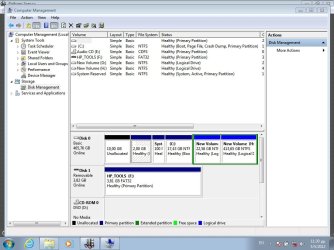
i uploaded the screenshot from disk management.

I will try to install the drivers I found from the specifications and I will post back shortly.
 

My Computer

OS
Windows 7 Ultimate x64
i found the wireless driver using boyan's suggestion. now i am trying to solve the rest with hp support assistant.

Any solution for increasing the hard-disk space from 20GB to 40GB?
 

My Computer

OS
Windows 7 Ultimate x64
Post back a screenshot of your maximized Disk Management drive map and listings using Snipping Tool in Start menu. We'll advise you how to enlarge the partition if possible.

I would only import any drivers missing in Device manager after running all Windows Updates, since any drivers not in the installer may be delivered or installer drivers updated via optional Updates.
 
i thought i had uploaded in my earlier post, but it was not one of the supported file extensions.

i also used the hp support and I have solved all the exclamation marks in the device manager except:

- ethernet controller
- pci device
- sm bus controller

Also, I need to solve the partition disk problem as now the 20GB is almost full!
 

Attachments

  • Capture Disk Management.jpg
    Capture Disk Management.jpg
    96.4 KB · Views: 17

My Computer

OS
Windows 7 Ultimate x64
Did you miss where I requested a maximized Disk Mgmt screenshot - so we can see all of the columns? You have a mess on your HD. I would back up my files and Clean Reinstall - Factory OEM Windows 7 to get it correct, this time correctly deleting all partitions during install.

If not move the data off of G and H to Delete those partitions in Disk Mgmt, then Extend C into the space. Partition or Volume - Delete
Partition or Volume - Extend

As I stated use Windows Updates to get the latest drivers via optional Updates. If after all of your Updates there are still drivers missing then find them on the Support Downloads webpage for your exact computer model.

The SM Bus controller is an element of your chipset, so you may have to install the chipset or browse from that device into the unzipped chipset to find the driver. The ethernet driver may also be in the chipset if it isn't listed separately in the downloads list.

But try Updates first.

I would uninstall and not use the HP Support Assistant bloatware which defeats the purpose of a Clean Reinstall - Factory OEM Windows 7
 
I did not understand what you meant by maximize. However, I see that you can look at all the columns. What can you not see?

Why do you say that the hard drives are a mess? What do you think I should do? Can you tell me step-by-step how I can fix this.

I thought my only problem was to "enlarge" the C: drive which is now almost full, from 20GB to 40-50. I tried what you said, but the delete and extend options are not available in the C: drive.
 

My Computer

OS
Windows 7 Ultimate x64
If you maximized the Disk Mgmt window as I asked I could glance at the size listings on the two logical partitions to know if it is practical to back up the data so they can be deleted.

You have a deleted 10gb Recovery or Linux partition and a now-useless 2gb tools partition sitting on the prime lower address of your HD which is what is read first and therefore fastest. That is sloppy since such prime disk space should be utilitized by the OS.

If you follow the tutorial to get a perfect Clean Reinstall - Factory OEM Windows 7 you'd delete all unneeded partitions and create a new Install partition.

Or to rid of those you can boot free Partition Wizard bootable CD, rightclick on each unneeded partition to Delete, then click OK. Then rightclick on C to Resize, drag left border all the way to the left side, then right border to the right, click OK, Apply all steps. You may need to run Startup Repair after resizing on the boot sector. Partition Wizard Move/Resize Partition Video

As to your attempt to use Disk Management, you do not want to Delete the C drive, but the G and H drives after backing up any data stored there. So you would rightclick on G to Delete, then rightclick on H to delete, then if any Logical volume remains rightclick on it to Delete Volume. Now you can extend C into that space.
 
Last edited:
i thought i had uploaded in my earlier post, but it was not one of the supported file extensions.

i also used the hp support and I have solved all the exclamation marks in the device manager except:

- ethernet controller
- pci device
- sm bus controller

Also, I need to solve the partition disk problem as now the 20GB is almost full!
First, do not mark ANY partitions active except System Reserved, and even then, it's already marked active. Doing so will make Windows not boot and you will have to run startup repair multiple times to fix it. Right click on the linux partitions and select delete. Out of curiosity, what linux distrobution did this come with?
 

My Computer

Computer type
PC/Desktop
Computer Manufacturer/Model Number
HP Pavilion P7-1010
OS
Windows 7 Professional x64 Service Pack 1
CPU
AMD Athlon X4 645
Motherboard
Foxxcon N-Alvorix RS880
Memory
6GB DDR3 1066
Graphics Card(s)
Sapphire Radeon HD 5670 512MB GDDR5
Sound Card
Realtek Integrated Audio
Monitor(s) Displays
HP 2011x
Screen Resolution
1600x900
Hard Drives
1. Crucial M4 128GB SSD
2. 1TB Seagate Barracuda 7200.12 RPM
3. 1TB Western Digital Caviar Green 5400RPM
PSU
Seasonic S12 II Bronze 380 Watt
Case
HP OEM
Cooling
Coolermaster Heatsink, AVC Case Fan
Keyboard
HP OEM- Made by Chicony
Mouse
HP OEM- Made by Logitech
Internet Speed
20MBit Down/4 Up
Antivirus
Microsoft Security Essentials
Browser
Internet Explorer 10
so, if I understand correctly what you are saying is that the best solution is to re-install win 7?

If yes, then what do I have to do with hard-drive selections in order to not end up like now?
 

My Computer

OS
Windows 7 Ultimate x64
Follow the steps in Clean Reinstall - Factory OEM Windows 7 which will assure you get a perfect reinstall.

At the step where you boot the installer to Custom install, choose Drive Options (Advanced) to delete all partitions, then either create and format new partitions as you wish, or simply click Next and the installer will create and format one large C install partition for you.


click image to enlarge
 
i re-installed win7 and it works fine. i selected to have one partition to simplify things.

the only remaining problem is the drivers for bluetooth, icp, sm bus and ethernet. I did all the windows updates but still remain as an exclamation mark. The solution is to look for the drivers from hp site one by one?
 

My Computer

OS
Windows 7 Ultimate x64
When you say you did all the updates--

I suspect that you missed a couple of settings which is very understandable.

What I'd like for you to do, no matter how senseless and unnecessary the steps may appear, work you way thru this write-up from start to finish.

Let us know when you finish:
UPDATING YOUR WIN 7
ASSURE THAT YOU RECEIVE ALL UPDATES
WIN | type WINDOWS UPDATE | ENTER |
Change settings (left-hand column) |
checkmark all four of the boxes | OK
button

Approve any dialog boxes presented. Let Windows install any update features.

WIN is the key with the Microsoft flag on top.

INSTALL CRITICAL UPDATES
Check for Updates
(left-hand column)
Install ALL critical updates.
Restart your computer (even if not prompted)

Repeat this procedure until there are no more critical updates.

DO NOT TRUST the “Windows is up to date” in center of dialog. until you see that TWICE IN A ROW!

INSTALL IMPORTANT UPDATES
Use the “critical update” procedure until all important updates are installed.

INSTALL OPTIONAL UPDATES
Use the “critical update” procedure until all optional updates are installed.

Under Optional updates you will be presented with a list of about 34 language updates.
You can hide those updates so that aren't continually notified of those updates. When you click on 34 optional updates are available, then you
a) highlight all of the language updates,
b) right-click anywhere in the highlighted list.
c) click on Hide Updates,
d) OK button.


UPDATE GOLDEN RULES

Install ALL, yes, ALL updates.
This is Win 7 and not Vista or XP (eXPired).

UPDATE IS HUNG –TAKING FOREVER
Hung is very doubtful unless you interrupted updates.

CTRL + SHIFT + ESC key combo will pop-up the Task Manager.
Lo and behold, Windows Update is still running!

You hold down the CTRL and SHIFT keys.
While holding them down, tap the ESC key once.
=========================================

thanks,
 

My Computer

Computer Manufacturer/Model Number
Toshiba Satellite S875D-S7239 laptop
OS
MS Windows 7 Ultimate SP1 64-bit
CPU
AMD A10-4600M
Motherboard
AMD Pumori (Socket FT1)
Memory
6.00 GB Dual-Channel DDR3 @ 798MHz (11-11-12-28)
Graphics Card(s)
AMD Radeon HD 7660G
Sound Card
High Definition Audio Device
Monitor(s) Displays
Generic PnP Monitor (1600x900@60Hz)
Screen Resolution
1600x900@60Hz
Hard Drives
SSD 119GB Corsair CSSD-V128GB2 ATA Device
Keyboard
Standard PS/2 Keyboard
Mouse
HP Wireless Optical Mobile Mouse Model FHA-3410
Internet Speed
What the local pub, local coffee shop offers.
Other Info
Optical Drive:MATSHITA BD-CMB UJ160B ATA Device


Also have an Asus ha1002xp netbook with Win 7 Ultimate installed.
Did you also enable hardware updating as given in the tutorial? If so and optional Windows Updates still doesn't deliver the drivers then import them from the HP Support Downloads webpage for your model.

The SM Bus is an element of the chipset.
 
Back
Top