How do I create a Win7 Boot Disc for a full system re-boot?

Photohawg

New member
Local time
4:11 AM
Messages
1
I custom built my PC, a few years ago. The motherboard came with Win7 Home Premium installed. It did NOT come with a boot disc. I have tried to do a simple system recovery from back-up image and it failed. I feel the only answer is a full system recovery but, I need my Win7 activation code and a boot disc to accomplish the task. I don't know how or where to find the code or how to create the boot disc. Yes, I am a PC novice and I need help. PLEASE!
 

My Computer My Computer

Computer type
PC/Desktop
Computer Manufacturer/Model Number
custom build
OS
Win7 Home Premium
Antivirus
AVG
I've never seen a motherboard come with an Operating System but in the scheme of bundling I guess it's possible. Whoever installed the OS should have, and is required to by the licensing, given you the COA/Certificate of Authenticity that has the Product Key on it. If you don't have that you can retrieve it from the Registry of a RUNNING Windows computer using Belarc's Advisor or Magical Jellybean's Keyfinder, both free.
Belarc - System Management For The Internet Age. Software license management, IT asset management, IT security audits and more.
www.magicaljellybean.com
If you don't have the DVD check this page:
http://answers.microsoft.com/en-us/...mium-iso/c211f1f1-7e6b-4671-908e-1f068c26ed3e

From Win7 Help and Support:
Create a system repair disc
System recovery options can help you repair Windows if a serious error occurs. To use system recovery options, you'll need a Windows installation disc or access to the recovery options provided by your computer manufacturer. If you don't have either of those choices, you can create a system repair disc to access system recovery options.
GetContent.aspx
Go to the Windows website to watch the video. (0:36)
To create a system repair disc


  1. Open Control Panel then Backup and Restore.
  2. In the left pane, click Create a system repair disc, and then follow the steps.
    GetContent.aspx
    If you're prompted for an administrator password or confirmation, type the password or provide confirmation.
    Note
    • If you're prompted to insert a Windows installation disc, it means that the files needed to create the system repair disc can't be found on your computer. Insert a Windows 7 installation disc.
To use the system repair disc


  1. Insert the system repair disc into your CD or DVD drive.
  2. Restart your computer using the computer's power button.
  3. If prompted, press any key to start the computer from the system repair disc.
    • If your computer isn't configured to start from a CD or DVD, check the information that came with your computer. You might need to change your computer's BIOS settings.
  4. Choose your language settings, and then click Next.
  5. Select a recovery option, and then click Next.
    Tip
    • Print these instructions and keep them in a safe location with your system repair disc.

 

My Computer My Computer

Computer type
PC/Desktop
Computer Manufacturer/Model Number
Customs, Dell, Gateway, HP, Toshiba, Acer, ASUS
OS
Windows 7 Ultimate 64-bit, Windows 8.1 64-bit, Mac OS X 10.10, Linux Mint 17, Windows 10 Pro TP
Keyboard
Microsoft
Mouse
Microsoft
If you're looking to perform a clean install of Windows follow the steps below:

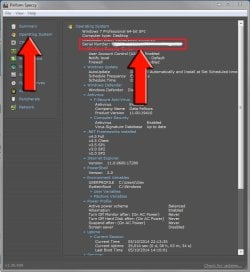
1: Download Speccy, install and run.Click on the Operating System tab on the left hand side which will provide you with your product key. Make a note of the key for use during the clean installation (Step 5).

Capture.JPG

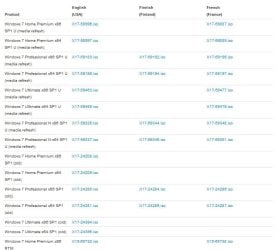
2: Download the ISO file you require from Digital River (scroll down to find the ISO files at the bottom of the page). Save to your desktop or other convenient location.

Capture 2.JPG

3: Create a bootable USB stick or DVD with the http://www.sevenforums.com/tutorials/31541-windows-7-usb-dvd-download-tool.html

4: Save any of your files you want to keep to external media (DVD, CD, USB, external hard drive).

5: Perform a clean installation of Windows by following http://www.sevenforums.com/tutorials/1649-clean-install-windows-7-a.html


My Computer My Computer

Computer type
PC/Desktop
Computer Manufacturer/Model Number
Custom Build
OS
W7 Pro x64 SP1 | W10 Pro IP x64 | W8.1 Pro x64 VM | Linux Mint VM
CPU
i7-4790k @ 4GHz (4.4GHz Boost)
Motherboard
ASUS Sabertooth Z87 (BIOS Rev 2004)
Memory
16GB DDR3 Kingston HyperX Fury @ 1600MHz CL 9-9-9-27
Graphics Card(s)
EVGA GTX 980 Classified
Sound Card
Realtek Onboard
Monitor(s) Displays
Samsung S27D390
Screen Resolution
1920 x 1080
Hard Drives
240GB Intel 520 Series SSD |
Samsung 850 EVO 120GB SSD |
2TB WD Caviar Black |
2TB WD Caviar Green
PSU
Corsair HX850-80 Gold Modular
Case
Cooler Master Silencio 650
Cooling
Corsair H80i w/2 x Corsair SP120 | 2 x 120mm Noctua NF-S12B
Keyboard
Microsoft Sidewinder X4
Mouse
Gigabyte M6900 optical
Internet Speed
152mb
Antivirus
F-Secure
Browser
Firefox 38.0
Other Info
Backup Rig: Win 7 Pro 64-bit | AMD A10-5800k | ASUS F2A85-V Pro | 8GB Samsung DDR3 @1600MHz | 120GB Toshiba SDD | 2TB Seagate HDD | Cooler Master Silencio 550
Back
Top