How do I specify the jpeg compression ration when setting an attribute

Bernard46

New member
Member
Local time
2:26 AM
Messages
50
Location
Harbury, Warwickshire, UK
I'm running Win 7 HP 64 bit. I have been storing a value in the file attribute using Windws Explorer. However I notice that when I do this Windows Explorer changes the compression ratio used in my jpeg files. For instance I have been specifying the minimum compression ratio and getting files that are apporx 8 MB in size so that I have plenty of data to loose if I edit these files later (jpeg is a lossey algorithm).

When I set an attribute using Windows Explorer I notice that the file size drops to a value (typically) below 2 MB, so I'm loosing a lot of data. Is there any way I can set the default compression ratio that Windows Explorer will use when it stores an attribute value? I had been under the impression that attribute values were stored separately from the jpeg file, but that seems not to be the case - it seems they are stored as part of the jpeg file.
 

My Computer My Computer

Computer Manufacturer/Model Number
Dell XPS420
OS
Windows 7 Home Premium 64 bit
CPU
Core 2 Quad Q6600
Motherboard
Dell
Memory
6 GB
Monitor(s) Displays
Dell E228WFP
Screen Resolution
Max
Hard Drives
Western Digital 500GB x 1, 1TB x 2
Cooling
Air
Internet Speed
8 mbit
You clearly want to store your images to the best quality at all times. This being the case why not save them initially to a TIFF or PNG. These are not compressed at all so they are not lossy. No matter how many times you save it there will be no loss in quality! Whereas every time you save a jpeg even though you don't edit it at all it will be further compressed. That's the nature of the beast!
 

My Computer My Computer

Computer type
PC/Desktop
OS
Microsoft Windows 7 Home Premium 64-bit 7601 Multiprocessor Free Service Pack 1
CPU
Intel(R) Core(TM) i7-3770 CPU @ 3.40GHz
Motherboard
ASUSTeK COMPUTER INC. P8H77-M
Memory
8.00 GB
Graphics Card(s)
Intel(R) HD Graphics 4000
Sound Card
On Board
Monitor(s) Displays
Dell 24"
Screen Resolution
1920 x 1080
Hard Drives
(1) INTEL SSDSC2CT180A3 ATA Device (2) ST500DM002-1BD142 ATA Device (3) WDC WD3200AAKS-75L9A0 ATA Device (4) Generic- Compact Flash USB Device (5) Generic- MS/MS-Pro USB Device (6) Generic- SD/MMC USB Device (7) Generic- SM/xD-Picture USB
PSU
500w Corsair
Case
Cooler Master
Cooling
3 Fans
Keyboard
Logitech MK300
Mouse
Logitech WOM
Internet Speed
75Mb
Antivirus
Norton 360
Browser
Firefox, Opera, IE
Actually I did store them as Tiff as well. I know I can always go back to the tiff ones and create new jpegs - that was not the point - I was wondering if anyone knew how to influence the arbitrary decision that Windows Explorer seems to take for me on the compression ratio it uses. Just as a matter of interest tiff does allow one to choose a compression algorithm but it only uses lossless algorithms, so inevitably the files are larger, but as I mentioned earlier that was not really what my question was about.
 

My Computer My Computer

Computer Manufacturer/Model Number
Dell XPS420
OS
Windows 7 Home Premium 64 bit
CPU
Core 2 Quad Q6600
Motherboard
Dell
Memory
6 GB
Monitor(s) Displays
Dell E228WFP
Screen Resolution
Max
Hard Drives
Western Digital 500GB x 1, 1TB x 2
Cooling
Air
Internet Speed
8 mbit
which file attributes are you changing and how?

i am unable to repeat your problem, and i have no idea why explorer would recompress jpgs by changing attribs. :confused:

do you mean the info shown along the bottom of the explorer window?

that information does get stored in the actual image file, and is readable by other software.

i've always found that adding data her in explorer adds about 6 kb to the file size, but i've never noticed any recompression going on.

but then i don't have any 8 meg jpgs - i suppose i'll have to make some and test.

*edit* just tried it with a big jpg - no noticable difference in file size. they certainly haven't be reduced to a quarter.

more testing needs to be done...
 

My Computer My Computer

Computer Manufacturer/Model Number
mickey megabyte 1234
OS
ultimate 64 sp1
CPU
i5 2500K [email protected]
Motherboard
MSI P67A-GD53
Memory
8 gigs GSkill Ripjaws 1600
Graphics Card(s)
amd hd6950
Sound Card
creative x-fi gamer
Monitor(s) Displays
samsung 24"
Screen Resolution
1920x1080
Hard Drives
ocz vertex 2e 60 gig, samsung f3 1tb, buffalo 2tb ext
PSU
antec 550
Case
antec three hundred
Cooling
i'm a cooling fan
Keyboard
saitek eclipse ii
Mouse
logitech g3
Internet Speed
about 4 Mbps
Other Info
i love win7
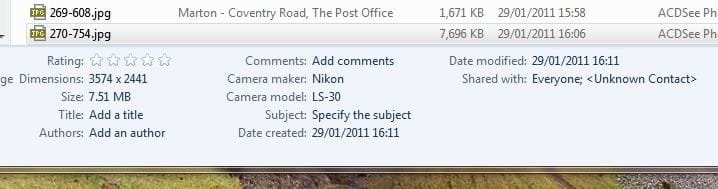
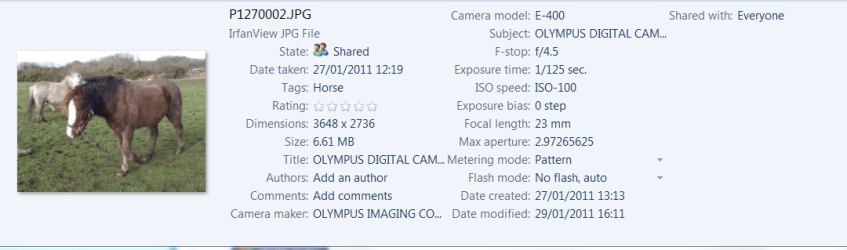
OK, let me give you an example - I start off with a tiff file of 17.5 MB and save this as a maximum size jpeg with Adobe Photoshop Elements V9 and I get the size as shown in the first picture (Before Attr Edit) - this shows a size of 7696 KB. I then enter values for the Subject and Title attributes and after clicking on 'Save' I get the size as shown in the second picture (After Attr Edit) which is now 1448 KB, which means I've lost about 80% of my data thanks to Explorer making an arbitrary decision on the compression ratio to use rather than preserving my original ratio. I'd just like to know how to influence this.

By the way if I do subsequent edits I don't believe Explorer throws away any more data, but then its already probably made its maximum impact! Any other application which 'edits' jpeg files gives you the option to specify which compression ratio you want to use - Explorer seems to make the decision for you without giving any warning, and as far as I can see, any way in which you can influence this decision. If you can spot a way of finding out how to influence this while still using Explorer I'd be grateful.
 

Attachments

  • Before Attr Edit.JPG
    Before Attr Edit.JPG
    29.2 KB · Views: 11
  • After Attr Edit.JPG
    After Attr Edit.JPG
    29.8 KB · Views: 9

My Computer My Computer

Computer Manufacturer/Model Number
Dell XPS420
OS
Windows 7 Home Premium 64 bit
CPU
Core 2 Quad Q6600
Motherboard
Dell
Memory
6 GB
Monitor(s) Displays
Dell E228WFP
Screen Resolution
Max
Hard Drives
Western Digital 500GB x 1, 1TB x 2
Cooling
Air
Internet Speed
8 mbit
could you please attach the 7.51 meg jpeg to a post, so we can try repeating this?

*edit* i don't think the forum software lets you attach jpgs that big - could you zip it first?

i think there's a 1 meg limit on jpgs but 8 megs on zips.
 

My Computer My Computer

Computer Manufacturer/Model Number
mickey megabyte 1234
OS
ultimate 64 sp1
CPU
i5 2500K [email protected]
Motherboard
MSI P67A-GD53
Memory
8 gigs GSkill Ripjaws 1600
Graphics Card(s)
amd hd6950
Sound Card
creative x-fi gamer
Monitor(s) Displays
samsung 24"
Screen Resolution
1920x1080
Hard Drives
ocz vertex 2e 60 gig, samsung f3 1tb, buffalo 2tb ext
PSU
antec 550
Case
antec three hundred
Cooling
i'm a cooling fan
Keyboard
saitek eclipse ii
Mouse
logitech g3
Internet Speed
about 4 Mbps
Other Info
i love win7
Hi Bernard
I've just done a similar test to yours. here's the results.
Sample1.PNG
Sample2.PNG
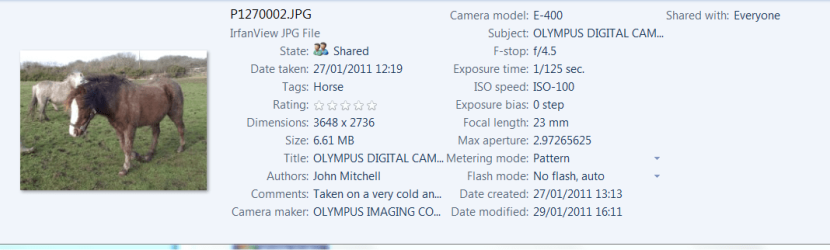
As you will see I have edited like you but suffered no reduction in file size.
I'm going to stick my neck out here and suggest you have a corrupt registry entry though it is beyond me to find it, I'm afraid!
 

My Computer My Computer

Computer type
PC/Desktop
OS
Microsoft Windows 7 Home Premium 64-bit 7601 Multiprocessor Free Service Pack 1
CPU
Intel(R) Core(TM) i7-3770 CPU @ 3.40GHz
Motherboard
ASUSTeK COMPUTER INC. P8H77-M
Memory
8.00 GB
Graphics Card(s)
Intel(R) HD Graphics 4000
Sound Card
On Board
Monitor(s) Displays
Dell 24"
Screen Resolution
1920 x 1080
Hard Drives
(1) INTEL SSDSC2CT180A3 ATA Device (2) ST500DM002-1BD142 ATA Device (3) WDC WD3200AAKS-75L9A0 ATA Device (4) Generic- Compact Flash USB Device (5) Generic- MS/MS-Pro USB Device (6) Generic- SD/MMC USB Device (7) Generic- SM/xD-Picture USB
PSU
500w Corsair
Case
Cooler Master
Cooling
3 Fans
Keyboard
Logitech MK300
Mouse
Logitech WOM
Internet Speed
75Mb
Antivirus
Norton 360
Browser
Firefox, Opera, IE
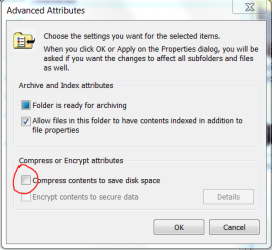
Just come across something else that may or may not be relevant. Right click on the Folder where you store these images. Click Properties then Click advanced against the Attributes section in the window that opens and see if the "Compress" box is ticked as here:

Sample3.PNG

If the box is checked try unchecking it!
 

My Computer My Computer

Computer type
PC/Desktop
OS
Microsoft Windows 7 Home Premium 64-bit 7601 Multiprocessor Free Service Pack 1
CPU
Intel(R) Core(TM) i7-3770 CPU @ 3.40GHz
Motherboard
ASUSTeK COMPUTER INC. P8H77-M
Memory
8.00 GB
Graphics Card(s)
Intel(R) HD Graphics 4000
Sound Card
On Board
Monitor(s) Displays
Dell 24"
Screen Resolution
1920 x 1080
Hard Drives
(1) INTEL SSDSC2CT180A3 ATA Device (2) ST500DM002-1BD142 ATA Device (3) WDC WD3200AAKS-75L9A0 ATA Device (4) Generic- Compact Flash USB Device (5) Generic- MS/MS-Pro USB Device (6) Generic- SD/MMC USB Device (7) Generic- SM/xD-Picture USB
PSU
500w Corsair
Case
Cooler Master
Cooling
3 Fans
Keyboard
Logitech MK300
Mouse
Logitech WOM
Internet Speed
75Mb
Antivirus
Norton 360
Browser
Firefox, Opera, IE
I don't think I'm convinced about the rougue registry entry - if it were XP I might consider it, but Win 7 seems much better in terms of registry management. I think there is something more subtle going on here. By the way, I checked the Advanced Attributes and mine looks exactly the same as yours - no sign of a tick in the Compress Contents box. I'm going to do a bit more searching around with other image management programs and see if I can understand the characteristics of the output from Adobe Photoshop elements a bit better - if I can find something that gives me more info on the jpeg characteristics of the before and after files I think I may be nearer to understanding what is happening, even if I can't control it.

Also just so that you can see if you get the same results here is a zipped jpeg - the Explorer size on my system is 6480 KB prior to setting the attributes and after setting Explorer shows 1727 KB! Lets see if your mileage varies! :D
 

My Computer My Computer

Computer Manufacturer/Model Number
Dell XPS420
OS
Windows 7 Home Premium 64 bit
CPU
Core 2 Quad Q6600
Motherboard
Dell
Memory
6 GB
Monitor(s) Displays
Dell E228WFP
Screen Resolution
Max
Hard Drives
Western Digital 500GB x 1, 1TB x 2
Cooling
Air
Internet Speed
8 mbit
no change here.

before.PNG

after.PNG

sorry, but i don't know how to fix your problem.
 

My Computer My Computer

Computer Manufacturer/Model Number
mickey megabyte 1234
OS
ultimate 64 sp1
CPU
i5 2500K [email protected]
Motherboard
MSI P67A-GD53
Memory
8 gigs GSkill Ripjaws 1600
Graphics Card(s)
amd hd6950
Sound Card
creative x-fi gamer
Monitor(s) Displays
samsung 24"
Screen Resolution
1920x1080
Hard Drives
ocz vertex 2e 60 gig, samsung f3 1tb, buffalo 2tb ext
PSU
antec 550
Case
antec three hundred
Cooling
i'm a cooling fan
Keyboard
saitek eclipse ii
Mouse
logitech g3
Internet Speed
about 4 Mbps
Other Info
i love win7
Thanks, that is interesting - I wonder does that mean that some piece of imaging software I have on my system, but you do not, is either setting a value somewhere, or perhaps being called by Explorer to process the file. I would have thought Windows provided its own jpeg handling algorithms, which would tend to imply there is a default compression value in the registry and mine has been altered by some of the other software on my system. Frustrating!
 

My Computer My Computer

Computer Manufacturer/Model Number
Dell XPS420
OS
Windows 7 Home Premium 64 bit
CPU
Core 2 Quad Q6600
Motherboard
Dell
Memory
6 GB
Monitor(s) Displays
Dell E228WFP
Screen Resolution
Max
Hard Drives
Western Digital 500GB x 1, 1TB x 2
Cooling
Air
Internet Speed
8 mbit
it must be explorer doing it - no other software is involved.

i'm sure that explorer doesn't have any default compression settings, as it shouldn't ever need to compress at all (except zips and whatnot).

but i don't know why your explorer is doing it, and mine doesn't.

most odd - let's hope somebody else comes along soon with some more ideas....
 

My Computer My Computer

Computer Manufacturer/Model Number
mickey megabyte 1234
OS
ultimate 64 sp1
CPU
i5 2500K [email protected]
Motherboard
MSI P67A-GD53
Memory
8 gigs GSkill Ripjaws 1600
Graphics Card(s)
amd hd6950
Sound Card
creative x-fi gamer
Monitor(s) Displays
samsung 24"
Screen Resolution
1920x1080
Hard Drives
ocz vertex 2e 60 gig, samsung f3 1tb, buffalo 2tb ext
PSU
antec 550
Case
antec three hundred
Cooling
i'm a cooling fan
Keyboard
saitek eclipse ii
Mouse
logitech g3
Internet Speed
about 4 Mbps
Other Info
i love win7
Just to make things a bit more complicated I have just reviewed the whole directory I have been working with. I've scanned about 280 of these slides in the past week and near the beginning I find that the problem only occurrs sometimes!!! I have quite a few slides where setting both the attributes has resulted in a large jpeg file (probably the same as the original, but I cannot tell exactly since I don't have the original) - anyway the jpegs with these attributes set are near enough to 10 MB to make me think they did not get recompressed to a higher level. I just don't understand what is going on. Its wierd.
 

My Computer My Computer

Computer Manufacturer/Model Number
Dell XPS420
OS
Windows 7 Home Premium 64 bit
CPU
Core 2 Quad Q6600
Motherboard
Dell
Memory
6 GB
Monitor(s) Displays
Dell E228WFP
Screen Resolution
Max
Hard Drives
Western Digital 500GB x 1, 1TB x 2
Cooling
Air
Internet Speed
8 mbit
Just to save you time, I forgot to mention that I use Elements as well so it is doubtful that it is the culprit here. What is interesting is that I now see that the original image is from a scanned slide. I wonder if it is in the scanning stage that this problem starts? Does your scanning software save straight to Elements?
 

My Computer My Computer

Computer type
PC/Desktop
OS
Microsoft Windows 7 Home Premium 64-bit 7601 Multiprocessor Free Service Pack 1
CPU
Intel(R) Core(TM) i7-3770 CPU @ 3.40GHz
Motherboard
ASUSTeK COMPUTER INC. P8H77-M
Memory
8.00 GB
Graphics Card(s)
Intel(R) HD Graphics 4000
Sound Card
On Board
Monitor(s) Displays
Dell 24"
Screen Resolution
1920 x 1080
Hard Drives
(1) INTEL SSDSC2CT180A3 ATA Device (2) ST500DM002-1BD142 ATA Device (3) WDC WD3200AAKS-75L9A0 ATA Device (4) Generic- Compact Flash USB Device (5) Generic- MS/MS-Pro USB Device (6) Generic- SD/MMC USB Device (7) Generic- SM/xD-Picture USB
PSU
500w Corsair
Case
Cooler Master
Cooling
3 Fans
Keyboard
Logitech MK300
Mouse
Logitech WOM
Internet Speed
75Mb
Antivirus
Norton 360
Browser
Firefox, Opera, IE
I wonder if a sfc /scannow might be worth a try?
 

My Computer My Computer

Computer type
PC/Desktop
OS
Microsoft Windows 7 Home Premium 64-bit 7601 Multiprocessor Free Service Pack 1
CPU
Intel(R) Core(TM) i7-3770 CPU @ 3.40GHz
Motherboard
ASUSTeK COMPUTER INC. P8H77-M
Memory
8.00 GB
Graphics Card(s)
Intel(R) HD Graphics 4000
Sound Card
On Board
Monitor(s) Displays
Dell 24"
Screen Resolution
1920 x 1080
Hard Drives
(1) INTEL SSDSC2CT180A3 ATA Device (2) ST500DM002-1BD142 ATA Device (3) WDC WD3200AAKS-75L9A0 ATA Device (4) Generic- Compact Flash USB Device (5) Generic- MS/MS-Pro USB Device (6) Generic- SD/MMC USB Device (7) Generic- SM/xD-Picture USB
PSU
500w Corsair
Case
Cooler Master
Cooling
3 Fans
Keyboard
Logitech MK300
Mouse
Logitech WOM
Internet Speed
75Mb
Antivirus
Norton 360
Browser
Firefox, Opera, IE
You're right about them being scanned images - I have a Nikon Coolscan III which I use via Vuescan on an XP machine - the images are stored as tiff to a shared directory and I use Adope Photoshop Elements on the Win 7 system to create the jpeg.

However thinking about your suggestion has made me wonder if we have hit on something. Initially I used the Vuescan software (on the XP machine) to create tiff and jpeg images in parallel in the same shared directory - remember I recently said I didn't seem to have had the problem with some of the earlier files in the directory even though I have always set the attributes with Explorer on Win 7. Later I changed my technique so that I only created the tiff image on the XP system and I used Elements to save a maximum size jpeg (as well as a tiff) image after I had done some editing of the scanned image (this meant I only needed to do the editing once). So the later jpegs were initially created with Elements whereas the earlier ones were created with Vuescan. In both cases the jpeg images were edited in Elements and the attributes set with Explorer. I wonder if there is something in the way that Elements creates the jpegs that allows Explorer to automatically resize them? I'll try some experiments later today and report back on what I find.

By the way the sfc /scannow didn't find any issues on the shared drive or the C drive.
 

My Computer My Computer

Computer Manufacturer/Model Number
Dell XPS420
OS
Windows 7 Home Premium 64 bit
CPU
Core 2 Quad Q6600
Motherboard
Dell
Memory
6 GB
Monitor(s) Displays
Dell E228WFP
Screen Resolution
Max
Hard Drives
Western Digital 500GB x 1, 1TB x 2
Cooling
Air
Internet Speed
8 mbit
so was the valiants photo made from elements?

i'm still wondering why my explorer didn't resize it but yours did.

anyway, happy investigating! i hope the answer turns out to be 'elementary', my dear bernard. ;)

(*edit* yes it was made with elements)
 

Attachments

  • elem.PNG
    elem.PNG
    3.7 KB · Views: 4

My Computer My Computer

Computer Manufacturer/Model Number
mickey megabyte 1234
OS
ultimate 64 sp1
CPU
i5 2500K [email protected]
Motherboard
MSI P67A-GD53
Memory
8 gigs GSkill Ripjaws 1600
Graphics Card(s)
amd hd6950
Sound Card
creative x-fi gamer
Monitor(s) Displays
samsung 24"
Screen Resolution
1920x1080
Hard Drives
ocz vertex 2e 60 gig, samsung f3 1tb, buffalo 2tb ext
PSU
antec 550
Case
antec three hundred
Cooling
i'm a cooling fan
Keyboard
saitek eclipse ii
Mouse
logitech g3
Internet Speed
about 4 Mbps
Other Info
i love win7
Yes, as you discovered the Valients jpeg image was created by Elements (and stored as approx 6MB) from the Vuescan created tiff image. Haven't done the experiments yet - got to do some gardening while its still light!
 

My Computer My Computer

Computer Manufacturer/Model Number
Dell XPS420
OS
Windows 7 Home Premium 64 bit
CPU
Core 2 Quad Q6600
Motherboard
Dell
Memory
6 GB
Monitor(s) Displays
Dell E228WFP
Screen Resolution
Max
Hard Drives
Western Digital 500GB x 1, 1TB x 2
Cooling
Air
Internet Speed
8 mbit
Gardening - I'm down in the far South West of Cornwall and we are frozen solid here! Really!
P.S. Sorry to be pedantic but it is "Valiant" not "Valient";)
 

My Computer My Computer

Computer type
PC/Desktop
OS
Microsoft Windows 7 Home Premium 64-bit 7601 Multiprocessor Free Service Pack 1
CPU
Intel(R) Core(TM) i7-3770 CPU @ 3.40GHz
Motherboard
ASUSTeK COMPUTER INC. P8H77-M
Memory
8.00 GB
Graphics Card(s)
Intel(R) HD Graphics 4000
Sound Card
On Board
Monitor(s) Displays
Dell 24"
Screen Resolution
1920 x 1080
Hard Drives
(1) INTEL SSDSC2CT180A3 ATA Device (2) ST500DM002-1BD142 ATA Device (3) WDC WD3200AAKS-75L9A0 ATA Device (4) Generic- Compact Flash USB Device (5) Generic- MS/MS-Pro USB Device (6) Generic- SD/MMC USB Device (7) Generic- SM/xD-Picture USB
PSU
500w Corsair
Case
Cooler Master
Cooling
3 Fans
Keyboard
Logitech MK300
Mouse
Logitech WOM
Internet Speed
75Mb
Antivirus
Norton 360
Browser
Firefox, Opera, IE
You will have to move to a warmer part of the country - its been up to 39 F here in the Midlands today - lovely clear, windless day - just right for a couple of hours starting doing some of what needs to be done.

Back to the problem. I just tried saving both jpeg and tiff files from Vuescan and then seting the attributes in Explorer and I get the same results as if I created the jpeg file in Elements. In the case of Vuescan the max size jpeg it would produce was 5845 KB and this went down to 1455 KB in Explorer, whereas with Elements the max jpeg it would produce was 6650 KB and this went down to 1440 KB in Explorer. So apart from the fact that the Elements created file got compressed a litle bit more there was no difference.

I'm totally confused as to what is going on here. I have to admit I can discern very little (if any) change in quality but I hate the idea that I cannot control what is happening. I did take a long look round the registry for anything that might look useful and was associated with the word jpeg, but I did not spot anything.

Just to throw in another curved ball, I had one example where I had a small jpeg file (just over 1 MB) and changing the attributes in Explorer actually caused the file size to increase!!! I give up Windows obviously has a mind of its own and there seems to be no way to influence it.
 

My Computer My Computer

Computer Manufacturer/Model Number
Dell XPS420
OS
Windows 7 Home Premium 64 bit
CPU
Core 2 Quad Q6600
Motherboard
Dell
Memory
6 GB
Monitor(s) Displays
Dell E228WFP
Screen Resolution
Max
Hard Drives
Western Digital 500GB x 1, 1TB x 2
Cooling
Air
Internet Speed
8 mbit
Back
Top