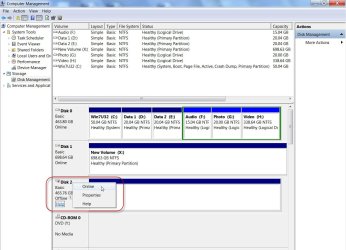
I've bought three WD 3Tb Elements external USB 3 drives (they were on special). The problem is that Windows 7 is not seeing them as separate drives. If you plug in one then the next one simply doesn't appear, either in My Computer or in the Disk Management utility.
This has happened to me before (with two identical 2Tb WD Elements drives) but I was able to fix the problem by manually assigning drive letters to each one. Once I did that they were recognized as separate drives. Unfortunately this doesn't seem to be working with these ones.
Specifically:
Any ideas? How do I make the drive letters 'stick' to their drives as I've been able to with other similar drives in the past?
This has happened to me before (with two identical 2Tb WD Elements drives) but I was able to fix the problem by manually assigning drive letters to each one. Once I did that they were recognized as separate drives. Unfortunately this doesn't seem to be working with these ones.
Specifically:
- I plug in drive #1 and assign it the drive letter S.
- I then unplug it and plug in drive #2. It appears also as drive S (this is what normally happens).
- I manually assign this second disk the drive letter T.
- What SHOULD happen at this point is that when I now plug in the first drive again it will still have drive letter S and the two will both show. Instead only one of them will register at a time and they both now (separately) show as T. Both in My Computer and in Disk Management the second is simply invisible.
Any ideas? How do I make the drive letters 'stick' to their drives as I've been able to with other similar drives in the past?
My Computer
At a glance
Windows 7 Home Premium 64bitIntel(R) Core(TM)2 Quad CPU Q8400 @ 2.66GHz, 24GbNVIDIA GeForce GT 220
- OS
- Windows 7 Home Premium 64bit
- CPU
- Intel(R) Core(TM)2 Quad CPU Q8400 @ 2.66GHz, 2
- Motherboard
- American Megatrends Inc. 0401, 6/06/2009
- Memory
- 4Gb
- Graphics Card(s)
- NVIDIA GeForce GT 220
- Sound Card
- NVIDIA High Definition Audio
- Monitor(s) Displays
- Chimei CMV221D
- Screen Resolution
- 1680 x 1050 x 59 hertz
- Hard Drives
- 1Tb internal + 4 x 1Tb External USB