
You are using an out of date browser. It may not display this or other websites correctly.
You should upgrade or use an alternative browser.
You should upgrade or use an alternative browser.
How do you do a High Level Format
- Thread starter TheCause
- Start date

- Local time
- 1:02 AM
- Messages
- 2,913
You are mistaken. A real low level format is only done at the factory. Unfortunately, the term LLF is thrown around a lot, but the closest you can do is to fill the entire drive with zero value bytes and do error checking of the drive, which isn't really recommended. There are utilities available to do that, if you feel the need - and there isn't a need, unless you plan on giving the drive to someone and you are worried they may try to recover whatever data you stored on it.
A high level format is the format you do whenever you format a drive on your PC.
A high level format is the format you do whenever you format a drive on your PC.
My Computer
- Computer Manufacturer/Model Number
- Dell XPS 15 L502x
- OS
- Windows 7 Ultimate x64 SP1
- CPU
- Core i7-2670QM
- Memory
- 8GB DDR3 PC3-10600
- Graphics Card(s)
- Intel HD Graphics 3000 + GeForce GT 540M
- Screen Resolution
- 1920x1080
- Hard Drives
- 1TB 5400RPM Seagate
Well, I changed a setting in MSCONFIG by accident. It screwed up my pc horribly. I can't have many programs open at the same time without everything crashing, and my resolution going from 1920x1200 to 640x480 (or whatever it is). Chrome crashes like 10 times a day if Im lucky. I cant keep many tabs open in chrome. Every time I restart my pc I get this error message:
mem.png picture by AlmostArtafact - Photobucket
I have tried:
•Changing the setting back (didnt fix it)
•Formatting and doing a clean install (6 times!)
•Restoring my bios to default
•Taking the ram out, and turning the PC on. After it beeps turn it back off, and put the ram back in. (This worked, and I could run as many programs as I wanted and everything was fine! The second my computer goes to sleep, or restarts though its back to the same thing, crashing all day).
•Creating a system managed paging file.
Seriously even after ALL of that, I still get that message everytime Windows starts (even after complete formats!).
Here is where my memory idles out at when I first boot up the PC:
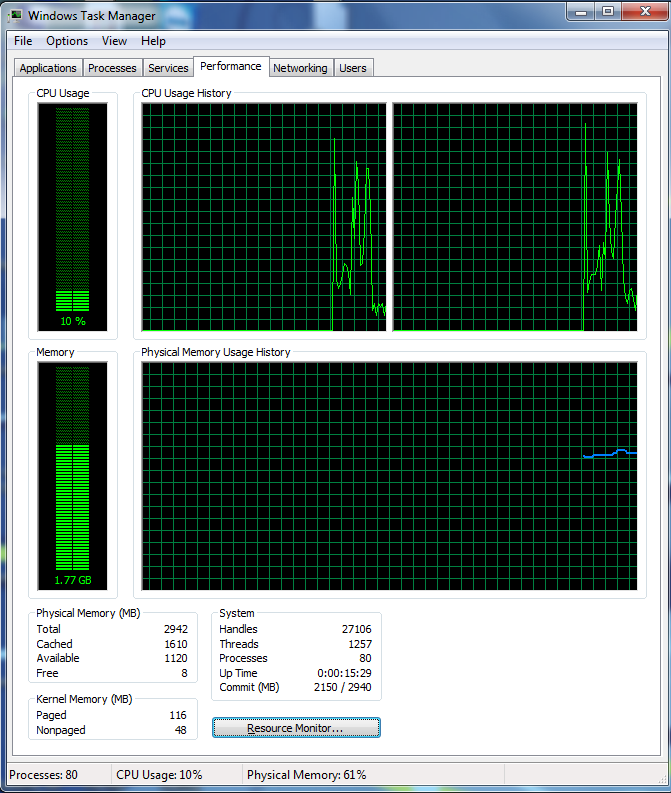
Here is the setting I changed that caused all of this (trying to make my startup faster):

I accidentally left the "Maximum Memory" box ticked.
Any idea what file leaving "Maximum Memory" checked, changed? If I could go into wherever it is and edit it, that would be awesome. That is why I was wanting to do a High Level Format (thanks for the clarification).
I am going to try and run a Memtest using Hiren's Boot CD to see what it says.
mem.png picture by AlmostArtafact - Photobucket
I have tried:
•Changing the setting back (didnt fix it)
•Formatting and doing a clean install (6 times!)
•Restoring my bios to default
•Taking the ram out, and turning the PC on. After it beeps turn it back off, and put the ram back in. (This worked, and I could run as many programs as I wanted and everything was fine! The second my computer goes to sleep, or restarts though its back to the same thing, crashing all day).
•Creating a system managed paging file.
Seriously even after ALL of that, I still get that message everytime Windows starts (even after complete formats!).
Here is where my memory idles out at when I first boot up the PC:
Here is the setting I changed that caused all of this (trying to make my startup faster):
I accidentally left the "Maximum Memory" box ticked.
Any idea what file leaving "Maximum Memory" checked, changed? If I could go into wherever it is and edit it, that would be awesome. That is why I was wanting to do a High Level Format (thanks for the clarification).
I am going to try and run a Memtest using Hiren's Boot CD to see what it says.
My Computer
- OS
- 32 Bit Windows 7 Ultimate
- Local time
- 1:02 AM
- Messages
- 2,913
Well, there's no setting you can change that will break your hardware, so don't worry about that. Can you post the error message? That picture doesn't show an error message, it's just a screen cap of your performance and memory settings.
My Computer
- Computer Manufacturer/Model Number
- Dell XPS 15 L502x
- OS
- Windows 7 Ultimate x64 SP1
- CPU
- Core i7-2670QM
- Memory
- 8GB DDR3 PC3-10600
- Graphics Card(s)
- Intel HD Graphics 3000 + GeForce GT 540M
- Screen Resolution
- 1920x1080
- Hard Drives
- 1TB 5400RPM Seagate
Yep, LLF's been in the domain of the manufacturer's exclusively for a long time now. Extremely precise equipment required. Amazing to see how often the term gets mentioned (even by some of the manufacturers) considering it's been gone for around a decade or longer.
I too see no errors in your posts. It looks like the animated image reveals that you actually made no change.
I too see no errors in your posts. It looks like the animated image reveals that you actually made no change.
Last edited:
My Computer
- OS
- Windows 7 Ultimate x64

- Local time
- 11:02 PM
- Messages
- 50,634
Those msconfig settings are for diagnostics and can't really hurt anything as far as I've ever seen. But they are unnecessary for running Win7. You can look at how your RAM is apportioned on a chart in the Memory tab of the Resource Monitor.
All of those settings are set back to Win7 defaults when you reinstall anyway, as long as you're not reimporting AppData settings along with your files which is a corruption path.
I think you're on the right track to test your RAM using Memtest86 for 5-6 passes or overnight to stress it.
We'll be able to know more once we finally see the error message that's missing, however is it possible you are doing something unusual during install? The best practices for a perfect Clean Reinstall - Factory OEM Windows 7 are also the same for retail.
Edit: Just noticed paging file. Leave it set to System Managed on OS drive.
All of those settings are set back to Win7 defaults when you reinstall anyway, as long as you're not reimporting AppData settings along with your files which is a corruption path.
I think you're on the right track to test your RAM using Memtest86 for 5-6 passes or overnight to stress it.
We'll be able to know more once we finally see the error message that's missing, however is it possible you are doing something unusual during install? The best practices for a perfect Clean Reinstall - Factory OEM Windows 7 are also the same for retail.
Edit: Just noticed paging file. Leave it set to System Managed on OS drive.
Last edited:
As was mentioned, your screenshot isn't that "error message" you get. Please tell us what exactly this "error message" is, and whether it's coming from your hardware (i.e. machine BIOS) or from Windows as the startup process proceeds.Well, I changed a setting in MSCONFIG by accident. It screwed up my pc horribly. I can't have many programs open at the same time without everything crashing, and my resolution going from 1920x1200 to 640x480 (or whatever it is). Chrome crashes like 10 times a day if Im lucky. I cant keep many tabs open in chrome. Every time I restart my pc I get this error message:
mem.png picture by AlmostArtafact - Photobucket
Also, is that a 2TB C-partition? Can you post a screenshot from DISKMGMT.MSC (maximized please, with columns spread so we can see what's in each cell). Is this a new drive? New machine? Do you have an EFI BIOS on your motherboard supporting booting from 2TB+ drives?
Now... I am puzzled why your configuration shows "no paging file" checked on C, and why your setup shows 0 allocated for all paging files on all drives? Obviously that's wrong, and the root of all your other issues. Insufficient memory for Win7 to work, as you only have a 3GB machine (according to your screenshot).
Normally, a fresh install from scratch would establish the system defaults of letting Win7 have "automatically manage paging file size for all drives" get checked. And the size of the page file (which by default would be allocated on C) would all be handled automatically. "System managed size" would also be checked. You'd need to do nothing.
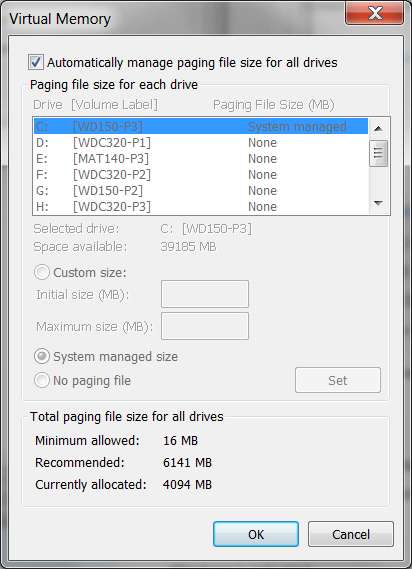
Is there some reason you can't uncheck the "no paging file" and instead check "system managed size" for C, and then also check "automatically manage paging file size for all drives" so that everything below it gets grayed out as in my screenshot of my setup??
Why is there 0 paging file allocated, if not because you've checked "no paging file"?? If you really have done a clean install 6 times, I can't imagine how this default arrangement isn't what you see immediately (unless you've changed something subsequently)?
NOTE: Start -> Control Panel -> System and security -> System -> Advanced system settings (on left) -> System Properties, Advanced tab -> push Performance "SETTINGS" button -> Performance options, Advanced tab -> Virtual memory, push "CHANGE" button
Then un-check "no paging file" by checking "system managed size", etc.
My Computer
- Computer type
- PC/Desktop
- Computer Manufacturer/Model Number
- Home-built, two systems (1) and (2)
- OS
- Windows 7 Pro x64 (1), Win7 Pro X64 (2)
- CPU
- i5-3350p 3.1Ghz/6MB-cache (1); E8400 3.0Ghz/6MB-cache (2)
- Motherboard
- ASUS P8Z77-V Pro (1); ASUS P5Q3 (2)
- Memory
- 8GB PC3-12800 DDR3 (1); 4GB PC3-10600 DDR3 (2)
- Graphics Card(s)
- ATI HD7750 (1), (see TV cards); ATI R7 250 (2)
- Sound Card
- Realtek ALC892 HD Audio (1); Realtek ALC1200 HD Audio (2)
- Monitor(s) Displays
- Eizo HD2441W LCD, Eizo S2433W (1); Eizo 24" S2433W (2)
- Screen Resolution
- 1920x1200, 1920x1200 (1); 1920x1200 (2)
- Hard Drives
- (1) 1TB SATA-II (7200RPM), 2x2TB SATA-III (7200RPM), 250GB SATA-III (10000RPM) for OS; 2x2TB external USB 3.0
(2) 320GB SATA-II (7200RPM), 750GB SATA-II (7200RPM), 150GB SATA-II (10000RPM) for OS; 2TB external USB 3.0
- PSU
- Nesteq ECS-6001 600W (1); Nesteq ECS-5001 500W (2)
- Case
- Acousti-Case 360 (1) and (2)
- Cooling
- Noctua NH-U12P SE2 for CPU, 2x120mm case fans (1) and (2)
- Keyboard
- IBM PS/2 (1) and (2)
- Mouse
- Logitech MX Revolution wireless (1); Microsoft wired (2)
- Internet Speed
- 100mbps down / 10mbps up
- Antivirus
- Microsoft Security Essentials; Malwarebyte Anti-Malware Pro
- Browser
- Firefox
- Other Info
- Ceton InfiniTV 4-tuner cablecard-enabled TV card as well as Hauppauge HVR-2250 OTA/ATSC 2-tuner TV card in (1), running under Win7 WMC
Hey guys,
Thank you for all of your replies!
Here is an update:
1)I ran Memtest for 2 passes. I would have let it run for more, but I didn't realize it would take that long. The first pass took about 53 minutes, and the second took about an hour and a half. It had 0 Errors though. I will run it overnight tonight and see what happens.
2)
I apologize, it's not an actual error message. I was referring to this: mem.png picture by AlmostArtafact - Photobucket
It pops up every time I restart my PC, even after a format. I did what you suggested, and checked "Automatically manage paging file size for all drives." The problem is, when I restart my PC again, and the same box pops up as usual, I have to press the "Change" button and get into the Virtual Memory window and check the box again. It resets back to where it was before when I restart.
3)

4)
As mentioned, when I check the "Automatically manage paging file size for all drives" box, it goes back to the same settings I showed you in the previous picture when I restart. If I check the "System Managed Size," it still goes back to the old settings when I restart. I have to check them all again every time.
5)
Someone on another forum told me to create a paging file at 0. That is why that is like that.
Thank you for all of your replies!
Here is an update:
1)I ran Memtest for 2 passes. I would have let it run for more, but I didn't realize it would take that long. The first pass took about 53 minutes, and the second took about an hour and a half. It had 0 Errors though. I will run it overnight tonight and see what happens.
2)
As was mentioned, your screenshot isn't that "error message" you get. Please tell us what exactly this "error message" is, and whether it's coming from your hardware (i.e. machine BIOS) or from Windows as the startup process proceeds.
I apologize, it's not an actual error message. I was referring to this: mem.png picture by AlmostArtafact - Photobucket
It pops up every time I restart my PC, even after a format. I did what you suggested, and checked "Automatically manage paging file size for all drives." The problem is, when I restart my PC again, and the same box pops up as usual, I have to press the "Change" button and get into the Virtual Memory window and check the box again. It resets back to where it was before when I restart.
3)
Also, is that a 2TB C-partition? Can you post a screenshot from DISKMGMT.MSC (maximized please, with columns spread so we can see what's in each cell). Is this a new drive? New machine? Do you have an EFI BIOS on your motherboard supporting booting from 2TB+ drives?
4)
Is there some reason you can't uncheck the "no paging file" and instead check "system managed size" for C, and then also check "automatically manage paging file size for all drives" so that everything below it gets grayed out as in my screenshot of my setup??
As mentioned, when I check the "Automatically manage paging file size for all drives" box, it goes back to the same settings I showed you in the previous picture when I restart. If I check the "System Managed Size," it still goes back to the old settings when I restart. I have to check them all again every time.
5)
Why is there 0 paging file allocated, if not because you've checked "no paging file"?? If you really have done a clean install 6 times, I can't imagine how this default arrangement isn't what you see immediately (unless you've changed something subsequently)?
Someone on another forum told me to create a paging file at 0. That is why that is like that.
My Computer
- OS
- 32 Bit Windows 7 Ultimate
If any of those six clean installs was truly successful, your problem should have been eliminated, as virtual memory and msconfig settings would've gone back to defaults.
So I would wonder how well those formats/reinstalls went. Did you follow either of these:
http://www.sevenforums.com/tutorials/1649-clean-install-windows-7-a.html
http://www.sevenforums.com/tutorials/219487-clean-reinstall-factory-oem-windows-7-a.html
If you went through either of those successfully I would continue with doing the extended memory check that you said you would do later, as well as checking the hard drive itself.
If you do an sfc /scannow in an elevated command prompt does it report any errors?
So I would wonder how well those formats/reinstalls went. Did you follow either of these:
http://www.sevenforums.com/tutorials/1649-clean-install-windows-7-a.html
http://www.sevenforums.com/tutorials/219487-clean-reinstall-factory-oem-windows-7-a.html
If you went through either of those successfully I would continue with doing the extended memory check that you said you would do later, as well as checking the hard drive itself.
If you do an sfc /scannow in an elevated command prompt does it report any errors?
My Computer
- OS
- Windows 7 Ultimate x64
Yes sir, that is exactly what I did. On some of the formats, I deleted all the partitions too.If any of those six clean installs was truly successful, your problem should have been eliminated, as virtual memory and msconfig settings would've gone back to defaults.
So I would wonder how well those formats/reinstalls went. Did you follow either of these:
http://www.sevenforums.com/tutorials/1649-clean-install-windows-7-a.html
http://www.sevenforums.com/tutorials/219487-clean-reinstall-factory-oem-windows-7-a.html
If you went through either of those successfully I would continue with doing the extended memory check that you said you would do later, as well as checking the hard drive itself.
*Edit* Hmm, not sure what changed. My memory still idles out at about 1.75 gigs when I turn the PC on.
*edit* Hmm, not sure what changed. My memory still idles out at about 1.75 gigs when I turn the pc on.
If you do an sfc /scannow in an elevated command prompt does it report any errors?
Here is what SFC showed:
"Windows Resource Protection found corrupt files and successfully repaired
them. Details are included in the CBS.Log windir\Logs\CBS\CBS.log. For
example C:\Windows\Logs\CBS\CBS.log
The system file repair changes will take effect after the next reboot."
The log file was over 5 mb, so not exactly sure what I'm looking for =)
I'm fixing to restart my pc. I'll edit my post and let you know what happens.
Also thinking about flashing my bios, if this doesn't work.
Last edited:
My Computer
- OS
- 32 Bit Windows 7 Ultimate
- Local time
- 1:02 AM
- Messages
- 2,913
Did you originally install the OS, or did it come preinstalled on your hardware? Where did you get this copy of Windows - on DVD, downloaded from MS, etc?
My Computer
- Computer Manufacturer/Model Number
- Dell XPS 15 L502x
- OS
- Windows 7 Ultimate x64 SP1
- CPU
- Core i7-2670QM
- Memory
- 8GB DDR3 PC3-10600
- Graphics Card(s)
- Intel HD Graphics 3000 + GeForce GT 540M
- Screen Resolution
- 1920x1080
- Hard Drives
- 1TB 5400RPM Seagate
The first time I ran SFC it said it found an error that will be fixed on reboot. I rebooted and not sure what changed. My memory still stayed around 1.5GB usage when I restarted. The log file was over 5MB so Im not sure what it changed.
The second time, it found no errors.
Also, my PC came with Vista, but a friend gave me a W7 CD to upgrade. I never had any problems until I changed that msconfig setting, which the problems started immediately after that.
The second time, it found no errors.
Also, my PC came with Vista, but a friend gave me a W7 CD to upgrade. I never had any problems until I changed that msconfig setting, which the problems started immediately after that.
My Computer
- OS
- 32 Bit Windows 7 Ultimate
I saw a format option on Hiren's boot CD. Maybe it would work?
Can't hurt, but if you followed the tutorials mentioned you should have already started each install with a clean disk.
That's why I think you should probably continue hardware checks metioned in post #9, and it would be helpful to answer the question posed in post #12.
My Computer
- OS
- Windows 7 Ultimate x64
- Local time
- 11:02 PM
- Messages
- 50,634
It couldn't be boot code requiring wiping the HD that creates such a condition so it must be either something added to the installer or something you're doing during initial setup.
Where did you get Win7? How do you plan to activate it? Did you burn the DVD yourself?
Are you doing anything other than the steps in this tutorial when you Clean Reinstall - Factory OEM Windows 7? These steps are pretty much the same as for retail and represent the best practices for installing.
Where did you get Win7? How do you plan to activate it? Did you burn the DVD yourself?
Are you doing anything other than the steps in this tutorial when you Clean Reinstall - Factory OEM Windows 7? These steps are pretty much the same as for retail and represent the best practices for installing.
Last edited:
Seems impossible that anything you do with MSCONFIG in a specific previously installed Win7 could have anything to do with a "fresh reinstall from scratch", where all of the MS defaults are clearly stored into your brand new Win7.Also, my PC came with Vista, but a friend gave me a W7 CD to upgrade. I never had any problems until I changed that msconfig setting, which the problems started immediately after that.
There's also that nagging symptom that your page file management options do not retain your "system managed" check values across a re-boot. Very odd (and obviously a problem).
Never heard of running with "no page file" as a voluntary performance-related option.
If you have a valid license code for your machine (which you must be using if you've tried reinstalling Win7 from scratch six or more times using your friend's installation DVD), maybe it's time for you to download a true fresh "official" ISO copy and burning a new DVD, and trying that along with your in-hand license code.
You can download "official" ISO files from here.
My Computer
- Computer type
- PC/Desktop
- Computer Manufacturer/Model Number
- Home-built, two systems (1) and (2)
- OS
- Windows 7 Pro x64 (1), Win7 Pro X64 (2)
- CPU
- i5-3350p 3.1Ghz/6MB-cache (1); E8400 3.0Ghz/6MB-cache (2)
- Motherboard
- ASUS P8Z77-V Pro (1); ASUS P5Q3 (2)
- Memory
- 8GB PC3-12800 DDR3 (1); 4GB PC3-10600 DDR3 (2)
- Graphics Card(s)
- ATI HD7750 (1), (see TV cards); ATI R7 250 (2)
- Sound Card
- Realtek ALC892 HD Audio (1); Realtek ALC1200 HD Audio (2)
- Monitor(s) Displays
- Eizo HD2441W LCD, Eizo S2433W (1); Eizo 24" S2433W (2)
- Screen Resolution
- 1920x1200, 1920x1200 (1); 1920x1200 (2)
- Hard Drives
- (1) 1TB SATA-II (7200RPM), 2x2TB SATA-III (7200RPM), 250GB SATA-III (10000RPM) for OS; 2x2TB external USB 3.0
(2) 320GB SATA-II (7200RPM), 750GB SATA-II (7200RPM), 150GB SATA-II (10000RPM) for OS; 2TB external USB 3.0
- PSU
- Nesteq ECS-6001 600W (1); Nesteq ECS-5001 500W (2)
- Case
- Acousti-Case 360 (1) and (2)
- Cooling
- Noctua NH-U12P SE2 for CPU, 2x120mm case fans (1) and (2)
- Keyboard
- IBM PS/2 (1) and (2)
- Mouse
- Logitech MX Revolution wireless (1); Microsoft wired (2)
- Internet Speed
- 100mbps down / 10mbps up
- Antivirus
- Microsoft Security Essentials; Malwarebyte Anti-Malware Pro
- Browser
- Firefox
- Other Info
- Ceton InfiniTV 4-tuner cablecard-enabled TV card as well as Hauppauge HVR-2250 OTA/ATSC 2-tuner TV card in (1), running under Win7 WMC
Guys......GUYS!!!
I FIXED IT! I cannot tell you how horrible it is, to not be able to have more than two main programs open at the same time (chrome, skype, msn etc.).
Its been months since this happened.
I ran Hiren's boot cd, and it had its own format option. It made 3 passes, which took a total of 5 1/2 hours. Either way, IT WORKED! Thanks for all fo the support though guys, learned some things from this thread.
I FIXED IT! I cannot tell you how horrible it is, to not be able to have more than two main programs open at the same time (chrome, skype, msn etc.).
Its been months since this happened.
I ran Hiren's boot cd, and it had its own format option. It made 3 passes, which took a total of 5 1/2 hours. Either way, IT WORKED! Thanks for all fo the support though guys, learned some things from this thread.
My Computer
- OS
- 32 Bit Windows 7 Ultimate
- Local time
- 11:02 PM
- Messages
- 50,634
Then it was likely boot code causing the problem since the value of wiping the HD to correct performance problems or solve installation failure is to overwrite boot sector code which is conflicting.
Ironically this could have been done with Diskpart Clean Command which only takes seconds, since most of the time you spent with whatever wiping regimen you ran is to overwrite all of the other data on the HD so it can't be recovered.
Ironically this could have been done with Diskpart Clean Command which only takes seconds, since most of the time you spent with whatever wiping regimen you ran is to overwrite all of the other data on the HD so it can't be recovered.