How do you move - explanation inside

TMasuer

Banned
Local time
6:18 AM
Messages
21
Here is the situation:

Dual monitors
Secondary goes down - have no spare; working with one monitor temporarily
The computer has not been rebooted, so the OS thinks there are two functioning monitors in place
Open a window via the start menu or visible shortcut
This window was previously opened and closed on the secondary monitor, while it was still working
This window is now in the secondary monitor space, and is therefore not visible - impossible to find by moving the mouse into that space and clicking blindly
In XP (not sure about Vista) you had the ability to r-click on the open window's "instance" (not sure what it's called) on the task bar, and the menu contained move.

Click move, and if you know how to do it, you can grab that window and bring it over to the main monitor. That move function is not there in W7. What is the alternative?

Thanks in advance.
 

My Computer

OS
Windows 7 Ultimate x64
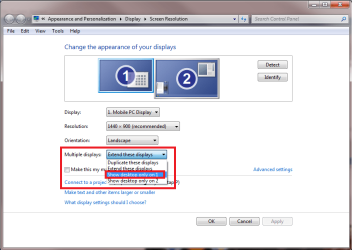
Open desktop context menu by clicking left mouse button on an empty spot on desktop and then right click. Choose Screen Resolution, choose Show desktop only on display X, where X is the number of the monitor you can still use. Now all windows should be visible on your display.

ShowDesktop.png

- OR -

Use keyboard shortcuts to move a window. Here's how:

- Click the taskbar icon of the window you want to move to make it active
- Press ALT + SPACEBAR
- Press DOWN ARROW
- Press ENTER
- Press and hold down LEFT ARROW if you want to move the window to the left, RIGHT ARROW if you want to move it to the right

If the window does not move, the reason can be that it is maximized to full screen. If this is the case, the procedure is the same as above with two extra steps in the beginning to restore window so it can be moved:

- Press ALT + SPACEBAR
- Press ENTER
- Now follow the steps from above

A tip: if you still have problems to move a "ghost" window, open an explorer window, for instance your user folder, on the display you still can see, and practise the above mentioned procedure. This shows you what happens after every keystroke, and helps you to understand how it works and troubleshoot why your hidden window is not moving.

Kari
 

My Computer

Computer type
Laptop
Computer Manufacturer/Model Number
HP ENVY 17-1150eg
OS
Windows 10 Pro x64 EN-GB
CPU
1.6 GHz Intel Core i7-720QM Processor
Memory
6 GB
Graphics Card(s)
ATI Mobility Radeon HD 5850 Graphics
Sound Card
Beats sound system with integrated subwoofer
Monitor(s) Displays
17" laptop display, 22" LED and 32" Full HD TV through HDMI
Screen Resolution
1600*900 (1), 1920*1080 (2&3)
Hard Drives
Internal: 2 x 500 GB SATA Hard Disk Drive 7200 rpm
External: 2TB for backups, 3TB USB3 network drive for media
Cooling
As Envy runs a bit warm, I have it on a Cooler Master pad
Keyboard
Logitech diNovo Media Desktop Laser (bluetooth)
Mouse
Logitech Performance Mouse MX
Internet Speed
50/10 Mbps VDSL
Antivirus
Windows Defender 4.3.9431.0
Browser
Maxthon 3.5.2., IE11
And, pepending on the arrangment you can press WIN+P and select 'Single Display' from the options.

Alternatively right-click the desktop and select 'Screen Resolution' and click the 'Detect' button. Windows will detect that there's only 1 display and give full control to just the 1 display.


OS
 

My Computer

Computer Manufacturer/Model Number
Compaq Desktop
OS
Windows 7 Ultimate x64
CPU
AMD Sempron Dual Core
Memory
3GB
Graphics Card(s)
NVIDIA GeForce 6150SE nForce 430
Screen Resolution
1024x768
Hard Drives
150GB Sata
You can also hold down the Windows and shift keys and press either the left or right arrow (depending on which way it has to move if both monitors worked) and the window moves to the appropriate monitor.

Windows 7 Keyboard Shortcuts You Must Know

I got the link from another (very old) post on this board.
 

My Computer

Computer Manufacturer/Model Number
Home built
OS
Windows 7 Home Premium x64
CPU
Phenom II X4 955 BE
Motherboard
Asus Sabertooth 990FX
Memory
8 GB OCZ BE 1667
Graphics Card(s)
EVGA GeForce GTX470 SC
Monitor(s) Displays
BenQ 19"
Screen Resolution
1280x1024
Hard Drives
256 GB OCZ Vertex 3 SSD
2x WD 1 TB
1x WD 2 TB
PSU
Thermaltake 850W
Case
Coolermaster Cosmos 1000
Cooling
Air
Keyboard
Logitech
Mouse
Cyborg R.A.T 7
Internet Speed
Standard RR
Back
Top