How do you reorder hard drive numbers?

mikepratt

New member
Local time
4:46 PM
Messages
2
I'm new here, and did a quick search and could not find this out, so point me at the post that I'm sure must be out there...

I have a new machine with an ASUS motherboard with 6 sata ports. I have the DVD in sata port 1, a Seagate 1Tb in port 2, and a WD 2Tb in port 3. In the Bios, I see them as I've described.

I loaded Win7 on the Seagate drive, and have left the WD drive unallocated. I'm trying to get Win7 like I want it, and then load FreeNAS and FreeBSD on the WD later, as all the gurus suggest. It is mentioned in many forums that Win is happiest when it's in the first drive.

Here's the rub... When I go to disk manager, it lists the WD unallocated drive as Disk 0, and the Seagate (where Win7 lives) as Disk 1. How do I get Win7 to reverse this order, before I attempt to load the WD disk? I want to get the Seagate drive recognized as Disk 0 by Win7, to minimize any potential issues (based on what I've read).

I've thought about switching the cables, but that makes no sense, and as I understand it, *nix OS's will map to the native physical locations.

I believe that this ASUS mother board (P7P55D-E PRO) actually has two sata drivers on it - one running ports 1&2, and the other running ports 3-6. I don't know this for sure, but maybe this is part of the issue?

I plan on adding additional HDDs, but should I move the Seagate to port 1, the WD to port 2, and the DVD to port 6??

Thanks in advance for any advice...
 

My Computer My Computer

Computer Manufacturer/Model Number
custom built
OS
Windows 7 Home Premium 64bit
CPU
Intel i3
Motherboard
ASUS P7P55D-E PRO
Memory
4Gb
Graphics Card(s)
Sapphire
Hard Drives
Seagate Barracuda 1Tb
Western Digital 2Tb
PSU
Thermaltake
Case
cooler master CM 690 II Advanced
TBH, I do not think it really matters. But I am picky about drive letters and disc position so ...

My prefered method is as follows:

The drive that Windows is installed on (be it SSD or HD) is plugged into SATA port 0 (the very first one)

My DVD/BD drive gets plugged into the very last SATA port.

I then Install Windows.

Once in Windows, Ill change the CD/DVD drive letter, before doing anything and restart. (In most cases it will be listed as drive D, with the windows drive being Disc 0 - Drive Letter C)

(NOTE: changing the CD/DVD drive letter is just a preference. I just like it listed after all HDs. It may also break some programs if you already have them installed, and they expect the current drive letter)


Then I shut down, and connect all other HDs that I use for storage, in the SATA slots in between. In order I want to use them.

For example, My HD that hosts all Game installation I want as the second drive so its next in the order.


If re-installing Windows is something you do not want to do, you may try this.

Unlpug all Drives that are storage only drives.
Move the OS Drive to the 1st SATA port, and the CD/DVD drive to the last.

Boot up and check if it resets everything as you want it too.
 

My Computer My Computer

Computer Manufacturer/Model Number
Custom (Self Build)
OS
Windows 7 Home Premium 64bit
CPU
Intel Core i7 2700k
Motherboard
eVGA P67 SLI
Memory
8GB Mushkin Redline Ridgebacks @1866
Graphics Card(s)
EVGA GTX570 SC
Sound Card
XiFi Titanium HD
Monitor(s) Displays
LG W2453V
Screen Resolution
1920x1080
Hard Drives
Intel 320 80GB -- Intel X25-V 40GB --WD Black 1TB x2 -- WD Blue 640GB
PSU
Seasonic x750
Case
Corsair 600T SE White
Cooling
eVGA Superclocked CPU Cooler
Keyboard
Saitek Cyborg
Antivirus
Kaspersky
Browser
IE
Other Info
LG BD/DVD
Did that, still wrong drive number order...

Thanks for the input, Wishmaster. I tried the cable swap - moved the DVD to sata port 6 (there is no sata port 0 labeled on the motherboard, or listed in the Bios, by the way). Put the 1Tb drive with Windows 7 loaded on it in sata port 1 and left the 2Tb WD drive disconnected.

Booted - Bios is correct, and when Win7 loaded, I looked a disk manager and sure enough, it only showed the one drive, as disk0. So far, it looked ok.

Then, I shut down, connected the WD 2Tb drive to sata port 2, and fired it up. The Bios showed everything correctly - drive order with the 1Tb drive with Win7 as first, and the 2Tb WD drive as second. Boot order shows order of removable, CD, and the 1Tb drive with Win7. Still looks good, doesn't it?

But, when Win7 loaded, disk manager now show the 2Tb WD drive as disk0, and the 1Tb Seagate drive with Win7 and disk1!!!

Does Win7 (or other Windows OS's) always put the largest drive first, even if it's unformatted for Win, and unallocated?

Given this, I don't see how reloading Win will help remedy this....
 

My Computer My Computer

Computer Manufacturer/Model Number
custom built
OS
Windows 7 Home Premium 64bit
CPU
Intel i3
Motherboard
ASUS P7P55D-E PRO
Memory
4Gb
Graphics Card(s)
Sapphire
Hard Drives
Seagate Barracuda 1Tb
Western Digital 2Tb
PSU
Thermaltake
Case
cooler master CM 690 II Advanced
Hello mikepratt, welcome to Seven Forums!


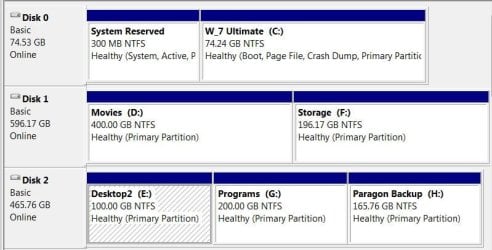
Here's mine and it seems Disk 1 and Disk 2 change places from install to install but Disk 0 stays the same, I've quit trying to figure it out or keep up with it but clearly it's not size specific; it seems a lot of people mention similar issues so we're not alone; let me know if you figure it out and we'll both know. ;)


click to enlarge
DM.JPG
 

My Computer My Computer

Computer Manufacturer/Model Number
* BFK Customs *
OS
W 7 64-bit Ultimate
CPU
Intel Q9550 Yorkfield
Motherboard
ASUS P5Q Pro
Memory
8GB Dominator 8500C5D
Graphics Card(s)
ATI : XFX 5870
Sound Card
Realtek HD Audio 7-1
Monitor(s) Displays
1x 47" LCD HDMI & 3x 26" LCD HDMI
Screen Resolution
1920x1080P & 1920x1200
Hard Drives
1x 80GB Intel X25-M G2 SSD : 1x 500GB & 1x 640GB WD Caviar Black(s)
PSU
Corsair 620HX
Case
Cooler Master RC-690
Cooling
Tuniq Tower 120, 2x 140mm and 3x 120mm case fans
Keyboard
Microsoft 500
Mouse
Razer Diamondback 3G
Internet Speed
14 Mb/s
Other Info
1x Koutech 3Gb/s SATA HDD Hot Swap Rack
I doubt this will hurt anything. And Im sure its fine as-is.

Still, little things like this bug me too so I do understand. :)

That method has worked for me, and should have for you as well.

Sadly, Im not really sure how else to get it to show properly :-/
For some reason, it apparently wants them that way ....

Hopefully someone else will come along that has a different approach that may work.
 

My Computer My Computer

Computer Manufacturer/Model Number
Custom (Self Build)
OS
Windows 7 Home Premium 64bit
CPU
Intel Core i7 2700k
Motherboard
eVGA P67 SLI
Memory
8GB Mushkin Redline Ridgebacks @1866
Graphics Card(s)
EVGA GTX570 SC
Sound Card
XiFi Titanium HD
Monitor(s) Displays
LG W2453V
Screen Resolution
1920x1080
Hard Drives
Intel 320 80GB -- Intel X25-V 40GB --WD Black 1TB x2 -- WD Blue 640GB
PSU
Seasonic x750
Case
Corsair 600T SE White
Cooling
eVGA Superclocked CPU Cooler
Keyboard
Saitek Cyborg
Antivirus
Kaspersky
Browser
IE
Other Info
LG BD/DVD
Windows enumerates the drives according to the order in which they are attached to the motherboard...

The simple way to override this is using disk management
Right click on "My computer" - select "Manage" - in the left window select "Disk Management"

simply right-click on the drives and select "Change drive letter and Paths..."

Sometimes you will have to change one drive to a letter further down the list in order to rearrange them since you can't have two drives with the same letter while you're configuring them...

Hope this helps...
 

My Computer My Computer

Computer Manufacturer/Model Number
Custom build
OS
Windows 7 Ultimate SP1 x64
CPU
i7 950 4ghz
Motherboard
EVGA x58 FTW3
Memory
6GB G.Skill pc12800
Graphics Card(s)
EVGA GTX 580 SC
Sound Card
Xfi Titanium
Monitor(s) Displays
Samsung 24"
Screen Resolution
1920x1200
Hard Drives
Vertex 3 SSD 120Gb x2 RAID 0
4 x 1TB WD Black RAID 0
PSU
Thermaltake 850
Case
Mountain Mods U2-UFO Horizon
Cooling
Custom watercooling
Internet Speed
100 down 5 up
Well this crap has just wrecked all my acronis drive images as I have nothing but failures now since my third 'sync' drive failed and was replaced. I mean I replaced the drive with a new one of the same make but a smaller drive otherwise it was the same - same cable, same connections, same bay....went to restore an image and had a failure.

After checking disk management the idiotic OS has put my new (E:) drive at Disc 0, My old (D:) drive as disc 1 and my SSD (boot drive C: at disc 3.

BIOS shows them in the correct boot order.......I hate Windows, I really hate it.

I now have to restore all my images by inputting the path manually and then re-make the images with this new configuration because some idiot at Microsoft won't fix it. And this will happen whenever I install a new disk wether it fails or I just want to upgrade - pathetic.
 

My Computer My Computer

Computer type
PC/Desktop
Computer Manufacturer/Model Number
Custom Built
OS
Windows 7 Professional 64 bit
CPU
Intel Core i7 3820 @ 3.60GHz
Motherboard
ASUSTeK Computer INC. SABERTOOTH X79 (LGA2011)
Memory
32GB Kingston (KHX1600C9D3/4GB x 4) DDR3-1600 CL9 SDRAM
Graphics Card(s)
G247HYL (1920x1080@60Hz) 3071MB NVIDIA GeForce GTX 780 (NVID
Sound Card
Sound Blaster X-Fi Xtreme
Monitor(s) Displays
ACER S236HL LED
Screen Resolution
1920x1080@60Hz
Hard Drives
C Drive (OS) - 120GB Samsung SSD 850 EVO 120GB (SATA SSD)
D Drive (Internal Storage) - 2GB Western Digital WDC WD20EARX-00PASB0 (SATA )
E Drive (Internal Media) - 6GB Seagate ST6000DM003 (SATA )
Z Drive (External Backup/sync & Media) - 6GB Seagate
PSU
Corsair GS700 (80+ Bronze)
Case
Fractal Design Focus -G
Cooling
Corsair Hydro Series H80
Keyboard
Mocrosoft Soft Touch Standard
Mouse
Technet Basic 3-button
Internet Speed
52.2MB/s Down (no superfast in this area)
Antivirus
ESET Internet Security
Browser
Chrome/Waterfox
Back
Top