Solved How does one modify advanced options for a file type?

ThisIsBill

New member
Local time
9:02 PM
Messages
5
How does one modify the advanced options for a file type? Example, .PDF files.

In Windows XP, navigate to Windows Explorer, Tools>Folder Options>File Types, find .PDF. Then click Advanced, in there you have the actionc menu (Open, Print, Printto).
I am able to determin how to open and set the file association as listed above, but are curious if these advanced features are availble in Windows 7.

Comparing the registry from an XP to 7 PC I see they share common keys for this:
HKEY_CLASSES_ROOT\AcroExch.Document\Shell\print\command
HKEY_CLASSES_ROOT\AcroExch.FDFDoc\shell\Print\command
etc.
My question is how is this accessable via the GUI or do we have to mod registry to correct Print and Print to functions?

Thanks in advance.
 

My Computer

Computer Manufacturer/Model Number
Dell XPS 1645
OS
Windows 7 Pro (x64)
CPU
Inte Core i7 Q720 @ 1.60
Memory
4Gb
Wow, I think I stumped the most knowledge filled site out there. Makes me wonder if this was an over site on the Windows dev groups...
 

My Computer

Computer Manufacturer/Model Number
Dell XPS 1645
OS
Windows 7 Pro (x64)
CPU
Inte Core i7 Q720 @ 1.60
Memory
4Gb
Bill, welcome to the forums! Could you please tell us what is it that you want to accomplish.

While you're at it, take a look at this Microsoft article related to file associations.

In addition, take a look at the tutorial by Brink related to file associations. At the bottom of the page you will find other tutorial on the same or similar topic.

I hope that helps.
 

My Computer

Computer Manufacturer/Model Number
Dell Inspiron 530
OS
Windows 7 Ultimate (x64)
CPU
Q6600
Memory
8 GB
Graphics Card(s)
ATI Radeon HD 2600 XT
Monitor(s) Displays
Samsung Syncmaster P2450
Screen Resolution
1920x1080
Hard Drives
Samsung HD103UJ
Samsung HD501LJ
Internet Speed
25 Mb/s
Hi Unifex,

Thanks for the reply, I hope I did not come across the wrong way. I have reviewed this and other articles by Brink (very informative), but are curious of the more advanced file association features available in Win 7 that XP had offered. Take a look at my post and compare to an XP machine to get a better idea. They are not to be found in Win 7, unless we dig through the registry.

I am not sure if these are critical in Win 7, or if simply re-installing an application would do the trick for re-creating those advanced options.

In my example .PDF is set to use Adobe Acrobat Reader 9. In XP we had advanced features to choose from like "Print" and "Printto" commands to assist in those functions.

Imagine this scenario: client receives an email with a .PDF attached, if they right click on the attachment and choose "print" without opening the file it will open and print the item, BUT only if the advanced option of "Print" is configured with in the file association. I had a scenario like this and had to manually add back the advanced association of "print" and the matching string in order for it to work.

So, in short (too late) are those advanced settings available via the GUI in Win 7 or are we forced to uninstall and reinstall an application and/or manually edit registry on effected machines with like scenarios?

Thanks again for your time.
 

My Computer

Computer Manufacturer/Model Number
Dell XPS 1645
OS
Windows 7 Pro (x64)
CPU
Inte Core i7 Q720 @ 1.60
Memory
4Gb
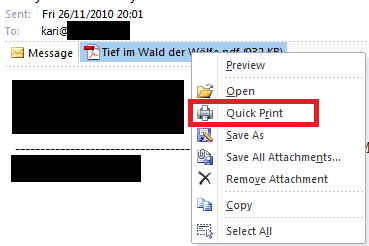
Am I missing something? Using Outlook 2010 in Windows 7, if I right click an email attachment file and choose Quick Print from context menu, it prints the said file. By default, without changing any of the file properties.
 

My Computer

Computer type
Laptop
Computer Manufacturer/Model Number
HP ENVY 17-1150eg
OS
Windows 10 Pro x64 EN-GB
CPU
1.6 GHz Intel Core i7-720QM Processor
Memory
6 GB
Graphics Card(s)
ATI Mobility Radeon HD 5850 Graphics
Sound Card
Beats sound system with integrated subwoofer
Monitor(s) Displays
17" laptop display, 22" LED and 32" Full HD TV through HDMI
Screen Resolution
1600*900 (1), 1920*1080 (2&3)
Hard Drives
Internal: 2 x 500 GB SATA Hard Disk Drive 7200 rpm
External: 2TB for backups, 3TB USB3 network drive for media
Cooling
As Envy runs a bit warm, I have it on a Cooler Master pad
Keyboard
Logitech diNovo Media Desktop Laser (bluetooth)
Mouse
Logitech Performance Mouse MX
Internet Speed
50/10 Mbps VDSL
Antivirus
Windows Defender 4.3.9431.0
Browser
Maxthon 3.5.2., IE11
I am confused as well. So you want to be able to print the email attachment without opening the file? Or this is just an example and you want to edit context menus in general?

See, if I right-click on a file in Windows Explorer, I get a context menu. More often than not (i.e. if Windows "knows" the file type) there is an option to print the file (without opening). This is exactly the same as in XP. If I choose this option, it simply sends the file to the default printer (although first it opens the file in the default application - this is the same as in XP as well).

Now, if I right-click on a file which is attached to an email, then I guess the context menu depends on the email client. I use either web-based email or Thunderbird. Neither have an option to print right away without saving, at least not that I can see. I don't use Outlook, so I will trust Kari on that one.

Indeed, I haven't seen anything resembling that advanced tab in File Types from XP that you are missing. The list of file associations, similar to that File Type tab in XP can be found in Control Panel -> Default Programs -> Set Associations. But there is no "advanced" tab or button there, at least in my system.

At the same time, I looked in that Advanced tab in my old XP laptop. Indeed you have three entries there for e.g. pdf and txt files (I looked up these two), open, print and printto. All three point to the same thing - Acrobat for pdf, Notepad for txt. But, whatever I try doing with either txt files or pdf files without opening them, is the same in both OSs - I right-click, get context menu, choose whatever option I need.

So, is your problem that you want to edit these context menus or that somehow your context menus got corrupted and you are missing one of entries there, such as print, and so again, you need to edit the context menus, or finally, is your question specific to email attachments?

I mean, Windows 7 is not exactly XP, there are some similarities, but it's a different OS. You don't expect to have exactly the same set of options here. You definitely have an opportunity to achieve your goal, but sometimes it's done slightly differently.
 

My Computer

Computer Manufacturer/Model Number
Dell Inspiron 530
OS
Windows 7 Ultimate (x64)
CPU
Q6600
Memory
8 GB
Graphics Card(s)
ATI Radeon HD 2600 XT
Monitor(s) Displays
Samsung Syncmaster P2450
Screen Resolution
1920x1080
Hard Drives
Samsung HD103UJ
Samsung HD501LJ
Internet Speed
25 Mb/s
I don't use Outlook, so I will trust Kari on that one.
Thanks for trusting me ;)

But, if you don't have the proof it didn't happen, as they say:

Outlook_Print_Attachment.png
 

My Computer

Computer type
Laptop
Computer Manufacturer/Model Number
HP ENVY 17-1150eg
OS
Windows 10 Pro x64 EN-GB
CPU
1.6 GHz Intel Core i7-720QM Processor
Memory
6 GB
Graphics Card(s)
ATI Mobility Radeon HD 5850 Graphics
Sound Card
Beats sound system with integrated subwoofer
Monitor(s) Displays
17" laptop display, 22" LED and 32" Full HD TV through HDMI
Screen Resolution
1600*900 (1), 1920*1080 (2&3)
Hard Drives
Internal: 2 x 500 GB SATA Hard Disk Drive 7200 rpm
External: 2TB for backups, 3TB USB3 network drive for media
Cooling
As Envy runs a bit warm, I have it on a Cooler Master pad
Keyboard
Logitech diNovo Media Desktop Laser (bluetooth)
Mouse
Logitech Performance Mouse MX
Internet Speed
50/10 Mbps VDSL
Antivirus
Windows Defender 4.3.9431.0
Browser
Maxthon 3.5.2., IE11
All,

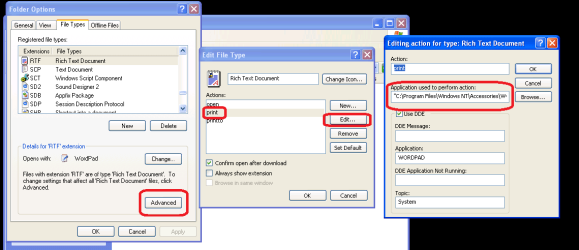
I apologize for the confusion, let me clarify. I currently do not have any challenges with the OS (Win 7), I had a challenge with a client (XP) with this scenario, this had raised my curiosity and I asked myself, where would I find this adjustment in Win 7. I looked and was not able to find it, I did see that they shared the same registry keys for the commands and assumed it was possible via the GUI.

To really shorten the question, is how can I find what is in the attached image (If I did it correct) in Windows 7.

Again, my apologies for the confusion.
 

Attachments

  • Advanced.PNG
    Advanced.PNG
    65 KB · Views: 253

My Computer

Computer Manufacturer/Model Number
Dell XPS 1645
OS
Windows 7 Pro (x64)
CPU
Inte Core i7 Q720 @ 1.60
Memory
4Gb
I'm still missing something, at least I think so.

You don't have to tell Seven anything like that. If you choose Print from menu or context menu, regardless which file type is in question, Seven opens the print dialog where you choose which printing device you want to use, and prints the file.
 

My Computer

Computer type
Laptop
Computer Manufacturer/Model Number
HP ENVY 17-1150eg
OS
Windows 10 Pro x64 EN-GB
CPU
1.6 GHz Intel Core i7-720QM Processor
Memory
6 GB
Graphics Card(s)
ATI Mobility Radeon HD 5850 Graphics
Sound Card
Beats sound system with integrated subwoofer
Monitor(s) Displays
17" laptop display, 22" LED and 32" Full HD TV through HDMI
Screen Resolution
1600*900 (1), 1920*1080 (2&3)
Hard Drives
Internal: 2 x 500 GB SATA Hard Disk Drive 7200 rpm
External: 2TB for backups, 3TB USB3 network drive for media
Cooling
As Envy runs a bit warm, I have it on a Cooler Master pad
Keyboard
Logitech diNovo Media Desktop Laser (bluetooth)
Mouse
Logitech Performance Mouse MX
Internet Speed
50/10 Mbps VDSL
Antivirus
Windows Defender 4.3.9431.0
Browser
Maxthon 3.5.2., IE11
As I said in the previous post, to the best of my knowledge there is no such setting in Windows 7.

To be honest, I don't see a point in having it, unless you want to have one default program to open the file and another program to handle the default printing. But I don't see what difference does it make, which program handles the printing, as long as the file gets printed.

In Windows 7 this can be done from various menus and context menus. Sometimes the files gets sent directly to the default printer, sometimes it opens a print dialog for you so that you can choose the printer yourself. I believe this depends on the setting in the program that opens files by default.
 

My Computer

Computer Manufacturer/Model Number
Dell Inspiron 530
OS
Windows 7 Ultimate (x64)
CPU
Q6600
Memory
8 GB
Graphics Card(s)
ATI Radeon HD 2600 XT
Monitor(s) Displays
Samsung Syncmaster P2450
Screen Resolution
1920x1080
Hard Drives
Samsung HD103UJ
Samsung HD501LJ
Internet Speed
25 Mb/s
OK great, thanks for all of your input and time. Hopefully I will not have to ever cross this bridge.
 

My Computer

Computer Manufacturer/Model Number
Dell XPS 1645
OS
Windows 7 Pro (x64)
CPU
Inte Core i7 Q720 @ 1.60
Memory
4Gb
Use nirsoft FileTypesMan

I had EXACTLY the same problem when trying to pass parameters to perl.exe. In Windows XP, I could associate Perl extensions with:

PHP:
C:\strawberry\perl\bin\perl.exe "%1" %*

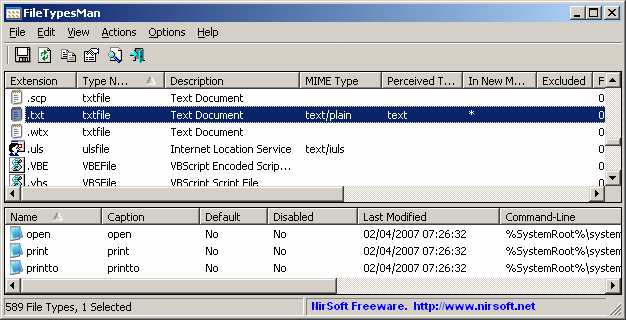
which passes all command-line arguments from foo.pl to perl.exe foo.pl. In Windows 7, there is no UI for advanced file associations options, but I found a freeware utility that provides one:

NirSoft FileTypesMan

filetypesman.gif


This solves a problem that bugs a bunch of Perl users - https://rt.cpan.org/Ticket/Display.html?id=66039

PS: To the person who said,
To be honest, I don't see a point in having it, unless you want to have one default program to open the file and another program to handle the default printing. But I don't see what difference does it make, which program handles the printing, as long as the file gets printed.

That's a very narrow viewpoint. Maybe you want one program to launch a file (e.g. an interpreter) and another one to edit it (e.g. an IDE).
 

My Computer

OS
Windows 7 Professional x64
CPU
Core i5
Memory
4GB
Hard Drives
Kingston SSD
Sorry for re-opening this topic, but this is my problem as well.
In XP, you had the ability to create your own associations with parameters, etc, AND the option of re-ordering and setting the default.
My use is that I just DON'T want to open a pdf file by default, I want to print it... Ie, the user clicks, it ends up on the printer (and if they want to view it, then they must use right-click) - remember users-are-users.
 

My Computer

OS
Windows 7 Home Premium 64bit.
Sorry for re-opening this topic, but this is my problem as well.
In XP, you had the ability to create your own associations with parameters, etc, AND the option of re-ordering and setting the default.
My use is that I just DON'T want to open a pdf file by default, I want to print it... Ie, the user clicks, it ends up on the printer (and if they want to view it, then they must use right-click) - remember users-are-users.

Can't help you, but while using XP, could you actually print a .pdf without opening the PDF app first?
 

My Computer

OS
Windows 7 Ultimate x64
I'll have to check at my workplace tomorrow (they're still dark-ages).
But my memory is that you can (using Advanced) set the default to NOT be Open. I believe that if I set it to print, it does just send the PDF to the printer without displaying Adobe Reader. But it just may open Adobe in the background.
User experience is what I'm trying to improve, as they get real peeved at having to click to get it displayed and then click again to print - actually they often display and wonder why it hasn't appeared on the printer!!!
 

My Computer

OS
Windows 7 Home Premium 64bit.
Yeah, I remember the Advanced menu where you could manipulate the options and the default, but I've always assumed it was the program's install routine that initially set them up. And I think it was dependent on the program itself as to whether or not the feature was supported, so going into the Advanced settings and modifying the options may or may not be successfull.

That said, I've not run across any GUI in w7 that's comparable to XP's Advanced menu.

I have Foxit on the w7 machine I'm using now and can print by right clicking a PDF file in Explorer.
 

My Computer

OS
Windows 7 Ultimate x64
Open-Drawing-read-only-from-Explorer

I know this is old but I don't think that the OP got a satisfactory answer. I believe that I have the same quest to find the ADVANCE tab for file types as it occurred in XP.

I am trying to find a win 7 version to this XP solution:

Open Drawing read-only from Explorer

Evidently, one can (or could in XP) set up a right click option pointing to a batch file that would give the user a right click option to open a file (a DWG file) as read-only
 

My Computer

Computer type
PC/Desktop
OS
win 7 pro
Back
Top