Solved How fix "This disk doesn't contain a Windows-XP compatible partition"?

avirk

New member
Local time
12:43 PM
Messages
8
Location
India, Lucknow
How fix "This disk doesn't contain a Windows-XP compatible partition"?

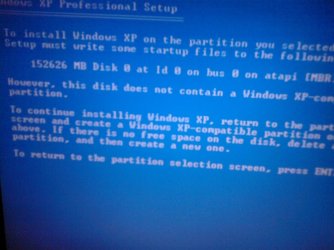
While trying to install Windows XP I faced a new problem:

When I deleted the partition and made a new one the system assigned the drive letter J: to C: and my bootable disk's drive letter became C:. I have tried it to disconnect my external 500 GB hard disk but the error didn't solve. I now get the following error:

Code:
This partition is not compatible to install Windows XP.

I'm able to open the Recovery Console, so is it possible to assign the drive letter through it? I'm in big trouble as I also can't install Windows 7.
I had a backup of windows 7 through which I got my system back but the problem is still exist that the setup is showing error continuously with installation of Windows XP.

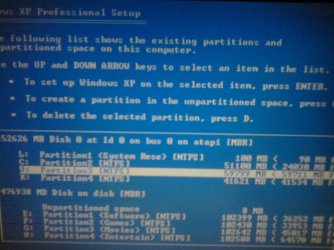
When I select the C: partition to install XP it gives the error and when trying on J: giving me the same error. While in Windows 7
C: is C: and J: is E:, K: is F:, E: is H:, F: is I:, G: is J:, H: is K:,
and the bootable USB is
at the time of boot while I've assign it
.

So now how can I fix it to get rid of from this problem.
 

Attachments
  • Photo0092.jpg
    Photo0092.jpg
    184.3 KB · Views: 32
  • Photo0091.jpg
    Photo0091.jpg
    157.2 KB · Views: 22

My Computer

Computer Manufacturer/Model Number
Acer Extensa 4620
OS
Windows 7 Ultimate 32Bit
Internet Speed
256 Kbps
It's a bit difficult to fully appreciate what your drive looks like from your description, but the following is true:

(1) WinXP must be installed as your first version of Windows to a partition which is "primary" and not "logical".

(2) If WinXP is going to be your first/main Windows, then the partition must also be marked as "active".

(3) This target "active" primary partition must be located on a hard drive that is marked as "hard drive #1" in your BIOS list of hard drives, and that it is placed properly in your "boot device sequence" list in the BIOS.


You can confirm (3) by getting into the BIOS (i.e. "setup") at machine boot time, using whatever method gets you to the BIOS for that machine. Correct as needed, if it's needed.

You can check and/or correct (1) and (2) by using Partition Wizard standalone boot CD. On the bottom of that page is a link to download an ISO image of the PW standalone boot CD that you burn, and then boot to. This is a very popular and powerful program and its interface should be intuitive, but do ask questions here if you don't see what is required.


NOTE 1: if you have a working Windows of some sort, can you post a screenshot from DISKMGMT of that drive? Please maximize the window and spread the columns so that all text is visible, before you take the screenshot. This would be very useful in properly diagnosing your situation and recommending the proper actions.

NOTE 2: the normal order of multi-Windows install is to do WinXP first, and then WinXP second. So let's focus on getting WinXP installed completely, before moving on to Win7... since it appears you were ready to do cold installs of both versions onto two partitions.
 

My Computer

Computer type
PC/Desktop
Computer Manufacturer/Model Number
Home-built, two systems (1) and (2)
OS
Windows 7 Pro x64 (1), Win7 Pro X64 (2)
CPU
i5-3350p 3.1Ghz/6MB-cache (1); E8400 3.0Ghz/6MB-cache (2)
Motherboard
ASUS P8Z77-V Pro (1); ASUS P5Q3 (2)
Memory
8GB PC3-12800 DDR3 (1); 4GB PC3-10600 DDR3 (2)
Graphics Card(s)
ATI HD7750 (1), (see TV cards); ATI R7 250 (2)
Sound Card
Realtek ALC892 HD Audio (1); Realtek ALC1200 HD Audio (2)
Monitor(s) Displays
Eizo HD2441W LCD, Eizo S2433W (1); Eizo 24" S2433W (2)
Screen Resolution
1920x1200, 1920x1200 (1); 1920x1200 (2)
Hard Drives
(1) 1TB SATA-II (7200RPM), 2x2TB SATA-III (7200RPM), 250GB SATA-III (10000RPM) for OS; 2x2TB external USB 3.0

(2) 320GB SATA-II (7200RPM), 750GB SATA-II (7200RPM), 150GB SATA-II (10000RPM) for OS; 2TB external USB 3.0
PSU
Nesteq ECS-6001 600W (1); Nesteq ECS-5001 500W (2)
Case
Acousti-Case 360 (1) and (2)
Cooling
Noctua NH-U12P SE2 for CPU, 2x120mm case fans (1) and (2)
Keyboard
IBM PS/2 (1) and (2)
Mouse
Logitech MX Revolution wireless (1); Microsoft wired (2)
Internet Speed
100mbps down / 10mbps up
Antivirus
Microsoft Security Essentials; Malwarebyte Anti-Malware Pro
Browser
Firefox
Other Info
Ceton InfiniTV 4-tuner cablecard-enabled TV card as well as Hauppauge HVR-2250 OTA/ATSC 2-tuner TV card in (1), running under Win7 WMC
Hi there

you might have ANOTHER problem if you are trying to install Windows XP on modern computers.

The Standard Windows XP system (even SP3) doesn't come equipped with SATA drivers so it won't find any disks. Modern MB's are all equipped these days with SATA rather than IDE ports for HDD's etc.

You don't normally get floppy drives any more so you can't press F5 (or is it F6) to load a driver at install time.


What you have to do is to slipstream the SATA drivers into the XP system before install.

If you go to a site called driverpacks they have explanations of how to build a slipstreamed installable XP system and have the SATA drivers too.


Downloads | DriverPacks.net

Look at the documents as it explains what to do.

If you still have a bootable IDE drive then you can install XP on that drive but IDE drives are a fast disappearing species.

Cheers
jimbo
 

My Computer

Computer type
PC/Desktop
Computer Manufacturer/Model Number
Custom built, several laptops HP/ASUS
OS
Linux CENTOS 7 / various Windows OS'es and servers
CPU
Intel i7 Intel i5
Memory
8GB, 16GB
Graphics Card(s)
On Motherboard
Sound Card
Realtek HD audio
Monitor(s) Displays
Apple Cinema display, Samsung LCD
Screen Resolution
1920 X 1080
Hard Drives
4 X 1TB SATA
Mouse
Toshiba wireless laser
Internet Speed
> 20MB up
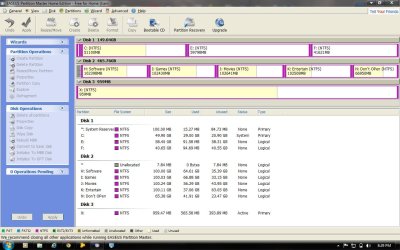
@dsperber I got the problem that my C: is Primary but not set to active and my bootable USB is primary and as well as set active. Here is A screen-shot of that using Easeus Partion manager. Now how can I set the partition active to install XP as my first OS.
 

Attachments

  • part.jpg
    part.jpg
    128.1 KB · Views: 79

My Computer

Computer Manufacturer/Model Number
Acer Extensa 4620
OS
Windows 7 Ultimate 32Bit
Internet Speed
256 Kbps
I take it you have Windows 7 installed to C:.

1) Remove USB Pen Drive, when installing Win XP.
2) Delete J: partition & re- Format.
 

My Computer

OS
ME/XP/Vista/Win7
The screenshot is a great help. But I have a few questions...

(1) Are you intending to install Win7 into what shows as E or F partitions (logical)? Both of them show as empty.

Or are they going to be for data? And if so, where had you intended to install Win7?

(2) The C partition (primary, but not "active") currently shows as about 60% occupied. Is WinXP currently installed there? Is that just left over from something else... data, or an old Windows?

(3) Based on that screenshot, what was your plan? Where did you want to put WinXP and where did you want to put Win7?

(4) What is that bootable 1GB USB drive, and why is it inserted at the moment?

(5) Will your Win7 (when you install it next) be 32-bit or 64-bit?


There's no reason you can't just set your C-partition to be "active", even if it isn't at the moment. I'm not familiar with Easeus (I use Partition Wizard myself) but I'm sure it has a function to "set active". Just because your bootable USB drive also shows "active" means nothing, except that you can't have it inserted if you want to boot/install to the hard drive.

In other words, the boot device sequence setup in your BIOS no doubt has your USB drive set first, and presumably that 150GB hard drive second. So if you remove the USB drive and set the C-partition "active", the BIOS will either boot to C if you have a bootable OS there, or the WinXP install will accept that partition for installation.

Again, I'm a bit confused as to how C got created and what's in it now that's taking up 60%, but you can simply set it "active" with Easeus and then the WinXP install should allow you to point to it (you'll also need to accept the FORMAT option to erase it to put a new WinXP there).
 

My Computer

Computer type
PC/Desktop
Computer Manufacturer/Model Number
Home-built, two systems (1) and (2)
OS
Windows 7 Pro x64 (1), Win7 Pro X64 (2)
CPU
i5-3350p 3.1Ghz/6MB-cache (1); E8400 3.0Ghz/6MB-cache (2)
Motherboard
ASUS P8Z77-V Pro (1); ASUS P5Q3 (2)
Memory
8GB PC3-12800 DDR3 (1); 4GB PC3-10600 DDR3 (2)
Graphics Card(s)
ATI HD7750 (1), (see TV cards); ATI R7 250 (2)
Sound Card
Realtek ALC892 HD Audio (1); Realtek ALC1200 HD Audio (2)
Monitor(s) Displays
Eizo HD2441W LCD, Eizo S2433W (1); Eizo 24" S2433W (2)
Screen Resolution
1920x1200, 1920x1200 (1); 1920x1200 (2)
Hard Drives
(1) 1TB SATA-II (7200RPM), 2x2TB SATA-III (7200RPM), 250GB SATA-III (10000RPM) for OS; 2x2TB external USB 3.0

(2) 320GB SATA-II (7200RPM), 750GB SATA-II (7200RPM), 150GB SATA-II (10000RPM) for OS; 2TB external USB 3.0
PSU
Nesteq ECS-6001 600W (1); Nesteq ECS-5001 500W (2)
Case
Acousti-Case 360 (1) and (2)
Cooling
Noctua NH-U12P SE2 for CPU, 2x120mm case fans (1) and (2)
Keyboard
IBM PS/2 (1) and (2)
Mouse
Logitech MX Revolution wireless (1); Microsoft wired (2)
Internet Speed
100mbps down / 10mbps up
Antivirus
Microsoft Security Essentials; Malwarebyte Anti-Malware Pro
Browser
Firefox
Other Info
Ceton InfiniTV 4-tuner cablecard-enabled TV card as well as Hauppauge HVR-2250 OTA/ATSC 2-tuner TV card in (1), running under Win7 WMC
What exactly is it you want to accomplish? Are you installing both OS's fresh, or just XP?

With separate HD's it is best to install one OS on each HD with the other HD unplugged and target HD set to boot first in BIOS setup. After installs plug back in both HDs, set preferred OS HD to boot first in BIOS setup, boot the other HD using one-time BIOS Boot Menu key. This keeps the HD's independent to come and go as you please, whereas configuring a Windows Boot manager interlocks them requiring surgery to remove one.

If you want to install XP to C, unplug all other HD's and peripherals, boot the CD, delete C during install, create a new partition and full format NTFS to apply XP formatting. Then install. However Disk Mgmt and the installers can do most of these operations for you, unless you want to move some partitions around on your other HD to make room for the second OS in which case I'd unplug all others and use PW CD.

I would not use Easeus Partition manager as we have seen total data loss using even it's boot CD. Use free Partition Wizard bootable CD which has never failed in thousands of partitioning operations here.
 
Ok guys I will try to set it "active" through Partition wizard. But after removing bootable USB I'm sitll not able to set it "active". And in my C: there is windows 7 which I'm currently using and wants to fresh install Windows XP to C: as primary Windows and then in dual boot I want to install Windows 7. I've tried to install Windows XP as slave but after console setup it always gives me error that:
hal.dll is missing
So I've to install XP first.

There is bootable USB at that moment because I want to give the information about that to all of you I don't want to miss a single event that can be cause to prevent help me. Even I had tried to set C: "active" through DISKPART but nothing takes effect so now how can i fix it. And I'll reply after using partition wizard. Thanks for your help.
 

My Computer

Computer Manufacturer/Model Number
Acer Extensa 4620
OS
Windows 7 Ultimate 32Bit
Internet Speed
256 Kbps
Can you make space on the second HD to try XP install with the Win7 HD unplugged? XP can take C then since it's on a separate HD booted via BIOS.

As you have the 100mb System Reserved partition it should be System Active unless you reinstalled Win7 to C which cut out the 100mb boot partition. Do you have the Repair My Computer link when you tap F8 Advanced Boot Options at boot?
 
Last edited:
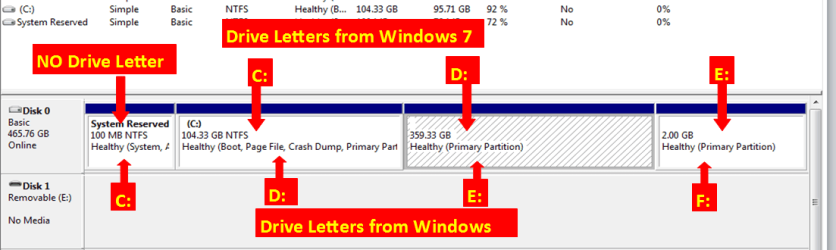
At this time your ACTIVE partition as seen by Win XP setup is L:, you can only have one ACTIVE partition per HD Drive.

Drive letters as seen from Windows 7 top, Drive letters as seen from Windows Xp bottom.

Drive Letters.PNG
 

My Computer

OS
ME/XP/Vista/Win7
Thanks for your help guys. Finally I overcome on this problem by taking a Windows 7 USB disk and boot from that and delete all my physical drive partitions and then I tried boot with the Windows XP bootable USB and made partition through it and yeah I succeeded.
 

My Computer

Computer Manufacturer/Model Number
Acer Extensa 4620
OS
Windows 7 Ultimate 32Bit
Internet Speed
256 Kbps
What app did you use to make your Win XP bootable USB?
 

My Computer

OS
ME/XP/Vista/Win7
@theog I used to make USB bootable Wintoflash and WinsteptoUSB for making them bootable. Is there another fine tool which can help me?
 

My Computer

Computer Manufacturer/Model Number
Acer Extensa 4620
OS
Windows 7 Ultimate 32Bit
Internet Speed
256 Kbps
Which one exactly did you use to make the bootable XP flash stick installer?
 
I use WinstepUsb to make bootable pendrive for Windows XP
 

My Computer

Computer Manufacturer/Model Number
Acer Extensa 4620
OS
Windows 7 Ultimate 32Bit
Internet Speed
256 Kbps
Back
Top