How to apply an image to a Folder

ak40saj

New member
Local time
2:27 PM
Messages
1
Hi all,
I found a way to apply images to folders, I have large collection of music/ videos and I know all xp users love the way folder display images but win7 has hard time applying this.

This step has to be applies manually on each folder but works for me. :D

Steps:

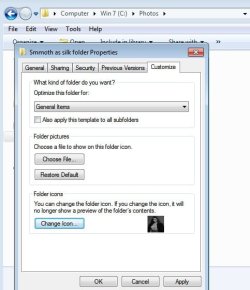
1.Right click on a Folder >> properties (select)

2. Properties windows (displayed) >> Select Customise (last tab)

3. Choose File.. (under Folder pictures) >> select Image(.jpg) (Note: All my images are .jpg Format, don’t have be to be called “Folder.jpg”)

4. Change Icon (under Folder icons) >> Restore Defaults >> Apply >> Ok.

That’s it. It should work.


http://img24.imageshack.us/img24/3756/foldereg1.jpg

Note: My folder is not customise to specific type, e.g. Music, pictures etc. I have left it as General Items.

(OS - Windows 7 Ultimate 32-bit (6.1, Build 7100) RC)
 

My Computer My Computer

Computer Manufacturer/Model Number
Custom
OS
Windows XP, 7.
CPU
Inter Dual Core 3.0GHz
Motherboard
Gigabyte P31-DS3L
Memory
2GB
Graphics Card(s)
nvidia 9600 GT 512 MB
Sound Card
Onboard
Monitor(s) Displays
20" SyncMaster 2053bw
Hard Drives
Hitachi 160GB (int), Western Digital 500GB (int), WD 250GB (ext)
PSU
600W
Work on my Windows 7 Ultimate x64. But why in normal situation ( Properties windows (displayed) >> Select Customise (last tab) >> Choose File.. (under Folder pictures) >> select Image(.jpg) ) it doesn't work? It shuld be ok... When I first time install W7 on my PC it works, but now when PC has reinstaled Windows for third time it doesn't. Maybe some settings are "broken"?

Excuse my english.

Greets!
 

My Computer My Computer

OS
Windows 7 Ultimate x64
CPU
AMD Phenom II x4 955BE
Motherboard
Gigabyte GA-970A-UD3
Memory
Kingston HyperX 4GB
Graphics Card(s)
Asus Radeon HD6850 DirectCU 1GB DDR5
Sound Card
Radeon Audio HD
Monitor(s) Displays
Samsung SyncMaster 2043SN
Screen Resolution
1600x900
Hard Drives
WD Caviar Blue WD10EALX
PSU
OCZ StealthXStream 2 600W
Case
Cooler Master Elite 430
another way to achieve this is to rename the album cover , movie poster etc ,
rename it to " folder" then it will display the same way as the customize method, on the odd occasion it wont then use the customize method.
 

My Computer My Computer

Computer Manufacturer/Model Number
Hewlett packard/p6512uk
OS
Microsoft Windows 7 Home Premium 64-bit 7600
CPU
IIx4 amd athelon 635 processor
Motherboard
FOXCONN 2AA9
Memory
2x2gb
Graphics Card(s)
ati radeon HD 5450
Sound Card
(1) Realtek High Definition Audio (2) AMD High Definition
Monitor(s) Displays
samsung lcd tv 32"
Screen Resolution
1360x 768
Hard Drives
(1) WDC WD10 01FAES-60Z2A0 SATA Disk Device (2) Maxtor OneTouch USB Device (3) ST310003 33AS USB Device (4) WD My Book 1111 USB Device
PSU
?
Cooling
air!
Keyboard
wireless hp
Mouse
wireless Hp,optical
Internet Speed
1.10mb/s
Antivirus
MSE
Browser
Firefox
This method is fine to. But it's not working with some folders ( why? )... Never mind...

And my question is why the "Windows 7" method ( Properties windows (displayed) >> Select Customise (last tab) >> Choose File.. (under Folder pictures) >> select Image(.jpg) ) doesn't work properly? It should working, but no, we need to do it in another freaking way...
 

My Computer My Computer

OS
Windows 7 Ultimate x64
CPU
AMD Phenom II x4 955BE
Motherboard
Gigabyte GA-970A-UD3
Memory
Kingston HyperX 4GB
Graphics Card(s)
Asus Radeon HD6850 DirectCU 1GB DDR5
Sound Card
Radeon Audio HD
Monitor(s) Displays
Samsung SyncMaster 2043SN
Screen Resolution
1600x900
Hard Drives
WD Caviar Blue WD10EALX
PSU
OCZ StealthXStream 2 600W
Case
Cooler Master Elite 430
This method is fine to. But it's not working with some folders ( why? )... Never mind...

And my question is why the "Windows 7" method ( Properties windows (displayed) >> Select Customise (last tab) >> Choose File.. (under Folder pictures) >> select Image(.jpg) ) doesn't work properly? It should working, but no, we need to do it in another freaking way...

it should and does,
some time ago when i had vista i had a external drive that wouldnt change the folder image, when i upgraded to 7 it worked fine again,
are the folders you are trying to change on an external or the internal hd.
its possible you could run a sfc scan to see if it will help.
tutorial here...

SFC /SCANNOW Command - System File Checker - Windows 7 Forums
 

My Computer My Computer

Computer Manufacturer/Model Number
Hewlett packard/p6512uk
OS
Microsoft Windows 7 Home Premium 64-bit 7600
CPU
IIx4 amd athelon 635 processor
Motherboard
FOXCONN 2AA9
Memory
2x2gb
Graphics Card(s)
ati radeon HD 5450
Sound Card
(1) Realtek High Definition Audio (2) AMD High Definition
Monitor(s) Displays
samsung lcd tv 32"
Screen Resolution
1360x 768
Hard Drives
(1) WDC WD10 01FAES-60Z2A0 SATA Disk Device (2) Maxtor OneTouch USB Device (3) ST310003 33AS USB Device (4) WD My Book 1111 USB Device
PSU
?
Cooling
air!
Keyboard
wireless hp
Mouse
wireless Hp,optical
Internet Speed
1.10mb/s
Antivirus
MSE
Browser
Firefox
it should and does,
Yes it should but it doesn't work on my PC.

some time ago when i had vista i had a external drive that wouldnt change the folder image, when i upgraded to 7 it worked fine again,
are the folders you are trying to change on an external or the internal hd.
Internal HDD. Two weeks ago it worked on my PC to, but since i reinstall/format Windows it doesn't...

its possible you could run a sfc scan to see if it will help.
tutorial here...
SFC scan doesn't find anything...
 

My Computer My Computer

OS
Windows 7 Ultimate x64
CPU
AMD Phenom II x4 955BE
Motherboard
Gigabyte GA-970A-UD3
Memory
Kingston HyperX 4GB
Graphics Card(s)
Asus Radeon HD6850 DirectCU 1GB DDR5
Sound Card
Radeon Audio HD
Monitor(s) Displays
Samsung SyncMaster 2043SN
Screen Resolution
1600x900
Hard Drives
WD Caviar Blue WD10EALX
PSU
OCZ StealthXStream 2 600W
Case
Cooler Master Elite 430
have you tried to change a folder since sfc scan, sometimes you have to run sfc a couple more times
 

My Computer My Computer

Computer Manufacturer/Model Number
Hewlett packard/p6512uk
OS
Microsoft Windows 7 Home Premium 64-bit 7600
CPU
IIx4 amd athelon 635 processor
Motherboard
FOXCONN 2AA9
Memory
2x2gb
Graphics Card(s)
ati radeon HD 5450
Sound Card
(1) Realtek High Definition Audio (2) AMD High Definition
Monitor(s) Displays
samsung lcd tv 32"
Screen Resolution
1360x 768
Hard Drives
(1) WDC WD10 01FAES-60Z2A0 SATA Disk Device (2) Maxtor OneTouch USB Device (3) ST310003 33AS USB Device (4) WD My Book 1111 USB Device
PSU
?
Cooling
air!
Keyboard
wireless hp
Mouse
wireless Hp,optical
Internet Speed
1.10mb/s
Antivirus
MSE
Browser
Firefox
I run sfc scan five times and every time it's ok with my system. Still can't set folder image in proper way...
 

My Computer My Computer

OS
Windows 7 Ultimate x64
CPU
AMD Phenom II x4 955BE
Motherboard
Gigabyte GA-970A-UD3
Memory
Kingston HyperX 4GB
Graphics Card(s)
Asus Radeon HD6850 DirectCU 1GB DDR5
Sound Card
Radeon Audio HD
Monitor(s) Displays
Samsung SyncMaster 2043SN
Screen Resolution
1600x900
Hard Drives
WD Caviar Blue WD10EALX
PSU
OCZ StealthXStream 2 600W
Case
Cooler Master Elite 430
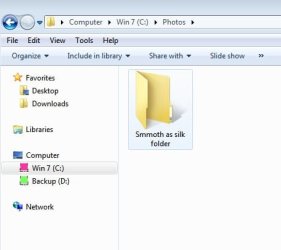
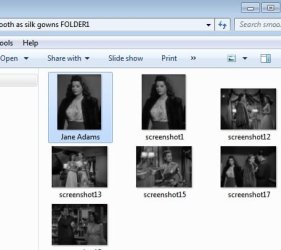
How I put a photo image on my folder

How I put a photo on my folder:
1. Select the photo you like.
2.Open the photo in Paint..right click on photo

and select open with..and choose paint.
3.Save the photo as a bitmap file.
4.Put the photo in the folder you want to change
or create new folder and slip in the bitmap image.
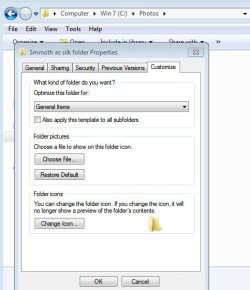
5.Go back and right click on folder and select

properties.
6. Select customize.
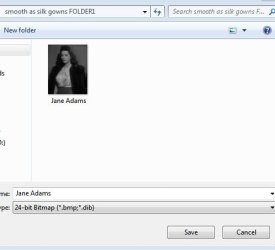
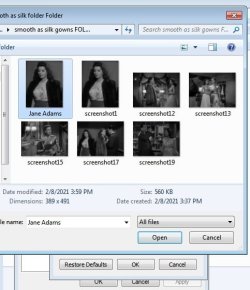
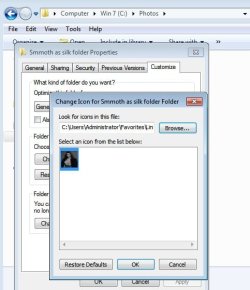
7. Select change icon..nothing else.
8. Browse to your bitmap image.
You will not see it as the save panel is looking for

an icon file. Go to the bottom of the save area and

select all files. Then you will see the bitmap file

and select that to save and apply and o.k. It will not work if you choose a jpeg file!!
Photo will now show on your folder..
One thing not to do is to copy and paste the

folder. If you copy and paste to same locatiion or

maybe anywhere else.. the copied folder will

show the default folder icon.
So to duplicate your new picture folder..select

copy to new folder. I choose desktop.
Then you may wish to name the folder whatever

you want but maybe put the word folder after the

name so you will not get it confused with a photo image itself.
 

Attachments

  • screenshot1.jpg
    screenshot1.jpg
    16.4 KB · Views: 15
  • screenshot2.jpg
    screenshot2.jpg
    22.8 KB · Views: 15
  • screenshot5.jpg
    screenshot5.jpg
    14.8 KB · Views: 15
  • screenshot6.jpg
    screenshot6.jpg
    34.8 KB · Views: 15
  • screenshot7.jpg
    screenshot7.jpg
    38.2 KB · Views: 15
  • screenshot8.jpg
    screenshot8.jpg
    36 KB · Views: 15
  • screenshot9.jpg
    screenshot9.jpg
    36.4 KB · Views: 15
  • screenshot10.jpg
    screenshot10.jpg
    22.6 KB · Views: 15

My Computer My Computer

Computer type
Laptop
OS
Wndows 7 32 bit Ultimate
Back
Top