How to Copy a Virtual XP machine

jgailey

New member
I have tried to make a copy of a virtual XP machine for backup purposes, but the new Virtual machine will not open. Any Ideas on the correct procedure to make a copy of an existing virtual machine?
 

My Computer

Computer Manufacturer/Model Number
Dell
OS
Windows 7 RC
Motherboard
Intel Xeon 5400
Memory
8GB
Graphics Card(s)
Nvidea 260
Monitor(s) Displays
2
Hard Drives
2 x 1 TB SATA
Hello, jpgailey, and welcome to SevenForums, The Ultimate Windows 7 site.

Every virtual hard drive (vhd) created with Virtual PC consists of three files if it is turned off, or of four files if it is hibernated or running. The file extensions for these files are:

  • .vhd = Virtual Machine virtual hard drive image
  • .vmc = Virtual Machine settings file
  • .vsv = Virtual Machine saved state file
  • .vmcx = Virtual Machine description and registration settings
First three files are located in C:\Users\Your_Username\AppData\Local\Microsoft\Windows Virtual PC\Virtual Machines, the last one in C:\Users\Your_Username\Virtual Machines. The two latter files are created automatically; to make a copy of a Virtual Machine we only need .vhd and .vmc files. In this example we call the original virtual drive Windows XP Mode, and the copy we create Windows XP Mode- Copy. You can name all your virtual drives as you like, as long as you remember to modify the settings file as described here.

Copying Virtual XP or any other virtual hard disk created with Virtual PC is very easy and fast. Here's what you have to do:

  1. Turn off your Virtual XP, do not hibernate it
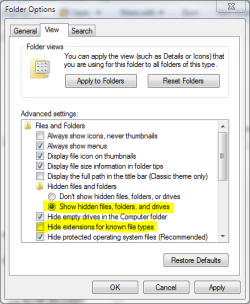
  2. Open Folder Options, choose Show hidden files, folders and drives. Uncheck Hide extensions for known file types
    Hide_Extension.PNG
  3. Goto C:\Users\Your_Username\AppData\Local\Microsoft\Windows Virtual PC\Virtual Machines
  4. Copy Windows XP Mode.vhd and Windows XP Mode.vmc files. To be sure you copy the right files you can open Folder Options and uncheck "Hide extensions for known file types" and click OK
  5. Paste files to the same folder. Windows adds word Copy to both filenames, so now you have two new files: Windows XP Mode - Copy.vhd and Windows XP Mode - Copy.vmc
  6. Open Windows XP Mode - Copy.vmc with Notepad. It is a xml-file, so you can edit it normally with Notepad
  7. Find the following string containing virtual drives name: <drive_type type="integer">1</drive_type>
    Name_of_vhd.PNG
  8. Under the <drive_type...> change the vhd-file name to Windows XP Mode - Copy.vhd both in <absolute type="string"> and <relative type="string">
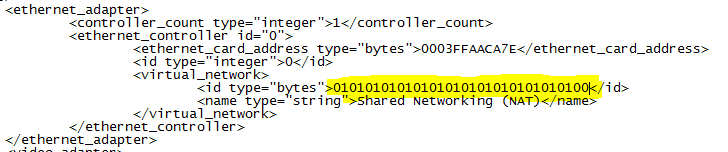
  9. Find the following place under <virtual_network> containing MAC-adress for Virtual XP's ethernet adapter: <id type="bytes">
    Ethernet.PNG
  10. To allow two copies of Virtual XP to connect to network simultaneously , we have to change the MAC-adress of the ethernet adapter to avoid MAC-adress conflict. Adress is given in hex, 0-9 and A-E. It is enough to change one bit. In this example we have changed the last bit from 1 to 0
  11. Save and close the file
  12. Go to C:\Users\Your_Username\Virtual Machines , copy Windows XP Mode.vmcx and paste it to same folder
  13. Open the file Windows XP Mode - Copy.vmcx with Notepad
  14. Change the vhd-file name to Windows XP Mode - Copy.vhd both in <primary_disk1 type="string"> and <vmc_path type="string">
    name_vmcx.PNG
  15. Save and close the file
  16. Open Folder Options and choose Don't show hidden files, folders or drives. Check Hide extensions for known file types and click OK.
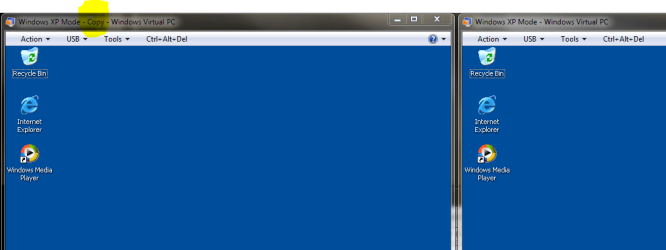
That's it. Now you can run two Virtual XP's simultaneously.

VirtualXP_copy.PNG

Have fun,

Kari
 
Last edited:

My Computer

Computer type
Laptop
Computer Manufacturer/Model Number
HP ENVY 17-1150eg
OS
Windows 10 Pro x64 EN-GB
CPU
1.6 GHz Intel Core i7-720QM Processor
Memory
6 GB
Graphics Card(s)
ATI Mobility Radeon HD 5850 Graphics
Sound Card
Beats sound system with integrated subwoofer
Monitor(s) Displays
17" laptop display, 22" LED and 32" Full HD TV through HDMI
Screen Resolution
1600*900 (1), 1920*1080 (2&3)
Hard Drives
Internal: 2 x 500 GB SATA Hard Disk Drive 7200 rpm
External: 2TB for backups, 3TB USB3 network drive for media
Cooling
As Envy runs a bit warm, I have it on a Cooler Master pad
Keyboard
Logitech diNovo Media Desktop Laser (bluetooth)
Mouse
Logitech Performance Mouse MX
Internet Speed
50/10 Mbps VDSL
Antivirus
Windows Defender 4.3.9431.0
Browser
Maxthon 3.5.2., IE11
Here is how I do it
1). Shut down original machine
2). Copy the large virtual hard drive file to another location
3). Create a new VM and give it a new hard drive of any size
4). Copy the large virtual hard drive file from the backup location into the new folder
5). Go into the new VM and delete it's hard drive from the hard drive
6). Choose add hardware, add an existing hard drive and point at the file that you just copied over
7). Start the new VM.
 

My Computer

Computer Manufacturer/Model Number
Self-Built in July 2009
OS
Windows 7 Ultimate x64
CPU
Intel Q9550 2.83Ghz OC'd to 3.40Ghz
Motherboard
Gigabyte GA-EP45-UD3R rev. 1.1, F12 BIOS
Memory
8GB G.Skill PI DDR2-800, 4-4-4-12 timings
Graphics Card(s)
EVGA 1280MB Nvidia GeForce GTX570
Sound Card
Realtek ALC899A 8 channel onboard audio
Monitor(s) Displays
23" Acer x233H
Screen Resolution
1920x1080
Hard Drives
Intel X25-M 80GB Gen 2 SSD
Western Digital 1TB Caviar Black, 32MB cache. WD1001FALS
PSU
Corsair 620HX modular
Case
Antec P182
Cooling
stock
Keyboard
ABS M1 Mechanical
Mouse
Logitech G9 Laser Mouse
Internet Speed
15/2 cable modem
Other Info
Windows and Linux enthusiast. Logitech G35 Headset.
Hi there
If you use a product like vmware just power off the vm and then on the menu choose CLONE VM>

You can either make a "linked" clone or a full clone. the full clone is what you need as the "linked" clone will still require access to the state of the original vm.


(I think virtual box has this facility as well).


Another method is to install acronis true image on your VM and back it up.

Then create another vm. install acronis true image and restore your original vm.

Cheers
jimbo
 

My Computer

Computer type
PC/Desktop
Computer Manufacturer/Model Number
Custom built, several laptops HP/ASUS
OS
Linux CENTOS 7 / various Windows OS'es and servers
CPU
Intel i7 Intel i5
Memory
8GB, 16GB
Graphics Card(s)
On Motherboard
Sound Card
Realtek HD audio
Monitor(s) Displays
Apple Cinema display, Samsung LCD
Screen Resolution
1920 X 1080
Hard Drives
4 X 1TB SATA
Mouse
Toshiba wireless laser
Internet Speed
> 20MB up
will this let you have more than 1 XP vm, if you copy the "xp mode" vm?
 

My Computer

Computer Manufacturer/Model Number
custom built
OS
Windows 7 RC 64bit
CPU
amd
Motherboard
msi
Memory
2gb
Graphics Card(s)
nvidia
Sound Card
audigy 2 zs
Monitor(s) Displays
21" lcd widescreen
Hard Drives
300gb in 3 partitions (1 for winxp, 1 for win7-64, and 1 for data)
Keyboard
old HP
Mouse
5 button
Internet Speed
cable
Other Info
xpmode installed and working :)
dualbooting with xp pro on same hdd
will this let you have more than 1 XP vm, if you copy the "xp mode" vm?
Yes. I have currently 3 separate, individual Virtual XP's for test purposes. Come back if you have any problems.

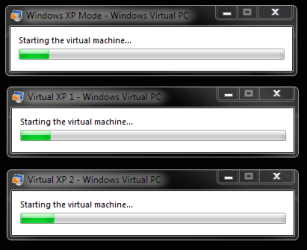
Three separate Virtual XP's starting, same time on same computer:

starting_virtual_machines.PNG


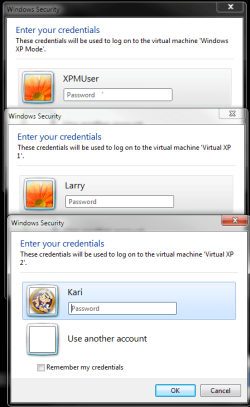
Three different users logging each on own XP:

login_three_virtualXPs.PNG


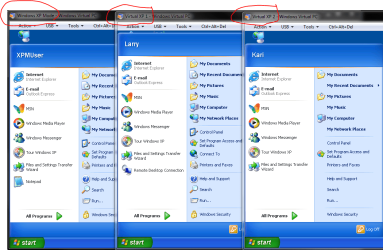
Three XP's running:

three_users_three_XPs.PNG


Kari
 

My Computer

Computer type
Laptop
Computer Manufacturer/Model Number
HP ENVY 17-1150eg
OS
Windows 10 Pro x64 EN-GB
CPU
1.6 GHz Intel Core i7-720QM Processor
Memory
6 GB
Graphics Card(s)
ATI Mobility Radeon HD 5850 Graphics
Sound Card
Beats sound system with integrated subwoofer
Monitor(s) Displays
17" laptop display, 22" LED and 32" Full HD TV through HDMI
Screen Resolution
1600*900 (1), 1920*1080 (2&3)
Hard Drives
Internal: 2 x 500 GB SATA Hard Disk Drive 7200 rpm
External: 2TB for backups, 3TB USB3 network drive for media
Cooling
As Envy runs a bit warm, I have it on a Cooler Master pad
Keyboard
Logitech diNovo Media Desktop Laser (bluetooth)
Mouse
Logitech Performance Mouse MX
Internet Speed
50/10 Mbps VDSL
Antivirus
Windows Defender 4.3.9431.0
Browser
Maxthon 3.5.2., IE11
Sweet. So copying XPMode wont mess things up? I was worried it might confuse win7 since you could pull apps from 3 different xpmode vms
 

My Computer

Computer Manufacturer/Model Number
custom built
OS
Windows 7 RC 64bit
CPU
amd
Motherboard
msi
Memory
2gb
Graphics Card(s)
nvidia
Sound Card
audigy 2 zs
Monitor(s) Displays
21" lcd widescreen
Hard Drives
300gb in 3 partitions (1 for winxp, 1 for win7-64, and 1 for data)
Keyboard
old HP
Mouse
5 button
Internet Speed
cable
Other Info
xpmode installed and working :)
dualbooting with xp pro on same hdd
Guten abend, s0me0ne. Willkommen in das SevenForum.

Of course every virtual session uses a lot of your computers resources, other than that there are no problems.

Kari
 

My Computer

Computer type
Laptop
Computer Manufacturer/Model Number
HP ENVY 17-1150eg
OS
Windows 10 Pro x64 EN-GB
CPU
1.6 GHz Intel Core i7-720QM Processor
Memory
6 GB
Graphics Card(s)
ATI Mobility Radeon HD 5850 Graphics
Sound Card
Beats sound system with integrated subwoofer
Monitor(s) Displays
17" laptop display, 22" LED and 32" Full HD TV through HDMI
Screen Resolution
1600*900 (1), 1920*1080 (2&3)
Hard Drives
Internal: 2 x 500 GB SATA Hard Disk Drive 7200 rpm
External: 2TB for backups, 3TB USB3 network drive for media
Cooling
As Envy runs a bit warm, I have it on a Cooler Master pad
Keyboard
Logitech diNovo Media Desktop Laser (bluetooth)
Mouse
Logitech Performance Mouse MX
Internet Speed
50/10 Mbps VDSL
Antivirus
Windows Defender 4.3.9431.0
Browser
Maxthon 3.5.2., IE11
Kari,

I was able to follow your directions, but the copy of the WinXP Mode has greyed out login credentials in the settigs. That makes me feel that it's not a fulluy independent virtual session. Is it necessary to duplicate the parent disk as well? My purpose is to test potential malware and be able to just delete one copy if need be and revert to a backup virtual XP. (I am aware of the undo disk feature, but I'd feel more comfortable simply having a full second clean copy.)

Thanks,
Mick
 

My Computer

OS
Windows 7 Professional
Hi Mick, welcome to the Seven Forums.

I'm running three separate XP virtual machines for testing purposes and they are all working well, indepently. Any copy of XP Mode is always looking the base (or parent) drive in C:\Program Files\Windows XP Mode and it should remain there. It is not necessary to copy the base when copying the XP Mode.

A bit more "easy to read" tutorial is found here.

Kari
 

My Computer

Computer type
Laptop
Computer Manufacturer/Model Number
HP ENVY 17-1150eg
OS
Windows 10 Pro x64 EN-GB
CPU
1.6 GHz Intel Core i7-720QM Processor
Memory
6 GB
Graphics Card(s)
ATI Mobility Radeon HD 5850 Graphics
Sound Card
Beats sound system with integrated subwoofer
Monitor(s) Displays
17" laptop display, 22" LED and 32" Full HD TV through HDMI
Screen Resolution
1600*900 (1), 1920*1080 (2&3)
Hard Drives
Internal: 2 x 500 GB SATA Hard Disk Drive 7200 rpm
External: 2TB for backups, 3TB USB3 network drive for media
Cooling
As Envy runs a bit warm, I have it on a Cooler Master pad
Keyboard
Logitech diNovo Media Desktop Laser (bluetooth)
Mouse
Logitech Performance Mouse MX
Internet Speed
50/10 Mbps VDSL
Antivirus
Windows Defender 4.3.9431.0
Browser
Maxthon 3.5.2., IE11
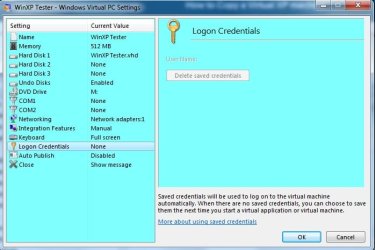
I've read the tutorial also, and your instructions are very clear. I've gotten a second copy to work, but as you can see from the screenshots on the settings I uploaded here, there's no separate login credentials like you've got for your three examples. In the second copy (WinXP Tester), Login Credentials is listed as "None" and the right pane is greyed out. How do you fix that? Thanks!
 

Attachments

  • Untitled 1.jpg
    Untitled 1.jpg
    89.8 KB · Views: 66
  • Untitled 2.jpg
    Untitled 2.jpg
    90.5 KB · Views: 53

My Computer

OS
Windows 7 Professional
OK, now I understand what you mean.

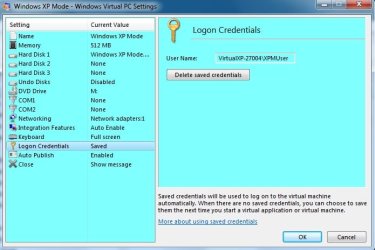
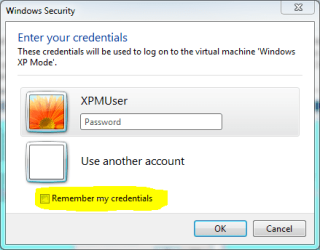
That greyed out thing means just that for that XP machine, no logon credentials are saved. Next time you log on to that machine you have to give a valid user account name with password. If you want to, you can choose to save credentials (see the image).

If you click Delete saved credentials on the other machine (your image left), also that is going to be greyed out and next time you have to give the username and password. At the moment credentials are saved on that machine so login don't ask the password.

Hope this helps you.

Kari
 

Attachments

  • XPM_credentials.PNG
    XPM_credentials.PNG
    44.1 KB · Views: 10

My Computer

Computer type
Laptop
Computer Manufacturer/Model Number
HP ENVY 17-1150eg
OS
Windows 10 Pro x64 EN-GB
CPU
1.6 GHz Intel Core i7-720QM Processor
Memory
6 GB
Graphics Card(s)
ATI Mobility Radeon HD 5850 Graphics
Sound Card
Beats sound system with integrated subwoofer
Monitor(s) Displays
17" laptop display, 22" LED and 32" Full HD TV through HDMI
Screen Resolution
1600*900 (1), 1920*1080 (2&3)
Hard Drives
Internal: 2 x 500 GB SATA Hard Disk Drive 7200 rpm
External: 2TB for backups, 3TB USB3 network drive for media
Cooling
As Envy runs a bit warm, I have it on a Cooler Master pad
Keyboard
Logitech diNovo Media Desktop Laser (bluetooth)
Mouse
Logitech Performance Mouse MX
Internet Speed
50/10 Mbps VDSL
Antivirus
Windows Defender 4.3.9431.0
Browser
Maxthon 3.5.2., IE11
Isnt a COPY of the VMCX file needed?

Kari,

In steps 12 and 13 you're instructing us to edit the ORIGINAL "Windows XP Mode.vmxc" file. Wouldn't that just redirect the ORIGINAL VM shortcut to the new files we copied in earlier steps instead of ADDING a new VM?

I don't understand how we'd have 2 VMs to chose from in the Virtual Machine Manager if we didn't add steps "11a" and "11b" to create a copy that would be edited. If I'm correct, I envision the instructions would be modified to look like this...

11a. COPY Windows XP Mode.vmcx.

11b. Paste the file to the same folder. Windows adds word Copy to the filename, so now you have a new file: Windows XP Mode - Copy.vmcx.

12. Open Windows XP Mode - Copy.vmcx in Notepad.

13. Change the vhd-file name to Windows XP Mode - Copy.vhd both in <primary_disk1 type="string"> and <vmc_path type="string">"


Please let me know where I'm going wrong in my thinking here.

Thanks,

jojov
 

My Computer

OS
Windows 7
No, you are not going wrong. I was. Simply forgot to tell to copy the vcmx file.

I'm going to edit OP and the tutorial.

Thanks.

Kari

Edit: Gave you some rep for pointing out my error. Welcome to the Seven Forums, I hope you are going to find it useful.
 

My Computer

Computer type
Laptop
Computer Manufacturer/Model Number
HP ENVY 17-1150eg
OS
Windows 10 Pro x64 EN-GB
CPU
1.6 GHz Intel Core i7-720QM Processor
Memory
6 GB
Graphics Card(s)
ATI Mobility Radeon HD 5850 Graphics
Sound Card
Beats sound system with integrated subwoofer
Monitor(s) Displays
17" laptop display, 22" LED and 32" Full HD TV through HDMI
Screen Resolution
1600*900 (1), 1920*1080 (2&3)
Hard Drives
Internal: 2 x 500 GB SATA Hard Disk Drive 7200 rpm
External: 2TB for backups, 3TB USB3 network drive for media
Cooling
As Envy runs a bit warm, I have it on a Cooler Master pad
Keyboard
Logitech diNovo Media Desktop Laser (bluetooth)
Mouse
Logitech Performance Mouse MX
Internet Speed
50/10 Mbps VDSL
Antivirus
Windows Defender 4.3.9431.0
Browser
Maxthon 3.5.2., IE11
You sure are knowledgeable, Kari.
 

My Computer

Computer Manufacturer/Model Number
Cyberpower, Inc.
OS
Windows 7 Professional (x64)
CPU
AMD Phenom II X4 955 Black Edition
Motherboard
Gigabyte AMD MA770T-UD3P AM3 DDR3 1666+/1333/1066
Memory
6GB (3 x 2GB) Kingston DDR3 1333 SDRAM
Graphics Card(s)
NVIDIA GeForce GTX 260
Sound Card
Onboard 7.1 Sound
Monitor(s) Displays
Samsung 24" SyncMaster 2422
Screen Resolution
1920 x 1200
Hard Drives
500GB Sata II 3.0GB 16MB 7200RPM,
Western Digital 1TB USB 2.0 External Hard Drive
PSU
Kingwin 700 Watt Power Supply
Case
Silver X-Cruiser 2 Mid No Power
Cooling
Asetek 120MM Watercooler
Keyboard
HTK-1001
Mouse
Razer Viper
Internet Speed
Incoming: 2496 kbps, Outgoing: 512 kbps
Sorry if i'm threadjacking, i didn't feel this question needed an entire new thread as its a very similiar question to the original. How can i install a completely seperate (NEW) windows xp mode? i already have one installed, but since have made several changes and installed several programs. now i want another xp mode that is clean/fresh install. can i just re-run the windows xp mode setup?
 

My Computer

Computer Manufacturer/Model Number
self built
OS
Windows 7 64bit
CPU
Intel i7 860
Motherboard
Asus P7P55D Pro
Memory
8GB Corsaid Dominator 1600mhz DDR3
Graphics Card(s)
Sapphire HD 4870 1GB GDDR5 256-bit
Monitor(s) Displays
21" Dell LCD
Hard Drives
OCZ Vertex EX 60GB SSD (OS)
150GB Western Digital VelociRaptor
PSU
Antec TruePower New TP-750
Case
Lian Li PC-P50B
Cooling
(2) 120mm intake fans, (2) 140mm exhaust fans, (1) 120mm exh
Other Info
Xigmatek HDT-SD964 CPU Cooler
NZXT Sentry 2 fan controller
Last edited:

My Computer

Computer type
Laptop
Computer Manufacturer/Model Number
HP ENVY 17-1150eg
OS
Windows 10 Pro x64 EN-GB
CPU
1.6 GHz Intel Core i7-720QM Processor
Memory
6 GB
Graphics Card(s)
ATI Mobility Radeon HD 5850 Graphics
Sound Card
Beats sound system with integrated subwoofer
Monitor(s) Displays
17" laptop display, 22" LED and 32" Full HD TV through HDMI
Screen Resolution
1600*900 (1), 1920*1080 (2&3)
Hard Drives
Internal: 2 x 500 GB SATA Hard Disk Drive 7200 rpm
External: 2TB for backups, 3TB USB3 network drive for media
Cooling
As Envy runs a bit warm, I have it on a Cooler Master pad
Keyboard
Logitech diNovo Media Desktop Laser (bluetooth)
Mouse
Logitech Performance Mouse MX
Internet Speed
50/10 Mbps VDSL
Antivirus
Windows Defender 4.3.9431.0
Browser
Maxthon 3.5.2., IE11
i have a problem i am suer i did the exact thing you showed to do. but when ever i try and open the copy of the vm it says that its not configured. please help!!!!!!
 

My Computer

OS
Windows 7 Ultimate x64
Can't run multiple WinXP modes

Hi Kari,
Great post, but I am not sure if MS has changed something since.
I have shut down the VM, made copy of entire directory, including the vmcx file. In the new directory I altered both XML files as you suggested. The VM indeed run, so I returned to the original directory to run copy of the original VM, but noticed that it already got the vsv file with the time I ran the copy VM.

Surely, running the original VM failed because the vsv file was locked already. Apparently somewhere inside the VM binary there is a reference to the filepathname of the vsv file? Is there a trick to change that?

Thank you in advance

Leohttp://mortgagebrokersdirectory.com.au
 

My Computer

Computer type
PC/Desktop
OS
Win 7 pro x32
Hi Leo, welcome to the Seven Forums.

As the post you are referring to is aver three and a half years old, quite a lot has changed after that.

The post was first converted to a tutorial: http://www.sevenforums.com/tutorials/21904-virtual-xp-machine-copy.html. A bit later I added this to the said tutorial:

   Note
Notice please:

This tutorial was written when we were still using first beta versions of Virtual PC and XP mode. This method to copy a VPC virtual machine was the most practical at that time. It still is a fully working and secure way to copy a virtual machine.

Today, with the current version of VPC and XP Mode, copying a virtual machine is much easier. Basically, all you have to do is to copy a vhd-file to another location on same computer and create a new virtual machine using an existing vhd as told here.

Kari
November 2010


The method still works when done exactly as told in the tutorial but it is not needed anymore.

Kari
 

My Computer

Computer type
Laptop
Computer Manufacturer/Model Number
HP ENVY 17-1150eg
OS
Windows 10 Pro x64 EN-GB
CPU
1.6 GHz Intel Core i7-720QM Processor
Memory
6 GB
Graphics Card(s)
ATI Mobility Radeon HD 5850 Graphics
Sound Card
Beats sound system with integrated subwoofer
Monitor(s) Displays
17" laptop display, 22" LED and 32" Full HD TV through HDMI
Screen Resolution
1600*900 (1), 1920*1080 (2&3)
Hard Drives
Internal: 2 x 500 GB SATA Hard Disk Drive 7200 rpm
External: 2TB for backups, 3TB USB3 network drive for media
Cooling
As Envy runs a bit warm, I have it on a Cooler Master pad
Keyboard
Logitech diNovo Media Desktop Laser (bluetooth)
Mouse
Logitech Performance Mouse MX
Internet Speed
50/10 Mbps VDSL
Antivirus
Windows Defender 4.3.9431.0
Browser
Maxthon 3.5.2., IE11
Back
Top