I have an issue with how Windows Explorer is sorting my files now and I can't figure it out despite searching for a solution.
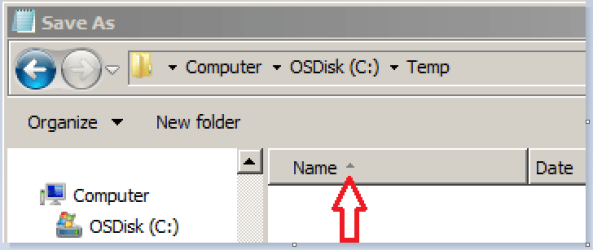
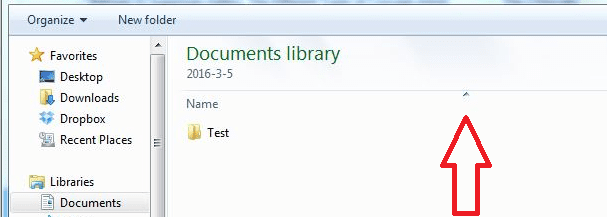
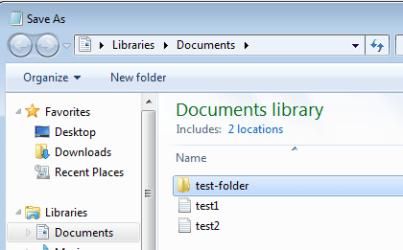
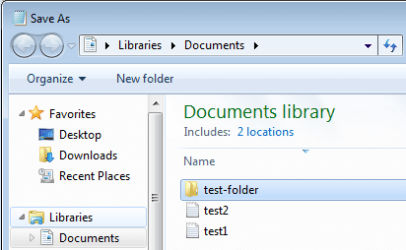
If I open Windows Explorer, then select any folder in the far left pane, then View > Sort by... > and select Name and Ascending, all my folders and files sort correctly with "A" at the top to "Z" at the bottom. However, If I get an file as an email attachment or print to pdf or generally try to save or save as ... any file, when I get the the Win Exp window to select where I want to save that file, all the files and folders are sorted as Descending. In that window, there's no View or option that I can see to re-set the sorting preferences.
How do I get it to sort in Ascending order again?
Thank you.
If I open Windows Explorer, then select any folder in the far left pane, then View > Sort by... > and select Name and Ascending, all my folders and files sort correctly with "A" at the top to "Z" at the bottom. However, If I get an file as an email attachment or print to pdf or generally try to save or save as ... any file, when I get the the Win Exp window to select where I want to save that file, all the files and folders are sorted as Descending. In that window, there's no View or option that I can see to re-set the sorting preferences.
How do I get it to sort in Ascending order again?
Thank you.
My Computer
- Computer type
- PC/Desktop
- Computer Manufacturer/Model Number
- Gateway DX4831
- OS
- Windows 7 Ultimate x64
- CPU
- i5
- Memory
- 8GB
- Hard Drives
- Western Digital 1TB