how to lose a partition on new HP laptop?

arty69

New member
Local time
2:57 PM
Messages
6
Hi

I bought an HP Envy with Windows 7 a couple of weeks ago. So far I have been happy, but something is preventing me from really getting started with this machine:

It has a very large drive (750 gb)

My idea was to make a couple of extra partitions with

a) programs
b) files (music and vids)

the whole point being that in case of virus or OS reinstalling I would safe much time, as programs and files would stay untouched.

The unpleasant surprise is that HP (and others) ship new laptops with
4 primary partitions.

In this case:

SYSTEM
C (OS)
D (Recovery)
HP TOOLS

I tried to make a fifth partition, but it's not possible (four primary partitions limitation)
I then burned recovery to 5 dvd's.

So now my options are:

1) delete recovery partition. Some say it's ok and safe, others advice against it (something with having to send pc to HP for authorisation in case of reinstall)
2) leave recovery partition alone and maybe try to make it bigger, put stuff here (programs and files). But I'd rather not to. Also I read that the recovery partition has to be unaltered.
3) delete HP Tools (but it contains Bios recovery software, so maybe make a bootable cd? is it possible?)
4) forget everything about my original plan, use Windows 7 imaging option and save images of my system on an external drive

which option would you recommend? Do I have other options?
This is really annoying, I am stuck so far.

Thanks in advance
 

My Computer My Computer

At a glance

Windows 7
OS
Windows 7
If I knew that my recovery disks worked, I'd be sorely tempted to hose all 4 partitions, download a legit ISO, burn it to a DVD, and reinstall with partitions of my own choice.

I suspect that might affect your warranty, but maybe you don't care---particularly if you can use your recovery disks to go back to a factory setup if you ever have to beg HP for anything.

I wouldn't put stuff in the recovery partition.

The system partition is presumably that little 100 or 200 mb thing that has your boot files. If so, you should be able to move those boot files to C and then get rid of that system partition.

I'd probably try to talk you out of putting programs anywhere but C, unless you are knee deep in games and they won't fit.

As far as the Tools partition, goes, I'd be suspicious of how necessary it is. I'm not sure what "BIOS recovery software" might be and I don't know what HP might stick in there.
 

My Computer My Computer

At a glance

Windows 7 Home Premium SP1, 64-bitIntel Skylake i5-6600K, not overclocked8 GB HyperX DDR4-2666 (2 x 4 GB)none; graphics are integrated on CPU
Computer type
PC/Desktop
Computer Manufacturer/Model Number
Ignatz Special; 4 speed manual gearbox; factory air conditioning; one of one
OS
Windows 7 Home Premium SP1, 64-bit
CPU
Intel Skylake i5-6600K, not overclocked
Motherboard
AsRock Z170M Extreme 4, micro ATX
Memory
8 GB HyperX DDR4-2666 (2 x 4 GB)
Graphics Card(s)
none; graphics are integrated on CPU
Sound Card
onboard: Realtek ALC1150; external: USB Behringer UF0-202
Monitor(s) Displays
Dell S2340M 23 inch IPS
Screen Resolution
1600 x 900
Hard Drives
System: Crucial MX100 series SSD, 128 GB;
Data: Samsung Spinpoint 103SJ, 1 TB;
Backup: WD Caviar Green WD30EZRX-00D8PB0, 3 TB
PSU
Rosewill SilentNight 500 watt fanless, semi-modular
Case
Antec Solo II
Cooling
Noctua NH-U12S; Noctua F12 intake, Noctua S12A exhaust
Keyboard
Microsoft 200 6JH-00001 USB
Mouse
Dell or Microsoft optical wired; USB
Antivirus
Microsoft Security Essentials and Malwarebytes Premium
Browser
Pale Moon
Other Info
All fans PWM; speeds at idle: CPU circa 500 rpm; intake circa 600 rpm; exhaust circa 600 rpm; CPU temps 27 idle and 47 C load in a warm room (27 C/81 F) when running Intel Extreme Tuning Utility stress test.
Unless you do not do much installing and customising your software then these factory recovery partitions are often useless. It might be best to ditch it and choose another method although as pointed out if you have to return the computer under warranty then you will get it back as bought and thus lose all that you have added.

One option, as mentioned and probably the safest is to lose the 100 Mb or so partition as in -

http://www.sevenforums.com/tutorials/209885-bootmgr-move-c-easybcd.html

Doing this will enable you to have further partitions but this will probably stop the recovery partition from working so another method will be required for back-ups.

Many here, including myself use Macrium Reflect free edition to make images of the system partition with other free software (I use SyncBack) to back-up data. The main problem with resizing the C: partition is that often files are stored at the end of the partition and these probably will not be moved using the Windows defrag - a necessary process before repartitioning if using the inbuilt system disk management options. Defraggler or the free trial version of PerfectDisk should be able to move these files. The free partition software from EASEUS will enable partitions to be resized also. I would suggest a C: partition of 60 - 100 GB ( I make do with 60 GB) and as pointed out it probably isn't worth it to separate the Programs out to another partition. I store all my data on another partition and also all data associated with programs that will tend to take up quite some space - e.g. Spotify or BBC iPlayer.

With only having one HDD this means that images of the OS must either be made to DVDs or to a USB drive or to the Network although the images can also be stored on another partition of the Laptop drive but hardware failure will lose all. The normal method for restoring images is to use a CD to boot from but it may be possible to boot from a USB stick if your system allows this.

It is quite possible to have a decent system and not use any of the supplied options but it is a bit of a leap of faith unless you do have experience with some of the necessary software and also have experience with restoring system images.

Hope that is of some help.

:) ;)
 

My Computer My Computer

At a glance

Windows 7 x64 SP1Athlon II x2 2154.0 GBOnboard
Computer Manufacturer/Model Number
Compaq desktop
OS
Windows 7 x64 SP1
CPU
Athlon II x2 215
Memory
4.0 GB
Graphics Card(s)
Onboard
Sound Card
Creative SB X-Fi Titanium HD (nice)
Monitor(s) Displays
24" Dell LCD
Screen Resolution
1900 x 1200
Hard Drives
320 GB, 500 GB and 750 GB 7200 rpm
PSU
430w
Keyboard
USB
Mouse
USB
Internet Speed
approx 10 Mbps
Thank you both!

well, I consider myself an experienced (non techy) pc user. Never the less, I prefer not to take chances.

I think I will keep the recovery partition

The system partition, pincushion, if moving it will impact the recovery partition, I think I will leave it alone

Putting programs on C drive, yes, I will do that.

I have downloaded Easeus , so maybe I will expand C to maximum place and put EVERYTHING there, giving up the media partition idea.

Or...maybe it is safe to delete HP tools partition?

I have an external usb hard drive, I will take an image of the whole system after I have installed all the extra software I need (a few progs),

Is the Windows 7 built in imaging good enough? Alternatives? I do have an old Ghost (2003), maybe an option?

Also: can you recommend a software (free or shareware) to sync data between different pc and drives? I now have 2 laptops, one backup drive, to pen drives for small files....keeping everthing in sync will be a challenge. I could use a program that just does that, help me sync , user friendly and intuitive would be a plus

thanks a bunch!
 

My Computer My Computer

At a glance

Windows 7
OS
Windows 7
See comments in bold

The system partition, pincushion, if moving it will impact the recovery partition, I think I will leave it alone.

I never have heard of any connection at all between the system reserved partition and recovery partition, but I'll let others comment. I think the system reserved partition is a prime candidate for removal, but you need to confirm that is all that partition is in your case. You would certainly have to transfer its system files to C.

I have downloaded Easeus , so maybe I will expand C to maximum place and put EVERYTHING there, giving up the media partition idea.

Hold your fire temporarily on that till you know exactly what your partitioning plans are. I think EaseUS is OK. Another recommended app for that is Partition Wizard bootable disk.

Or...maybe it is safe to delete HP tools partition?

You need to know what is on it first. You may need EaseUS or Partition Wizard or your manual to figure that out.

Is the Windows 7 built in imaging good enough? Alternatives?

It works, but is not the simplest thing to understand and is finicky. The common alternatives are Macrium Reflect, Acronis, and an EaseUS product.

Also: can you recommend a software (free or shareware) to sync data between different pc and drives?

The most common choice is probably SyncToy, but there are at least a half dozen others.
 

My Computer My Computer

At a glance

Windows 7 Home Premium SP1, 64-bitIntel Skylake i5-6600K, not overclocked8 GB HyperX DDR4-2666 (2 x 4 GB)none; graphics are integrated on CPU
Computer type
PC/Desktop
Computer Manufacturer/Model Number
Ignatz Special; 4 speed manual gearbox; factory air conditioning; one of one
OS
Windows 7 Home Premium SP1, 64-bit
CPU
Intel Skylake i5-6600K, not overclocked
Motherboard
AsRock Z170M Extreme 4, micro ATX
Memory
8 GB HyperX DDR4-2666 (2 x 4 GB)
Graphics Card(s)
none; graphics are integrated on CPU
Sound Card
onboard: Realtek ALC1150; external: USB Behringer UF0-202
Monitor(s) Displays
Dell S2340M 23 inch IPS
Screen Resolution
1600 x 900
Hard Drives
System: Crucial MX100 series SSD, 128 GB;
Data: Samsung Spinpoint 103SJ, 1 TB;
Backup: WD Caviar Green WD30EZRX-00D8PB0, 3 TB
PSU
Rosewill SilentNight 500 watt fanless, semi-modular
Case
Antec Solo II
Cooling
Noctua NH-U12S; Noctua F12 intake, Noctua S12A exhaust
Keyboard
Microsoft 200 6JH-00001 USB
Mouse
Dell or Microsoft optical wired; USB
Antivirus
Microsoft Security Essentials and Malwarebytes Premium
Browser
Pale Moon
Other Info
All fans PWM; speeds at idle: CPU circa 500 rpm; intake circa 600 rpm; exhaust circa 600 rpm; CPU temps 27 idle and 47 C load in a warm room (27 C/81 F) when running Intel Extreme Tuning Utility stress test.
I can recommend Syncback which does syncing as well as straight back-ups but as pointed out there are several free alternatives. Having used system imaging quite successfully on my previous XP system (Acronis) I just deleted the Recovery partition on my system to make new partitions but I would have deleted the 100 MB partition if I had known it might be quite easy. I don't actually know if the Recovery partition depends upon having the small partition but sod's law says it will! I made a copy (image) of the Recovery partition but it will never be used.

As I have a desktop I have added further HDDs and I image quite frequently and have restored used Macrium many times without any problems. Since I tend to tweak and customise quite a bit I have gone the route of having an up-to-date image (every 1-2 weeks) and I don't believe in OS reinstalls if you keep the system clean and lean. This philosophy has worked for many years on this and other systems. Although System Restore might work for many I find that a full system image is the safest approach as it tends to cater for most problems whether they are self-induced (as many of mine are) or malware issues. A full system image for my system only takes about 10 minutes.

;) :)
 

My Computer My Computer

At a glance

Windows 7 x64 SP1Athlon II x2 2154.0 GBOnboard
Computer Manufacturer/Model Number
Compaq desktop
OS
Windows 7 x64 SP1
CPU
Athlon II x2 215
Memory
4.0 GB
Graphics Card(s)
Onboard
Sound Card
Creative SB X-Fi Titanium HD (nice)
Monitor(s) Displays
24" Dell LCD
Screen Resolution
1900 x 1200
Hard Drives
320 GB, 500 GB and 750 GB 7200 rpm
PSU
430w
Keyboard
USB
Mouse
USB
Internet Speed
approx 10 Mbps
You can burn your recovery discs, and then burn a copy of the swsetup folder to a disc as well. This way, any apps you want can be reinstalled, even with a clean install. You can safely then delete the recovery partition and the HP Tools partition.

I just wiped out my wife's new laptop and did a clean install for her. I have two total partitions on the drive, both primary. One is for the system volume and her programs. The second is D, for Data and her user files. I have a personal rule that I never create more than two partitions on a drive.
 

My Computer My Computer

At a glance

Windows 7 Ultimate x64 SP1Intel Core i7-260012 GB Patriot Extreme DDR3-1333Nvidia GTX 470
OS
Windows 7 Ultimate x64 SP1
CPU
Intel Core i7-2600
Motherboard
Gigabyte GA-P67A-UD3P-B3
Memory
12 GB Patriot Extreme DDR3-1333
Graphics Card(s)
Nvidia GTX 470
Monitor(s) Displays
Dell UltraSharp 2209WA
Hard Drives
OCZ Agility3 240 GB, WD5001AALS, WD7501AALS
PSU
OCZ ModStream 700W
Case
CoolerMaster HAF 912 Advanced
Cooling
CoolerMaster Hyper 212 Plus
As DeaconFrost has mentioned - backing up the swsetup folder - I did this too and fortunately have not needed to reinstall any of the original software - uninstalled a lot of it actually.

;) :huh:
 

My Computer My Computer

At a glance

Windows 7 x64 SP1Athlon II x2 2154.0 GBOnboard
Computer Manufacturer/Model Number
Compaq desktop
OS
Windows 7 x64 SP1
CPU
Athlon II x2 215
Memory
4.0 GB
Graphics Card(s)
Onboard
Sound Card
Creative SB X-Fi Titanium HD (nice)
Monitor(s) Displays
24" Dell LCD
Screen Resolution
1900 x 1200
Hard Drives
320 GB, 500 GB and 750 GB 7200 rpm
PSU
430w
Keyboard
USB
Mouse
USB
Internet Speed
approx 10 Mbps
Guys

what is the swsetup partition you are referring to?
Is it the SYSTEM partition?

I am not sure, I dare make changes. I guess I could erase the recovery partition now I have burned the recovery discs. But many people advice against. I guess worst case scenario (system failure and faulty recovery disks) I could get the HP people to send me one, right?

Actually I am asking myself (and you): is it that great an idea in the first place making partitions for files and programs? I guess if you have the patience to manually reinstall progs in case of system failure, the partitions are not that needed.

And, in case I put EVERYTHING on the same (C) partition: will it result in HUGE image files? I will have 200+ gigs of video files.

Thank you a lot for the great advice
 

My Computer My Computer

At a glance

Windows 7
OS
Windows 7
I have two Envy17's, have had two more plus quite a few HP Pavilions, Probooks etc. This is how I prepare a HP laptop for my use. Notice that this is only my opinion, how I as a long time HP user do it, opinions of other users may be different. However, this is IMO the best way to get Windows plus drivers installed without none whatsoever bloatware or third party applications.


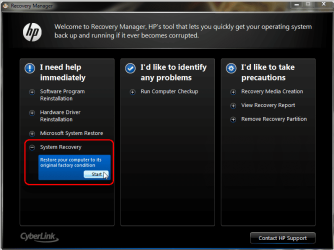
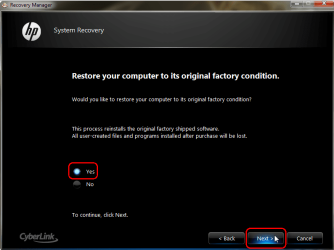
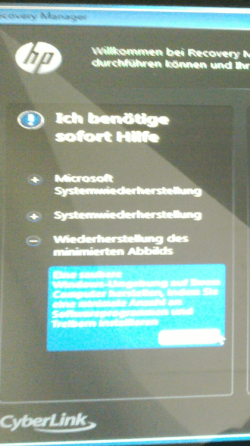
After first boot I always burn recovery disk set. That done, I run HP recovery manager once selecting the option "Restore the minimized image" like this:
  • Launch Recovery manager:
    .
    HP_Envy_Recovery_1.PNG
    .
  • Select System Recovery:
    .
    HP_Envy_Recovery_2.PNG
    .
  • Select Yes, click Next:
    .
    HP_Envy_Recovery_3.PNG
    .
  • After reboot, select Restore the minimized image (Envy used in this example bought in Germany, selection freely translated, it is the bottom most selection on left pane):
    .
    HP_Envy_Recovery_4.PNG
This restores a Windows image but just Windows and factory drivers, nothing else. If you want to do a complete factory recovery including all third party applications and trialware, select the option in the middle (Factory Recovery).

Now you have a barebone Windows installed and you can start playing with disk management as told before in this thread ;)

Kari
 

My Computer My Computer

At a glance

Windows 10 Pro x64 EN-GB1.6 GHz Intel Core i7-720QM Processor6 GBATI Mobility Radeon HD 5850 Graphics
Computer type
Laptop
Computer Manufacturer/Model Number
HP ENVY 17-1150eg
OS
Windows 10 Pro x64 EN-GB
CPU
1.6 GHz Intel Core i7-720QM Processor
Memory
6 GB
Graphics Card(s)
ATI Mobility Radeon HD 5850 Graphics
Sound Card
Beats sound system with integrated subwoofer
Monitor(s) Displays
17" laptop display, 22" LED and 32" Full HD TV through HDMI
Screen Resolution
1600*900 (1), 1920*1080 (2&3)
Hard Drives
Internal: 2 x 500 GB SATA Hard Disk Drive 7200 rpm
External: 2TB for backups, 3TB USB3 network drive for media
Cooling
As Envy runs a bit warm, I have it on a Cooler Master pad
Keyboard
Logitech diNovo Media Desktop Laser (bluetooth)
Mouse
Logitech Performance Mouse MX
Internet Speed
50/10 Mbps VDSL
Antivirus
Windows Defender 4.3.9431.0
Browser
Maxthon 3.5.2., IE11
Kari

thanks for the explanation! How do you like your Envys? I like mine. Only I resent that they could bother to give me a DVD and have me working for them.

The method you show is very interesting. Would I be able then to install individual progs?
See this Envy comes with Adobe's Photoshop Elements, Premiere Elements, Acrobat X. Those I'd like to keep.

Cheers
 

My Computer My Computer

At a glance

Windows 7
OS
Windows 7
what is the swsetup partition you are referring to?
Is it the SYSTEM partition?

NO, swsetup is a folder in the root of C:, with all the hardware drivers are in.

I am not sure, I dare make changes. I guess I could erase the recovery partition now I have burned the recovery discs. But many people advice against. I guess worst case scenario (system failure and faulty recovery disks) I could get the HP people to send me one, right?

Yes, you can.
You can Order HP Recovery Disks from here:
Compaq Mini CQ10-500 PC series -  HP Notebook PCs - Order Recovery Discs for Windows 7, Vista, or XP - c00810334 - HP Business Support Center
 

My Computer My Computer

At a glance

ME/XP/Vista/Win7
OS
ME/XP/Vista/Win7
Arty, full factory recovery installs all included third party software with Windows, for instance those you mentioned. Selecting my method, only installing Windows and its drivers but no third party software, you can still install those from the C:\SWSetup folder.

Please backup SWSetup before proceeding.

Yes, I like Envys. They are powerful, fast and reliable.

Kari
 

My Computer My Computer

At a glance

Windows 10 Pro x64 EN-GB1.6 GHz Intel Core i7-720QM Processor6 GBATI Mobility Radeon HD 5850 Graphics
Computer type
Laptop
Computer Manufacturer/Model Number
HP ENVY 17-1150eg
OS
Windows 10 Pro x64 EN-GB
CPU
1.6 GHz Intel Core i7-720QM Processor
Memory
6 GB
Graphics Card(s)
ATI Mobility Radeon HD 5850 Graphics
Sound Card
Beats sound system with integrated subwoofer
Monitor(s) Displays
17" laptop display, 22" LED and 32" Full HD TV through HDMI
Screen Resolution
1600*900 (1), 1920*1080 (2&3)
Hard Drives
Internal: 2 x 500 GB SATA Hard Disk Drive 7200 rpm
External: 2TB for backups, 3TB USB3 network drive for media
Cooling
As Envy runs a bit warm, I have it on a Cooler Master pad
Keyboard
Logitech diNovo Media Desktop Laser (bluetooth)
Mouse
Logitech Performance Mouse MX
Internet Speed
50/10 Mbps VDSL
Antivirus
Windows Defender 4.3.9431.0
Browser
Maxthon 3.5.2., IE11
I would not delete Recovery and also make your Recovery Disks so you have a secondary backup method.

To add new partitions, convert C to Logical using free Partition Wizard bootable CD.

You can then shrink it in Disk Mgmt to add as many sub-partitions as you wish. If you need to shrink it more than Disk Mgmt allows use PW boot CD.

I would not move Programs off the OS partition as they must be reinstalled in any case. However you can move user folders to a safe Data partition so that if Win7 becomes unbootable they will be current and intact after reimaging Win7 to C. You should back them up externally however. User Folders - Change Default Location
 
Hi Gregrocker

thanks a lot for the feedback.

The big question now is: does partitioning a single large laptop drive makes any sense / grant any advantage?

I must admit I am a bit unsure about what to do.

Making C logical is safe?
 

My Computer My Computer

At a glance

Windows 7
OS
Windows 7
Yes, making C Logical is the standard advice for over a year for HP's in our installation forum. Only the System partition must remain Primary, but you want the HP utility partitions to remain same so they function.

This is mainly user preference: the benefit of having your User folders separated out to another partition so your OS image becomes leaner. But since they need to be backed up against HD failure anyway you may find it easier to leave them on C.

Backup Complete Computer - Create an Image Backup
Backup User and System Files or drag User account or folders to external is easiest.
 
Thanks a bunch, Greg!

Now, can one make those operations with bootable flash drive? I don't have a cd to burn around the house and I really want this done asap
 

My Computer My Computer

At a glance

Windows 7
OS
Windows 7
You can write PW to flash stick using the paid version.

You can also use the installed Home free version but it is not as safe as the boot CD which is failsafe. I'd back up a Win7 image first: Backup Complete Computer - Create an Image Backup

Five good quality CD's are available for $2 on the wall rack at Walgreens near the camera dept.
 
Back
Top