Solved How to prevernt Task Scheduler from running overdue actions on resume

KumaraB

New member
Local time
3:16 PM
Messages
22
Prevent Task Scheduler from running overdue actions upon resume

With the Task Scheduler, I've created a task to hibernate at 7pm. (Action: shutdown -h). It works fine.

However problem occurs if I manually hibernate earlier. Upon turning on the computer the next day, the computer resumes, then hibernates immediately!

I can't find any setting to prevent that from happening. Can someone help?
 
Last edited:

My Computer My Computer

At a glance

Windows 7 Home Premium 64bit.
OS
Windows 7 Home Premium 64bit.
With the Task Scheduler, I've created a task to hibernate at 7pm. (Action: shutdown -h). It works fine.

However problem occurs if I manually hibernate earlier. Upon turning on the computer the next day, the computer resumes, then hibernates immediately!

I can't find any setting to prevent that from happening. Can someone help?

Task Scheduler has a setting that should do exactly that, reset task if the scheduled time is missed, but as much as I have tried I have never get it to work.

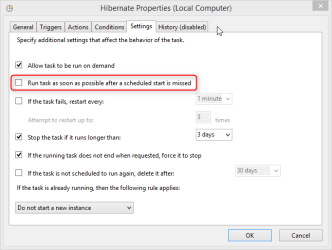
In task settings you can find a setting Run task as soon as possible after a scheduled start is missed:

2014-07-18_12h09_20.png

Disabling it should do exactly what you want to, it should "reset" the task when the scheduled time is missed and only run it again at the next scheduled time. However, I have tried to get this working in a certain task, have had no luck; it seems this setting is totally ignored by Task Scheduler (at least in Windows 8.1 I'm using).

However, you could use an easy workaround. Do this:
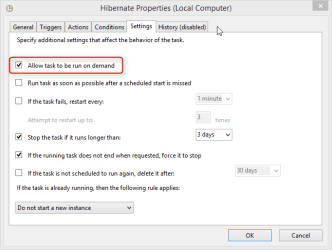
  1. Allow task to be run on demand:
    2014-07-18_12h09_21.png
  2. Create a new shortcut to your desktop to run this command (replace Hibernate with the name of your task):
    Code:
    schtasks.exe /run /TN [B][COLOR="DarkRed"]Hibernate[/COLOR][/B]
That's it. Now when you want to hibernate before the scheduled time do it by double clicking the shortcut you created instead of selecting Hibernate from Start Menu. The PC hibernates and task is marked to be run, your PC does no longer hibernate immediately when waked up after the scheduled time.

Kari
 

My Computer My Computer

At a glance

Windows 10 Pro x64 EN-GB1.6 GHz Intel Core i7-720QM Processor6 GBATI Mobility Radeon HD 5850 Graphics
Computer type
Laptop
Computer Manufacturer/Model Number
HP ENVY 17-1150eg
OS
Windows 10 Pro x64 EN-GB
CPU
1.6 GHz Intel Core i7-720QM Processor
Memory
6 GB
Graphics Card(s)
ATI Mobility Radeon HD 5850 Graphics
Sound Card
Beats sound system with integrated subwoofer
Monitor(s) Displays
17" laptop display, 22" LED and 32" Full HD TV through HDMI
Screen Resolution
1600*900 (1), 1920*1080 (2&3)
Hard Drives
Internal: 2 x 500 GB SATA Hard Disk Drive 7200 rpm
External: 2TB for backups, 3TB USB3 network drive for media
Cooling
As Envy runs a bit warm, I have it on a Cooler Master pad
Keyboard
Logitech diNovo Media Desktop Laser (bluetooth)
Mouse
Logitech Performance Mouse MX
Internet Speed
50/10 Mbps VDSL
Antivirus
Windows Defender 4.3.9431.0
Browser
Maxthon 3.5.2., IE11
That's so very smart. Kiitos paljon!

Anyway, I did try the same thing you expected by disabling that setting. Wonder if MS would issue an update to correct that bug if we report it?
 

My Computer My Computer

At a glance

Windows 7 Home Premium 64bit.
OS
Windows 7 Home Premium 64bit.
You are welcome :).

To run a task from command line is quite practical workaround, I use it myself always if a scheduled task needs sometimes to be run on demand. If you do it quite often then a shortcut which will run the task will do the trick.
 

My Computer My Computer

At a glance

Windows 10 Pro x64 EN-GB1.6 GHz Intel Core i7-720QM Processor6 GBATI Mobility Radeon HD 5850 Graphics
Computer type
Laptop
Computer Manufacturer/Model Number
HP ENVY 17-1150eg
OS
Windows 10 Pro x64 EN-GB
CPU
1.6 GHz Intel Core i7-720QM Processor
Memory
6 GB
Graphics Card(s)
ATI Mobility Radeon HD 5850 Graphics
Sound Card
Beats sound system with integrated subwoofer
Monitor(s) Displays
17" laptop display, 22" LED and 32" Full HD TV through HDMI
Screen Resolution
1600*900 (1), 1920*1080 (2&3)
Hard Drives
Internal: 2 x 500 GB SATA Hard Disk Drive 7200 rpm
External: 2TB for backups, 3TB USB3 network drive for media
Cooling
As Envy runs a bit warm, I have it on a Cooler Master pad
Keyboard
Logitech diNovo Media Desktop Laser (bluetooth)
Mouse
Logitech Performance Mouse MX
Internet Speed
50/10 Mbps VDSL
Antivirus
Windows Defender 4.3.9431.0
Browser
Maxthon 3.5.2., IE11
This worked. Then, for some unknown reason, the problem returned!

Perhaps it's because I meddled with something. I don't get it. Any ideas?
 

My Computer My Computer

At a glance

Windows 7 Home Premium 64bit.
OS
Windows 7 Home Premium 64bit.
This worked. Then, for some unknown reason, the problem returned!

Perhaps it's because I meddled with something. I don't get it. Any ideas?

I really cannot understand what you mean with this? The workaround I told you in post #2 is always valid, works always.

Here's the workaround explained:
  1. When computer is shutdown or hibernated before your hibernation task is scheduled to run, and computer is again turned on or waked up first after this scheduled time, the task which has missed its scheduled time will run as soon as it can, meaning your computer will hibernate as soon as it has been turned on or waked up
  2. To avoid this you simply create a shortcut for your hibernation task and allow the task to be run on demand
  3. Now when you want to hibernate before your scheduled hibernation task is supposed to be run, you do it from the shortcut
  4. This marks the task to be run and it is no longer run when you power on or wake up the computer
It really is this simple, I cannot see how you could meddle with it?

Kari
 

My Computer My Computer

At a glance

Windows 10 Pro x64 EN-GB1.6 GHz Intel Core i7-720QM Processor6 GBATI Mobility Radeon HD 5850 Graphics
Computer type
Laptop
Computer Manufacturer/Model Number
HP ENVY 17-1150eg
OS
Windows 10 Pro x64 EN-GB
CPU
1.6 GHz Intel Core i7-720QM Processor
Memory
6 GB
Graphics Card(s)
ATI Mobility Radeon HD 5850 Graphics
Sound Card
Beats sound system with integrated subwoofer
Monitor(s) Displays
17" laptop display, 22" LED and 32" Full HD TV through HDMI
Screen Resolution
1600*900 (1), 1920*1080 (2&3)
Hard Drives
Internal: 2 x 500 GB SATA Hard Disk Drive 7200 rpm
External: 2TB for backups, 3TB USB3 network drive for media
Cooling
As Envy runs a bit warm, I have it on a Cooler Master pad
Keyboard
Logitech diNovo Media Desktop Laser (bluetooth)
Mouse
Logitech Performance Mouse MX
Internet Speed
50/10 Mbps VDSL
Antivirus
Windows Defender 4.3.9431.0
Browser
Maxthon 3.5.2., IE11
Firstly, thanks for the response, Kari. I understand your explanation, I just didn't understand why Windows didn't do as expected. A possible good news is though is I now realise why it might have failed: I had the command line placed in a batch file because I wanted to run something before hibernation. Shall test just the shortcut and revert.
 

My Computer My Computer

At a glance

Windows 7 Home Premium 64bit.
OS
Windows 7 Home Premium 64bit.
I confirm that using purely the shortcut works. I suppose what I did was wrong because the batch file works within a command shell, thus a separate process. Now, to fulfil my preference, I have the task action set as the batch file instead. Should be okay now. Thanks.
 

My Computer My Computer

At a glance

Windows 7 Home Premium 64bit.
OS
Windows 7 Home Premium 64bit.
Just like to add that what I want, i.e. run a batch file where various processes are run before hibernation, is a bit more complicated. To cut the story short, here's what works:
1. Create a batch file which includes various processes including shutdown -h, and put it wherever you want. (I name it "Execute Hibernation Sequence.bat".)
2. Create scheduled task (with the triggers you want) pointing to that batch file. (I name it "Execute Hibernation Sequence".)
3. On the desktop, create a shortcut for the scheduled task: schtasks.exe /run /TN "Execute Hibernation Sequence". (You need to name the last part according to the name you give the scheduled task.)
 
Last edited:

My Computer My Computer

At a glance

Windows 7 Home Premium 64bit.
OS
Windows 7 Home Premium 64bit.
Back
Top