I have several cases where F8 Advanced Boot Tools no longer function.
Is there a way to repair or replace these without reinstalling OS?
Am going to try a Repair Install but want to ask first since someone may know. SFC doesn't do it.
Could this be the result of running bootsect command to reassert Win7 in a Dual Boot where XP still resides on the drive? There is some history with Dual Boots removing F8 options.
Theory is that bootsecting to remove Dual Boot corrupted BCD. Repair Install held changes in place, while Reimaging got back before them.
Strange thing happened with a third approach: Startup Repair repaired Partition Table, with root cause given as "No OS files on drive." Likely unrelated.
Reimaging only fixed it in the sense that it will fix any issue by getting back before it occurred.
As I'm pretty sure it has to do with bootsecting which corrupted the BCD to remove an XP Dual Boot, Bill's idea to run bootrec commands needs to be tried on this problem.
I was surprised that a Repair Install did not fix it after a 3 hour investment in it. I thought a Repair install would rebuild the BCD since it is a known method to correctly reconfigure a dual boot from Seven.
But then again it might not be BCD at all. Someone who knows for sure or finds out will hopefully update these threads as they are the top search results on Google.
With the manual method of useing the Bootrec commands while booted you can build a fresh BCD store on a drive that was unbootable to start with. That was gone over last year when custom installing a second RC install and later wanting it to be stand alone while the host drive saw everything there.
When seeing the 7 mbr trashed by Grub when custom installing a distro onto a flash drive the startup repair tool "failed after several attempts" to get 7 running again. One trip to the command prompt option to rebuild the BCD store and the use of the two Fix commands(Fixboot, Fixmbr) was the solution.
Sometimes the only thing that will work is a manual repair ta a command prompt despite the bonus of having seen the startup repair option made available in both Vista and 7.
A repair install for the most part replaces to refresh the main system files not so much geared to repair the boot sector. That's mainly due to already being booted into Windows when starting the OS repair. You are not seeing a fresh custom install which is a full install where the boot files and information are then added fresh.
W7 Ultimate x64/W10 Pro x64/W11 Pro Triple Boot - Main PC W7 Remote PC Micro ATX W7 Pro x64/W11 Pro
CPU
AMD Phenom II X4 975 Deneb 3.6ghz - 965 2nd remote pc
Motherboard
Gigabyte GA-790XTA-UD4-Gigabyte GA-880GM-D2H remote pc
Memory
Kingston Hyper X DDR3 1600 1.5v 16gb - Hyper X Fury 8gb 2nd
Graphics Card(s)
MSI HD Radeon 5750 1gb - MSI HD Radeon 6450 on mini tower
Sound Card
Creative Labs X-Fi Xtreme Audio P - Realtek onooard 2nd case
Monitor(s) Displays
ASUS VW199T-P 19" HP 2082a Main-HP 2082a 20" remote pc
Screen Resolution
Asus 1440x900 - HP 1600x900
Hard Drives
WD Black 1TB HD per OS W7, W10, and pending W11 presently on 500gb OS Drive - Pending Triple 1TB HDs for Spanned Storage/backup volume
Single 2TB external USB enclosure, single 1TB System 7 Host/Boot drive, Pending 8TB external HD for system image b
PSU
Corsair 750TX - primary / Corsair CX600 - second
Case
Antec 900-2 - SSD compatible / NZXT Vulcan mini tower
A repair install for the most part replaces to refresh the main system files not so much geared to repair the boot sector. That's mainly due to already being booted into Windows when starting the OS repair. You are not seeing a fresh custom install which is a full install where the boot files and information are then added fresh.
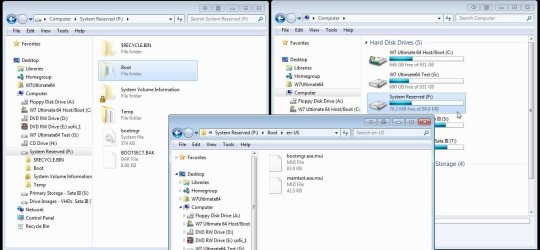
When assigning a drive letter following the unpack of an image with everything retained in the 100mb boot partition what was found was one folder full of help docs for different languages as well as the main BCD store itself. The repair tools are generally not seen as a regular F8 option but appear once Windows has a problem from what has been found so far.
There may be a manual method for seeing them availble on a regular basis that may involve a new DWord value in the registry or another means. The startup repair and "Last configuration known to work" are the two seen following a hard boot with or without the 100mb partition present.
Now ignoring the obvious being the recycle bin and system information folders the two screens here show what is seen when opening up the two default folders seen there. The boot folder contains the numerous sub folders for the various languages while the temp folder contains some log files.
The repair tools are still tucked away somewhere on the C primary itself likely in a system reserved archive you will find to be inaccessible being protected by the system and kept from user access by default. This is another reason why 7 can easily run without the 100mb and still see the startup repair and last config options appear.
The two main files found in each of those sub folders under "boot" are the "bootmgr.exe.mui" and "memtest.exe.mui" files and why memtest is seen available as an option at times being the only tool found there.
As far as booting live typically you wouldn't see the upgrade install option on the same version since upgrades over an existing installation have to be run from Windows. A custom install packs everything into the Windows.old folder.
oops! The 3rd image was supposed to go on last there. But you will notice that the memtest.exe.mui is missing from the other sub folders while seen in eng-us being the language selected when 7 was installed originally.
The first image of course was viewed while booted live in a distro showing the folders like the "boot" folder placed there when the 100mn partition was first created. Without the 100mb the bcd store is found in the same folder only at the root of C. With the 100mb present you'll notice the boot folder isn't seen on C at all there.
The startup repair tool obvious reviews the boot configuration information being stored as it's reference when performing the automatic repairs. The command prompt option on the other hand either repairs or replaces the old with a new store.
W7 Ultimate x64/W10 Pro x64/W11 Pro Triple Boot - Main PC W7 Remote PC Micro ATX W7 Pro x64/W11 Pro
CPU
AMD Phenom II X4 975 Deneb 3.6ghz - 965 2nd remote pc
Motherboard
Gigabyte GA-790XTA-UD4-Gigabyte GA-880GM-D2H remote pc
Memory
Kingston Hyper X DDR3 1600 1.5v 16gb - Hyper X Fury 8gb 2nd
Graphics Card(s)
MSI HD Radeon 5750 1gb - MSI HD Radeon 6450 on mini tower
Sound Card
Creative Labs X-Fi Xtreme Audio P - Realtek onooard 2nd case
Monitor(s) Displays
ASUS VW199T-P 19" HP 2082a Main-HP 2082a 20" remote pc
Screen Resolution
Asus 1440x900 - HP 1600x900
Hard Drives
WD Black 1TB HD per OS W7, W10, and pending W11 presently on 500gb OS Drive - Pending Triple 1TB HDs for Spanned Storage/backup volume
Single 2TB external USB enclosure, single 1TB System 7 Host/Boot drive, Pending 8TB external HD for system image b
PSU
Corsair 750TX - primary / Corsair CX600 - second
Case
Antec 900-2 - SSD compatible / NZXT Vulcan mini tower


 Likely unrelated.