how to remove boot options

samlee123

New member
Local time
1:34 PM
Messages
3
I installed Avanquest Perfect-Image SW used for backup and ran it, it asked to restart the computer and I did and it didn't boot correctly after restart. I had turned off the computer and powered back on. I can boot the computer now except that there are 3 boot selections for boot and only one will boot correctly. The third option is Linux (not sure why it's there). Now I have to select boot option
everytime I boot. How do I remove the boot option.
BTW, I ran BCDedit and it shows only one correct boot entry
I also tried sysem restore to before installing the Avanuest SW and it makes no difference
Any help would be appreciated
 

My Computer

Computer Manufacturer/Model Number
acer
OS
win7 64 bi
CPU
icore5
Motherboard
acer
You must have more than one operating system installed, what are the boot options?

Where did you purchase your computer?
 

My Computer

Computer type
Laptop
I suggest you Uninstall ALL Avanquest software. It is all JUNK software and any software that use to be good that they have acquired they have ruined. Powerdesk for one.

Do not buy or install any software from Avanquest as IMHO it is more of Malware then real software.

Good Luck and best wishes.
 

My Computer

OS
7 x64

My Computer

Computer type
PC/Desktop
Computer Manufacturer/Model Number
Self Assembled
OS
Microsoft Windows 10 Pro Insider Preview 64-bit
CPU
Intel(R) Core(TM) i3-4130 CPU @ 3.40GHz
Motherboard
Gigabyte Technology Co., Ltd. B85M-D3H
Memory
Corsair Vengence 4GB x2 (8.00GB Dual-Channel DDR3 @ 798MHz)
Graphics Card(s)
2047MB GeForce GTS 450 (ZOTAC International)
Sound Card
Onboard (Realtek High Definition Audio)
Monitor(s) Displays
LG Flatron E2040T
Screen Resolution
1600x900
Hard Drives
Western Digital 1 TB
Seagate 500 GB
PSU
Corsair VS550
Case
Cooler Master K380
Cooling
Cooler Master Seidon 120V Plus
Keyboard
Logitech MK260r
Mouse
Logitech MK260r
Internet Speed
PMPL Broadband
Antivirus
Windows Defender + MBAM
Browser
Firefox
Other Info
Dell Studio 15" Laptop
Click on start->Right click computer->properties-> advance system settings-> go to advance tab-> click on settings for startup and recovery-> uncheck the option that says time to display list of Operating systems
click on ok close the system properties windows and restart the computer and check if this works.
 

My Computer

OS
win7
Please post back a screenshot of your maximized Disk Management drive map and listings:

1. Type Disk Management in Start Search box.
2. Open Disk Mgmt. window and maximize it.
3. Type Snipping Tool in Start Search box.
4. Open Snipping Tool, choose Rectangular Snip, draw a box around full map and all listings.
5, Save Snip, attach using paper clip in Reply Box.

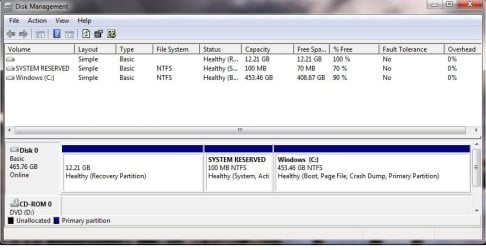
Tell us what is on each partition.

It's possible the backup crapware added a boot item for a backup capsule. Comb through Control Panel>Programs and Features closely to Uninstall any software you don't use or didn't intend to install. Remove any boot listings using the methods given in the last two posts.
 
Hello, thanks you all for your responses. Here are some more information that may help finding the problem:
#1 unchecking the option of displaying list of Operating systems didn't fix the problem. I also uninstalled the Avantquest SW, it is junk I agree - it won't run with
3 tera byte USB drive.
#2 Attached are the two pictures of the MSCONFIG boot and the Disk management
#3 There are actually 4 boot options listed in colored text on a black screen as shown below:
Boot from A:
Drive0: Primary 01 Win Vista/2008 NTFS SYSTEM RES
Primary 02 Win Vista/2008 NTFS WINDOWs
Primary 02 LINUX NTFS WINDOWs
 

Attachments

  • msconfig_boot.jpg
    msconfig_boot.jpg
    28.1 KB · Views: 27
  • disk.jpg
    disk.jpg
    49.7 KB · Views: 23

My Computer

Computer Manufacturer/Model Number
acer
OS
win7 64 bi
CPU
icore5
Motherboard
acer
Do one more thing?
Download EasyBCD Free Version , install it. Run it, click the "edit boot menu" tab, and upload the screenshot here.
Like this one .....
Capture.JPG

It will show the all listings in the Boot menu, hopefully.
 

My Computer

Computer type
PC/Desktop
Computer Manufacturer/Model Number
Self Assembled
OS
Microsoft Windows 10 Pro Insider Preview 64-bit
CPU
Intel(R) Core(TM) i3-4130 CPU @ 3.40GHz
Motherboard
Gigabyte Technology Co., Ltd. B85M-D3H
Memory
Corsair Vengence 4GB x2 (8.00GB Dual-Channel DDR3 @ 798MHz)
Graphics Card(s)
2047MB GeForce GTS 450 (ZOTAC International)
Sound Card
Onboard (Realtek High Definition Audio)
Monitor(s) Displays
LG Flatron E2040T
Screen Resolution
1600x900
Hard Drives
Western Digital 1 TB
Seagate 500 GB
PSU
Corsair VS550
Case
Cooler Master K380
Cooling
Cooler Master Seidon 120V Plus
Keyboard
Logitech MK260r
Mouse
Logitech MK260r
Internet Speed
PMPL Broadband
Antivirus
Windows Defender + MBAM
Browser
Firefox
Other Info
Dell Studio 15" Laptop
Set msconfig>Boot timeout to 00 seconds.

Select Skip Boot menu in EasyBCD Edit OS Menu tab.
 
Last edited:
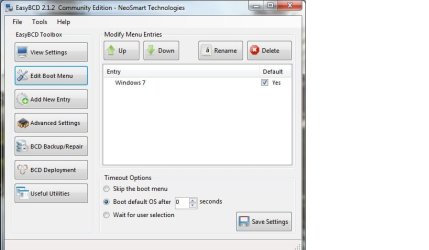
Here's the EasyBCD "edit boot menu"
Selecting the Skip Boot menu in EasyBCD makes no difference.
Although there was something difference when I tested in easyBCD selecting back to "Boot default OS after 8 seconds", the 4 boot options still showed and wouldn't
go away until I selected and hit <CR>, but this time there was another screen followed, the screens showed the default window 7 OS briefly then boot to windows.

BTW, forgot to mentioned MSCONFIG->BOOT is already set to time out 30 second.
 

Attachments

  • edit_Boot.jpg
    edit_Boot.jpg
    35.4 KB · Views: 12

My Computer

Computer Manufacturer/Model Number
acer
OS
win7 64 bi
CPU
icore5
Motherboard
acer
Really you need to GET RID of the Avanquest software. It has added something to the hard drive that is giving you those option. Nothing you are doing with EasyBCD is going to change those options. It is not in Windows or any file Windows uses.

xBlueRabbit if you look the Boot Menu section there is only one OS listed, Win 7.

Not sure if uninstalling that KWRAP Avanquest software will even get rid of those options.
There also may be an option in that AQ software to disable that boot menu. If there is then disable the boot menu then Uninstall that software.
 

My Computer

OS
7 x64
Really you need to GET RID of the Avanquest software. It has added something to the hard drive that is giving you those option. Nothing you are doing with EasyBCD is going to change those options. It is not in Windows or any file Windows uses.

xBlueRabbit if you look the Boot Menu section there is only one OS listed, Win 7.

Not sure if uninstalling that KWRAP Avanquest software will even get rid of those options.
There also may be an option in that AQ software to disable that boot menu. If there is then disable the boot menu then Uninstall that software.

It did look strange, with only one operating system listed, and then a boot menu for Linux and other operating systems.
 

My Computer

Computer type
Laptop
I do believe that the OP did remove the Avanquest software, so I was thinking the OP could do this:

Since, the operating systems are not being listed apart from the Windows 7 OS, and therefore each operating system can't be removed with the EasyBCD program.

http://www.sevenforums.com/tutorials/52129-disk-clean-clean-all-diskpart-command.html, and then a http://www.sevenforums.com/tutorials/219487-clean-reinstall-factory-oem-windows-7-a.html

What does everyone else think? I wouldn't want to a do a reinstall, when there are other solutions for the OP to try.

EDIT: I noticed an option, on the same section from the EasyBCD program, whereby you disable the boot menu, maybe that would help.
 

My Computer

Computer type
Laptop
You can try downloading CCleaner and run the registry cleaner. Links below mine and Blue Robot's sigs.
 

My Computer

Computer type
PC/Desktop
Computer Manufacturer/Model Number
Home Built Desktop By DataTech
OS
Windows 7 Ultimate X64 SP1
CPU
Intel i5-2550K, Differing ~4.4-4.8GHz No built in GPU
Motherboard
ASUS P8Z68-V PRO/GEN3
Memory
16GB G.Skill Sniper 1866MHz @ 2133MHz 2x8GB
Graphics Card(s)
ASUS GTX650TIB-DC2OC-2GD5, (650TI Boost)
Sound Card
Onboard Realtek 5-1
Monitor(s) Displays
Samsung P2570HD
Screen Resolution
1920x1080
Hard Drives
Samsung 840 Pro 256GB SSD for OS, 500GB Seagate Constellation (Enterprise drive) for Data
PSU
Corsair HX650W
Case
Inwin Dragon Rider
Cooling
Hyper 212 EVO w/two Noctua fans, push-pull, @1300 RPM
Keyboard
E-Z Eyes, bright yellow keys with large characters
Mouse
steelseries SENSEI Laser Pro Gaming
Internet Speed
48-51Mbs Mbs down, 11 Mbs up Xfinity Cable
Antivirus
Norton Internet Security 2013
Browser
IE 10, Opera, Pale Moon if needed
Other Info
4 case fans, LG BluRay-RE, ASUS DVD-RW, Mr. Fusion power supply, 1.21 gigawatts.
Download and install Visual BCD Editor - it shows complete BCD contents.
All present loaders in BCD are listed in left pane.
To delete any loader - right click on loader and select "Delete".

Complete contents but not structured you can get on admin command prompt:
bcdedit /enum all /v
 

My Computer

Computer Manufacturer/Model Number
Acer Notebook
OS
Win 8 RP, Win 7, XP
CPU
Intel
Back
Top