
HOW to shrink disk ?

Punked Boyz

New member
Member
Local time
6:04 PM
Messages
84
hi guyz.....

i have windows 7... and 320 gb hdd.....
my disk configuration is....hdd.PNG
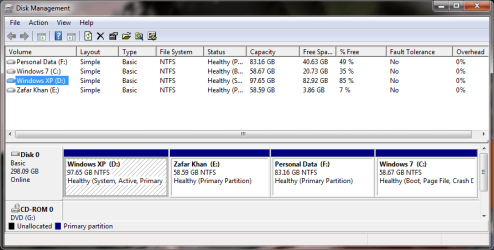
i want 2 shrink D volume by 25gb...how to do that ?
coz i dont want 2 lose data on that volume and other volume.....

:geek:
 

My Computer

Computer Manufacturer/Model Number
Assembled pc
OS
MS Windows 7 Ultimate 32-bit SP1
CPU
Intel Core i3 530 @ 2.93GHz
Motherboard
Intel Corporation DH55PJ (XU1)
Memory
2.0GB Single-Channel DDR3 @ 665MHz (9-9-9-24)
Graphics Card(s)
MSI Radeon HD 5770
Sound Card
Realtek High Definition Audio
Screen Resolution
1600*900
Hard Drives
313GB Western Digital WDC WD3200AAJS-00L7A0 ATA Device (SATA)
You can only have 4 Primary partitions.
 

My Computer

OS
ME/XP/Vista/Win7
You can use Disk management to do the shrink of D, however you will not be able to create a new partition there without being prompted to convert the HD to Dynamic which you DO NOT want to do. Nor can you resize E into the shrink space because Disk Mgmt cannot resize to the left.

To do anything with the space after shrinking it in Disk Management you will need to use free Partition Wizard bootable CD. Partition Wizard

Your choices are then to rightclick E then choose Modify>convert to Logical to create an Extended Logical partition which can have new sub-partitions added to it. Logical partitions are for data, as they cannot boot an OS.

The other choice is to simply rightclick E to Resize, then drag left grey border to the left to take up the shrink space into E. This will leave you with the maximum four Primary partitions

Let us know which you desire and we will give you the exact steps. You can burn the PW CD while you wait by rightclicking the ISO to burn with Windows Image Burner.
 
i just want 2 expand my E drive...coz it has less vacant space....plz suggest some easy way :(
 

My Computer

Computer Manufacturer/Model Number
Assembled pc
OS
MS Windows 7 Ultimate 32-bit SP1
CPU
Intel Core i3 530 @ 2.93GHz
Motherboard
Intel Corporation DH55PJ (XU1)
Memory
2.0GB Single-Channel DDR3 @ 665MHz (9-9-9-24)
Graphics Card(s)
MSI Radeon HD 5770
Sound Card
Realtek High Definition Audio
Screen Resolution
1600*900
Hard Drives
313GB Western Digital WDC WD3200AAJS-00L7A0 ATA Device (SATA)
Hello.

The only way would be to convert E: to an Extended partition/ Logical drive using the Partition Wizard Bootable Disk (PWBD) have a look at Option Four in this tutorial at the link below for an idea of the process but this is showing how to convert to Primary and you want to convert E: to an Extended/Logical.

Partition Wizard : Use the Bootable CD


First download the Partition Wizard Bootable Disk (PWBD) ISO file to the desktop, be sure to get the PWBD and not the installed version; scroll down to see the download link for the bootable CD ISO file at this link below.

Partition Wizard Free Bootable CD

Then use ImgBurn to burn the ISO to a CD, at no greater than 4x speed with a verify; it was designed for use and works best from a CD rather that a DVD then boot the created CD to make the changes.

ImgBurn Free ISO Burning Software
 

My Computer

Computer Manufacturer/Model Number
* BFK Customs *
OS
W 7 64-bit Ultimate
CPU
Intel Q9550 Yorkfield
Motherboard
ASUS P5Q Pro
Memory
8GB Dominator 8500C5D
Graphics Card(s)
ATI : XFX 5870
Sound Card
Realtek HD Audio 7-1
Monitor(s) Displays
1x 47" LCD HDMI & 3x 26" LCD HDMI
Screen Resolution
1920x1080P & 1920x1200
Hard Drives
1x 80GB Intel X25-M G2 SSD : 1x 500GB & 1x 640GB WD Caviar Black(s)
PSU
Corsair 620HX
Case
Cooler Master RC-690
Cooling
Tuniq Tower 120, 2x 140mm and 3x 120mm case fans
Keyboard
Microsoft 500
Mouse
Razer Diamondback 3G
Internet Speed
14 Mb/s
Other Info
1x Koutech 3Gb/s SATA HDD Hot Swap Rack
Boot PW CD after downloading and burning using steps above. Select 1 for screen res.

Rightclick on D, select Resize, drag right grey border to the left by as much space as you want to free up for E, click OK.

Next rightclick on E, select Resize, drag left grey border to the left to take up the space you just freed up from D, click OK, click Apply.
 
Back
Top